Adom Machine Pins, Fusion Library + Sample Board
Public Made by Adomby adom
One Fusion 360 .lbr with all four Adom press-fit machine pins (working 3D), plus a sample board (2D/3D/silkscreen) ganging all four together. Fully documented and rebuildable.
3D Model
Open in new tab ↗ Loads when you scroll to it. Unloads after 5 minutes in the background.
Contents
- What is in this library
- The library: all four pins in ONE .lbr
- The sample board: all four ganged together
- Download and use it
- Where the originals came from
- How to rebuild the whole thing
- 1. Generate the four .lbr from the KiCad sources (adom-lbr 2.4.0+)
- 2. Bind the real 3D, ONE pin at a time
- 3. Author the sample board (background, no dialogs)
- 4. Build the animated lead 3D (the board GLB)
- The 3D files, the part that matters
- If you import this .lbr and the 3D does not show (or shows a flat pad)
- The Fusion-bridge features that made this possible
- Skills used to build this
- Rebuild it fully: the skills + scripts in THIS repo
- Skills used to build this (Adom tooling)
README
markdownAdom Machine Pins, Fusion 360 Library + Sample Board
One Fusion 360 .lbr containing all four Adom press-fit machine pins (Medium/Large,
Standard/Short) with working 3D components, plus a sample board that gangs all four together in
2D, 3D, and silkscreen. It is a single library (not a library per pin), so you drop it into Fusion once
and place any of the four. Everything here was built by the AI driving Fusion in the background, and
this page documents the whole process so you can rebuild it or just download it.
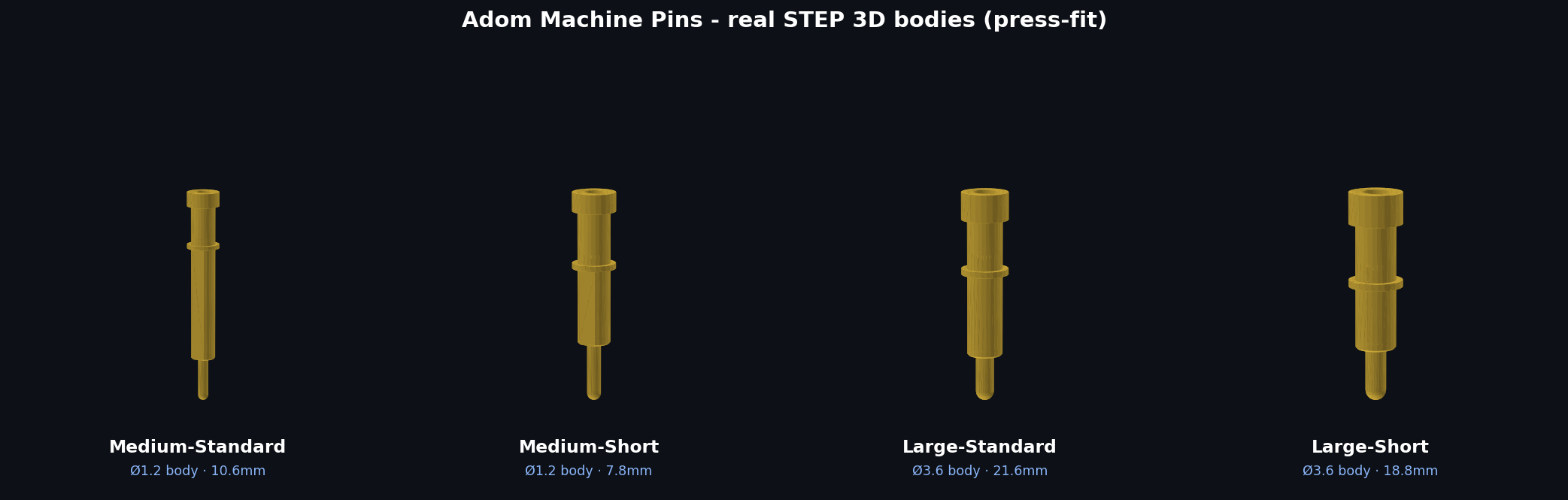
What is in this library
| Ref | Pin | Body OD (press-fit) | Drill (plated) | Pad | Annular ring | Height |
|---|---|---|---|---|---|---|
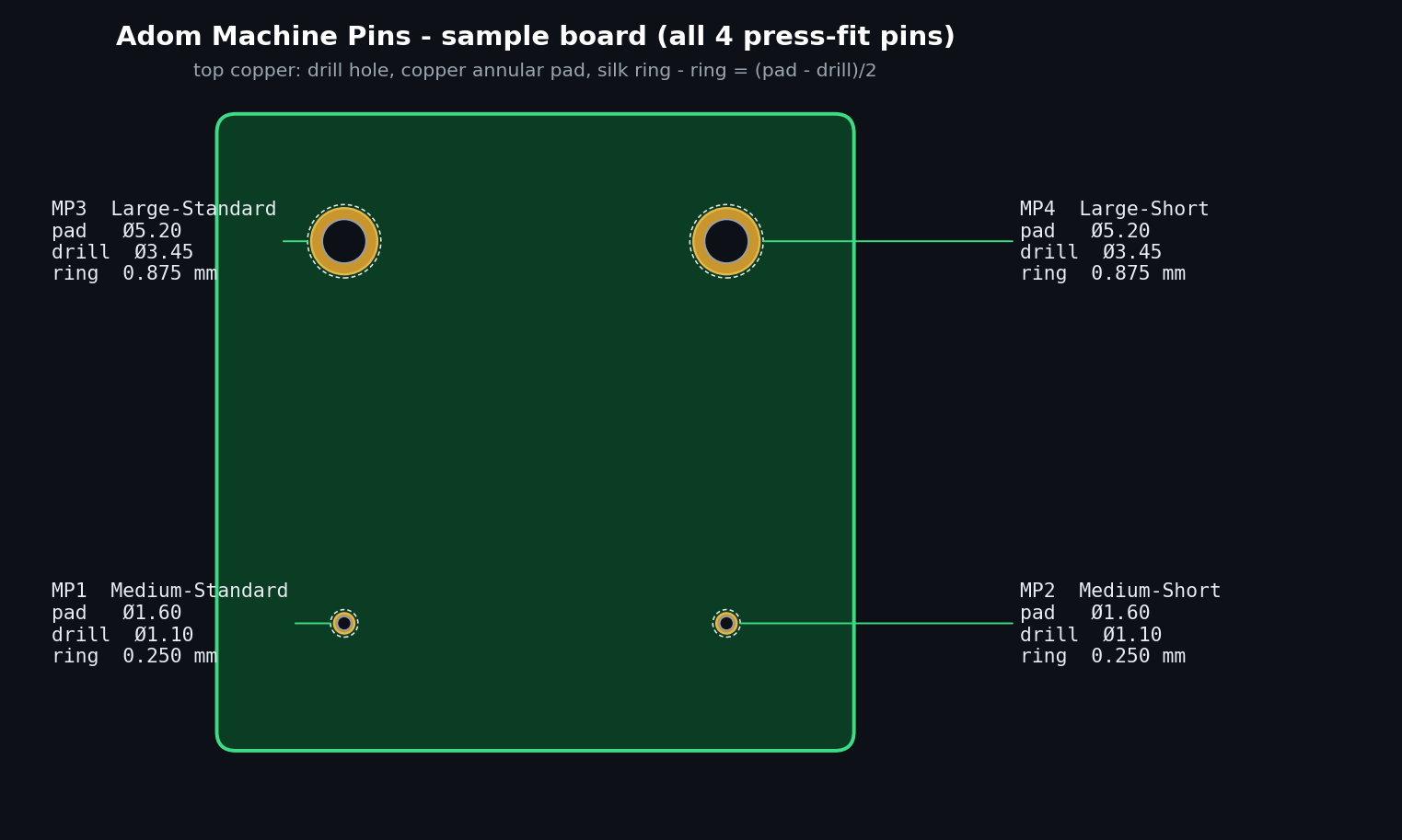
| MP-MED-STD | Medium-Standard | 1.20 mm | 1.10 mm | 1.60 mm | 0.250 mm | 10.6 mm |
| MP-MED-SHORT | Medium-Short | 1.20 mm | 1.10 mm | 1.60 mm | 0.250 mm | 7.8 mm |
| MP-LRG-STD | Large-Standard | 3.60 mm | 3.45 mm | 5.20 mm | 0.875 mm | 21.6 mm |
| MP-LRG-SHORT | Large-Short | 3.60 mm | 3.45 mm | 5.20 mm | 0.875 mm | 18.8 mm |
These are PRESS-FIT (Mill-Max style): the body OD is deliberately larger than the plated drill (Medium 0.10 mm interference, Large 0.15 mm). The undersized hole is correct, do not "fix" it to a clearance hole. Solder-assisted with 300 um jet paste on the annular ring.
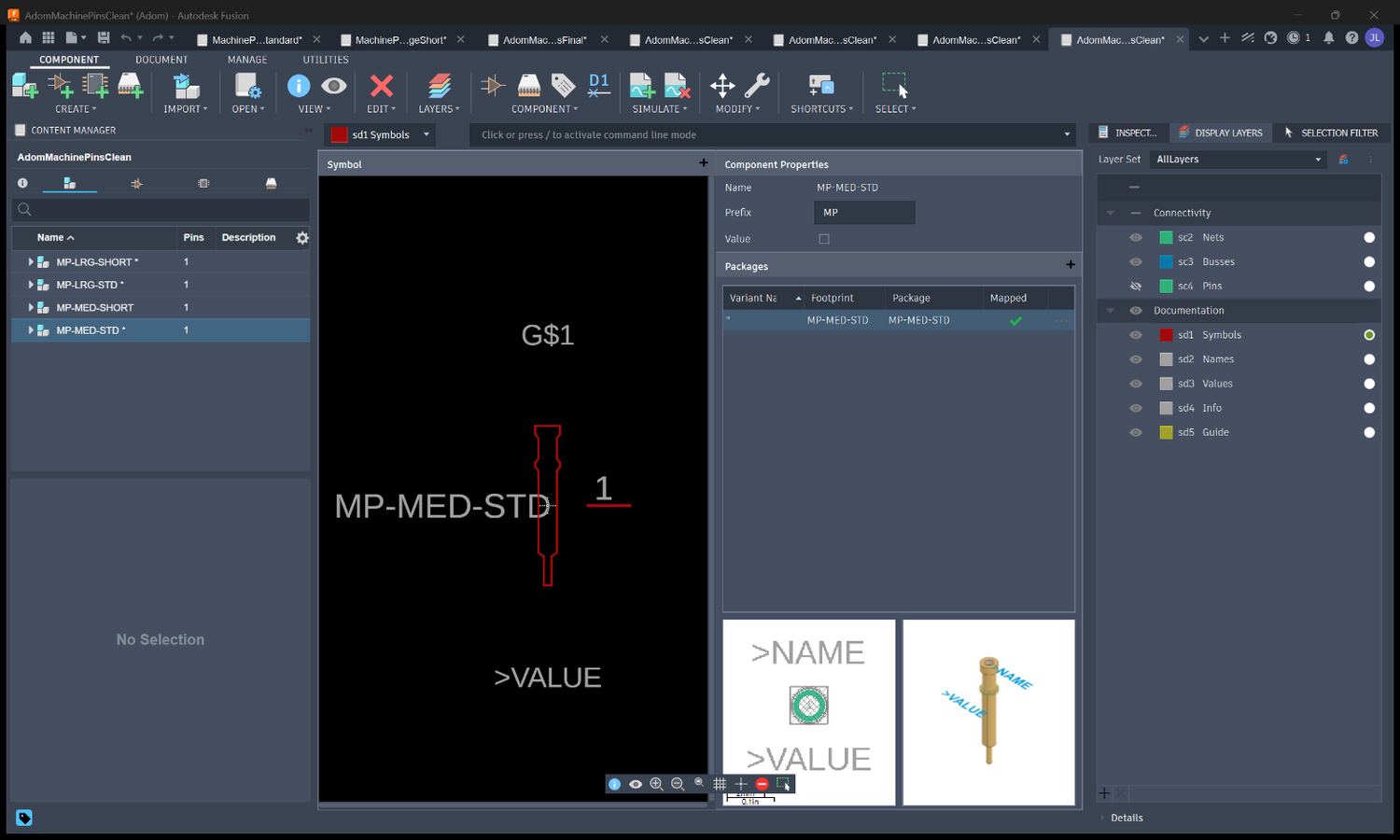
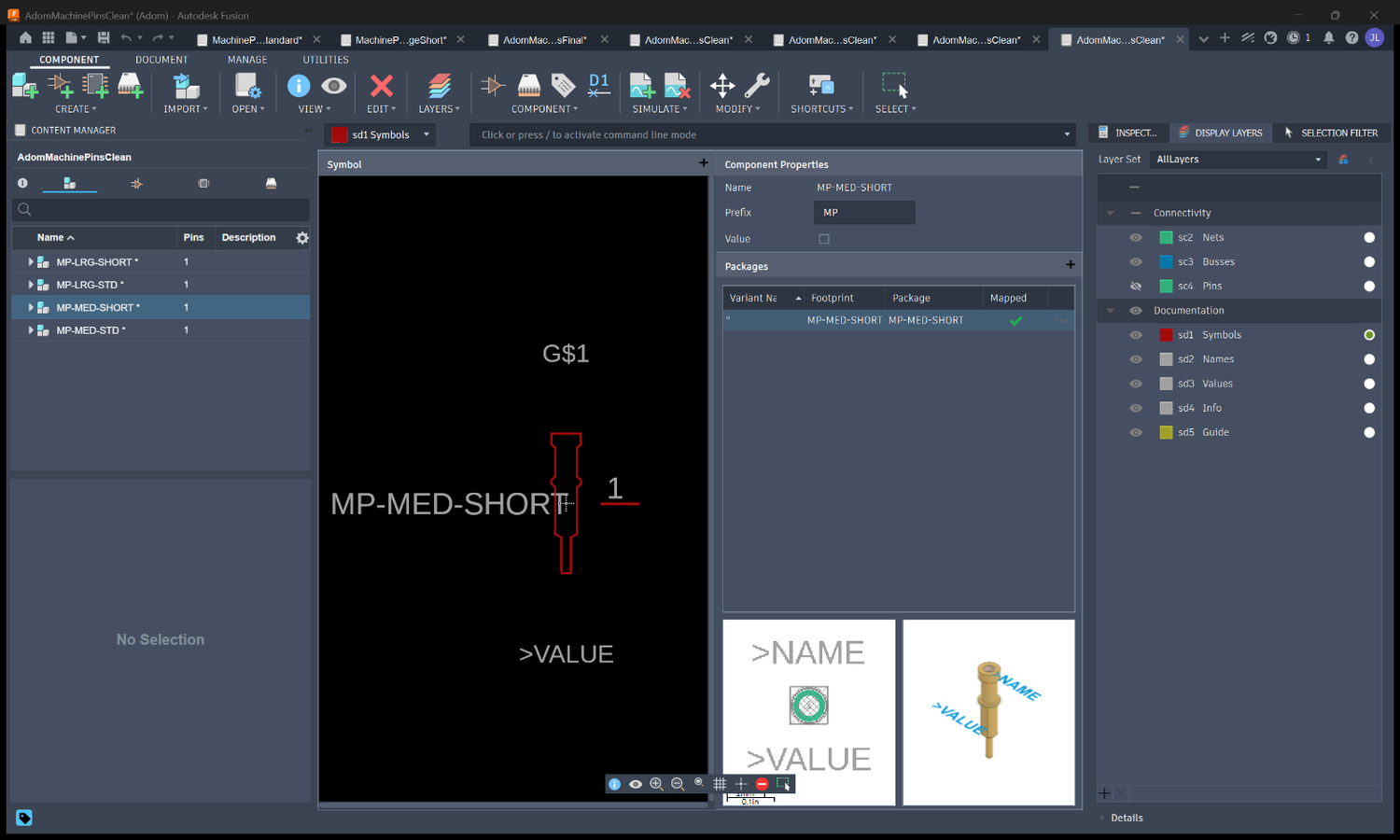
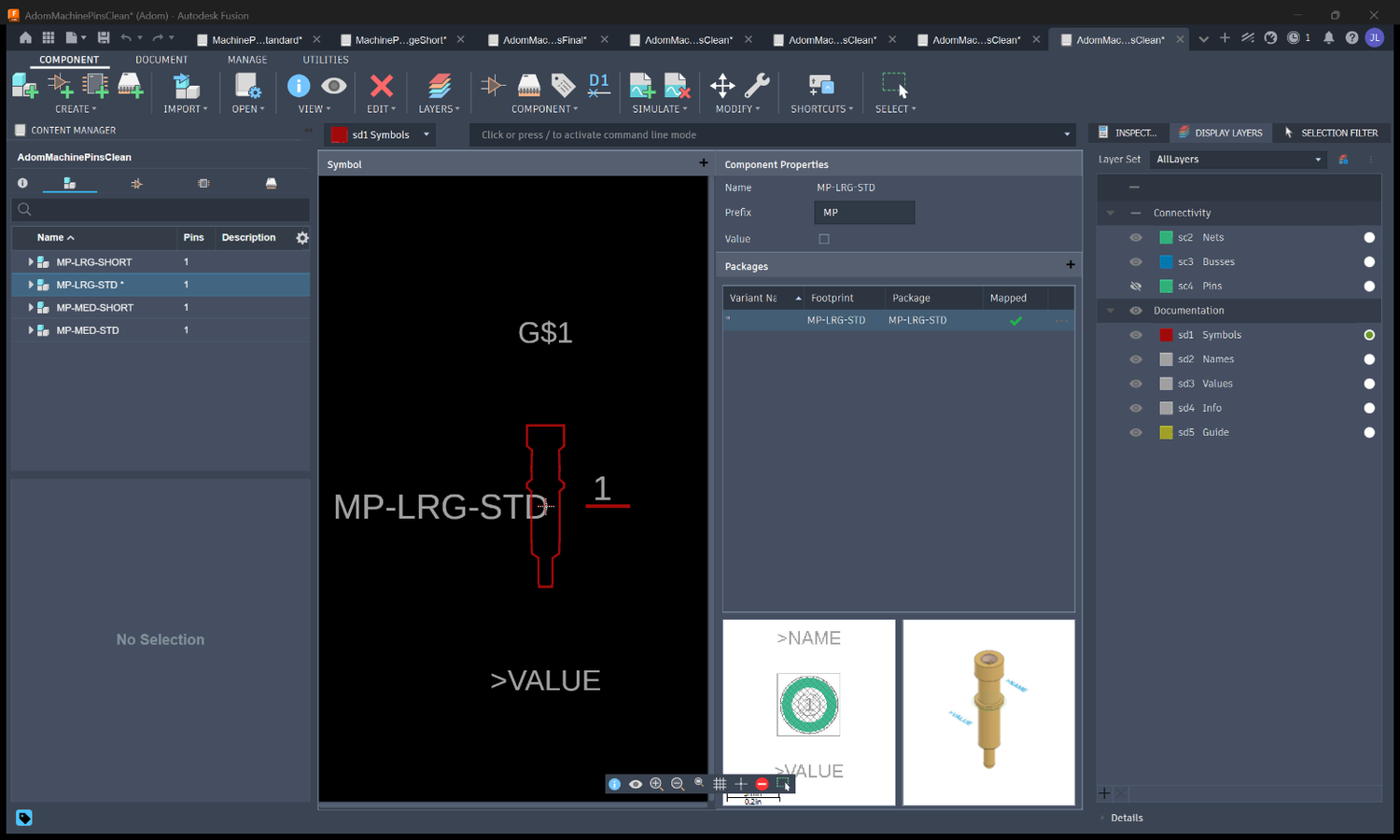
Each device is a full component: a round thru-hole footprint (real drill + annular ring), a per-pin-accurate schematic symbol (silhouette from the actual STEP, so the four look different), and a real 3D body bound from the pin's STEP.
The library: all four pins in ONE .lbr
This is a single AdomMachinePins library holding all four devicesets in one list. Each carries its own schematic symbol, round thru-hole footprint, and a real 3D pin (the Package column reads Mapped, not Placeholder). Here is each of the four, selected inside that one library:
| MP-MED-STD | MP-MED-SHORT |
|---|---|
 |
 |
| MP-LRG-STD | MP-LRG-SHORT |
|---|---|
 |
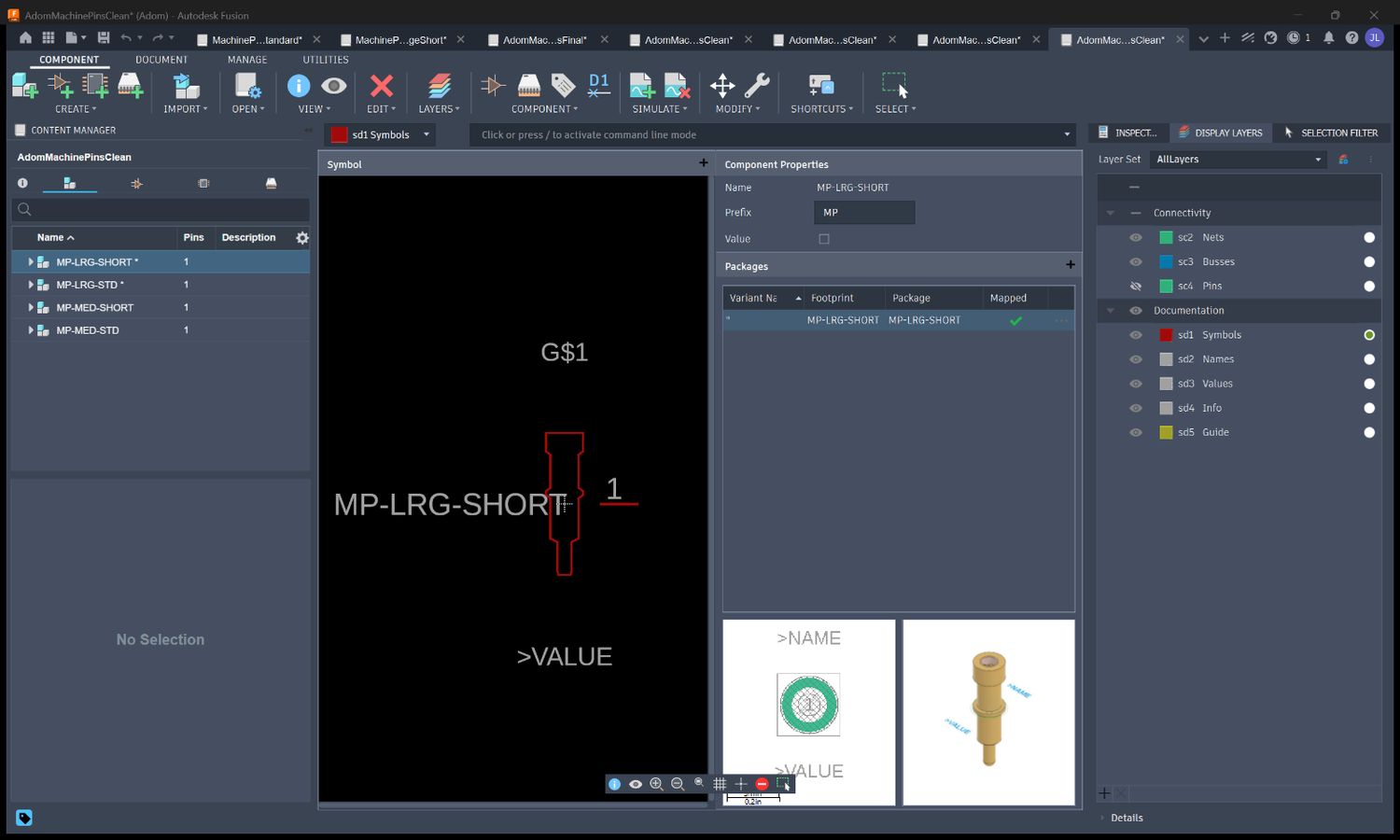 |
Names are kept short across the deviceset, symbol, package, and footprint (MP-MED-STD, not
MachinePinMediumStandard), because the deviceset name renders as the >NAME on the symbol and a long
name looks terrible.
The sample board: all four ganged together
| 2D, dimensioned | 2D, silkscreen |
|---|---|
 |
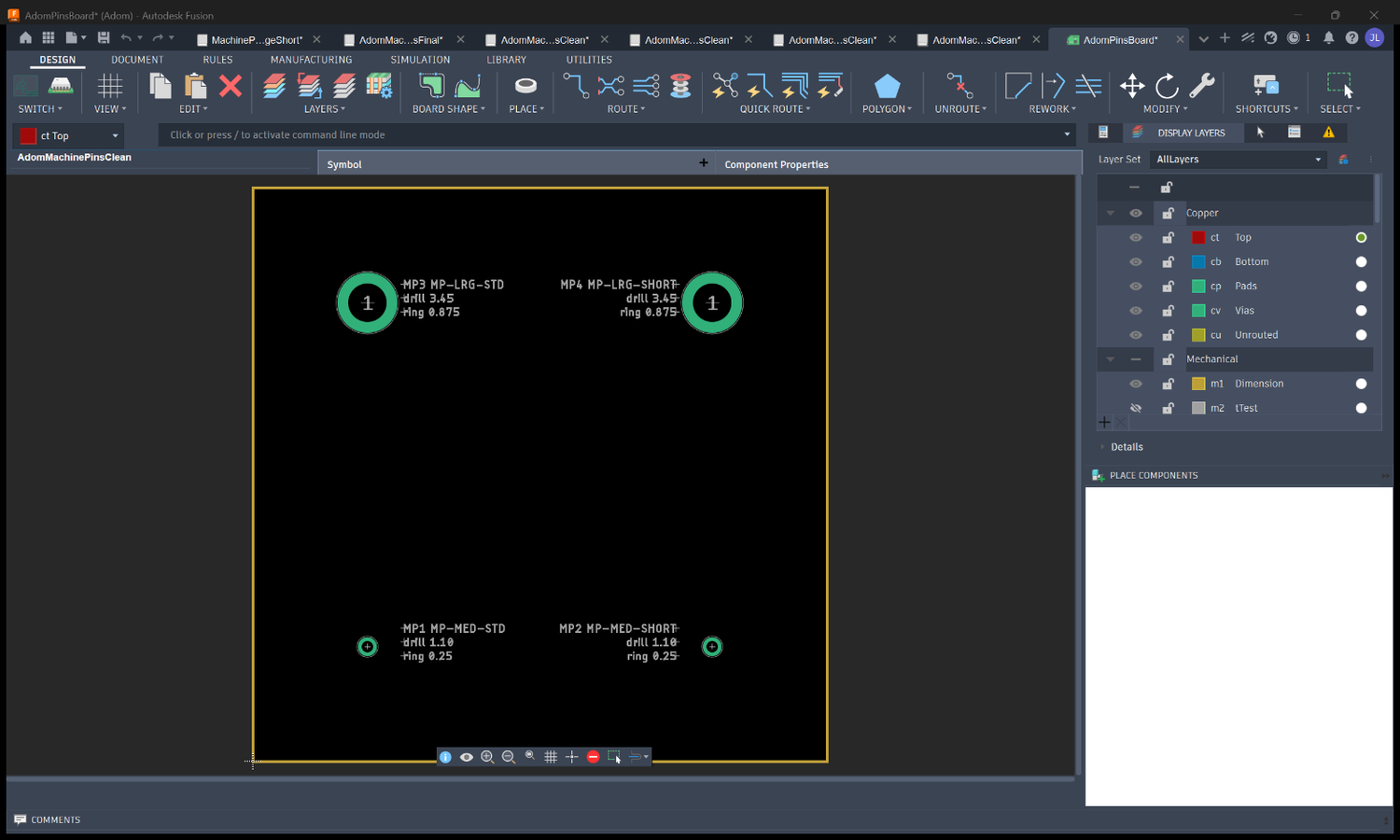 |
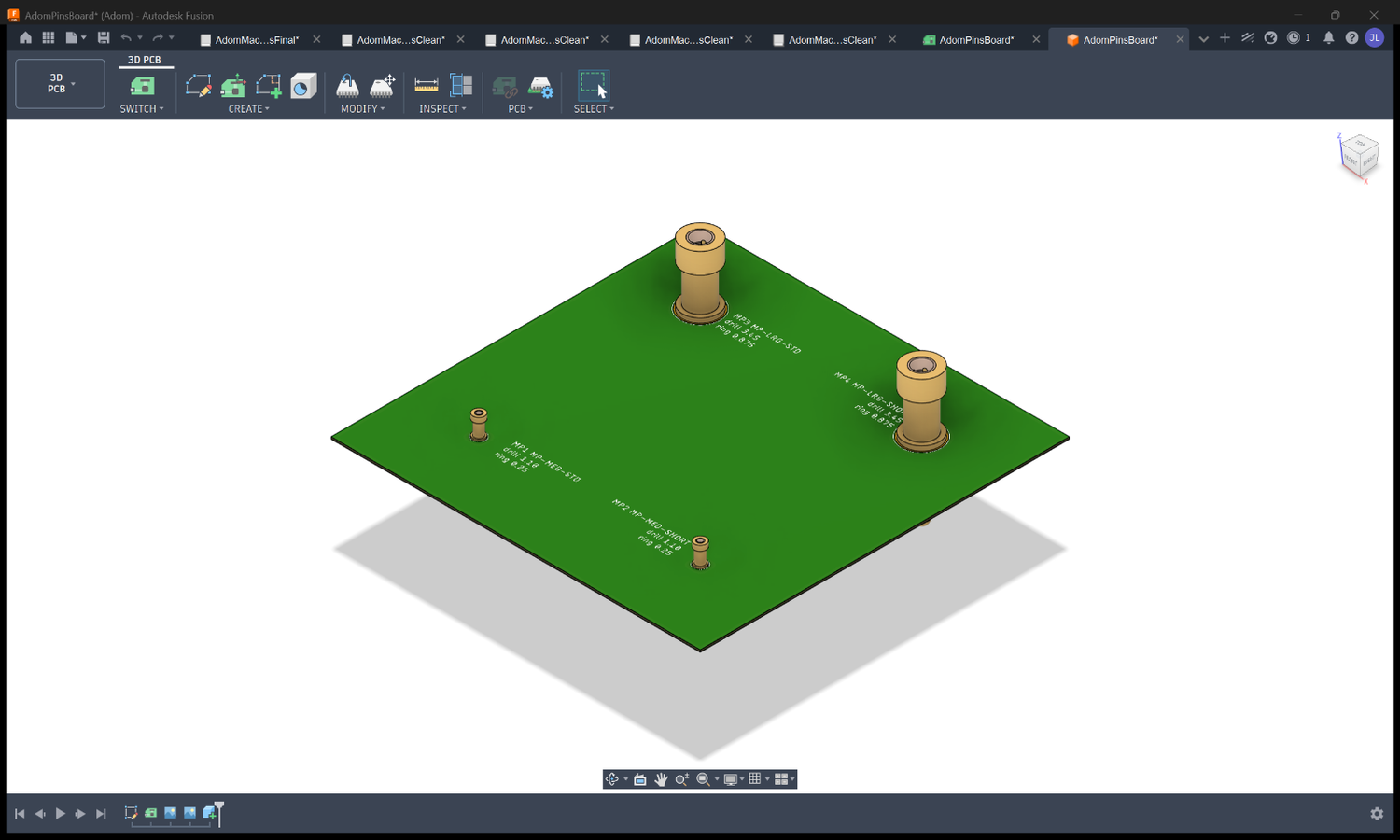
The board is 50 x 50 x 1.6 mm. Each pin carries a silkscreen callout of its name, drill, and annular ring, and the 3D PCB shows the real pin bodies standing on the FR4.
Download and use it
Everything, in one zip: AdomMachinePins-complete.zip, the library,
the Fusion files (.fsch / .fbrd / .f3d / .step), the board (EAGLE + KiCad), the animated 3D, and
all per-pin sources.
Fusion 360 library: AdomMachinePins.lbr, one library, all four pins. Open in
Fusion (Electronics, Library Manager, Open) or with the Adom bridge fusion_open_lbr. It already
carries the 3D bindings; see the 3D section, you may need to
re-bind on your own Autodesk account.
Fusion 360 Electronics native files (open the actual design in Fusion):
fusion/AdomPinsBoard.fsch, the schematic.fusion/AdomPinsBoard.fbrd, the board.fusion/AdomPinsBoard.f3d, the Fusion 3D design archive of the board.
Fusion 360 Electronics is EAGLE 9.x under the hood, so .fsch / .fbrd are the EAGLE-format XML
(<eagle version="9.6.2">) with Fusion's extensions, openable directly in Fusion Electronics
(File, Open). The same content is also provided in EAGLE's own extensions below (.sch / .brd).
The lead 3D viewer at the top of this page is the board's STEP export
(fusion/AdomPinsBoard.step) converted to GLB (real holes, real pins,
real dimensions), with the silkscreen, callouts and insertion animation added.
Sample board (other formats): AdomPinsBoard.brd +
AdomPinsBoard.sch (EAGLE/Fusion), and
AdomPinsBoard.kicad_pcb + AdomPinsBoard.svg (KiCad).

Per-pin sources (in sources/): each pin's .kicad_sym, .kicad_mod, .step, .glb,
and single-pin .lbr (for building your own merged library).
Where the originals came from
The canonical KiCad source is
adom-inc/adom-kicad-library (branch
new-v1.1): footprints/*.kicad_mod, symbols/*.kicad_sym, 3dmodels/*.step for MachineContact (MC,
Large/Medium) and MachinePin (MP, Large/Medium, Standard/Short). Each pin also has an individual Adom
Wiki component page with native symbol, footprint, and 3D viewers:
- Machine Pin Medium Standard
- Machine Pin Medium Short
- Machine Pin Large Standard
- Machine Pin Large Short
How to rebuild the whole thing
1. Generate the four .lbr from the KiCad sources (adom-lbr 2.4.0+)
For each MPN, using each pin's real per-size silhouette:
adom-lbr generate \
  --sym <MPN>.kicad_sym \
  --fp  <MPN>.kicad_mod \
  --symbol-art <MPN>-symbol-outline.mm.svg \
  -o <MPN>.lbr
--symbol-artoverrides the shared/generickicad_symdrawing with this pin's outline (the outline-contract<mpn>-symbol-outline.mm.svg+ its.jsonsidecar, placed 1:1). Without it, all four symbols look identical.- 2.4.0 emits a native round thru-hole pad, the real
fp_circlesilk, and names the pin from the pad number (an empty pin name makes Fusion reject the.lbrwith "has errors and cannot be opened"). Lint each withadom-lbr lint.
Merge the four into one library: one <layers> skeleton + concatenated packages/symbols/devicesets.
Give each symbol's pin a unique name (or the linter flags duplicates), and give each deviceset a
short clean name (MP-MED-STD, not MachinePinMediumStandard), because the deviceset name renders as the
>NAME in the symbol and a long name looks terrible.
2. Bind the real 3D, ONE pin at a time
See the 3D section. Short version: bind each pin with
fusion_make_3d_package, collect each fresh Hub wip_urn, and write them into the library.
3. Author the sample board (background, no dialogs)
Hand-write an EAGLE .brd: <layers>, a board outline on layer 20, the embedded <library>
(packages), and <elements> placing the four pins. Open it with fusion_open_board, which uses
Document.newDesignFromLocal to instantiate the placed parts with zero modal file-dialogs (do NOT
use the dialog-driven EAGLE importer; its Open dialogs steal focus). fusion_show_3d_board renders the
3D. Add silkscreen with <text ... layer="21"> in <plain>. A DRC-clean KiCad .kicad_pcb equivalent
is also here (rendered via service-kicad pcb export svg).
4. Build the animated lead 3D (the board GLB)
The interactive 3D at the top of this page is one GLB, rebuilt from the real Fusion board and enriched
with everything STEP drops. It is fully scripted and re-runnable; the exact ordered recipe (every
gotcha, in order) is in SKILL.md, and the runnable scripts are in scripts/:
scripts/build_board_glb.py: Draco-decodes the real Fusion board, rebuilds a 1.6mm FR4 slab with manifold-cut through-holes, adds 1oz copper (proud top+bottom annular rings + plated via barrels), 300um hemisphere solder-paste balls sitting on the copper, 3D silkscreen labels, and the PRESS-FIT / SOLDER-PASTE callouts.scripts/add_anim_board.py: appends the gentle press-fit insertion animation (one glTF translation channel per pin).
python3 scripts/build_board_glb.py board.glb && python3 scripts/add_anim_board.py board.glb AdomMachinePins-4pin-animated.glb 2.6
Verify BEFORE you publish (this is baked into the skill): the source board GLB is Draco-compressed, so
decode with DracoPy + headless-render with pyrender (EGL) and confirm each label's nearest pin is
the right size. The full checklist and the reasons for each choice (why 3D text not a texture, why no
assembly rotation, how text avoids casting a shadow) are in SKILL.md.
The 3D files, the part that matters
The .lbr/.brd is 2D XML; the 3D lives in the Autodesk Hub. Fusion's 3D for an electronics
component is a package3d binding that points at a cloud f3d file by wip_urn. So:
- In the library
.lbr, each part needs BOTH a library-level<package3d name=... wip_urn=urn:...>AND a per-<device><package3dinstances><package3dinstance package3d_urn="urn:..."/></package3dinstances>(after</connects>). The per-device instance is what makes the library editor show the real 3D instead of a "Placeholder". That is the number one gotcha. - On the board
.brd, embed a<packages3d>in the library AND give every<element>apackage3d_urn="<that pin's wip_urn>". No urn on the element means a flat pad instead of a 3D body.
If you import this .lbr and the 3D does not show (or shows a flat pad)
The wip_urns in this file are bound to the account that built it, so they may not resolve on yours.
Re-bind on your own account (all background, no dialogs):
# per pin, ONE AT A TIME (the batch build times out, see below):
fusion_make_3d_package {lbrPath:<pin>.lbr, modelPath:<pin>.step, orient:false}
#   -> returns a fresh wip_urn for that pin
Then rewrite the library's <package3d>/<package3dinstances> (and the board's element
package3d_urns) with your fresh urns and re-open. That is exactly how this library got to 4/4.
Requires an APS sign-in (fusion_aps_signin, warm SSO, never your password) so the f3d can upload to
your Hub. Free and never-charged (PKCE app + free-endpoint allowlist + monthly cap).
The Fusion-bridge features that made this possible
All of this ran from the AI in the background (Fusion never had to steal your focus), thanks to recent Adom Desktop Fusion bridge work:
- Background, no-dialog board import.
fusion_open_board(Document.newDesignFromLocal) instantiates a placed.brdwith zero modal Open dialogs. Fusion's native EAGLE importer (ImportSCHAndBRDCmd) pops two file-pickers that foreground Fusion; this route avoids them entirely. package3d_urn-on-board support, real 3D component bodies on an imported board.- Async-survivable long ops. The cloud Package3D + Hub upload takes minutes, but AD's relay caps a
request at 60s.
fusion_build_library_3dnow runs detached + pollable so it is not killed mid-run. (Even so, per-pinfusion_make_3d_packageproved more reliable than the batch. Bind one at a time.) - Universal error-dialog guard. Every open/mutating verb screenshots owned popups and flips
success:falseon a Fusion "Error" dialog, so a malformed.lbrcannot be reported as "opened". - Notify-before-foreground. On the rare unavoidable foreground, the bridge fires an AD notify explaining why.
- APS integration. PKCE OAuth with a warm-SSO sign-in, a browser-profile cache (remembers which browser authed to Autodesk), and a never-charge cap; used to upload the f3d packages.
- HWND-truncation + parent/child screenshot fixes so the bridge can see and drive Fusion windows and owned dialogs in the background.
Skills used to build this
- fusion-libraries, symbol to footprint to
.lbrto Fusion, and attaching the real 3D chip. - adom-lbr, the EAGLE
.lbrgenerator/linter (round pad,fp_circlesilk,--symbol-art). - adom-symbol / adom-footprint / step2glb / adom-chipfit, symbol art, footprint + paste dots, STEP to GLB, seat-plane checks.
- fusion-aps-signin and fusion-aps-search, the APS sign-in (warm SSO) so the 3D packages can upload to the Hub.
- fusion-electronics / fusion-driving / adom-desktop-window-capture, driving Fusion + capturing its windows and owned dialogs in the background.
Rebuild it fully: the skills + scripts in THIS repo
Everything needed to reproduce this page end to end ships in the repo, linked and explained here:
SKILL.md(also on the page's Skills tab), the complete build recipe: generate the four.lbr, bind the real 3D per pin, author the sample board, and build the animated lead GLB. It carries every hard-won detail from this build so you do not re-learn them: Draco-decode + headless-render-before-push, the 1.6mm board with manifold-cut holes, 1oz copper (proud rings + plated barrel), 300um hemisphere paste on the copper, 3D extruded text (never a texture) because a flat texture's UV keeps desyncing labels from pins, arrow-apex-on-target, "interference fit" (not "gas-tight"), text-casts-no-shadow via alpha-blend, and do-not-rotate-the-assembly.scripts/build_board_glb.py+scripts/add_anim_board.py, the actual runnable build (see section 4 above).publish-skills/SKILL.md, how to publish/update this exact wiki page (thecomponentblock inpage.json, the assets + screenshots, the native Fusion files, the download section), so a re-publish is one skill away.
Skills used to build this (Adom tooling)
- fusion-libraries, symbol to footprint to
.lbrto Fusion, and attaching the real 3D chip. - adom-lbr, the EAGLE
.lbrgenerator/linter. - adom-symbol / adom-footprint / step2glb / adom-chipfit, symbol art, footprint + paste dots, STEP to GLB, seat-plane checks.
- fusion-aps-signin and fusion-aps-search, APS sign-in (warm SSO) so the 3D packages upload to the Hub.
- fusion-electronics / fusion-driving / adom-desktop-window-capture, driving Fusion in the background.
Built by the Adom AI, background-driven end to end. Source of truth for the pins:
adom-inc/[email protected].