Adom Library
Public Made by Adomby adom
adom-lbr — the EDA library translator. Bring a component in from any supported EDA tool and convert it to any other (KiCad ⇄ Altium ⇄ EAGLE/Fusion) through one canonical adom-lbr JSON — symbol + footprint + 3D + pin↔pad map. Altium is written natively (no Altium needed). Includes the adom-lbr Manager: browse wiki components and view symbol/footprint/3D + the per-EDA layer stackup.

Install?
adom-lbr — the EDA library translator. Bring a component in from any supported EDA tool and convert it to any other (KiCad ⇄ Altium ⇄ EAGLE/Fusion) through one canonical adom-lbr JSON — symbol + footprint + 3D + pin↔pad map. Altium is written natively (no Altium needed). Includes the adom-lbr Manager: browse wiki components and view symbol/footprint/3D + the per-EDA layer stackup.
adom-wiki pkg install adom/adom-lbrLatest: v2.47.5, published
Contents
- Formats & targets
- adom-lbr Manager: browse the wiki, inspect any part
- One click from the Hydrogen Dock Bar
- The 3-column library viewer, with an interactive embed
- The library at a glance
- The linter catches what Fusion rejects
- What a target cannot carry is named, never dropped
- The same part in every tool (2.43.0 to 2.46.1)
- Altium symbols carry the group captions and the chip outline (from 2.43.0)
- Stroke widths: thin art stays thin (from 2.44.0)
- Orderable identity on every lane (from 2.45.0)
- SchLib Description filled (from 2.45.1)
- Heatsink vias ride inside the footprint (from 2.46.0)
- Drilled PcbLib pads are plated Multi-Layer pads (from 2.46.1)
- Generate from the command line
- What it does
- Send to
- Open source: check it out, vibe-code it, send it back
- Part of the Adom EDA family
- Run it
README
markdownadom-lbr
adom-lbr: the EDA library translator. Bring a component in from any supported EDA tool and convert it to any other (KiCad ⇄ Altium ⇄ EAGLE/Fusion) through one canonical part format, with native Altium output and no local EDA software.
The adom-lbr JSON is Adom's own canonical part: one document carrying the symbol, footprint, 3D reference, and the pin↔pad map. adom-lbr is the translator around it: import a component from KiCad or Altium, then convert the adom-lbr JSON to any other tool: native Altium (.SchLib / .PcbLib / .IntLib), a KiCad .kicad_sym + .kicad_mod, or an EAGLE/Fusion .lbr. Any EDA tool in, any EDA tool out. The canonical JSON is the hub, so every source pairs with every target. The Altium libraries are written natively (the exact OLE2/CFBF binary) so no copy of Altium is needed at conversion time. Standalone Rust, no Node, no gallia.
("lbr" = Adom Library, the adom-lbr JSON, not EAGLE's .lbr, which is just one of the output formats.)
Formats & targets
| Direction | Format | Used by |
|---|---|---|
| Hub | adom-lbr JSON (symbol + footprint + graphics + pin↔pad map) | the canonical format everything converts to/from |
| Import → hub | KiCad .kicad_sym + .kicad_mod → adom-lbr JSON |
bring a KiCad part in |
| Import → hub | Altium .SchLib / .PcbLib / .IntLib → adom-lbr JSON |
bring an Altium part in: pins, pads, and silk/courtyard/fab layers |
| Export → Altium | native .SchLib + .PcbLib, or one bundled .IntLib |
Altium Designer, written natively, no Altium needed |
| Export → Fusion/EAGLE | EAGLE .lbr (symbol + package + connects) |
Autodesk Fusion 360 Electronics, EAGLE, OrCAD |
| Export → KiCad | native .kicad_sym + .kicad_mod (layers preserved) |
KiCad 6+ |
| Merge | add a part's symbol into an existing .SchLib |
install a part into a user's Altium library |
Altium footprint graphics keep their layers across the round trip: silk /
courtyard / fab decode into neutral roles and re-encode onto the right Altium
layers (outline → Mechanical 13 "Assembly Top", courtyard → Mechanical 15
"Courtyard Top"). Verified byte-exact (Altium → JSON → Altium → JSON).
The Send to bar in the live app pushes the loaded library to whichever of those tools you're running (via the Adom Desktop bridge).
adom-lbr Manager: browse the wiki, inspect any part
adom-lbr manage opens a web app that lists every component on the wiki; click
one and it renders the schematic symbol, footprint, and 3D model on the
fly from the part's adom-lbr JSON (or, if the page has none, from its KiCad files).
It surfaces the footprint layer stackup: what layer each silk / courtyard / fab /
copper element becomes in KiCad and Altium, side by side, plus a per-layer
show/hide filter, drag-to-pan / scroll-to-zoom viewers, and hover-to-highlight
on pins & pads showing each one's number and name.
adom-lbr dashboard serve --print-url   # start (or reuse) the dashboard → http://127.0.0.1:8785/
adom-lbr manage --port 8785            # the same server, in the foreground
One click from the Hydrogen Dock Bar

adom-lbr is a card on Hydrogen's Dock Bar, the app-launcher rail on the right
edge of the workspace. One click installs the CLI into your container
(adom-wiki pkg install adom/adom-lbr, skipped when it is already there), starts
the dashboard with adom-lbr dashboard serve --print-url, and takes over the
pre-opened Adom LBR webview tab. The card's LED is live health, read from the
dashboard's own /api/status every 15 seconds: six facets (binary, wiki,
identity, library, 3D viewer, dock) plus a rollup the app owns, each carrying a
hint that names the fix when it is not green.
The first thing on the page is the Say it strip, because you do not drive
this dashboard by hand: you ask your AI, using the word lbr ("validate my
lbr for fusion"). Click a phrase to copy it; Try it stages it, unsent, into
this app's own AI thread. Click a phrase in the Say it strip to copy it. The cog opens Settings: whose boards count as
My projects, the wiki list cache, and package Update/Uninstall with a live
console. A Demo button in the
header runs a guided tour that drives the whole dashboard for you, and every
Send-to run shows a live panel: progress bar, streaming console, and evidence
screenshots of what actually opened. The launch contract lives in
dockbar.json at the root of this page repo; the bundled adom-lbr-dockbar
skill documents every piece of it for your AI.
The 3-column library viewer, with an interactive embed
The embed's 3D column is a REAL interactive viewer, not a picture: when the
part's directory holds a .glb, the model rides inline (Draco models are
transcoded to quantized at build time, measured ~35% smaller) with the
model-viewer runtime inlined beside it, so the finished readme.html renders an
orbitable 3D chip even inside the wiki's no-network readme sandbox. No .glb
means the static render, unchanged.
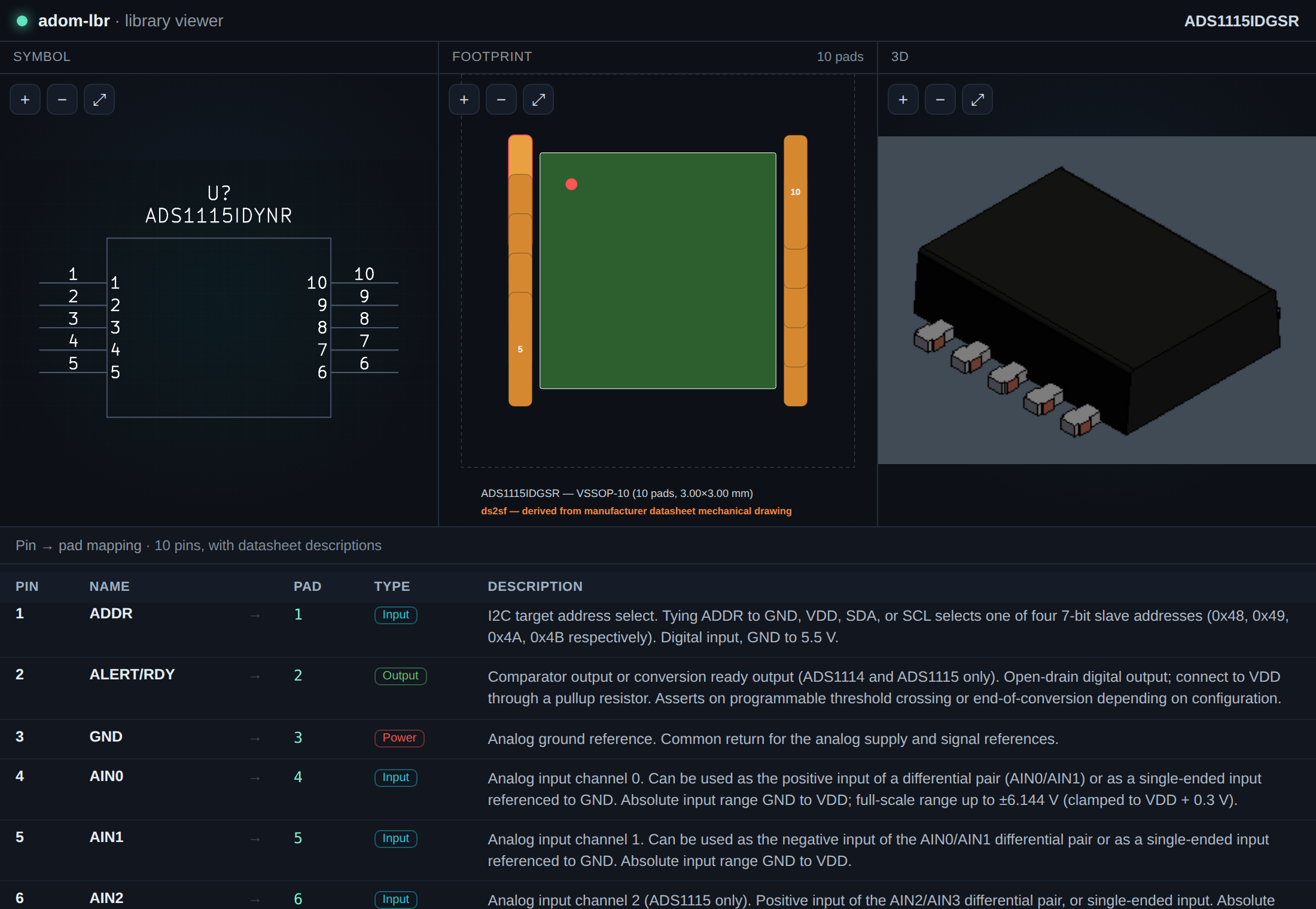
▶ Open the live ADS1115 3-column viewer: the exact self-contained file adom-lbr embed produces, served straight from this page (pan/zoom each panel; the pin→pad table is fully populated from the datasheet). It is built to sit in an <iframe> once the wiki enables component-page iframe embedding.
adom-lbr embed exports a Fusion 360-style three-column viewer as one self-contained .html file: symbol in column 1, footprint in column 2, the 3D chip in column 3 (each independently pan/zoomable) with the full pin → pad mapping table below, carrying each pin's type and datasheet description. It's built to drop straight into an <iframe> on a wiki component page: a single portable file, no server, no external assets.
adom-lbr embed --dir <chip-dir> # → <mpn>-lbr-embed.html
<iframe src="…/<mpn>-lbr-embed.html" width="100%" height="640" style="border:0"></iframe>
It assembles the three renders, the pin→pad connects, and the datasheet pin descriptions from a chip directory, exactly the part data adom-symbol, adom-footprint, ds2sf and chip-thumbnailer already produce.
The library at a glance
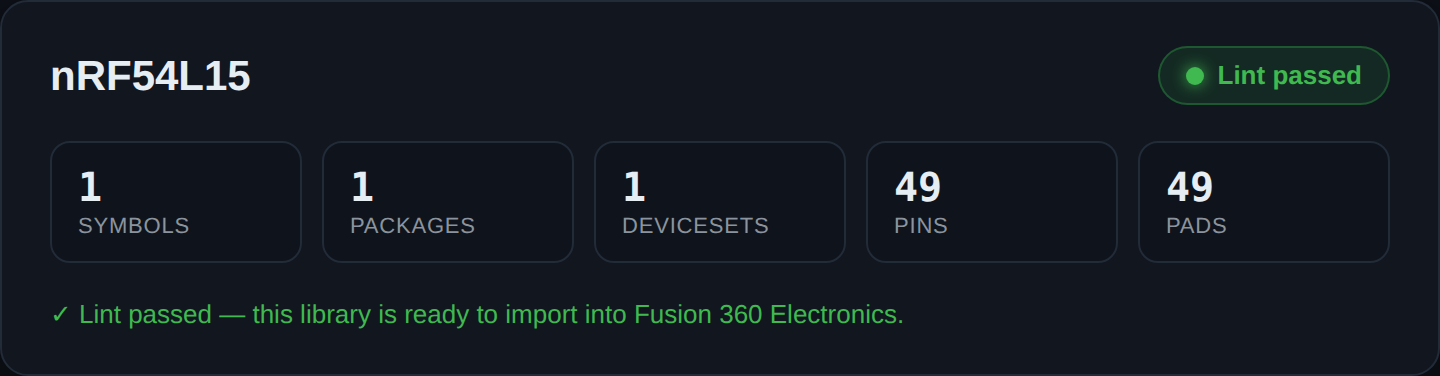
Load an .lbr and the viewer breaks it down at a glance (symbols, packages, devicesets, pins, pads) and re-lints it server-side. A green Lint passed badge means the library is ready to import into Fusion 360 Electronics with no surprises. The top bar carries the Send to targets (KiCad / Fusion / Altium / OrCAD).
The linter catches what Fusion rejects
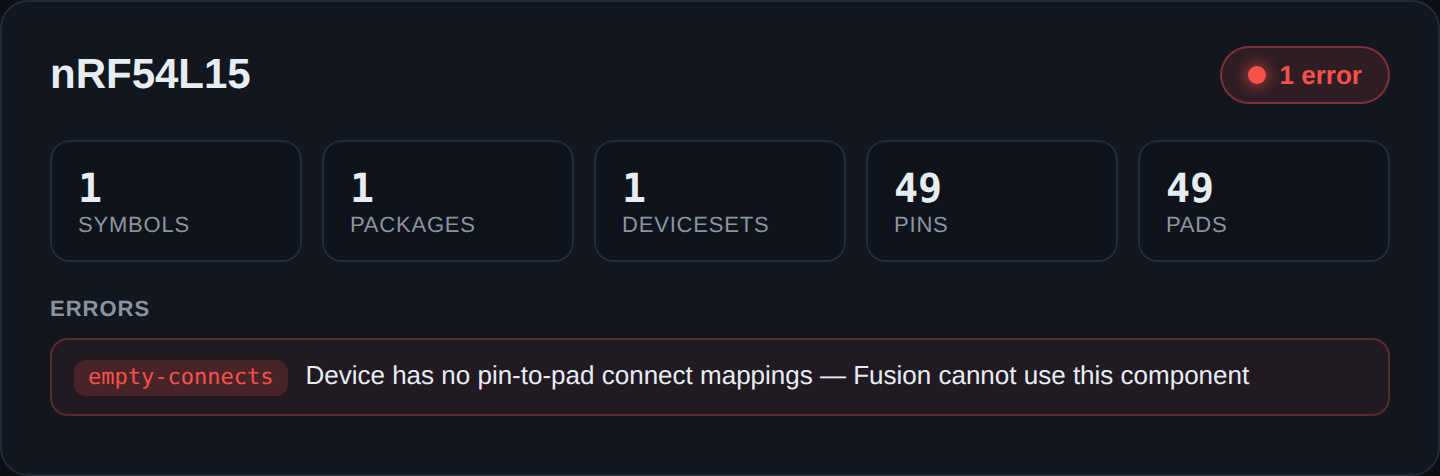
This is the whole point. Fusion will silently show "No Components" or refuse to place a part when a library is subtly broken. adom-lbr catches it first. Here the deviceset has no pin-to-pad connect mappings, so the linter flags empty-connects with a plain-English reason: "Fusion cannot use this component." It also catches missing packages, devices with no package attribute, malformed XML, and invisible symbol bodies, each with a code and a fix.
What a target cannot carry is named, never dropped
Every source feature a target lane cannot represent is reported instead of silently lost. Today that is the EAGLE/Fusion lane's lack of per-pad solder-mask/paste margins (Fusion applies its library DRC stop/cream rules instead) and the Altium lane's lack of a paste ratio (mm expansions ride the pad record since 2.41.0). The policy is warn and ship: the file is written, stderr carries WARN: [lost-pad-margins] pads 1,2,3 carry ..., and stdout carries one machine-readable line per loss, LOST: {"code":"lost-pad-margins","part":...,"feature":...,"pads":[...],"effect":...}, which the wiki's export workers surface on the library receipt. Pass --strict to refuse instead: a single-part export writes nothing and exits 2 with ERROR: [LOST_FEATURES] ...; assemble-altium skips the refused parts into refused[], still assembles the rest, reports status: "partial" and exits 2 with valid files on disk. The KiCad lane loses nothing, so --strict never refuses it.
The same part in every tool (2.43.0 to 2.46.1)
A part converted by adom-lbr should read the same in KiCad, Altium and Fusion: the same chip drawing, the same ordering data, the same thermal vias. These releases closed the gaps.
Altium symbols carry the group captions and the chip outline (from 2.43.0)
import-kicad keeps the KiCad symbol's text items (adom-symbol's bold pin-group captions such as I2C / Power / Ground / Control, with their justification) and the native SchLib writer draws them. The chip-thumbnailer outline (every polyline of the symbol) is fitted into the free lane between the pin-name columns, so it never overlaps a pin name. The designator is centred above the body and the part number is the Comment centred below it; Value stays a hidden parameter. For multi-part libraries, assemble-altium --no-dedupe keeps one footprint per part even when the land patterns match, so each part keeps its own STEP body and its symbol links its own footprint name.
Stroke widths: thin art stays thin (from 2.44.0)
- Fusion/EAGLE.
generatecarries each.kicad_sympolyline's stroke width into the.lbr. A stroke at or under 0.2 mm (the chip-thumbnailer outline is 0.167 mm) becomes a 0.0254 mm (1 mil) hairline wire, which Fusion draws one pixel wide at any zoom. Wider strokes keep their width, and a polyline with no width gets the old 0.1524 mm. Before 2.44.0 every symbol wire was a flat 0.1524 mm. - Altium. SchLib line widths map from the source stroke in mils: at or under 8 mil becomes Smallest (Altium's one-pixel hairline), up to 15 mil Small, up to 25 mil Medium, wider Large. KiCad's 10 mil default stays Small, and the body rectangle is always Small.
Orderable identity on every lane (from 2.45.0)
The BOM and CPL that go to the fab with the gerbers are built from the part's identity fields, so every lane now carries them.
- Altium. A KiCad symbol made by adom-symbol 1.2.4+ carries MPN / Manufacturer / Datasheet / Description / Mouser / DigiKey / LCSC / "Adom Wiki" as properties.
import-kicadkeeps each as an Altium parameter, adds numberedSupplier N/Supplier Part Number Npairs (Mouser, Digi-Key, LCSC, numbered in that order for the ones present) for ActiveBOM, addsManufacturer Part Numberfrom MPN, and fills the hub JSON'smanufacturer. - Fusion/EAGLE.
generate --part-metadata page.jsonreads the wiki component page and writes the attributesMPN,MANUFACTURER,DATASHEET,ADOM_WIKI,MOUSER_PN,DIGIKEY_PN,LCSC_PN.ADOM_WIKIcomes fromcomponent.wiki_url(or the page'surl), elsehttps://wiki.adom.inc/<owner>/<slug>from the page slug. Distributor numbers are read fromcomponent.<dist>_pn, or fromcomponent.distributor_links.<dist>as a string or an object withpn/part_number/part/sku. Without the flag, apage.jsonbeside the symbol is picked up automatically.generateprints a HINT listing the attributes it wrote, or that there are none and the BOM cannot order the part. - The sourcing hint.
import-kicadprintsHINT: identity complete (...)when all eight properties are present, otherwise a HINT naming each missing one, why it matters, and the one lookup that fills the numbers:adom-parts-search search <MPN>. LCSC may honestly be absent; say so on the page.
adom-lbr generate --sym CH340G.kicad_sym --fp CH340G.kicad_mod --part-metadata page.json -o CH340G.lbr
SchLib Description filled (from 2.45.1)
The SchLib component header's ComponentDescription (what Altium shows in Properties > General > Description and in the SCH Library panel list) is filled from the symbol's Description property. It is a different field from the Description parameter, and an empty one reads as an unfinished part.
Heatsink vias ride inside the footprint (from 2.46.0)
Thermal vias are part of the footprint, not something redrawn per tool. In the KiCad footprint they are plated thru_hole pads that carry the exposed pad's own number (adom-footprint create writes them from heatsinkVias; the wiki's standard rule is 0.3 mm drill, 0.8 mm pitch, 0.15 mm ring, tented). adom-lbr keeps them on every lane with no extra flag: import-kicad reads the drill, the Altium PcbLib gets pads with holes, and generate writes EAGLE <pad drill=...> with the same name, so Fusion joins them to the exposed pad's net.
The heatsink hint. import-kicad looks for the largest SMD pad (at least 1 mm² and at least three times the median pad area). If thru_hole pads share its number it prints a HINT with the via count; if none do, it prints a HINT that the exposed pad has NO heatsink vias and how to add them once in the KiCad footprint.
Drilled PcbLib pads are plated Multi-Layer pads (from 2.46.1)
A drilled pad in the native PcbLib is now written as a real plated through-hole: the pad record sits on Multi-Layer (layer 74) and carries the two bytes Altium itself sets when it plates a pad (found by diffing against a library Altium saved). Before 2.46.1 the heatsink vias loaded on the Top Layer with a hole. For a library generated earlier, altium_plate_vias {libraryPath} (altium-bridge 0.2.20) repairs it in place.
Generate from the command line
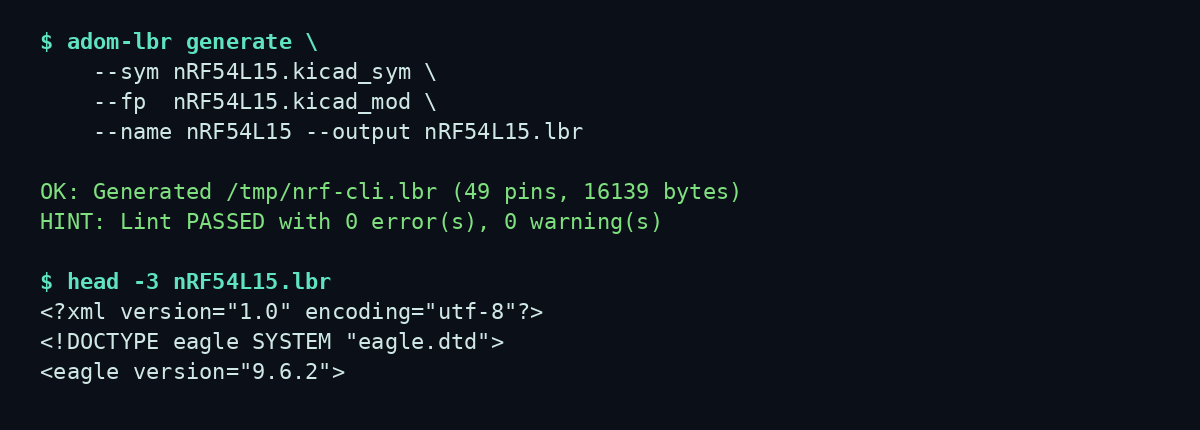
generate builds the whole library in one shot from a .kicad_sym (+ optional .kicad_mod), lint-checks it, and writes a native .lbr. The same engine powers the Send to → Fusion/Altium/OrCAD flow in adom-symbol and adom-footprint, so whatever you see in those apps is exactly what lands in your library.
What it does
generate:.kicad_sym(+.kicad_mod) → native.lbr, lint-checked for Fusion compatibility.lint/validate: catch the things Fusion rejects: missing connects, incomplete devicesets, bad pad maps.import: EAGLE.lbr→ KiCad.kicad_sym.- Live app: a viewer that lints the loaded
.lbrand shows symbols / packages / devicesets / pins / pads at a glance.
Send to
Fusion 360 (open the .lbr directly), Altium / OrCAD (download the .lbr + import steps; native exporters on the roadmap), KiCad (converted back to .kicad_sym).
Open source: check it out, vibe-code it, send it back
adom-lbr is MIT and fully open. The complete Rust source is in this page's Files tab: browse it, or grab src/ + Cargo.toml.
- Build it.
cargo build --releasedrops a standalone binary (no Node, no gallia). - Point your install at your checkout.
adompkg link john/adom-lbr ./adom-lbrso theadom-lbryou run is your local copy. - Vibe-code a change. Open the folder in Claude Code and describe what you want: a new lint rule, another export target, a smarter symbol synthesizer. The lint rules live in one readable list, easy to extend.
- Send it back. Open a pull request on this page (the wiki reviews and merges per-repo PRs), or start a discussion thread. Good additions get folded into the shipped app.
Part of the Adom EDA family
Used by chip-fetcher and the Send-to flow across adom-symbol and adom-footprint; pairs with ds2sf.
Run it
adom-lbr generate --sym part.kicad_sym --fp part.kicad_mod --name PART --output part.lbr
adom-lbr serve --port 8784          # live linter app (AI-drivable)
adom-lbr embed --dir <chip-dir>     # Fusion-style 3-column viewer as one .html
MIT, contributions welcome.