Adom Hydrogen
Public Made by Adomby adom
The whole Adom experience as one signed native app: your editor, your AI agent, and the full electronics design toolchain, running locally on your own machine.
Lightbulb Sample Prompts
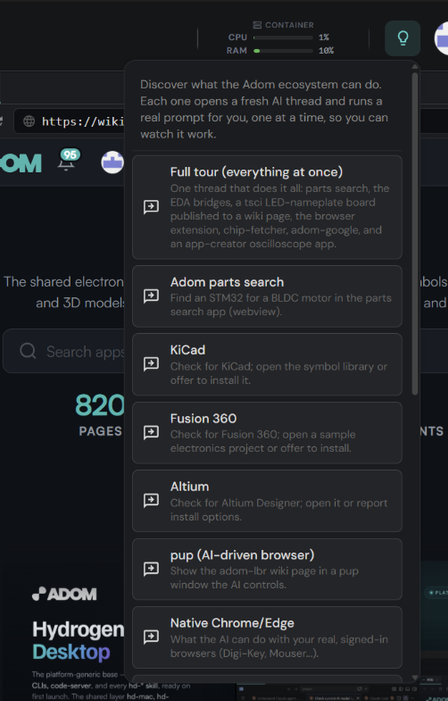
The lightbulb (💡) button in Hydrogen Desktop's title bar opens a menu of curated sample prompts. Picking one opens a fresh Claude AI thread and types the prompt for you, so you can watch the AI demonstrate a capability end to end. This page is the canonical, live lineup.
Where the list is actually served from
Three layers, merged in this order (later wins):
- Compiled defaults baked into the HD build (the offline fallback).
- This wiki list (
lightbulb-prompts/prompts.jsonon this page, the file you are looking at): HD fetches it and caches it as%APPDATA%\hydrogen-desktop\sample-prompts-remote.json. A matchingidoverrides a compiled prompt; a newidappends a menu item. - Your local file (
%APPDATA%\hydrogen-desktop\sample-prompts.json): personal additions and overrides on one machine. Always wins.
How HD keeps it fresh (no app update needed)
- When you open the lightbulb menu, HD checks this page for a newer list (debounced to at most once per 15 minutes). If it changed, the new items pop into the menu you are looking at.
- A background timer also checks every 4 hours during business hours (Mon-Fri, 7am-7pm local), covering users who rarely open the menu.
- A bad or unreachable list can never break the menu: HD validates before caching and keeps the last good copy (or the compiled defaults) otherwise.
Add a prompt (PR welcome)
Everything you need is on THIS page — no special skill required. (HD containers also
carry an hd-lightbulb skill that summarizes this; cloud containers don't have it, and
that's fine — this README is the canonical guide.)
- Fork/branch the hydrogen-desktop repo.
- Edit
lightbulb-prompts/prompts.json: add one record{"id": "thread-your-idea", "label": "Menu label", "blurb": "one line", "prompt": "the full prompt text"}. Rules: theidmust start withthread-; the prompt body must be ONE flat paragraph (a newline would submit early while HD types it); write it in a casual first-person user voice, like the existing ones. - Run
python3 lightbulb-prompts/gen-readme.pyso the list below matches your change. - Open a PR. After merge, a maintainer runs
scripts/publish-lightbulb-prompts.shand every HD in the fleet picks it up within a menu-open or the next timer tick.
The lineup
Full tour (everything at once)
- id:
thread-demo - blurb: One thread that does it all: parts search, the EDA bridges, a tsci LED-nameplate board published to a wiki page, the browser extension, chip-fetcher, adom-google, and an app-creator oscilloscope app.
i heard i can search for parts across mouser, digikey, and jlcpcb via adom parts search so run a sample query for me. open tab in wv (webview). heard i can use kicad, fusion, or altium via ad (adom-desktop) bridges so demo all those. i heard adom-tsci is an experimental app that can make a board in 1 prompt. so make a molecule and spell my name out with 0603 led lights with usbc conn so i can power it. show in pup (puppeteer). then publish it to my first wiki page. also heard i can install abe (adom-browser-extension) into my chrome and edge. do that. i heard chip-fetcher (cf) lets me crawl the web for chips and get libraries, symbols, footprints, and 3d chips so show me a sample search. use nb (native browser) to load cf. i use google workspace a lot so setup adom-google for me. use nb for auth. then finally make me an oscilloscope app using app creator skill and show in wv.
Adom parts search
- id:
thread-parts-search - blurb: Find an STM32 for a BLDC motor in the parts search app (webview).
i heard adom has an amazing parts search app, so show it to me in a webview (please use the webview via adom-cli hydrogen webview, do NOT open a normal browser window that would cover my screen) and find me a popular stm32 chip that can run my bldc motor.
KiCad
- id:
thread-kicad - blurb: Check for KiCad; open the symbol library or offer to install it.
see if i have kicad installed. if i do, open up the symbol library. if i don't, tell me if you can install kicad and then show me a sample board?
Fusion 360
- id:
thread-fusion360 - blurb: Check for Fusion 360; open a sample electronics project or offer to install.
see if i have fusion 360 installed. if i do, open it up and show me a sample electronics project with sch, brd, and 3d. if i don't, tell me if you are able to install it and then show me a sample?
Altium
- id:
thread-altium - blurb: Check for Altium Designer; open it or report install options.
see if i have altium installed. if i do, open it up. if i don't, tell me if you are able to install it?
pup (AI-driven browser)
- id:
thread-pup - blurb: Show the adom-lbr wiki page in a pup window the AI controls.
i heard adom has a feature called pup (short for puppeteer) that lets me open browser windows and control them so show me the adom wiki page for the Adom Library mgmt tool (adom-lbr) in a pup window
Native Chrome/Edge
- id:
thread-native-browser - blurb: What the AI can do with your real, signed-in browsers (Digi-Key, Mouser...).
tell me what you can do to drive my native browsers and if i have to install any extensions so you can drive them so i can have you auto search lots of electronics websites like digikey, mouser, snapeda, or ultralibrarion with my logged in credentials cuz i can't do that in pup cuz that's a non-logged in environment for safety
Google Workspace
- id:
thread-google - blurb: Install adom-google: read email/calendar, send a chat, build a BOM sheet.
i use google workspace a lot so can you install adom-google and let it walk me through its auth setup. use my logged-in NATIVE browser for the google sign-in but keep in background and send me an ad notify to let me know its ready. once i'm authorized, tell me the subject of my latest email, my next cal entry, send a gchat dm as me, then show me a google sheet with a sample pcb bom, and open that sheet in my native browser in the BACKGROUND so it does not cover hydrogen desktop
chip-fetcher
- id:
thread-chip-fetcher - blurb: Install chip-fetcher and search a VL53L8CH time-of-flight sensor.
i heard adom has this amazing tool called chip-fetcher. install that for me and show it in a webview panel (use the webview, do NOT open a normal browser window), then have chip-fetcher search for VL53L8CH time-of-flight sensor. if the search opens any real vendor website in a browser, open it in my native browser in the BACKGROUND so it does not cover hydrogen desktop
adom-tsci (build a board)
- id:
thread-tsci - blurb: Build a personalized LED nameplate PCB from one prompt.
i heard there's an experimental app called adom-tsci that can build my whole board in one prompt. figure out my name (check my adom login, my claude login, or my edge/chrome browser profile). build me an led nameplate pcb that spells out my name using 0603 leds from the adom basic parts lib, plus a usb-c connector for power placed on the right edge of the board using the usbc skill. show it in a pup window, then rebuild walkthrough, then update pup, then publish a public wiki page and show me in pup
shotlog (see what the AI sees)
- id:
thread-shotlog - blurb: What shotlog is, the shared read-captures channel vs your own, and the slim webview panel vs pup.
i keep hearing about shotlog but i don't actually know what it is. explain it AND show me, don't just tell me. cover: what problem it solves (you can't put an image in a chat thread, so shotlog is how you actually show me one), the shared read-captures channel that fills itself from a Read hook every time you look at an image, and how you can spin up your own channel for a specific task. then DO it: make a fresh channel for this demo, inject a couple of real screenshots into it, and open it as the slim right-side webview panel (shotlog open -c --skinny) so i can watch shots land live in about 20% of the width. then show me the pup version (shotlog open -c --pup), tell me when i'd want pup instead of the webview, and explain how the orange taskbar flash tells me a new shot arrived without stealing my focus. finish with the one command i'd run myself to check whether i'm actually watching a channel.
Webview panels (the kitchen sink)
- id:
thread-webviews - blurb: Open, place, split, resize, refresh, blink and close webview tabs — then pop one out to pup.
teach me webview panels by DOING it, narrating each step as you go. open a webview tab by name to the adom wiki, then open a second one somewhere else so i can see how you place a tab into a specific pane instead of wherever it feels like. split the layout and set the ratio so one panel takes about 30% and the other 70%, then resize it live so i can see the split move. refresh one of them, and show me open-or-refresh so i understand why re-running it navigates the existing tab instead of piling up duplicates. blink a tab with the orange alert so i see how you get my attention when i'm looking somewhere else, then clear it. close one tab. explain that the tab NAME is the stable handle that survives me dragging tabs around, and why you should never cache a tab id. finish with the surface switcher: check window-mode, explain webview vs pup, and pop one of these views out to a pup window so i can see the same content on the other surface.
Hands-free (hear it, don't read it)
- id:
thread-handsfree - blurb: Have the AI speak its answer out loud and open the player, so you can work with your eyes and hands busy.
i just found out you can TALK to me instead of making me read. show me how, don't just explain it. use adom-tts to say something short out loud right now so i actually hear you, and make the player open by itself so i can see where the audio lives and replay it. while it plays, tell me: how you knew whether to play it in a webview panel or a pup window (check my window mode, don't guess), why every clip needs a thread name and a description (many ai threads share one player, so i need to know who is talking and what about), and how you confirm i actually HEARD it rather than assuming it played. then tell me the one thing i say to make you narrate everything automatically, for when i am driving or my hands are busy, and what i say to make you stop.
Speak Adom (wv, pup, nb...)
- id:
thread-shortcuts - blurb: Learn the popular shorthand that drives the AI best: wv, extwv, hdbw, pup, nb, ad, aw. Cheat sheet in a webview plus a quick quiz.
i heard power users drive the ai here with little shortcut words like wv or pup and i want to talk like that too, so teach me the popular adom shorthand. if you have the definitions skill/glossary use it as your source, but DON'T dump the whole esoteric list on me, curate just the ones i'll actually say day to day. start with the display surfaces since that's where the words matter most: wv (webview, a panel tab right next to my editor, the default 'show me' surface), extwv (external webview, the real-browser panel for stubborn sites like google or amazon that refuse to load in a normal wv), hdbw (hd browser window, a separate standalone browser window that hd owns), pup (your OWN chrome window on my desktop that you fully control, logged out by design so it's the safe automation surface), nb (my real signed-in chrome/edge, for logged-in sites like digikey or gmail, and i can even say 'nb chrome work' to pick a profile), and abe (the browser extension that gives you hands in nb). then the platform words: hd (hydrogen desktop, this app), hw (hydrogen web, its browser twin), ad (adom desktop, the bridge that gives you hands on my machine: shell, files, screenshots, kicad/fusion), aw or 'the wiki' (wiki.adom.inc plus its adom-wiki cli), pkg (the wiki package manager), container (the environment my work lives in, we never say workspace), shotlog (the screenshot channel, how you SHOW me things since chat can't display images), and cf (chip-fetcher). for each one give me a one-liner plus WHEN i'd say it, like 'show it in wv' vs 'open it in nb'. then make me a clean one-page cheat sheet of all of them and show it in a wv so i can keep it open while i work. finish with a 3-question quiz to check i got it, and remind me that if i ever forget one i can just ask 'what is X' and you'll hit the glossary.
14 prompts. This file is generated from prompts.json; edit that file, not this list.
<!-- GENERATED: the prompt list below is rendered from prompts.json by gen-readme.py.
Edit prompts.json (not the list), re-run gen-readme.py, then publish with
scripts/publish-lightbulb-prompts.sh -->
# Lightbulb Sample Prompts
The lightbulb (💡) button in Hydrogen Desktop's title bar opens a menu of curated sample
prompts. Picking one opens a fresh Claude AI thread and types the prompt for you, so you can
watch the AI demonstrate a capability end to end. This page is the canonical, live lineup.

## Where the list is actually served from
Three layers, merged in this order (later wins):
1. **Compiled defaults** baked into the HD build (the offline fallback).
2. **This wiki list** (`lightbulb-prompts/prompts.json` on this page, the file you are
looking at): HD fetches it and caches it as `%APPDATA%\hydrogen-desktop\sample-prompts-remote.json`.
A matching `id` overrides a compiled prompt; a new `id` appends a menu item.
3. **Your local file** (`%APPDATA%\hydrogen-desktop\sample-prompts.json`): personal
additions and overrides on one machine. Always wins.
## How HD keeps it fresh (no app update needed)
- **When you open the lightbulb menu**, HD checks this page for a newer list (debounced to at
most once per 15 minutes). If it changed, the new items pop into the menu you are looking at.
- **A background timer** also checks every 4 hours during business hours (Mon-Fri, 7am-7pm
local), covering users who rarely open the menu.
- A bad or unreachable list can never break the menu: HD validates before caching and keeps
the last good copy (or the compiled defaults) otherwise.
## Add a prompt (PR welcome)
Everything you need is on THIS page — no special skill required. (HD containers also
carry an `hd-lightbulb` skill that summarizes this; cloud containers don't have it, and
that's fine — this README is the canonical guide.)
1. Fork/branch the [hydrogen-desktop repo](https://github.com/adom-inc/hydrogen-desktop).
2. Edit `lightbulb-prompts/prompts.json`: add one record
`{"id": "thread-your-idea", "label": "Menu label", "blurb": "one line", "prompt": "the full prompt text"}`.
Rules: the `id` must start with `thread-`; the prompt body must be ONE flat paragraph
(a newline would submit early while HD types it); write it in a casual first-person user
voice, like the existing ones.
3. Run `python3 lightbulb-prompts/gen-readme.py` so the list below matches your change.
4. Open a PR. After merge, a maintainer runs `scripts/publish-lightbulb-prompts.sh` and every
HD in the fleet picks it up within a menu-open or the next timer tick.
## The lineup
### Full tour (everything at once)
- **id**: `thread-demo`
- **blurb**: One thread that does it all: parts search, the EDA bridges, a tsci LED-nameplate board published to a wiki page, the browser extension, chip-fetcher, adom-google, and an app-creator oscilloscope app.
> i heard i can search for parts across mouser, digikey, and jlcpcb via adom parts search so run a sample query for me. open tab in wv (webview). heard i can use kicad, fusion, or altium via ad (adom-desktop) bridges so demo all those. i heard adom-tsci is an experimental app that can make a board in 1 prompt. so make a molecule and spell my name out with 0603 led lights with usbc conn so i can power it. show in pup (puppeteer). then publish it to my first wiki page. also heard i can install abe (adom-browser-extension) into my chrome and edge. do that. i heard chip-fetcher (cf) lets me crawl the web for chips and get libraries, symbols, footprints, and 3d chips so show me a sample search. use nb (native browser) to load cf. i use google workspace a lot so setup adom-google for me. use nb for auth. then finally make me an oscilloscope app using app creator skill and show in wv.
### Adom parts search
- **id**: `thread-parts-search`
- **blurb**: Find an STM32 for a BLDC motor in the parts search app (webview).
> i heard adom has an amazing parts search app, so show it to me in a webview (please use the webview via adom-cli hydrogen webview, do NOT open a normal browser window that would cover my screen) and find me a popular stm32 chip that can run my bldc motor.
### KiCad
- **id**: `thread-kicad`
- **blurb**: Check for KiCad; open the symbol library or offer to install it.
> see if i have kicad installed. if i do, open up the symbol library. if i don't, tell me if you can install kicad and then show me a sample board?
### Fusion 360
- **id**: `thread-fusion360`
- **blurb**: Check for Fusion 360; open a sample electronics project or offer to install.
> see if i have fusion 360 installed. if i do, open it up and show me a sample electronics project with sch, brd, and 3d. if i don't, tell me if you are able to install it and then show me a sample?
### Altium
- **id**: `thread-altium`
- **blurb**: Check for Altium Designer; open it or report install options.
> see if i have altium installed. if i do, open it up. if i don't, tell me if you are able to install it?
### pup (AI-driven browser)
- **id**: `thread-pup`
- **blurb**: Show the adom-lbr wiki page in a pup window the AI controls.
> i heard adom has a feature called pup (short for puppeteer) that lets me open browser windows and control them so show me the adom wiki page for the Adom Library mgmt tool (adom-lbr) in a pup window
### Native Chrome/Edge
- **id**: `thread-native-browser`
- **blurb**: What the AI can do with your real, signed-in browsers (Digi-Key, Mouser...).
> tell me what you can do to drive my native browsers and if i have to install any extensions so you can drive them so i can have you auto search lots of electronics websites like digikey, mouser, snapeda, or ultralibrarion with my logged in credentials cuz i can't do that in pup cuz that's a non-logged in environment for safety
### Google Workspace
- **id**: `thread-google`
- **blurb**: Install adom-google: read email/calendar, send a chat, build a BOM sheet.
> i use google workspace a lot so can you install adom-google and let it walk me through its auth setup. use my logged-in NATIVE browser for the google sign-in but keep in background and send me an ad notify to let me know its ready. once i'm authorized, tell me the subject of my latest email, my next cal entry, send a gchat dm as me, then show me a google sheet with a sample pcb bom, and open that sheet in my native browser in the BACKGROUND so it does not cover hydrogen desktop
### chip-fetcher
- **id**: `thread-chip-fetcher`
- **blurb**: Install chip-fetcher and search a VL53L8CH time-of-flight sensor.
> i heard adom has this amazing tool called chip-fetcher. install that for me and show it in a webview panel (use the webview, do NOT open a normal browser window), then have chip-fetcher search for VL53L8CH time-of-flight sensor. if the search opens any real vendor website in a browser, open it in my native browser in the BACKGROUND so it does not cover hydrogen desktop
### adom-tsci (build a board)
- **id**: `thread-tsci`
- **blurb**: Build a personalized LED nameplate PCB from one prompt.
> i heard there's an experimental app called adom-tsci that can build my whole board in one prompt. figure out my name (check my adom login, my claude login, or my edge/chrome browser profile). build me an led nameplate pcb that spells out my name using 0603 leds from the adom basic parts lib, plus a usb-c connector for power placed on the right edge of the board using the usbc skill. show it in a pup window, then rebuild walkthrough, then update pup, then publish a public wiki page and show me in pup
### shotlog (see what the AI sees)
- **id**: `thread-shotlog`
- **blurb**: What shotlog is, the shared read-captures channel vs your own, and the slim webview panel vs pup.
> i keep hearing about shotlog but i don't actually know what it is. explain it AND show me, don't just tell me. cover: what problem it solves (you can't put an image in a chat thread, so shotlog is how you actually show me one), the shared read-captures channel that fills itself from a Read hook every time you look at an image, and how you can spin up your own channel for a specific task. then DO it: make a fresh channel for this demo, inject a couple of real screenshots into it, and open it as the slim right-side webview panel (shotlog open -c <channel> --skinny) so i can watch shots land live in about 20% of the width. then show me the pup version (shotlog open -c <channel> --pup), tell me when i'd want pup instead of the webview, and explain how the orange taskbar flash tells me a new shot arrived without stealing my focus. finish with the one command i'd run myself to check whether i'm actually watching a channel.
### Webview panels (the kitchen sink)
- **id**: `thread-webviews`
- **blurb**: Open, place, split, resize, refresh, blink and close webview tabs — then pop one out to pup.
> teach me webview panels by DOING it, narrating each step as you go. open a webview tab by name to the adom wiki, then open a second one somewhere else so i can see how you place a tab into a specific pane instead of wherever it feels like. split the layout and set the ratio so one panel takes about 30% and the other 70%, then resize it live so i can see the split move. refresh one of them, and show me open-or-refresh so i understand why re-running it navigates the existing tab instead of piling up duplicates. blink a tab with the orange alert so i see how you get my attention when i'm looking somewhere else, then clear it. close one tab. explain that the tab NAME is the stable handle that survives me dragging tabs around, and why you should never cache a tab id. finish with the surface switcher: check window-mode, explain webview vs pup, and pop one of these views out to a pup window so i can see the same content on the other surface.
### Hands-free (hear it, don't read it)
- **id**: `thread-handsfree`
- **blurb**: Have the AI speak its answer out loud and open the player, so you can work with your eyes and hands busy.
> i just found out you can TALK to me instead of making me read. show me how, don't just explain it. use adom-tts to say something short out loud right now so i actually hear you, and make the player open by itself so i can see where the audio lives and replay it. while it plays, tell me: how you knew whether to play it in a webview panel or a pup window (check my window mode, don't guess), why every clip needs a thread name and a description (many ai threads share one player, so i need to know who is talking and what about), and how you confirm i actually HEARD it rather than assuming it played. then tell me the one thing i say to make you narrate everything automatically, for when i am driving or my hands are busy, and what i say to make you stop.
### Speak Adom (wv, pup, nb...)
- **id**: `thread-shortcuts`
- **blurb**: Learn the popular shorthand that drives the AI best: wv, extwv, hdbw, pup, nb, ad, aw. Cheat sheet in a webview plus a quick quiz.
> i heard power users drive the ai here with little shortcut words like wv or pup and i want to talk like that too, so teach me the popular adom shorthand. if you have the definitions skill/glossary use it as your source, but DON'T dump the whole esoteric list on me, curate just the ones i'll actually say day to day. start with the display surfaces since that's where the words matter most: wv (webview, a panel tab right next to my editor, the default 'show me' surface), extwv (external webview, the real-browser panel for stubborn sites like google or amazon that refuse to load in a normal wv), hdbw (hd browser window, a separate standalone browser window that hd owns), pup (your OWN chrome window on my desktop that you fully control, logged out by design so it's the safe automation surface), nb (my real signed-in chrome/edge, for logged-in sites like digikey or gmail, and i can even say 'nb chrome work' to pick a profile), and abe (the browser extension that gives you hands in nb). then the platform words: hd (hydrogen desktop, this app), hw (hydrogen web, its browser twin), ad (adom desktop, the bridge that gives you hands on my machine: shell, files, screenshots, kicad/fusion), aw or 'the wiki' (wiki.adom.inc plus its adom-wiki cli), pkg (the wiki package manager), container (the environment my work lives in, we never say workspace), shotlog (the screenshot channel, how you SHOW me things since chat can't display images), and cf (chip-fetcher). for each one give me a one-liner plus WHEN i'd say it, like 'show it in wv' vs 'open it in nb'. then make me a clean one-page cheat sheet of all of them and show it in a wv so i can keep it open while i work. finish with a 3-question quiz to check i got it, and remind me that if i ever forget one i can just ask 'what is X' and you'll hit the glossary.
---
*14 prompts. This file is generated from `prompts.json`; edit that file, not this list.*