Adom Hydrogen
Public Made by Adomby adom
The whole Adom experience as one signed native app: your editor, your AI agent, and the full electronics design toolchain, running locally on your own machine.
| Name | Last updated |
|---|---|
| auto-updates | 17d ago |
| lightbulb-prompts | 17d ago |
| screenshots | 2d ago |
| claude-conversation-management.md | 1d ago |
| code-server-version.json | 3d ago |
| driving-hydrogen-remotely.md | 1d ago |
| install-walkthrough.md | 1d ago |
| install.sh | 1mo ago |
| package.json | 15d ago |
| page.json | 2d ago |
| README.md | 1d ago |
| SKILL.md | 1d ago |
| version.json | 4h ago |
Adom Hydrogen
The entire Adom Hydrogen experience as a native Windows app — your editor, the AI agent, your repositories, and the full electronics‑design toolchain, running locally on your own machine.
Hydrogen is Adom's flagship desktop app, the whole Adom experience packaged as one signed Windows application (installed as "Adom Hydrogen", so searching your taskbar for "adom" finds it). Sign in with your Adom account and Hydrogen provisions a complete local container for you: a Linux dev environment (WSL2), VS Code, Claude Code, the Adom skills + CLIs for hardware design, and Bridge, the live link to your desktop — all set up automatically, hands‑off, in a couple of minutes.
You write code and design boards locally; Adom is your identity and your toolchain. Nothing about your work has to live in the cloud.
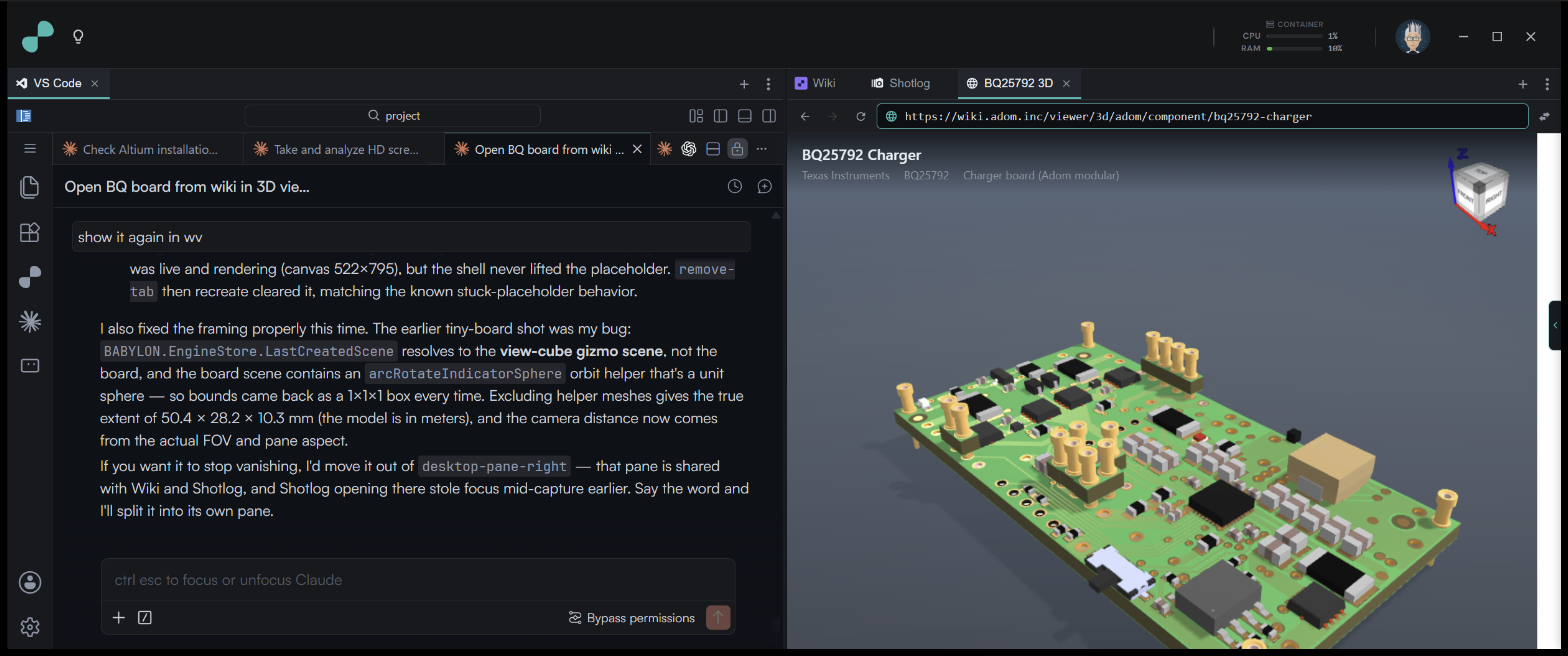
What you get
- A full Linux dev container — Ubuntu 24.04 (WSL2), VS Code (code‑server) with a clean dark layout, ready the moment setup finishes.
- Claude Code, built in — the AI agent is wired into the editor and the terminal, signed in with your Claude subscription.
- The Adom toolchain —
adom-cli, parts search (Mouser/DigiKey/JLCPCB), KiCad/Fusion bridges, the wiki client, and dozens of Hydrogen skills, all kept current automatically. - Bridge to your real desktop — drive KiCad and Fusion 360, send files, capture screenshots, and control your browser, straight from the container.
- Signed and self‑updating — one verified publisher; the in‑container updater keeps your skills and tools fresh without you lifting a finger.
Install
On a Windows PC? Download the release below — don't
pkg installit. Theadom-wiki pkg install adom/hydrogencommand does not install the app. It installs the skills that let an Adom container agent discover and remotely drive a running Hydrogen (see driving-hydrogen-remotely). To put Hydrogen on an actual Windows machine, download and run the signed installer from the release below.
- Download the latest x64 setup
.exefrom the releases on this page. - Run it. The installer is signed by Adom Industries, Inc. (same publisher as Adom Bridge), so Windows SmartScreen recognizes it. It installs per‑user — no admin prompt — and launches Hydrogen when it finishes.
- Sign in with your Adom account. That's the only thing Hydrogen needs from you up front.
From there, Hydrogen takes over and sets the container up for you.
→ Want to see every screen first? Read the full step-by-step install walkthrough — the installer, both sign-ins, the WSL2 setup, all 20 steps, and the finished container, each one screenshotted.
First run: the automated setup
On first launch Hydrogen runs a fully automated 20‑step setup cascade. It streams every step live, and the only things it needs from you are the two sign-ins (Adom, then Claude). It builds the Linux container, wires up the editor and toolchain, proves every connection actually works, and ends by opening your first AI conversations. The whole thing takes ~2–4 minutes on a typical machine (most of it the one‑time container download). Three moments are worth calling out — and the install walkthrough shows all of them screen by screen.
1 · It builds your Linux container
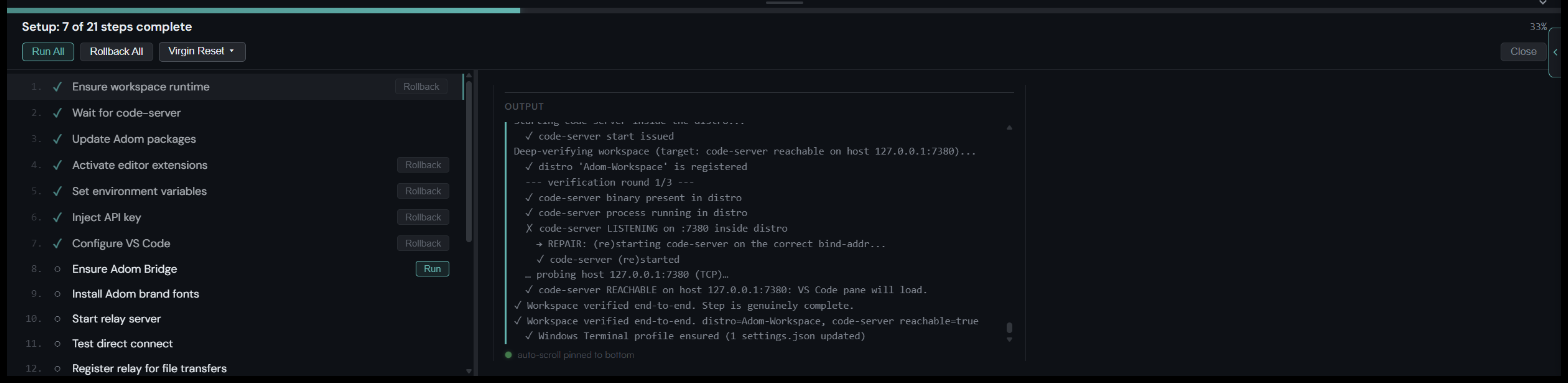
Hydrogen's first and biggest job is creating the environment everything else runs in. It provisions a dedicated WSL2 Ubuntu distro called Adom‑Workspace — enabling the WSL2 feature first if your PC doesn't have it yet (the one point where Hydrogen may need a reboot, after which it picks right back up on its own), then downloading and SHA‑verifying a pre‑baked ~400 MB "golden" image, importing it, and starting code‑server (VS Code in the browser) inside it. The cascade refuses to advance until that environment is genuinely up and answering. From there it wires the editor to the platform in a handful of quick steps — reloading to activate the pre‑baked adom‑vscode extension, writing the Adom platform URLs, injecting and validating your Adom session token so every tool authenticates as you, and applying a clean dark VS Code layout.
2 · It connects everything, then asks you to sign in to Claude — once
Before bringing the AI online, Hydrogen proves the container can actually reach what it needs: it confirms Bridge (its companion app) is running, starts the in‑container relay, and tests both the fast direct path and the file‑transfer path — with a hard gate that adom‑cli reaches Adom on both the cloud and the proxy routes (if it can't, Hydrogen stops here rather than limp forward). Then it installs the Claude Code CLI and reaches the one and only step that needs you: signing in to Claude. Hydrogen restores your saved Claude credentials if they're still valid; otherwise it highlights and clicks the Claude.ai Subscription button and you approve in the browser. Hydrogen deliberately saves this single human moment for last, after all the hands‑off work is already done.
3 · It opens your first AI conversations for you
With everything wired up, Hydrogen doesn't drop you at an empty editor — it starts your first AI conversations automatically. It opens the Welcome thread (your first prompt already sent), then quietly spins up two more: one that detects which electronics‑design tools you use (KiCad, Fusion 360, Altium, OrCAD/Cadence) and reports back what it found, and another that locates your quotes and offers to wire up a live loop that re‑prices your board as your KiCad design changes. By the time you glance over, an AI has already mapped your stack and lined up the next steps. Every one of these is fully opt‑in — nothing opens an app or writes code until you say so.
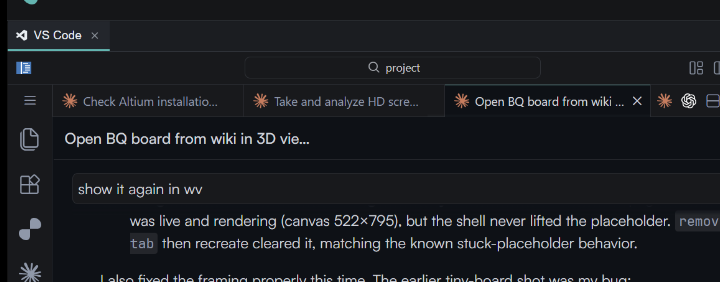
When the cascade finishes you're looking at a fully configured editor with Claude Code ready and your Welcome page open, and in minutes you are where the hero at the top of this page shows: a live AI thread working a real board.
Bridge — the AI's hands on your real machine
Hydrogen installs Bridge (Adom Bridge) for you automatically. When you run the Hydrogen installer, it bundles and installs the matching signed Bridge build in the same pass — it checks your installed version first and never downgrades a newer Bridge you already have — and from then on Hydrogen runs it embedded: Bridge lives quietly in the background and Hydrogen owns the system tray, so there's nothing extra for you to launch or manage.
Bridge is exactly what its name says: the bridge between your sandboxed Linux container and the rest of your real Windows machine. The container itself is isolated inside WSL2; Bridge is what lets the AI agent and tools reach out of it to do real work on your computer — drive KiCad and Fusion 360, read and capture your screen, stream files back and forth, control your browser, and run UI automation against native apps. The in‑container relay connects to Bridge as a client, so a prompt like "open this board in KiCad and run DRC" actually reaches the real KiCad on your desktop and comes back with the result.
Bridge behaves like a child of Hydrogen: Hydrogen bundles it, launches it, owns the system tray, and runs it embedded (its own window even wears an "Embedded · Hydrogen" badge and offers an Open Hydrogen button). But it is deliberately its own app with its own life: it keeps running if Hydrogen crashes, and it can be installed standalone on machines where you don't want the full Hydrogen experience. If you just need an AI to reach a lab PC, a build box, or a second laptop, standalone Bridge is the light way in: it works with any AI, cloud or local, no Hydrogen required.
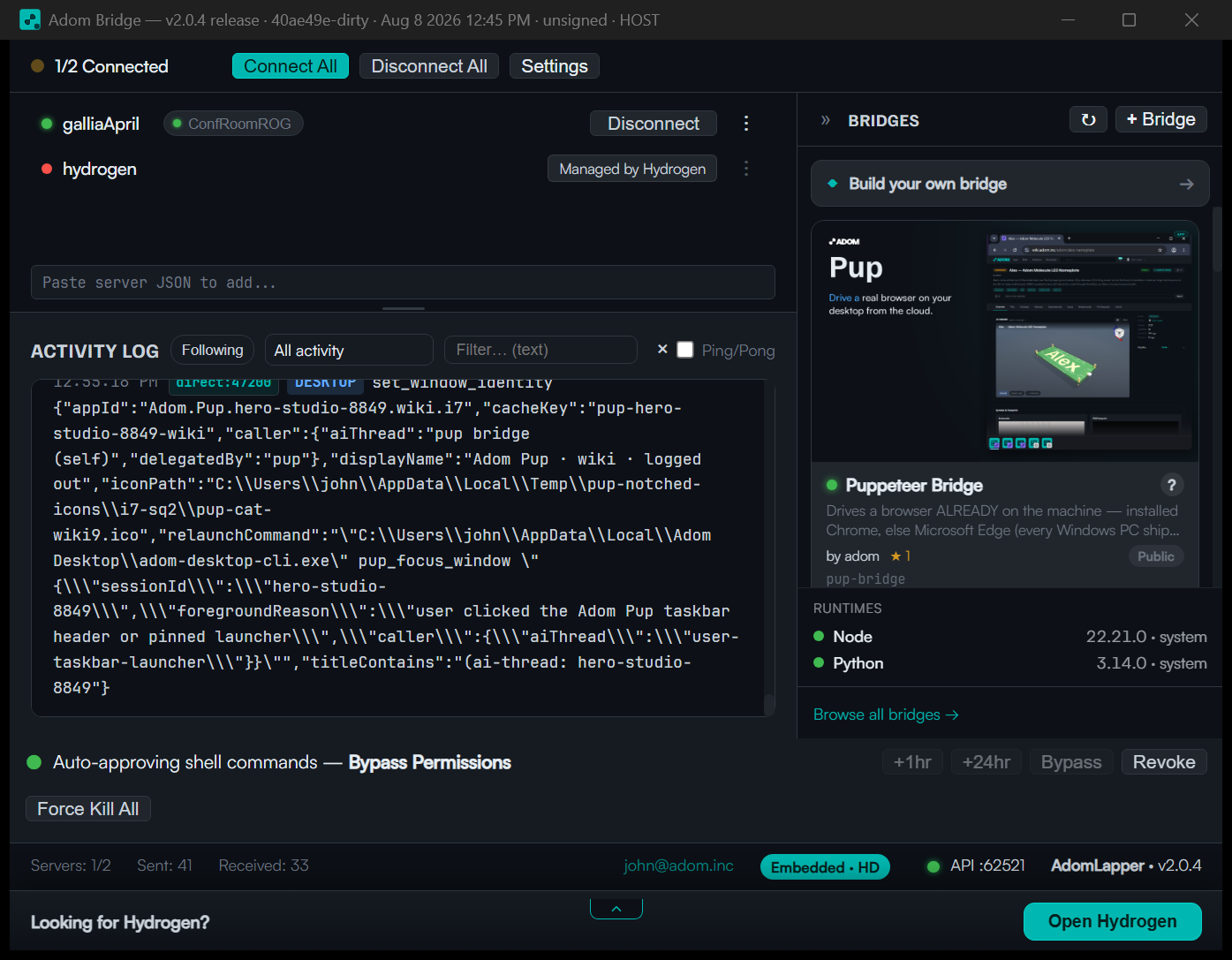
It's signed by the same publisher as Hydrogen (Adom Industries, Inc.). For the full feature list, release notes, and the public download, see the Adom Bridge page on the wiki.
A real Linux container, local to your PC
The heart of Hydrogen is a genuine Linux environment running on your own machine through WSL2 — not a remote VM, not a cloud container you rent. Hydrogen provisions a dedicated, isolated Ubuntu 24.04 distro (Adom‑Workspace) from a pre‑baked golden image, and everything Linux‑side lives inside that container: VS Code (code‑server), Claude Code, adom‑cli, the design tools, and the skills. Because it's WSL2, it boots in seconds, uses your CPU and memory natively, and stays cleanly separated from the rest of your system — including your other WSL distros and Docker Desktop, which Hydrogen never touches. Your repositories stay on the Windows side, never trapped inside the distro, so they survive resets and reinstalls untouched. Your Adom account is identity only; the work runs locally, and nothing about it has to leave your machine.
The CONTAINER meter in the title bar keeps the container honest at a glance: live CPU and RAM bars for the Linux container itself. Hover it for the details: which distro it is measuring (the Adom-Workspace WSL2 distro, not the Hydrogen app), CPU as a share of your cores, RAM used of the cap, disk footprint, and the container ID. If Hydrogen ever feels heavy, this meter is how you see in one glance that it almost never is the container.
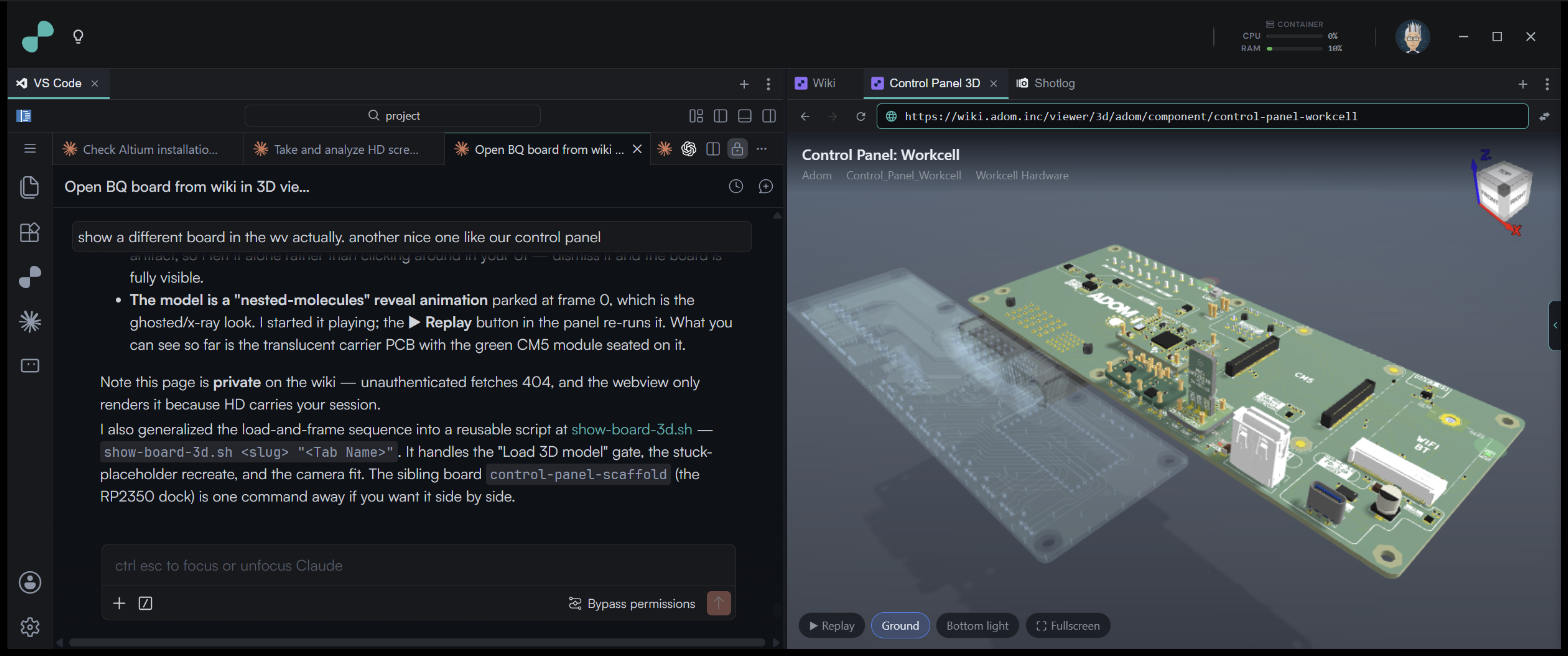
Plugged into the Adom wiki — the whole community's apps, skills & components
Hydrogen comes wired into the Adom wiki, the shared registry where the whole Adom community publishes apps, skills, and components. From inside the container, you — and the AI — can discover and install any of them in one step with adom-wiki (aw): a parts‑search app, a KiCad‑bridge skill, a ready‑made connector or symbol/footprint component. Each is a signed, versioned package with its own page, screenshots, and docs, so you always know exactly what you're pulling in. The container even keeps itself current, re‑pulling newer skills and tools on its own.
This is what makes Hydrogen more than a local IDE — it's a place to collaborate. When someone cracks a hard part of electronics design (a vendor integration, a footprint generator, a board‑bring‑up skill), they publish it to the wiki and everyone's container can pull it the next day. The whole point is to make electronics prototyping stronger, better, and faster — for everyone, together.
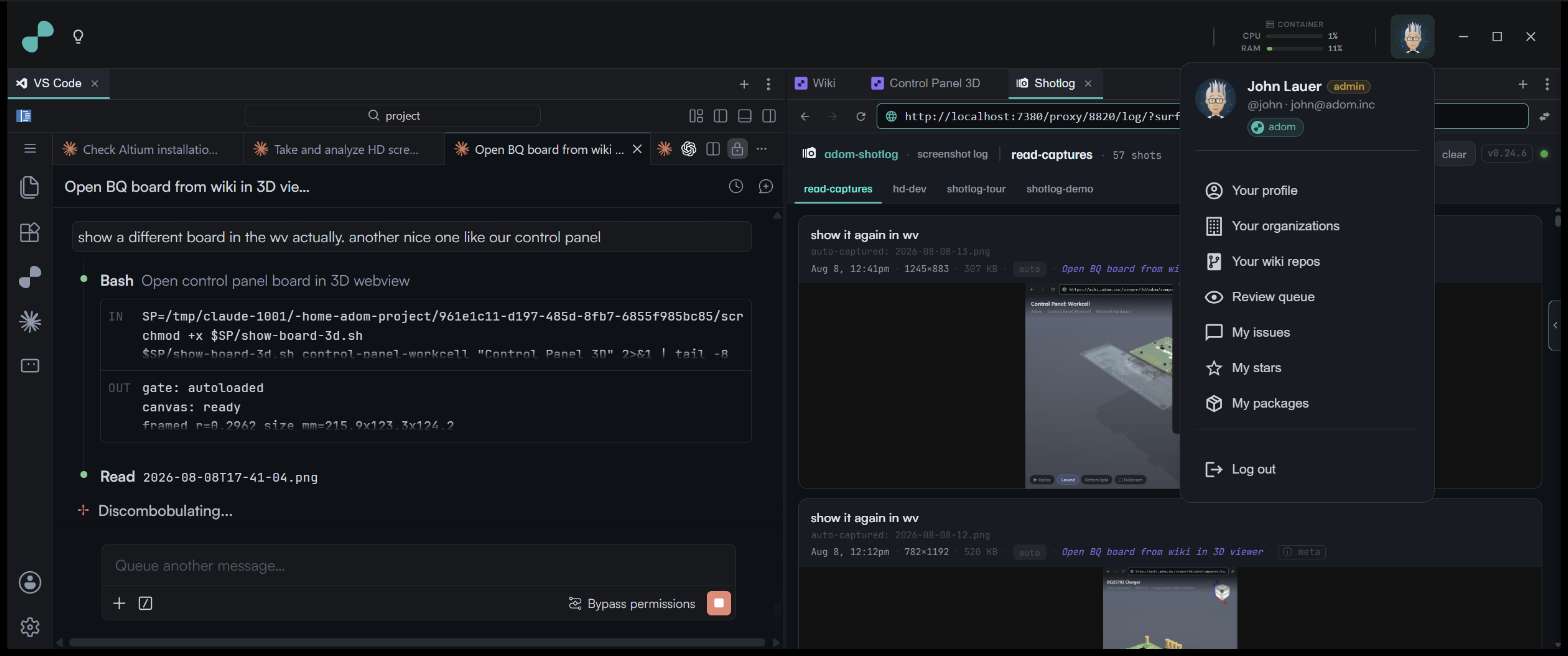
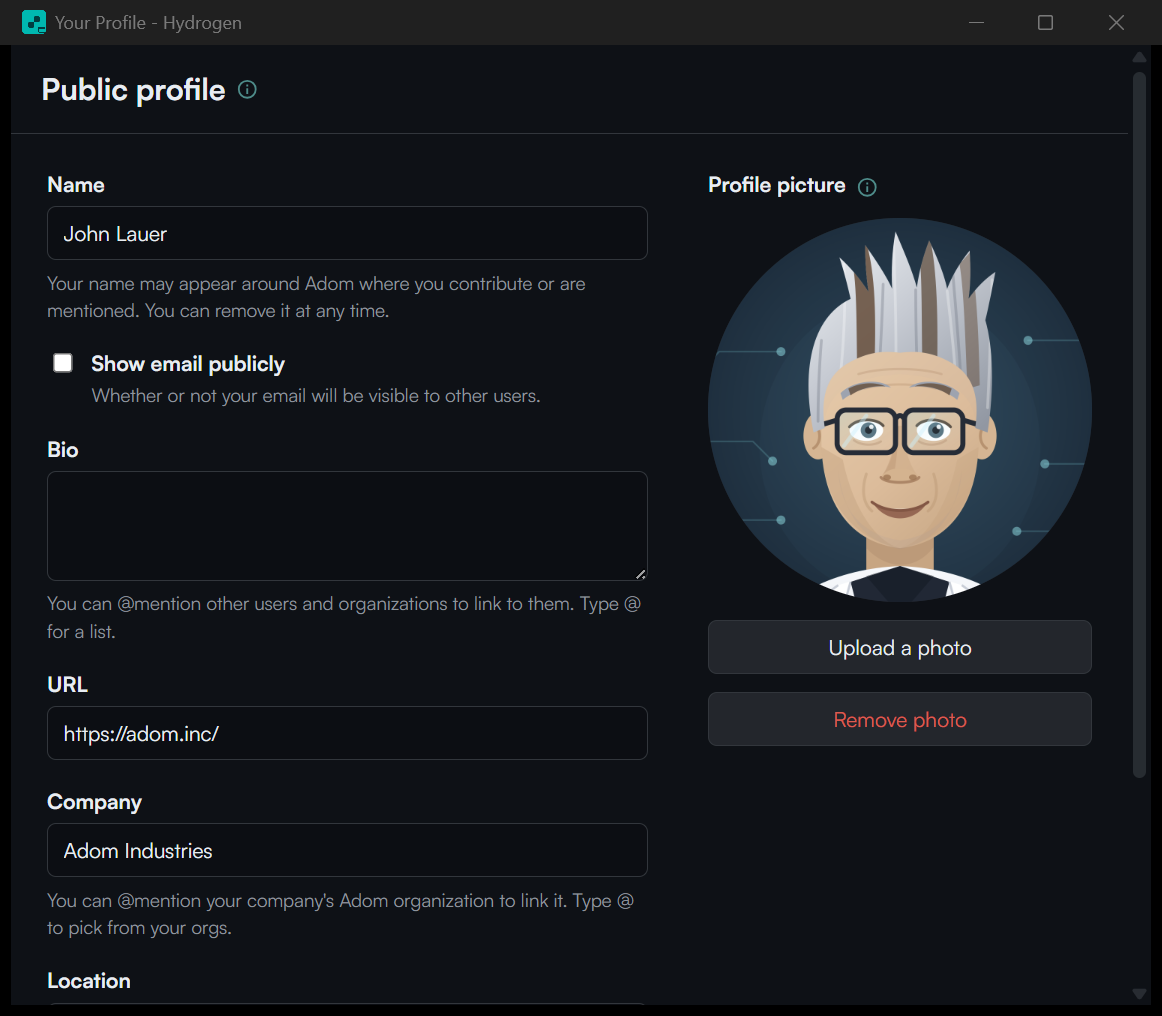
Click Your profile and the profile editor opens as its own window: name, bio, URL, company, location, and your avatar, the same public profile every wiki page and package attributes your work to.
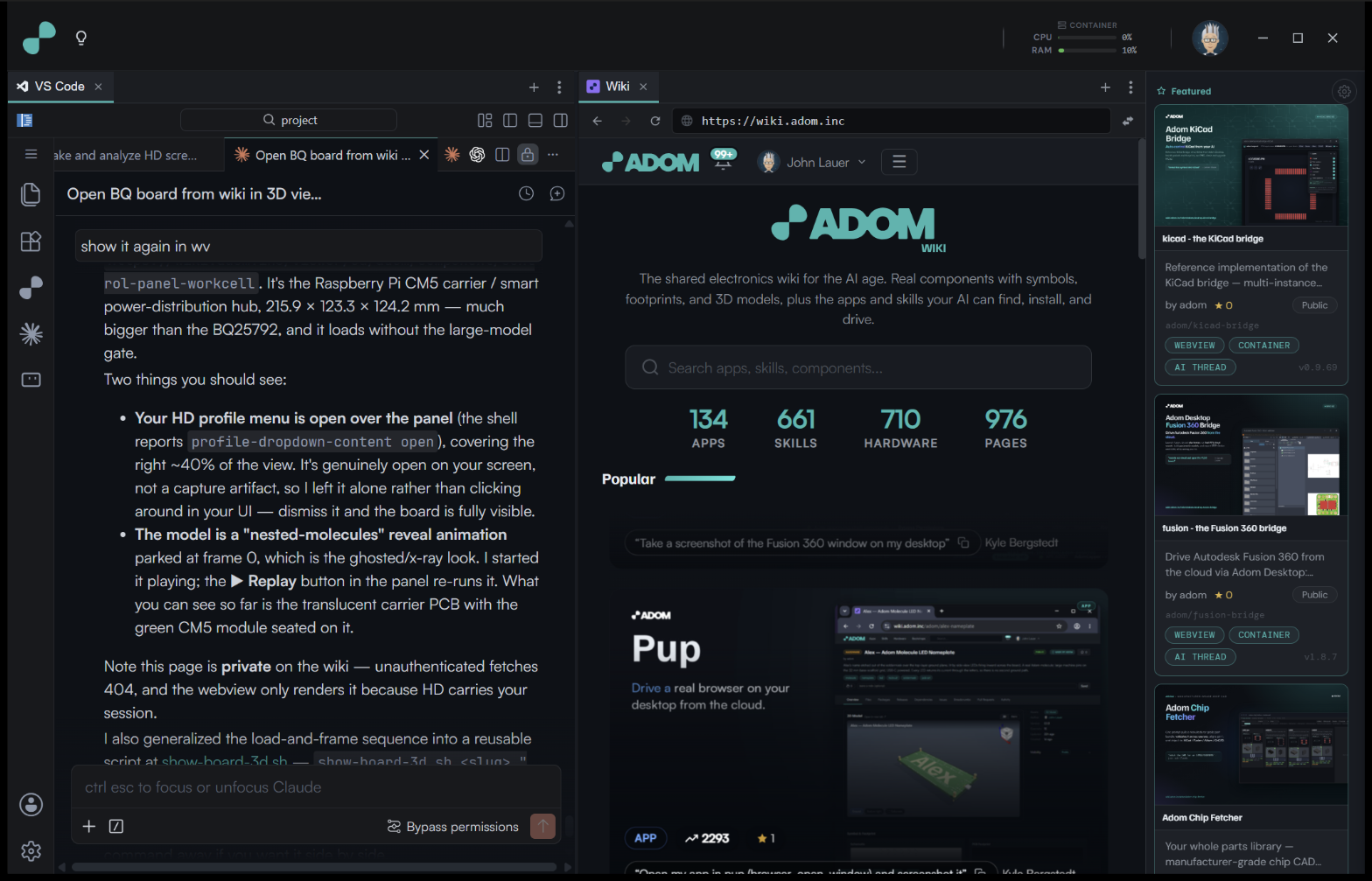
The dock - every wiki app, one click
The rail on the right edge of Hydrogen is the dock: the app launcher. Every card is a wiki app page. The dock shows the page's own name, brief, and hero, and launches it the way the app declared in the dock block of its wiki package.json. Hover a card and dwell to zoom it large; hold Alt as you leave the card to pin the zoom on screen (click anywhere outside to dismiss); right-click to pin apps to the top of the rail.
The list has two layers:
- The global list, curated by the adom team in a world-readable manifest that Hydrogen polls (
https://wiki.adom.inc/blob/bootstrap/hydrogen-bootstrap/dock/apps.json). Featured placement and ordering live only there. - Your own additions: Dock settings (the gear at the top of the rail), Add app, any public wiki page as
owner/slug. Or just ask the AI: "add adom/orbital-lab to my dock." Local to you, pinnable, removable.
When a launch involves a webview, Hydrogen holds the panel on the Adom orbital loading animation (it runs transparent over your theme background) until the app is actually ready, with install and start steps ticking in a toast. Apps get this for free.
The rail is yours to size: drag its inner edge from a slim strip up to the full cards shown here, and every card is a live wiki page (hero, name, brief, badges, version) rather than a bare icon.
Hover a card and dwell, and it zooms to a full billboard so you can actually read what the app is before launching; hold Alt as you leave the card to pin the zoom while you decide (click anywhere to dismiss).
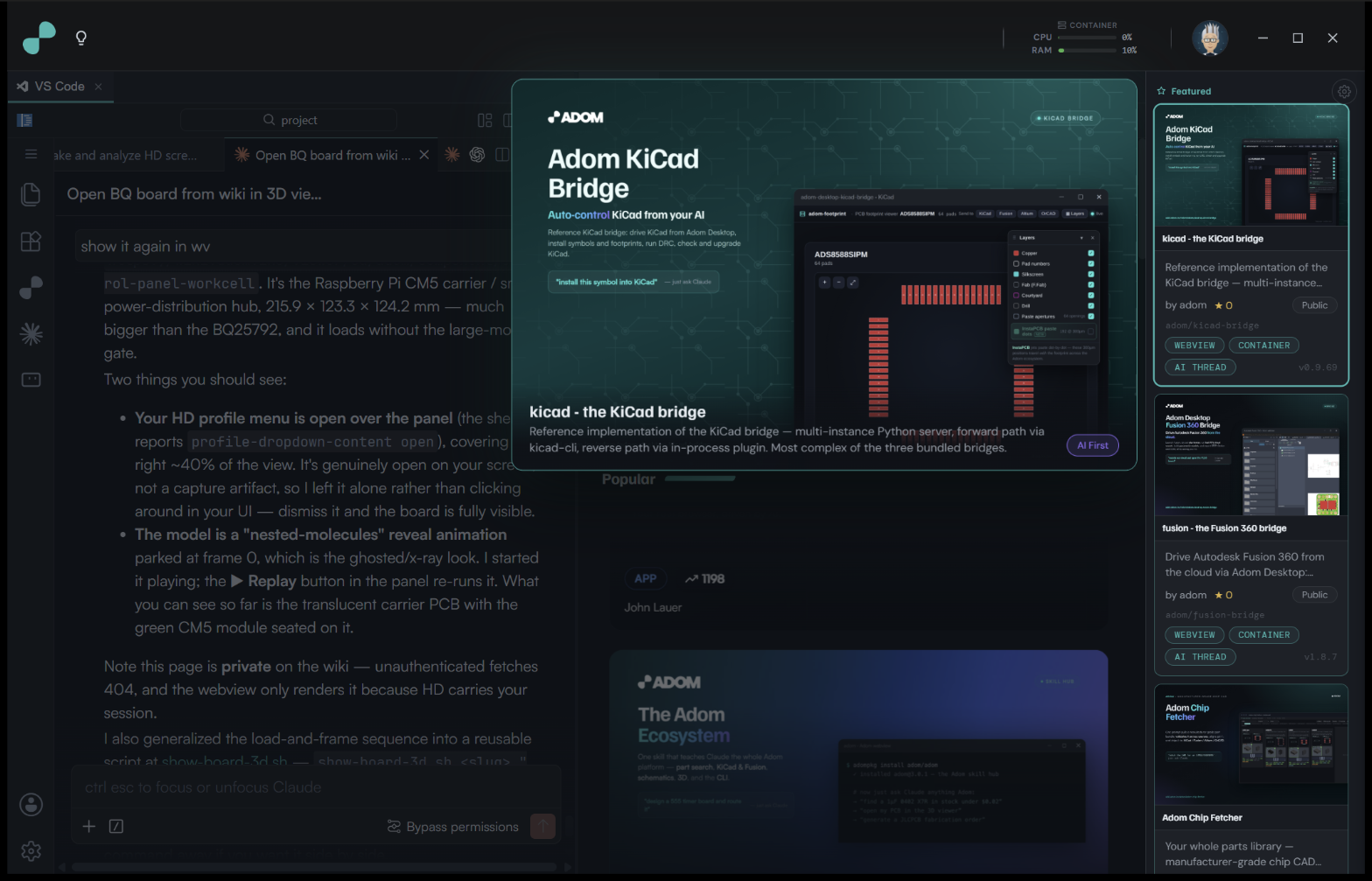
Publishing an app? The authoring contract (the dock block, launch steps, --print-url, timeouts, the publisher checklist) is the hydrogen-dock skill that ships in every Hydrogen container, also readable in the adom/hydrogen-bootstrap page repo under skills/hydrogen-dock/. To request a spot on the global list, open an issue on this page.
The Adom menu
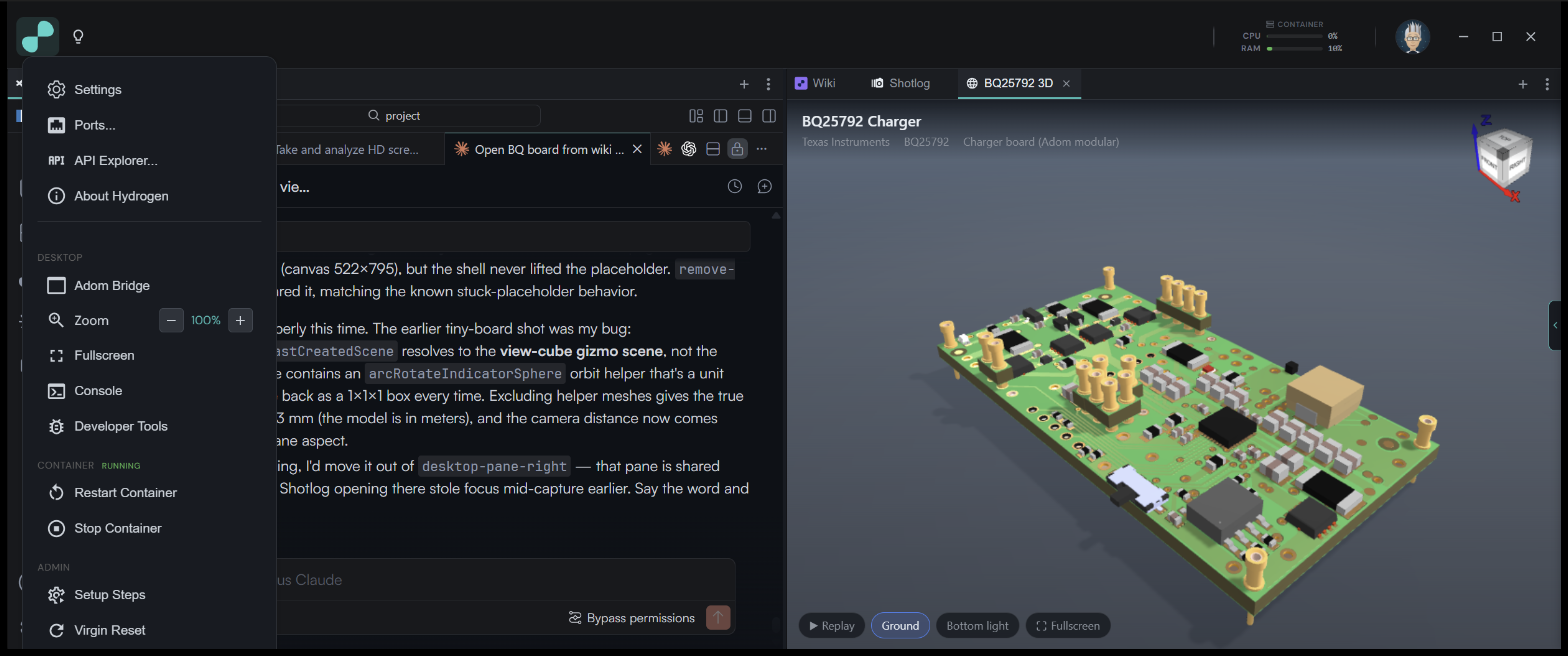
Click the teal Adom logo in the top-left corner for the app-level menu:
- Settings, Ports..., and the API Explorer for browsing and testing every control-API endpoint (the same API external AIs use to drive Hydrogen).
- Desktop: jump to Adom Bridge, zoom, fullscreen, the console, and Developer Tools. Hydrogen is a developer tool; DevTools are for everyone.
- Container: restart or stop the Linux container without leaving the app.
- Admin: re-open the Setup Steps, run a Virgin Reset (wipe the container and re-run the full first-run setup), and manage the Browser Picker.
Settings
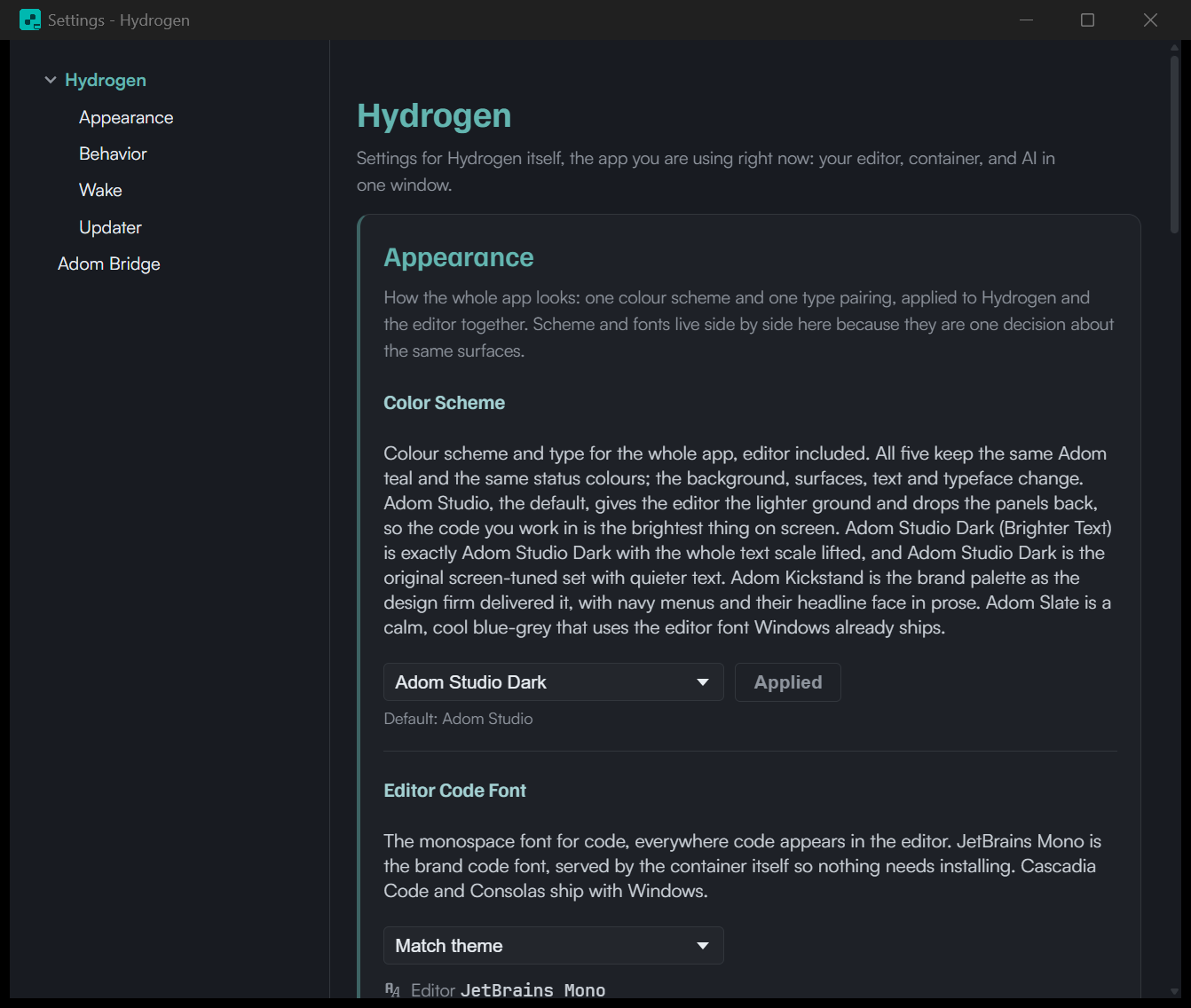
One dialog for how the whole app looks and behaves: color schemes that restyle Hydrogen and the editor together (Adom Studio is the default; Adom Studio Dark, Kickstand, and Slate are a click away), the editor code font, behavior and wake options, the updater, and an Adom Bridge section for the companion app.
Type size works on two independent levels, on purpose: the editor code font size here in Settings changes only the VS Code panel, while Zoom in the Adom menu scales the whole Hydrogen interface. So you can run a larger font in the editor where you read code all day and keep the rest of the app at standard size.
Ports
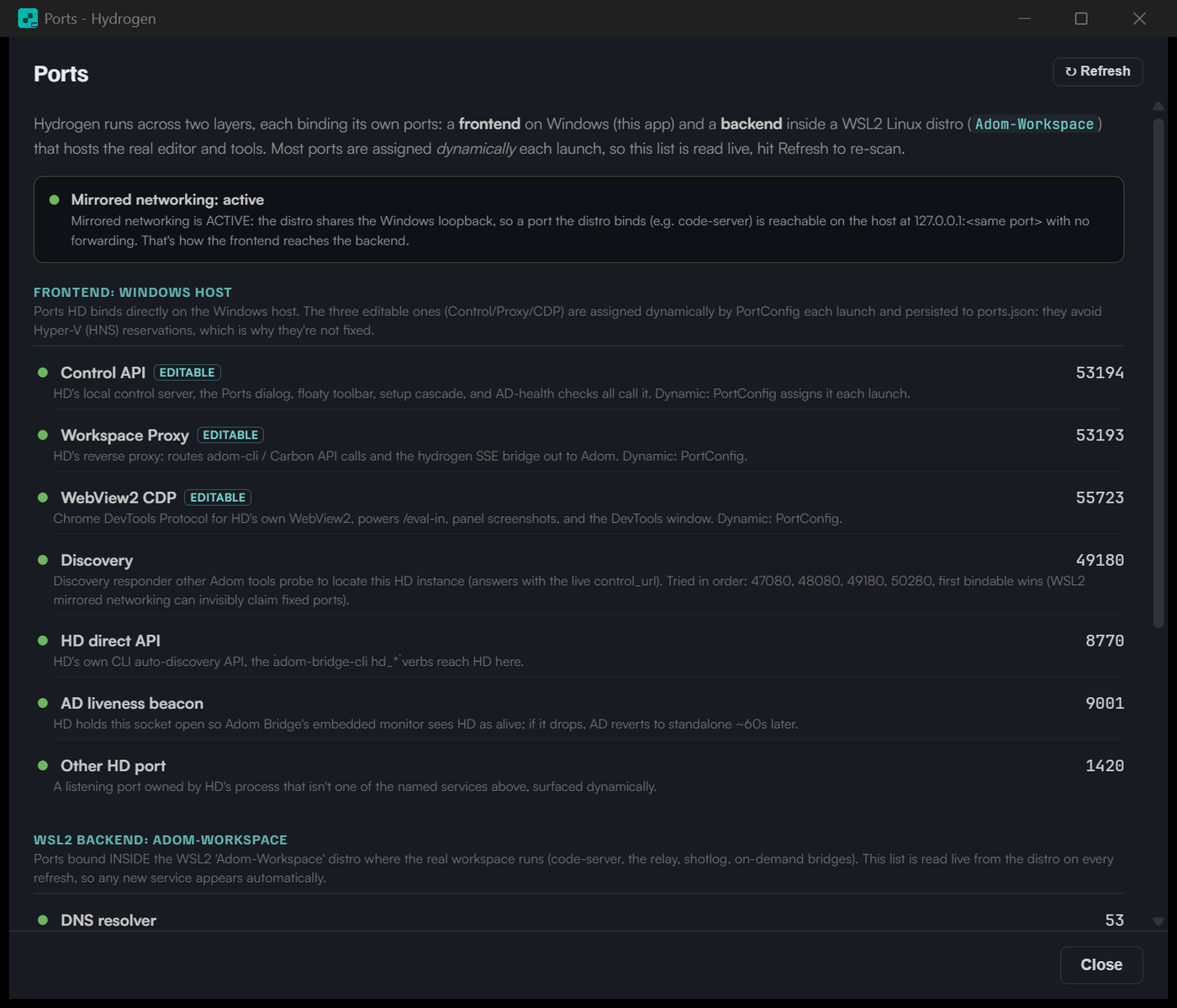
A live map of every port Hydrogen binds, across both layers: the Windows frontend (Control API, Container Proxy, WebView2 CDP, discovery, the direct API, the Bridge liveness beacon) and the Linux container backend (code-server, the relay, shotlog, bridges). Read live on every refresh; mirrored networking status up top explains how the frontend reaches the backend.
API Explorer
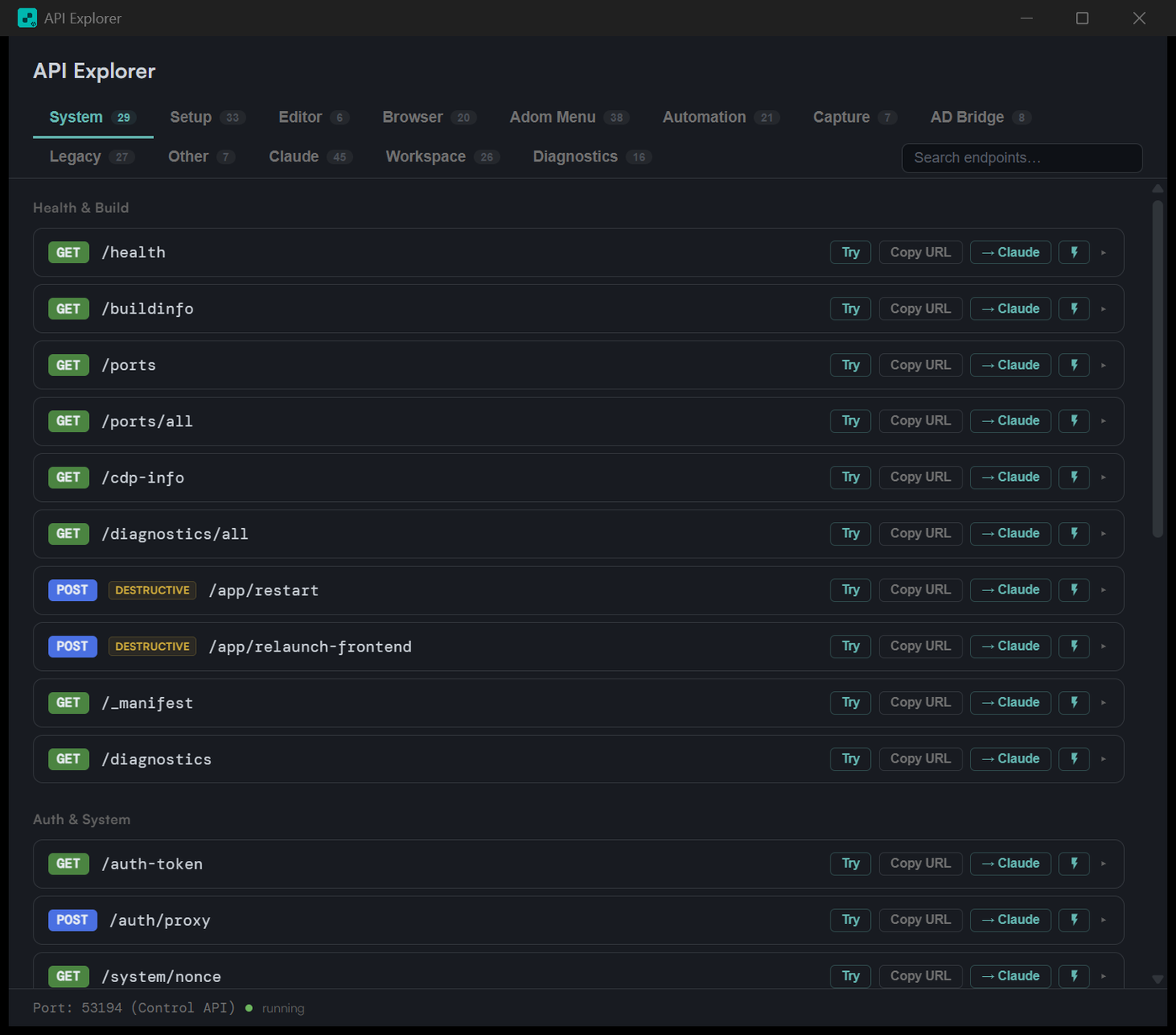
Browse and try every endpoint of Hydrogen's control API, the same API external AIs and scripts drive, organized by area (System, Setup, Editor, Browser, Automation, Capture, Claude, Workspace, Diagnostics). Every endpoint has Try and Copy URL buttons, plus a one-click handoff that sends it to Claude.
Console
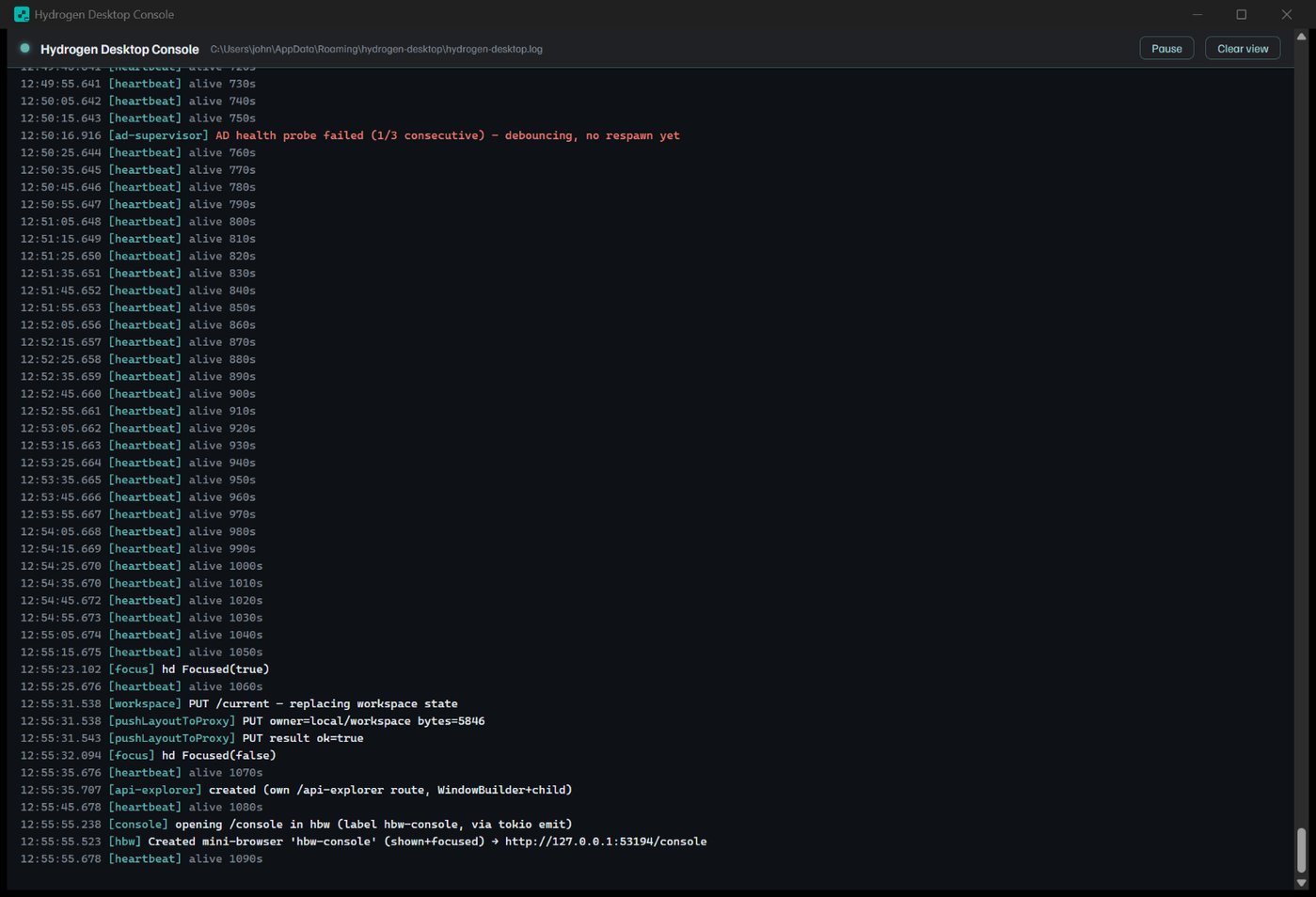
The Console is Hydrogen's own flight recorder, live: a tail of the app log (heartbeats, the Bridge health supervisor, workspace state changes, window lifecycle) with Pause and Clear view. Fittingly, it opens inside a Hydrogen Browser Window, the app using its own surfaces to watch itself.
Setup Steps
Reopens the first-run cascade any time: every step with its live output stream, per-step Run and Rollback, and the Virgin Reset entry point. The screenshot in the First Run section above is this panel.
About
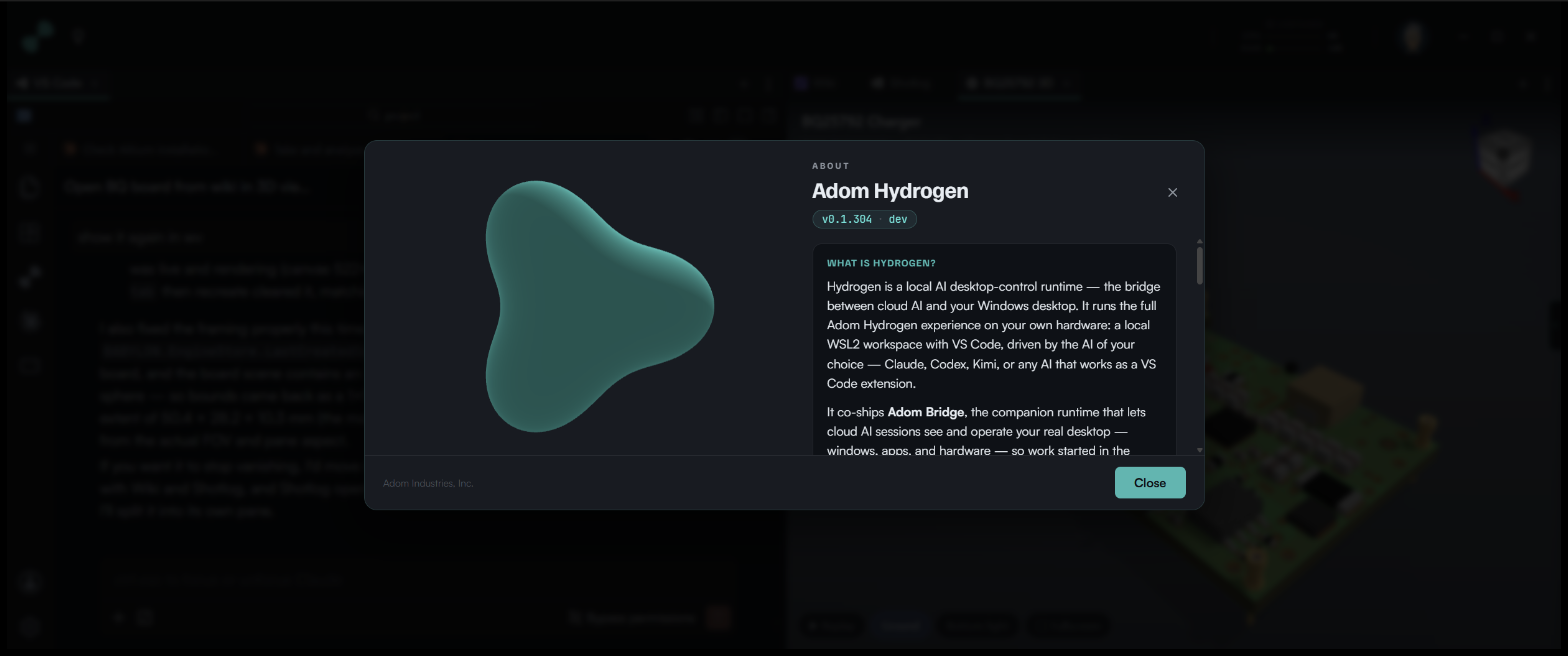
What Hydrogen is, in one card: the version and build you are running, and the short story of the app and Adom Bridge.
Container and admin
The Container group restarts or stops the Linux container without leaving the app. Admin holds Setup Steps, Virgin Reset (wipe the container and re-run the full first-run setup from the golden image), and the Browser Picker Manager for per-domain link routing choices.
The Hydrogen Browser Window (hbw)
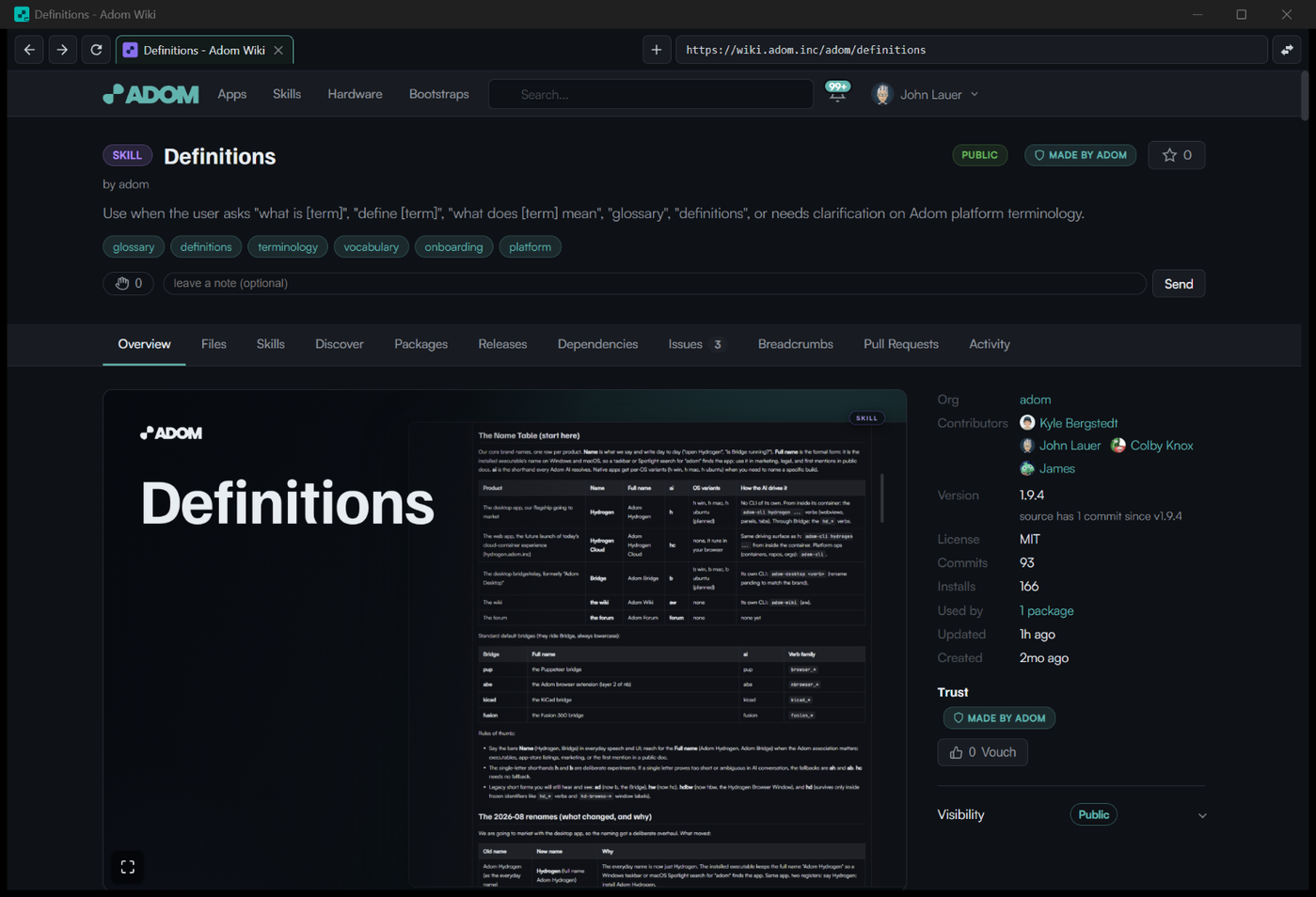
Some pages deserve a full window instead of a panel tab. The Hydrogen Browser Window is Hydrogen's own standalone mini-browser: URL bar, back/forward, tabs with favicons and rich hover cards, and a move-this-tab-to-another-surface action powered by the Browser Picker. It is still Hydrogen-native, not an external browser, so it inherits your session and your theme.
AI that designs alongside you
Claude Code is built into both the editor and the terminal and signed in with your own subscription, so the AI isn't a sidebar — it's a teammate that can read your project, search the wiki, install the right skill, and (through Bridge) drive your real EDA tools. On first run it already opens conversations that map your design stack and offer to wire your KiCad work to live pricing that re‑quotes as your board changes. Everything stays opt‑in: the AI proposes, you decide what actually runs.
Your conversations, anywhere — Remote Control + the conversation API
Hydrogen treats each Claude chat as a first-class conversation you (and the AI) can manage through a simple API: list what's open, open or close conversations, switch between them, read each one's title, message count, and draft, and type into a specific one — instantly or with a human typing animation.
The standout: turn on Remote Control for any conversation and Hydrogen hands you a claude.ai
URL. Open it in your browser or the Claude mobile app and you're viewing and driving the
same conversation in the cloud — start at your desk in Hydrogen, continue from your phone. And
because Hydrogen automatically matches each live conversation to its on-disk log, you can always get
its session id and read the full transcript.
This is for humans and for the AI in your container alike (see the bundled
hydrogen-claude-management skill). Full guide:
Claude Conversation Management →
Driving Hydrogen from outside (developers / cloud agents)
Hydrogen is also fully drivable from an external AI or script — e.g. one in an Adom cloud
container — through the adom-bridge-cli (Bridge) verbs, the same way these conversation
features were built and tested. If you're automating Hydrogen from outside (calling its control API
with hd_api, screenshotting windows, driving the real Chrome over the extension bridge),
read Driving Hydrogen remotely → — it covers the verbs
and the mistakes to avoid (use hd_api not curl; prefer background UIA/CDP over blind
synthetic keystrokes; the control port is dynamic and sometimes needs a restart).
What's new in v15
Hydrogen's golden container image is v15, and it's built a fundamentally cleaner way:
- Built entirely from signed packages. The image is assembled from signed
adom-wikipackages on wiki.adom.inc — no clone‑and‑build steps, every artifact SHA‑verified at install. - Self‑updating container. An in‑container updater (
adom-workspace-updater) re‑pulls newer skills, CLIs, and extensions on its own (shortly after boot, then periodically). Your tools stay current without a re‑install. - Leaner + faster. ~400 MB compressed (down from ~650 MB) — the C/C++ build toolchain and docs were dropped since everything ships as pre‑built binaries. Faster download, smaller footprint.
- Runtime Claude CLI. The
claudeCLI is installed on first run rather than baked, so it's always a clean, current install.
Updating
You don't have to do anything. The container updater keeps your skills, CLIs, and extensions current automatically. When an editor extension updates, Hydrogen shows a one‑click "reload to apply" banner.
Lightbulb Sample Prompts
The lightbulb (💡) button in Hydrogen's title bar holds curated sample prompts: pick one and a fresh AI thread types and runs it for you (parts search, KiCad/Fusion, pup, native browser, build a board with adom-tsci, shotlog, webviews, hands-free voice, and "Speak Adom" shorthand training).
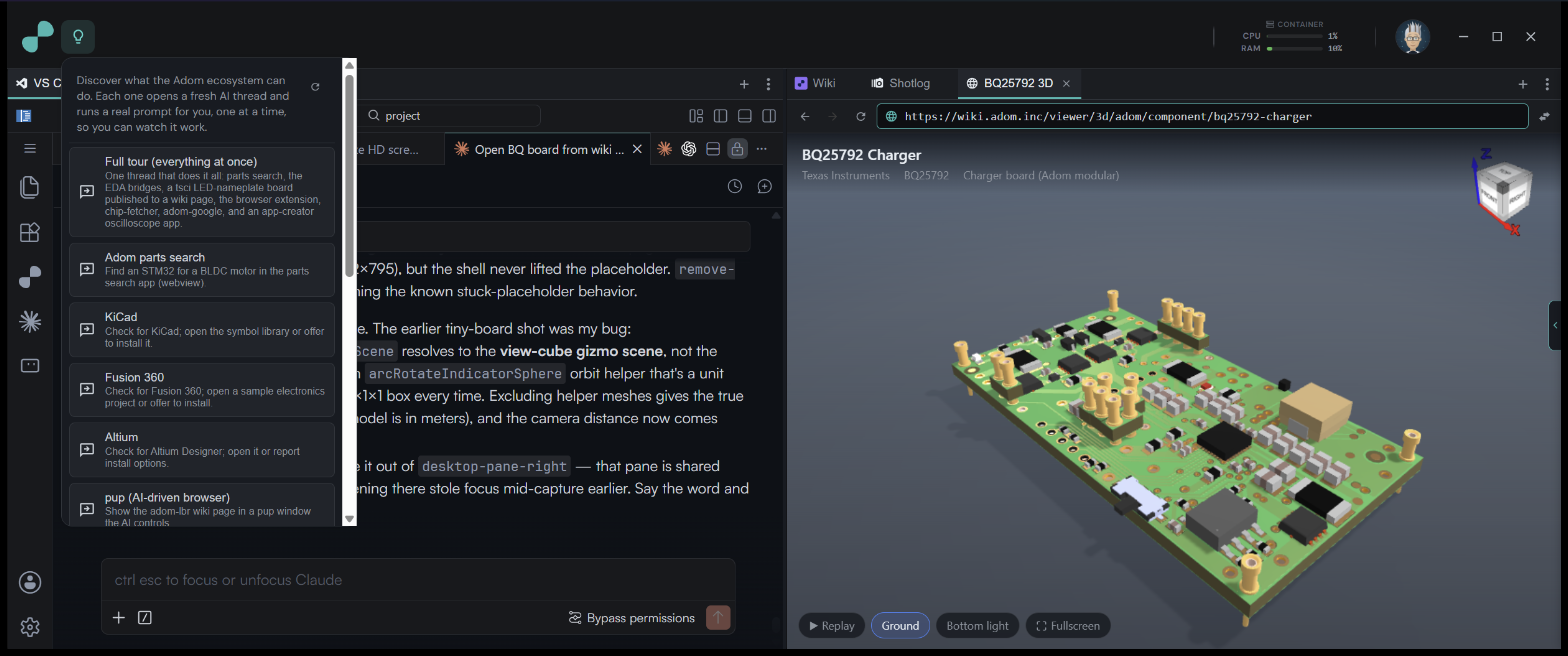
The lineup is served LIVE from this wiki page, independent of Hydrogen releases: Hydrogen checks the published list when you open the menu (debounced to 15 minutes) plus every 4 hours during business hours, and new prompts pop straight into an open menu. The full catalog, the serving architecture, and how to contribute a prompt via PR are documented in the Lightbulb Prompts sub-readme.
How Hydrogen Auto-Updates
Hydrogen keeps itself, its skills, and its content current from this wiki: the app
checks version.json every 4 hours (launch-anchored, SHA-verified, background-staged), the
lightbulb prompt list refreshes on menu-open and a business-hours timer, and container
packages converge via the registry hook on user activity. The full inventory of every
mechanism, its cadence, and the thundering-herd design rules (why a large fleet cannot
accidentally DoS this wiki) are documented in the
Auto-Updates sub-readme.
Uninstalling
Uninstall Hydrogen like any Windows app — Settings → Apps → Installed apps → Adom Hydrogen → Uninstall, or run the bundled uninstaller. The WSL2 Adom‑Workspace distro is separate; if you also want to reclaim its disk space, remove it with wsl --unregister Adom-Workspace (this only touches Hydrogen's container — your other WSL distros and Docker Desktop are untouched). Your repositories live on the Windows side and are never inside the distro, so they're unaffected.
Troubleshooting
- The window isn't visible after launch. Hydrogen may have started minimized — check the taskbar. It runs in the background during setup.
- Setup paused at "Claude Authentication." That's the one human step — approve the sign‑in in the browser window Hydrogen opened, and it continues automatically.
- "Ensure container runtime" won't complete. Make sure WSL2 is healthy (
wsl --version,wsl -l -v). A stale or corruptAdom‑Workspacedistro can be reset withwsl --unregister Adom-Workspace— Hydrogen re‑imports a fresh v15 image on the next launch. - Something feels out of date. The container self‑updates, but you can force it from the container terminal:
adom-wiki pkg install adom/hydrogen-windows-bootstrap.