Adom Desktop - Fusion 360 Bridge
Public Made by Adomby adom
Drive Autodesk Fusion 360 from the cloud via Adom Desktop: component libraries, IPC package generation, board layout, exports (STEP/Gerbers/BOM/CPL), fast APS cloud search, and parametric modeling.
Making component libraries in Fusion 360 (symbol + footprint + 3D)
How an Adom component library is built and gets into Fusion 360 Electronics as a placeable part, captured end to end on a real part (Nordic nRF54L15). It covers the parts that work today and the one hard step that is still being automated: attaching the real 3D chip via a Fusion cloud URN.
Companion skill:
skills/fusion-libraries/SKILL.md. Verb reference: VERBS.md.
Demo video
A real screen recording, ~55 seconds (burned-in captions + voiceover): starting from the adom-lbr
source view (symbol, the 4-sided footprint, and the 3D), the library opens in Fusion,
fusion_attach_3d_package attaches the real 3D chip onto the footprint, then the library is saved to
the cloud and reopened so the 3D binds onto the deviceset - a complete library: symbol, footprint, 3D,
and deviceset. Live screen capture (WGC + the adom-lbr pup viewer), not stitched stills.
Watch / download the demo video
The pipeline
chip-fetcher  ->  adom-symbol    -> NAME.kicad_sym ┐
(vendor bundle)   adom-footprint -> NAME.kicad_mod ┼-> adom-lbr generate -> NAME.lbr -> fusion_open_lbr
   incl 3D/NAME.stp + NAME.glb                     ┘   (symbol + package + connects)    (Library editor)
                                                       (2D; 3D = placeholder)
                          then: STEP -> Fusion cloud (URN) -> 3D Package Generator -> real 3D on the package
| Tool | Role | Output |
|---|---|---|
| chip-fetcher | pulls a multi-CAD vendor bundle for an MPN; the content source | library/<MPN>/<MPN>.step, .glb, vendor EAGLE/KiCad |
| adom-symbol | builds the schematic symbol | NAME.kicad_sym (2D, no 3D) |
| adom-footprint | builds the PCB footprint | NAME.kicad_mod (2D, no 3D) |
| adom-lbr | assembles + validates the EAGLE library | NAME.lbr (symbol + package + deviceset) |
adom-lbr generate --sym NAME.kicad_sym --fp NAME.kicad_mod -o NAME.lbr then
adom-lbr validate NAME.lbr -> "valid EAGLE .lbr with complete deviceset".
Step 1 - open the .lbr in Fusion
The .lbr is built in the cloud container; Fusion runs on Windows. There is no container-to-Windows
push verb, so stage the file first, then open the Windows path.
# serve from the container
cd <dir-with-lbr> && python3 -m http.server 8931
# download onto Windows (build the JSON in Python; Windows paths need \\ )
adom-desktop shell_execute '{"command":"powershell -NoProfile -Command \"Invoke-WebRequest -Uri https://<workspace>.adom.cloud/proxy/8931/NAME.lbr -OutFile C:\\Users\\<user>\\adom-lib\\NAME.lbr\""}'
# open it
adom-desktop fusion_open_lbr '{"filePath":"C:/Users/<user>/adom-lib/NAME.lbr","verify":true}'
adom-desktop fusion_get_app_state '{}'   # expect activeWorkspace "Electronics Library", isElectronics true
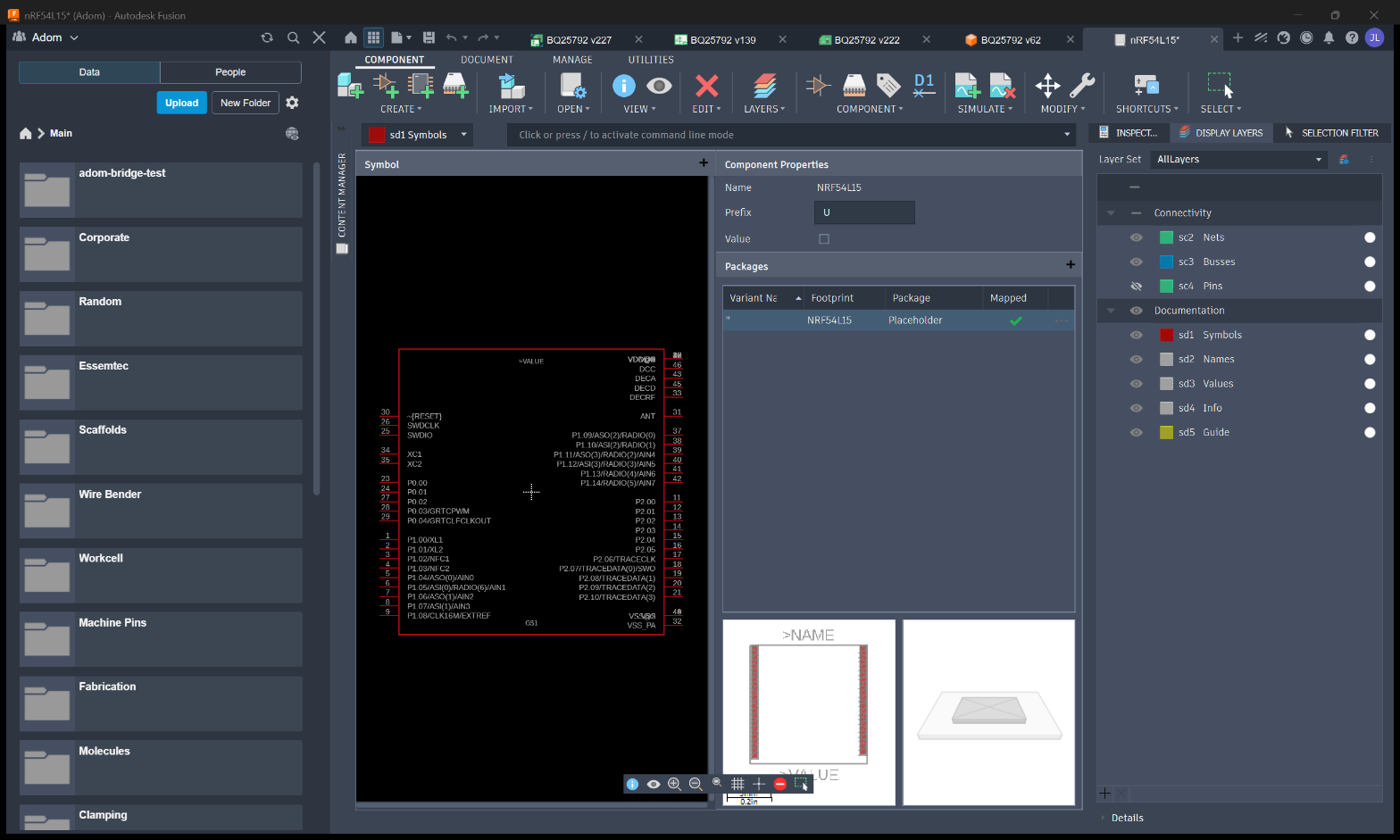
The library loads with symbol + footprint + deviceset. The 3D package is a placeholder (the Content Manager 3D tab is empty). This is correct, and is the gap the rest of this guide closes.
Step 2 - put the 3D model in the Fusion cloud (get a URN)
Fusion does NOT embed the STEP in the .lbr. A package references its 3D model by a Fusion cloud
file URN (urn:adsk.wipprod:fs.file:vf.<id>?version=N). So the model has to live in the cloud
first. Stage the STEP to Windows (same as step 1), then upload it:
adom-desktop fusion_aps_browse '{}'                                   # find hub + project
adom-desktop fusion_aps_browse '{"projectId":"<proj>"}'               # find the root folder
adom-desktop fusion_aps_create_folder '{"projectId":"<proj>","parentFolderId":"<root>","name":"Electronics 3D"}'
adom-desktop fusion_aps_upload '{"projectId":"<proj>","folderId":"<folder>","localPath":"C:/Users/<user>/adom-lib/NAME.step","fileName":"NAME-3D.step"}'
# -> { "itemUrn": "urn:adsk.wipprod:dm.lineage:...", "bytes": ... }
Verified on nRF54L15: the STEP (1088914 bytes) uploaded into Standard Components / Electronics 3D
and returned a real URN. (Electron.getCloudPathFromUrn confirms the 3D package references a Fusion
file URN, which is what this path produces.)
Step 3 - the 3D Package Generator (attach the model to the footprint)
Fusion exposes a scriptable entry point:
adom-desktop fusion_execute_text_command '{"command":"Electron.Create3DPackage C:/Users/<user>/adom-lib/NAME.lbr"}'
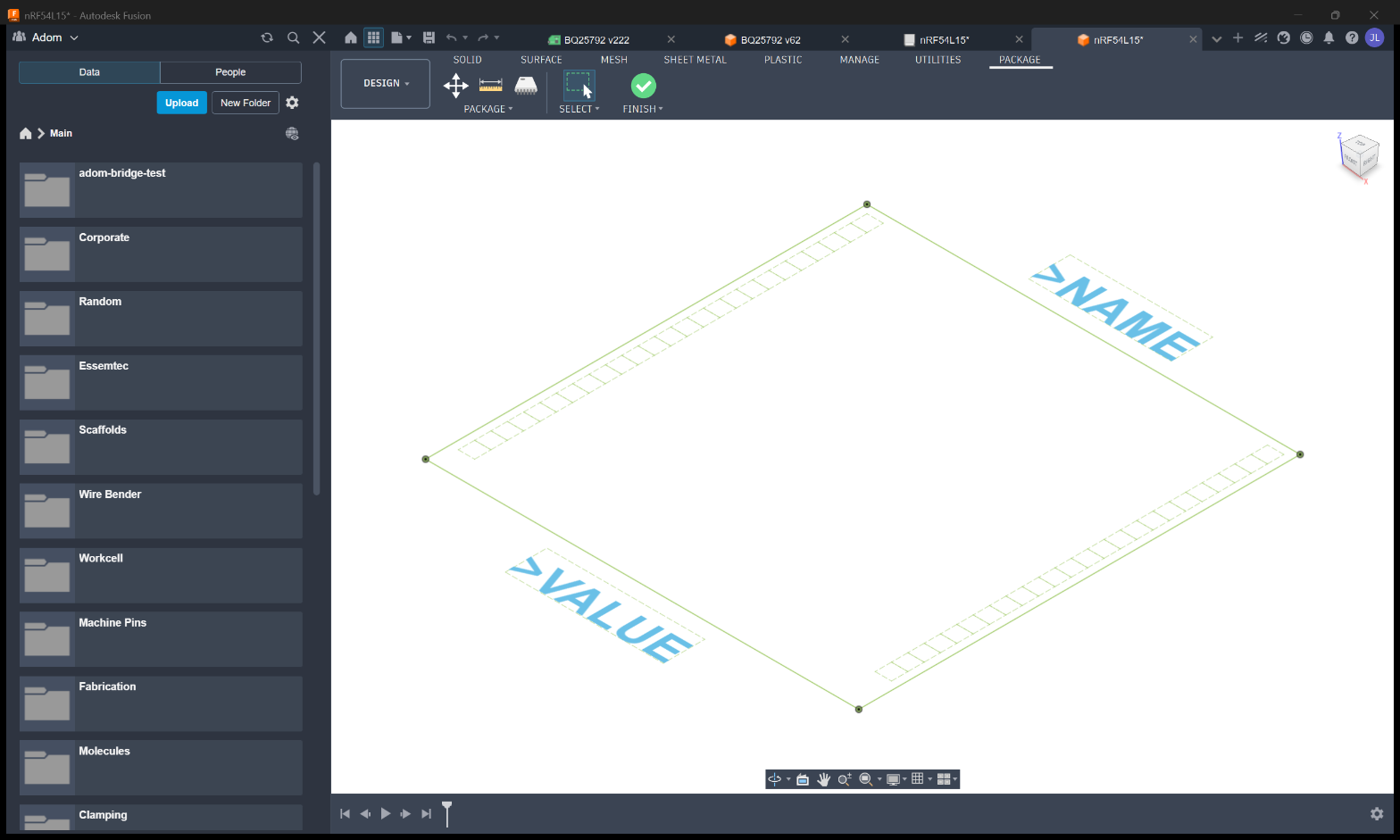
This opens the 3D PACKAGE Generator: a Design-workspace authoring document with the footprint
loaded (the green courtyard + >NAME / >VALUE), and a PACKAGE / SELECT / FINISH ribbon.
The generator is itself an adsk::fusion::Design in the Package3DEnvironment workspace, with
three command definitions: Package3DCmd, Package3DCreateCmd, Package3DStop (Stop = FINISH).
So the insert + finish are drivable through fusion_run_modeling_script (full adsk API):
# inside the generator, via fusion_run_modeling_script:
d = adsk.fusion.Design.cast(app.activeProduct); root = d.rootComponent
im = app.importManager
im.importToTarget(im.createSTEPImportOptions("C:/.../NAME.step"), root)   # the real 3D body
oc = root.occurrences.item(root.occurrences.count-1)                      # STEP imports Y-up;
mat = oc.transform2.copy()                                                # rotate 90 deg about X
mat.transformBy(_rotX(math.pi/2)); oc.transform2 = mat                    # so it lies flat (thin in Z)
ui.commandDefinitions.itemById("Package3DStop").execute()                 # FINISH -> Save dialog
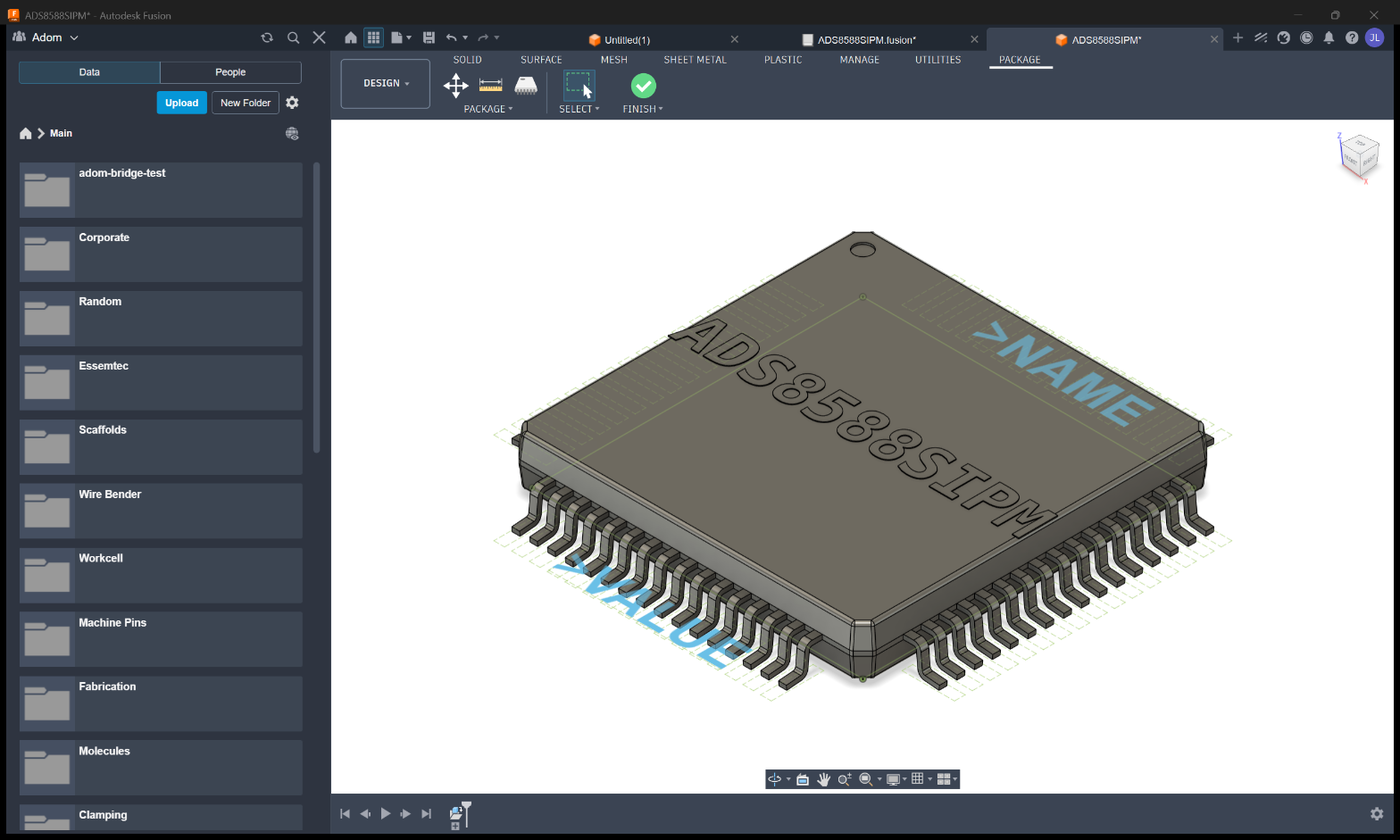
This works: the real chip imports at correct scale, orients flat, centered on the footprint, and
FINISH saves a 3D package to the cloud (the Save dialog Name/Location are confirmed via desktop_ui_click).
SOLVED - the 3D binds, end to end
Launched from the open library, Electron.Create3DPackage -> import the model -> orient ->
Package3DStop (FINISH) -> Save does bind the 3D onto the deviceset. Proven on ADS8588SIPM
(LQFP-64): the Content Manager tree shows the 3D nested under the package under the deviceset, the
Packages panel's Package column flips from Placeholder to the part name, and the 3D preview becomes
the real chip. First time the full Fusion electronics 3D attach is automated via the bridge.
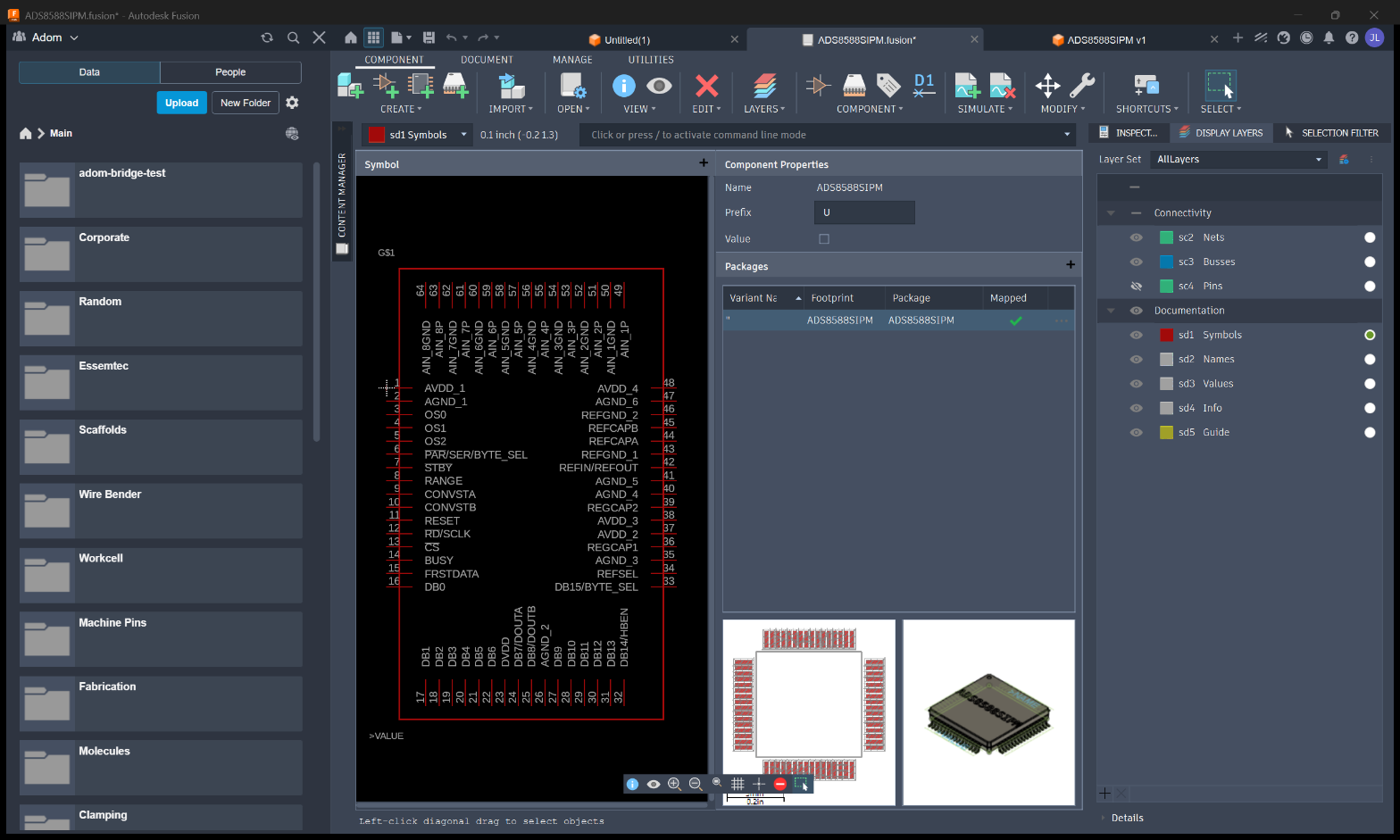
GOTCHA: the right-panel preview LAGS after FINISH (still shows the gray placeholder for a moment) - the
Content Manager tree / Package column is the source of truth; re-grab the window after a beat.
How Fusion stores it (the ground-truth .lbr markup)
Export the bound library (fusion_export_source to a .flbr ZIP; the EAGLE XML is in
electron.BlobParts/ExtFile<uuid>) and you see exactly how the 3D is referenced for a CUSTOM model:
<packages3d>
  <package3d name="<PKG>" urn="" wip_urn="urn:adsk.wipprod:fs.file:vf.<id>?version=1"
             locally_modified="yes" type="model">
    <packageinstances><packageinstance name="<PKG>"/></packageinstances>
  </package3d>
</packages3d>
<!-- inside the <device>: -->
<package3dinstances><package3dinstance package3d_urn="urn:adsk.wipprod:fs.file:vf.<id>?version=1"/></package3dinstances>
Key: urn="" is empty (that slot is for managed urn:adsk.eagle:package parts only); the real link is
wip_urn= with the versioned file URN urn:adsk.wipprod:fs.file:vf.<id>?version=1 (NOT the
dm.lineage form), plus locally_modified="yes". With this exact shape the binding can be written
directly given the model's versioned file URN. Full detail: LIBRARY_FINDINGS.md §11-12.
Pitfalls
- Container path to
fusion_open_lbr/upload fails - paths must be Windows-local; stage first. - Assuming the 3D is there - adom-lbr output is 2D; the package is a placeholder until step 3 completes.
Electron.Create3DPackagewith no/blank args opens a stray "Untitled" (or footprint-named) Design; close it withfusion_close_document '{"save":false}'if you abandon the generator.- Guessing the
package3dXML - no on-disk example exists (not even vendor EAGLE downloads carry 3D); the markup is generated by Fusion. Reverse-engineer from a real FINISH before writing any. desktop_screenshot_windowneedshwnd(resolve viadesktop_find_window) and returns inline base64.
Every verb used in this sequence
| Verb | What it did here |
|---|---|
adom-lbr generate / validate |
build + validate NAME.lbr |
shell_execute (PowerShell Invoke-WebRequest) |
stage .lbr / .step onto Windows |
fusion_open_lbr |
open the library in the Electronics Library editor |
fusion_get_app_state |
confirm active doc / workspace / isElectronics |
desktop_find_window + desktop_screenshot_window |
capture the Fusion window |
fusion_aps_browse |
find the hub / project / root folder |
fusion_aps_create_folder |
make the Electronics 3D folder |
fusion_aps_upload |
upload the STEP to the cloud, return the URN |
fusion_list_text_commands |
discover Electron.Create3DPackage / getCloudPathFromUrn |
fusion_execute_text_command |
run Electron.Create3DPackage <footprint> |
fusion_close_document |
close the generator / stray designs |
# Making component libraries in Fusion 360 (symbol + footprint + 3D)
How an Adom component library is built and gets into Fusion 360 Electronics as a placeable part,
captured end to end on a real part (Nordic **nRF54L15**). It covers the parts that work today and
the one hard step that is still being automated: attaching the real 3D chip via a Fusion cloud URN.
> Companion skill: `skills/fusion-libraries/SKILL.md`. Verb reference: [VERBS.md](VERBS.md).
## Demo video
A real screen recording, ~55 seconds (burned-in captions + voiceover): starting from the adom-lbr
source view (symbol, the 4-sided footprint, and the 3D), the library opens in Fusion,
`fusion_attach_3d_package` attaches the real 3D chip onto the footprint, then the library is saved to
the cloud and reopened so the 3D binds onto the deviceset - a complete library: symbol, footprint, 3D,
and deviceset. Live screen capture (WGC + the adom-lbr pup viewer), not stitched stills.
<video controls width="100%" src="https://wiki.adom.inc/api/v1/pages/adom-desktop-fusion-bridge/files/library-3d-demo.mp4"></video>
[Watch / download the demo video](https://wiki.adom.inc/api/v1/pages/adom-desktop-fusion-bridge/files/library-3d-demo.mp4)
## The pipeline
```
chip-fetcher -> adom-symbol -> NAME.kicad_sym ┐
(vendor bundle) adom-footprint -> NAME.kicad_mod ┼-> adom-lbr generate -> NAME.lbr -> fusion_open_lbr
incl 3D/NAME.stp + NAME.glb ┘ (symbol + package + connects) (Library editor)
(2D; 3D = placeholder)
then: STEP -> Fusion cloud (URN) -> 3D Package Generator -> real 3D on the package
```
| Tool | Role | Output |
|---|---|---|
| **chip-fetcher** | pulls a multi-CAD vendor bundle for an MPN; the content source | `library/<MPN>/<MPN>.step`, `.glb`, vendor EAGLE/KiCad |
| **adom-symbol** | builds the schematic symbol | `NAME.kicad_sym` (2D, no 3D) |
| **adom-footprint** | builds the PCB footprint | `NAME.kicad_mod` (2D, no 3D) |
| **adom-lbr** | assembles + validates the EAGLE library | `NAME.lbr` (symbol + package + deviceset) |
`adom-lbr generate --sym NAME.kicad_sym --fp NAME.kicad_mod -o NAME.lbr` then
`adom-lbr validate NAME.lbr` -> "valid EAGLE .lbr with complete deviceset".
## Step 1 - open the .lbr in Fusion
The `.lbr` is built in the cloud container; Fusion runs on Windows. There is **no container-to-Windows
push verb**, so stage the file first, then open the Windows path.
```bash
# serve from the container
cd <dir-with-lbr> && python3 -m http.server 8931
# download onto Windows (build the JSON in Python; Windows paths need \\ )
adom-desktop shell_execute '{"command":"powershell -NoProfile -Command \"Invoke-WebRequest -Uri https://<workspace>.adom.cloud/proxy/8931/NAME.lbr -OutFile C:\\Users\\<user>\\adom-lib\\NAME.lbr\""}'
# open it
adom-desktop fusion_open_lbr '{"filePath":"C:/Users/<user>/adom-lib/NAME.lbr","verify":true}'
adom-desktop fusion_get_app_state '{}' # expect activeWorkspace "Electronics Library", isElectronics true
```
The library loads with symbol + footprint + deviceset. The 3D package is a **placeholder** (the Content
Manager 3D tab is empty). This is correct, and is the gap the rest of this guide closes.

## Step 2 - put the 3D model in the Fusion cloud (get a URN)
Fusion does NOT embed the STEP in the `.lbr`. A package references its 3D model by a Fusion cloud
**file URN** (`urn:adsk.wipprod:fs.file:vf.<id>?version=N`). So the model has to live in the cloud
first. Stage the STEP to Windows (same as step 1), then upload it:
```bash
adom-desktop fusion_aps_browse '{}' # find hub + project
adom-desktop fusion_aps_browse '{"projectId":"<proj>"}' # find the root folder
adom-desktop fusion_aps_create_folder '{"projectId":"<proj>","parentFolderId":"<root>","name":"Electronics 3D"}'
adom-desktop fusion_aps_upload '{"projectId":"<proj>","folderId":"<folder>","localPath":"C:/Users/<user>/adom-lib/NAME.step","fileName":"NAME-3D.step"}'
# -> { "itemUrn": "urn:adsk.wipprod:dm.lineage:...", "bytes": ... }
```
Verified on nRF54L15: the STEP (1088914 bytes) uploaded into `Standard Components / Electronics 3D`
and returned a real URN. (`Electron.getCloudPathFromUrn` confirms the 3D package references a Fusion
**file** URN, which is what this path produces.)
## Step 3 - the 3D Package Generator (attach the model to the footprint)
Fusion exposes a scriptable entry point:
```bash
adom-desktop fusion_execute_text_command '{"command":"Electron.Create3DPackage C:/Users/<user>/adom-lib/NAME.lbr"}'
```
This opens the **3D PACKAGE Generator**: a Design-workspace authoring document with the footprint
loaded (the green courtyard + `>NAME` / `>VALUE`), and a PACKAGE / SELECT / FINISH ribbon.

The generator is itself an `adsk::fusion::Design` in the **`Package3DEnvironment`** workspace, with
three command definitions: `Package3DCmd`, `Package3DCreateCmd`, `Package3DStop` (Stop = FINISH).
So the insert + finish are drivable through `fusion_run_modeling_script` (full `adsk` API):
```python
# inside the generator, via fusion_run_modeling_script:
d = adsk.fusion.Design.cast(app.activeProduct); root = d.rootComponent
im = app.importManager
im.importToTarget(im.createSTEPImportOptions("C:/.../NAME.step"), root) # the real 3D body
oc = root.occurrences.item(root.occurrences.count-1) # STEP imports Y-up;
mat = oc.transform2.copy() # rotate 90 deg about X
mat.transformBy(_rotX(math.pi/2)); oc.transform2 = mat # so it lies flat (thin in Z)
ui.commandDefinitions.itemById("Package3DStop").execute() # FINISH -> Save dialog
```
This **works**: the real chip imports at correct scale, orients flat, centered on the footprint, and
FINISH saves a 3D package to the cloud (the Save dialog Name/Location are confirmed via `desktop_ui_click`).

### SOLVED - the 3D binds, end to end
Launched from the **open library**, `Electron.Create3DPackage` -> import the model -> orient ->
`Package3DStop` (FINISH) -> Save **does bind the 3D onto the deviceset**. Proven on ADS8588SIPM
(LQFP-64): the Content Manager tree shows the 3D nested under the package under the deviceset, the
Packages panel's `Package` column flips from `Placeholder` to the part name, and the 3D preview becomes
the real chip. First time the full Fusion electronics 3D attach is automated via the bridge.

GOTCHA: the right-panel preview LAGS after FINISH (still shows the gray placeholder for a moment) - the
Content Manager tree / `Package` column is the source of truth; re-grab the window after a beat.
### How Fusion stores it (the ground-truth `.lbr` markup)
Export the bound library (`fusion_export_source` to a `.flbr` ZIP; the EAGLE XML is in
`electron.BlobParts/ExtFile<uuid>`) and you see exactly how the 3D is referenced for a CUSTOM model:
```xml
<packages3d>
<package3d name="<PKG>" urn="" wip_urn="urn:adsk.wipprod:fs.file:vf.<id>?version=1"
locally_modified="yes" type="model">
<packageinstances><packageinstance name="<PKG>"/></packageinstances>
</package3d>
</packages3d>
<!-- inside the <device>: -->
<package3dinstances><package3dinstance package3d_urn="urn:adsk.wipprod:fs.file:vf.<id>?version=1"/></package3dinstances>
```
Key: `urn=""` is empty (that slot is for managed `urn:adsk.eagle:package` parts only); the real link is
**`wip_urn=`** with the **versioned file URN** `urn:adsk.wipprod:fs.file:vf.<id>?version=1` (NOT the
`dm.lineage` form), plus `locally_modified="yes"`. With this exact shape the binding can be written
directly given the model's versioned file URN. Full detail: [LIBRARY_FINDINGS.md](LIBRARY_FINDINGS.md) §11-12.
## Pitfalls
- **Container path to `fusion_open_lbr`/upload** fails - paths must be Windows-local; stage first.
- **Assuming the 3D is there** - adom-lbr output is 2D; the package is a placeholder until step 3 completes.
- **`Electron.Create3DPackage` with no/blank args** opens a stray "Untitled" (or footprint-named) Design;
close it with `fusion_close_document '{"save":false}'` if you abandon the generator.
- **Guessing the `package3d` XML** - no on-disk example exists (not even vendor EAGLE downloads carry 3D);
the markup is generated by Fusion. Reverse-engineer from a real FINISH before writing any.
- **`desktop_screenshot_window` needs `hwnd`** (resolve via `desktop_find_window`) and returns inline base64.
## Every verb used in this sequence
| Verb | What it did here |
|---|---|
| `adom-lbr generate` / `validate` | build + validate `NAME.lbr` |
| `shell_execute` (PowerShell `Invoke-WebRequest`) | stage `.lbr` / `.step` onto Windows |
| `fusion_open_lbr` | open the library in the Electronics Library editor |
| `fusion_get_app_state` | confirm active doc / workspace / isElectronics |
| `desktop_find_window` + `desktop_screenshot_window` | capture the Fusion window |
| `fusion_aps_browse` | find the hub / project / root folder |
| `fusion_aps_create_folder` | make the `Electronics 3D` folder |
| `fusion_aps_upload` | upload the STEP to the cloud, return the URN |
| `fusion_list_text_commands` | discover `Electron.Create3DPackage` / `getCloudPathFromUrn` |
| `fusion_execute_text_command` | run `Electron.Create3DPackage <footprint>` |
| `fusion_close_document` | close the generator / stray designs |