Hydrogen Desktop (macOS)
Public Made by Adomby adom
The full Adom Hydrogen workspace as a native macOS app (Apple Silicon) — AI-driven electronics design, running locally.
Hydrogen Desktop (macOS)
The full Adom Hydrogen workspace as a native macOS app — AI-driven electronics design, running locally on Apple Silicon.
This is the macOS port of Hydrogen Desktop (the Windows release). First launch runs the entire setup almost hands-free — no Homebrew, no Docker, no manual prerequisites. The app sets up its own lightweight VM runtime and downloads the workspace image automatically on first run (both cached afterward). The only prompts are a one-time Rosetta install (one click, if you don't already have it) and your Adom + Claude sign-in.
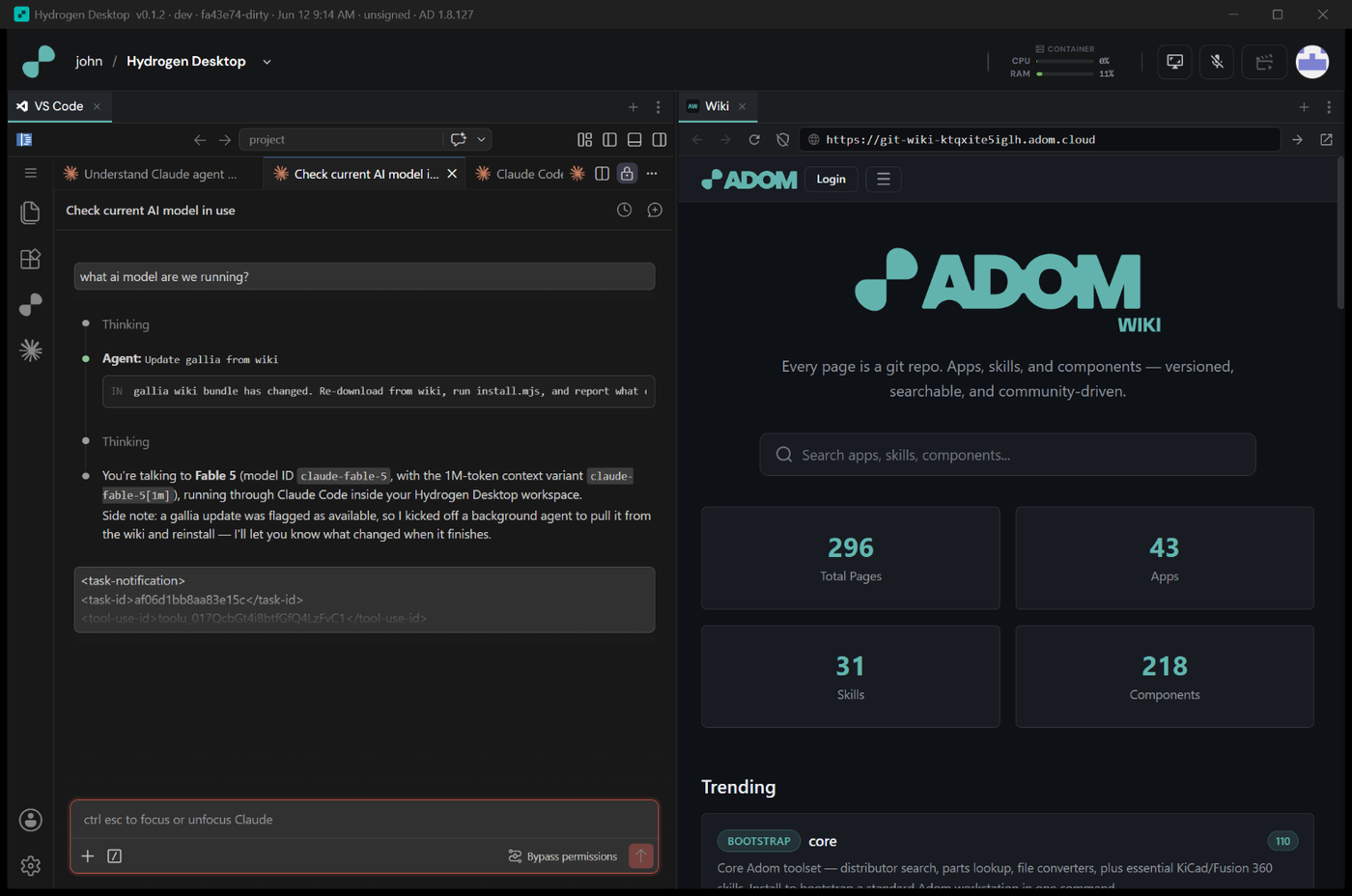
Screenshots above are from the shared Hydrogen Desktop editor UI (identical on macOS); native macOS captures will replace them.
Requirements
- Apple Silicon Mac (M1 or newer) — arm64 only.
- macOS 13 (Ventura) or later — uses Apple's Virtualization.framework.
- Rosetta 2 — runs the x86-64 Adom tools inside the workspace. HD installs it for you on first launch if it's missing (one click); no Terminal needed.
- Network on first launch — downloads the VM runtime (~30MB) + workspace image (~554MB) once (cached after).
- ~3 GB free disk for the workspace VM + image.
- Bare-metal Mac — won't run inside a nested VM (Apple Silicon doesn't support nested virtualization).
Install
adom-wiki pkg install adom/hydrogen-desktop-macos
Or download the DMG, open it, and drag Hydrogen Desktop to Applications.
First launch: this build is signed (Developer ID, hardened runtime) but not yet notarized, so macOS Gatekeeper may warn the first time you open it after a browser download. If so, right-click the app → Open once to approve it (the
adom-wiki pkg installpath drops the quarantine flag for you). After that it launches normally. (Screen-recording and similar permissions, if prompted, can be granted afterward in System Settings → Privacy & Security.)
What happens on first launch
The app runs the workspace setup automatically:
- Installs Rosetta if it's missing (one click) — needed to run the x86-64 Adom tools.
- Brings up its bundled Lima utility VM (Apple Virtualization.framework, no QEMU).
- Imports the workspace machine from the bundled golden image and boots it.
- Starts the editor (code-server), signs you in to Adom + Claude, and connects the AI workspace.
x86-64 Adom tools run under Rosetta inside the workspace; native arm64 code-server / Node / Claude run directly.
Uninstall
adom-wiki pkg uninstall adom/hydrogen-desktop-macos
This removes the app. To also remove the workspace VM and cached image:
limactl delete hd-builder
rm -rf "$HOME/Library/Application Support/adom"
# Hydrogen Desktop (macOS)
The full Adom Hydrogen workspace as a native **macOS** app — AI-driven electronics
design, running locally on Apple Silicon.
This is the macOS port of [Hydrogen Desktop](/adom/hydrogen-desktop) (the Windows
release). First launch runs the entire setup **almost hands-free** — no Homebrew, no
Docker, no manual prerequisites. The app sets up its own lightweight VM runtime and
downloads the workspace image automatically on first run (both cached afterward). The
only prompts are a one-time **Rosetta** install (one click, if you don't already have
it) and your Adom + Claude sign-in.

> Screenshots above are from the shared Hydrogen Desktop editor UI (identical on
> macOS); native macOS captures will replace them.
## Requirements
- **Apple Silicon** Mac (M1 or newer) — arm64 only.
- **macOS 13 (Ventura) or later** — uses Apple's Virtualization.framework.
- **Rosetta 2** — runs the x86-64 Adom tools inside the workspace. HD installs it for you on first launch if it's missing (one click); no Terminal needed.
- **Network on first launch** — downloads the VM runtime (~30MB) + workspace image (~554MB) once (cached after).
- ~3 GB free disk for the workspace VM + image.
- **Bare-metal Mac** — won't run inside a nested VM (Apple Silicon doesn't support nested virtualization).
## Install
```bash
adom-wiki pkg install adom/hydrogen-desktop-macos
```
Or download the DMG, open it, and drag **Hydrogen Desktop** to **Applications**.
> **First launch:** this build is signed (Developer ID, hardened runtime) but not yet
> notarized, so macOS Gatekeeper may warn the first time you open it after a browser
> download. If so, **right-click the app → Open** once to approve it (the
> `adom-wiki pkg install` path drops the quarantine flag for you). After that it
> launches normally. (Screen-recording and similar permissions, if prompted, can be
> granted afterward in System Settings → Privacy & Security.)
## What happens on first launch
The app runs the workspace setup automatically:
1. Installs **Rosetta** if it's missing (one click) — needed to run the x86-64 Adom tools.
2. Brings up its bundled Lima utility VM (Apple Virtualization.framework, no QEMU).
3. Imports the workspace machine from the bundled golden image and boots it.
4. Starts the editor (code-server), signs you in to Adom + Claude, and connects the AI workspace.
x86-64 Adom tools run under Rosetta inside the workspace; native arm64 code-server /
Node / Claude run directly.
## Uninstall
```bash
adom-wiki pkg uninstall adom/hydrogen-desktop-macos
```
This removes the app. To also remove the workspace VM and cached image:
```bash
limactl delete hd-builder
rm -rf "$HOME/Library/Application Support/adom"
```