Hydrogen Desktop (macOS)
Public Made by Adomby adom
The full Adom Hydrogen workspace as a native macOS app (Apple Silicon) — AI-driven electronics design, running locally.
| Name | Last updated |
|---|---|
| docs | 27d ago |
| screenshots | 27d ago |
| ._install.sh | 27d ago |
| ._package.json | 27d ago |
| ._page.json | 27d ago |
| ._README.md | 27d ago |
| ._SKILL.md | 27d ago |
| ._uninstall.sh | 27d ago |
| install.sh | 5d ago |
| package.json | 5d ago |
| page.json | 5d ago |
| README.md | 5d ago |
| SKILL.md | 5d ago |
| uninstall.sh | 27d ago |
| version.json | 18h ago |
Hydrogen Desktop (macOS)
The full Adom Hydrogen workspace as a native macOS app — AI-driven electronics design, running locally on Apple Silicon.
This is the macOS port of Hydrogen Desktop (the Windows release). First launch runs the entire setup almost hands-free — no Homebrew, no Docker, no manual prerequisites. The app sets up its own lightweight VM runtime and downloads the workspace image automatically on first run (both cached afterward). The only prompts are a one-time Rosetta install (one click, if you don't already have it) and your Adom + Claude sign-in.
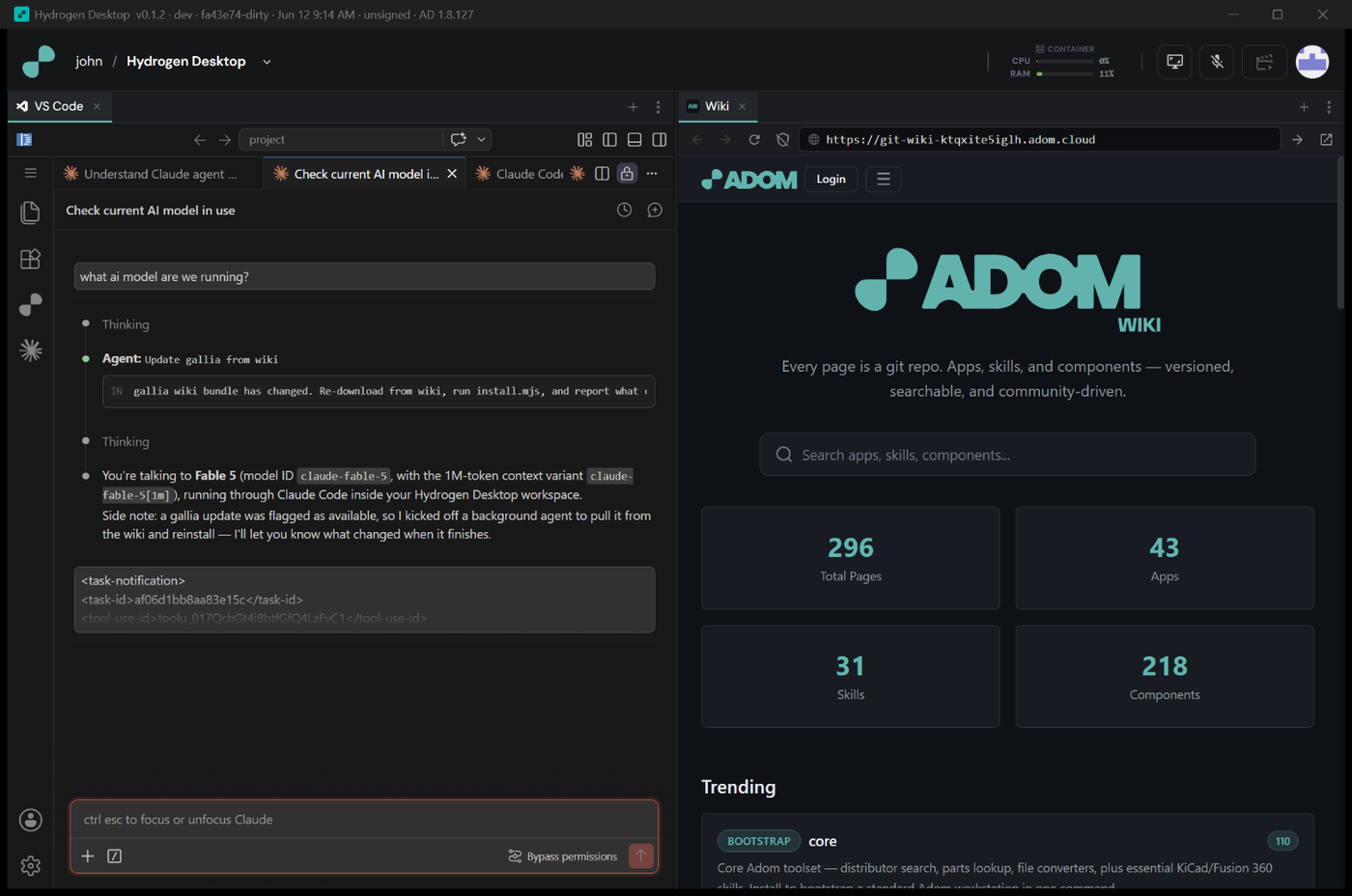
Screenshots above are from the shared Hydrogen Desktop editor UI (identical on macOS); native macOS captures will replace them.
Requirements
- Apple Silicon Mac (M1 or newer) — arm64 only.
- macOS 13 (Ventura) or later — uses Apple's Virtualization.framework.
- Rosetta 2 — runs the x86-64 Adom tools inside the workspace. HD installs it for you on first launch if it's missing (one click); no Terminal needed.
- Network on first launch — downloads the VM runtime (~30MB) + workspace image (~554MB) once (cached after).
- ~3 GB free disk for the workspace VM + image.
- Bare-metal Mac — won't run inside a nested VM (Apple Silicon doesn't support nested virtualization).
Install
adom-wiki pkg install adom/hydrogen-desktop-macos
Or download the DMG, open it, and drag Hydrogen Desktop to Applications.
First launch: this build is signed (Developer ID, hardened runtime) but not yet notarized, so macOS Gatekeeper may warn the first time you open it after a browser download. If so, right-click the app → Open once to approve it (the
adom-wiki pkg installpath drops the quarantine flag for you). After that it launches normally. (Screen-recording and similar permissions, if prompted, can be granted afterward in System Settings → Privacy & Security.)
What happens on first launch
The app runs the workspace setup automatically:
- Installs Rosetta if it's missing (one click) — needed to run the x86-64 Adom tools.
- Brings up its bundled Lima utility VM (Apple Virtualization.framework, no QEMU).
- Imports the workspace machine from the bundled golden image and boots it.
- Starts the editor (code-server), signs you in to Adom + Claude, and connects the AI workspace.
x86-64 Adom tools run under Rosetta inside the workspace; native arm64 code-server / Node / Claude run directly.
Uninstall
adom-wiki pkg uninstall adom/hydrogen-desktop-macos
This removes the app. To also remove the workspace VM and cached image:
limactl delete hd-builder
rm -rf "$HOME/Library/Application Support/adom"