Fusion - the Fusion 360 Bridge
Public Made by Adomby adom
Drive Autodesk Fusion 360 from the cloud via Adom Bridge: component libraries, IPC package generation, board layout, exports (STEP/Gerbers/BOM/CPL), fast APS cloud search, and parametric modeling.
Autodesk's Fusion MCP server
Autodesk and Anthropic shipped a Fusion MCP server: Fusion's own text-to-CAD surface, exposed over MCP. This bridge proxies it, so an Adom AI running in the cloud can use it.
Quick answers to the common questions:
- File search? Yes.
fusion_mcp_readdocument/searchfinds files by name across projects, fast (about 2s live). See MCP file search vs APS for which to use. - Control electronics? You can read the whole board deeply (49 entity classes, full placement / routing / DRC data), but MCP has no electronics write tool. Board editing stays with the native EAGLE-command verbs. Details in electronics.
- Design / geometry? Yes,
fusion_mcp_executescriptruns arbitrary Python against the Fusion API, so it can create and modify mechanical geometry, not just read.
Two different Autodesk MCP servers, do not confuse them
| server | where | what it does | this bridge |
|---|---|---|---|
| Fusion MCP | LOCAL, 127.0.0.1:27182 |
drive the running Fusion: geometry, screenshots, scripts, read the design + electronics | proxied here |
| Fusion Data MCP | CLOUD-hosted | navigate hubs/projects/folders, manage items, file permissions, team access | not this; a separate Autodesk service |
Everything below is the local Fusion MCP. If someone mentions folder management or permissions over MCP, that is the Data MCP, a different thing, covered next.
The Fusion Data MCP (the cloud one), and why we mostly do not need it
The Fusion Data MCP is a separate, cloud-hosted MCP server Autodesk runs. It is the data side, not the modeling side, and it is worth understanding because it overlaps heavily with our own APS verbs.
What it is: a remote MCP endpoint that authenticates with your Autodesk account and talks to
developer.api.autodesk.com. Its capabilities:
- Hubs and projects, navigate and query your organization's Fusion projects.
- Folders and items, create and organize folder structure within projects.
- Permissions and access, add team members, assign roles, manage who can access what.
Does it need auth like APS? Yes, and for the same reason: it is APS underneath. The Fusion
Data MCP is a thin MCP wrapper around the exact APS Data Management API that our fusion_aps_*
verbs already call. Same account, same developer.api.autodesk.com, same OAuth model.
So do we need it? Mostly no. This bridge already does the data-management work directly against APS, and does it with a never-charge cap and auth folded into the Fusion sign-in:
| Fusion Data MCP capability | our equivalent |
|---|---|
| navigate hubs / projects | fusion_aps_browse |
| list / search files | fusion_aps_search, fusion_aps_recent |
| create folders, manage items | fusion_aps_create_folder, fusion_aps_upload, fusion_aps_download, fusion_cleanup_cloud_files |
| version history | fusion_aps_versions, fusion_aps_file_info |
| permissions / team access / roles | not covered here |
The one thing it does that we do not: permissions and role management (adding teammates,
assigning access). If a user specifically wants AI-driven team/permission management, the Fusion Data
MCP is the tool for it (or a future fusion_aps_permissions verb here).
Reaching it is different from the local MCP. The local Fusion MCP binds loopback, so a cloud AI
needs this bridge to proxy it. The Fusion Data MCP is cloud/remote, so a cloud AI can add it as a
connector directly, no bridge, no local Fusion, no subscription-gated toggle. That is also why
this bridge does not proxy it: there is nothing loopback to bridge, and its file-management
surface is already served, tested and free, by fusion_aps_*.
Bottom line: for finding and managing files, prefer our fusion_aps_* verbs (tested,
never-charge, one-login auth). Reach for the Fusion Data MCP only for permission/role management, and
connect the AI to it directly rather than through this bridge.
Why the bridge has to proxy it
The MCP server is a local HTTP/JSON-RPC endpoint at http://127.0.0.1:27182/mcp. It binds
loopback on the user's machine and was designed for Claude Desktop running on that same machine.
An Adom AI runs in a cloud container and cannot reach the user's 127.0.0.1 at all.
The bridge already runs on that machine. So it is the right proxy: these verbs hand a cloud AI Autodesk's MCP tools without reimplementing any of them.
Turning it on
Off by default, and there is no API for the toggle (verified by enumerating apiPreferences).
The bridge turns it on by driving the Preferences UI:
adom-desktop fusion_mcp_enable '{}'
which opens Preferences, expands General, selects API, ticks
Fusion MCP Server (runs locally on this device), clicks Apply then OK, and verifies the port is
listening before reporting success.
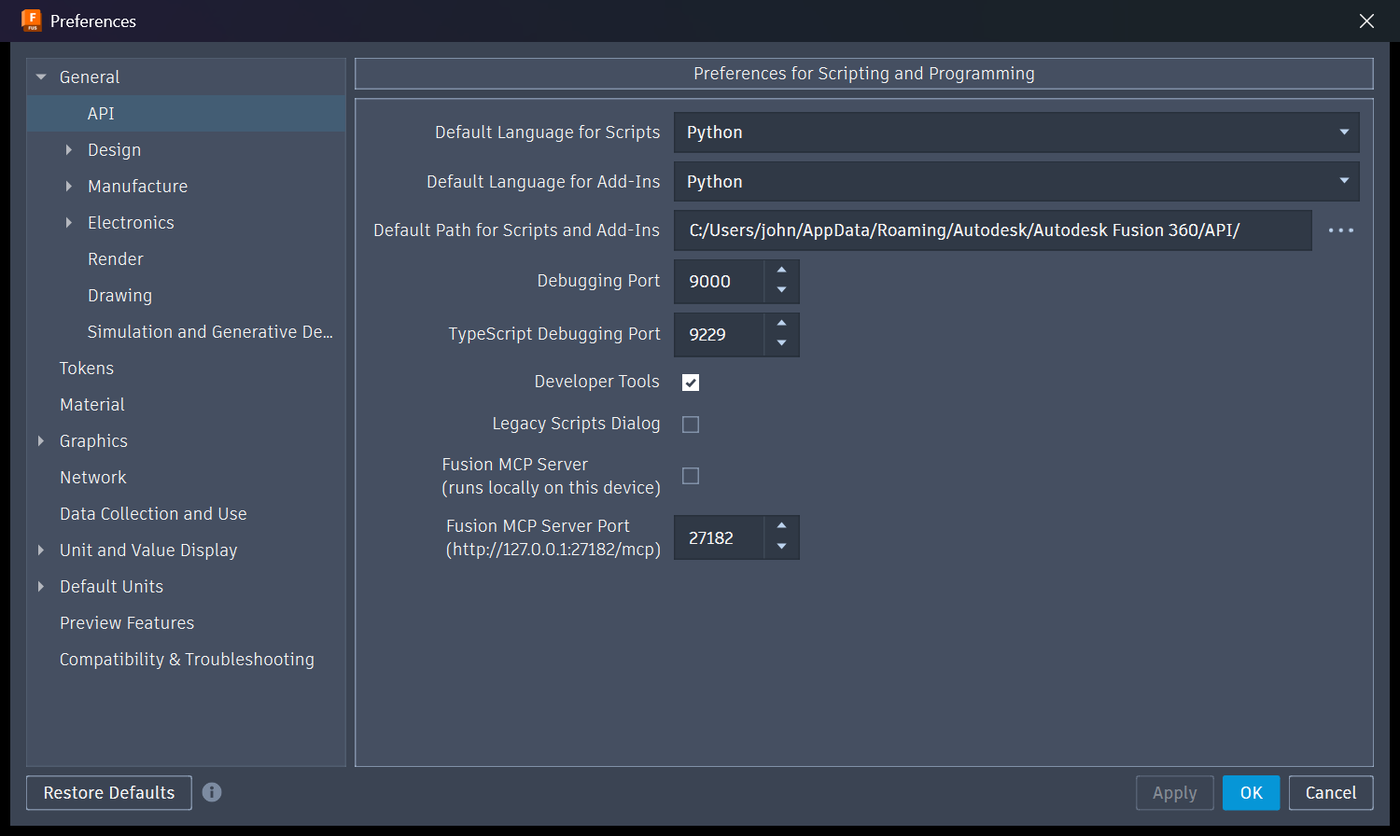
⛔ The setting is discarded unless Apply is clicked. Restarting or killing Fusion with the dialog open reverts it, and the port stays closed while the checkbox looked right. This cost a debugging cycle. See driving Fusion's preferences.
The handshake, which the bridge handles for you
The server speaks MCP streamable-HTTP, so a bare POST fails with 400 Missing MCP-Session-Id.
You must initialize, capture the MCP-Session-Id response header, send
notifications/initialized, then pass that header on every later call. The bridge does all of it and
silently re-establishes a dropped session. Confirmed live: protocol 2024-11-05, serverInfo
MCP Server Adapter 1.0.0.
The four tools
The surface is four tools, but the depth is in each tool's parameters. read is broad; execute
runs scripts and manages documents; update is undo/redo; electronics_read is a deep read of the
whole EAGLE object model. Call any of them through fusion_mcp_call {tool, arguments}. The tool set
is discovered at connection time, so Autodesk can add tools server-side; fusion_mcp_tools always
lists the current set with full schemas.
fusion_mcp_read (queryType): read, search, screenshot, introspect
Five query types, each with its own parameters.
queryType: "projects", list every project in the current hub.
fusion_mcp_call '{"tool":"fusion_mcp_read","arguments":{"queryType":"projects"}}'
# -> {"projects":[{"name":"Main","id":"..."}, ...]}   (verified live: 16 projects)
queryType: "document" + operation, the file search / open / recent surface.
| operation | what it does | params |
|---|---|---|
search |
fuzzy, case-insensitive file-name search across projects (or one) | name (required), project (optional) |
open |
list currently OPEN documents (isActive, isModified) |
none |
recent |
list recently opened documents | none |
fusion_mcp_call '{"tool":"fusion_mcp_read","arguments":{"queryType":"document","operation":"search","name":"charger"}}'
# -> {"results":[{"name":"QI WIRELESS CHARGER COIL","id":"urn:..."}, ...]}  (verified live: ~2s)
The id it returns is what fusion_mcp_execute document/open takes to open the file.
queryType: "apiDocumentation", search Fusion's own API docs. This is how the AI learns the API
before writing a script.
| param | meaning |
|---|---|
searchPattern (required) |
regex over class / member names |
apiCategory |
class | member | description | all |
filter |
dotted namespace/class limit, e.g. adsk.fusion.Extrude |
queryType: "screenshot", render a PNG of the active view (base64), from any view-cube angle.
Lets the AI see the model.
| param | meaning |
|---|---|
direction |
current, front, back, top, bottom, left, right, iso-bottom-left, iso-bottom-right, iso-top-left, iso-top-right |
width / height |
32-4096 px (default: canvas size) |
antiAliasing / transparentBackground |
default true |
queryType: "activeCommand", read the currently open command dialog: its id, name, tooltip, and
every visible input (values, checkboxes, dropdowns with their enum, selections, tables). Returns
{"activeCommand": null} when no dialog is open. Read the live state of a command mid-edit.
fusion_mcp_execute (featureType): run scripts, open/close/save documents
featureType: "script", the real text-to-CAD power: run arbitrary Python against the Fusion
API in the live design. This is where create and modify live: sketches, extrudes, features, any
mechanical-design operation the Fusion API supports.
- The script must define
def run(_context):as the entry point. - Anything it
print()s comes back as the tool output; any exception comes back as the error. - Do not catch exceptions in
run(you lose the failure location). Read the API docs first (read/apiDocumentation), then verify with aread/screenshotafterwards.
fusion_mcp_call '{"tool":"fusion_mcp_execute","arguments":{"featureType":"script",
  "object":{"script":"import adsk.core\ndef run(_c):\n    print(adsk.core.Application.get().version)\n"}}}'
featureType: "document" + operation, file lifecycle.
| operation | what it does | params |
|---|---|---|
open |
open a file by id | fileId (from read/document/search) |
close |
close the active document | userConfirmedSaveAndClose or userConfirmedCloseWithoutSave if it has unsaved changes |
save |
save the active document | only when the user explicitly asks |
fusion_mcp_update (featureType): undo / redo
That is the whole tool: {"featureType":"undo"} or {"featureType":"redo"}. Each returns success
plus canUndo / canRedo. Fails gracefully mid-preview or during an interactive command. There is
no create/modify-feature verb here; geometry authoring goes through execute/script.
electronics_read: the whole board
fusion_mcp_electronics_read requires an active Electronics document. Pass one entity_type;
optionally an object with fields, filters, and pagination. 49 classes, grouped:
| group | classes |
|---|---|
| Schematic | Schematic, Sheet, Net, Bus, Segment, Junction, Wire, Label, Instance, Part, PinRef, Module, ModuleInstance, Port, PortRef, Variant, VariantDef |
| Board | Board, Signal, Pad, Via, Smd, Hole, PolyPour, PolyShape, PolyCutout, Spline, Layer, Element, NetClass, Dimension |
| Library | Library, Device, DeviceSet, Symbol, Package, Package3D, Pin, Gate, Contact, ContactRef, Technology |
| Shared graphics | Circle, Rectangle, Text, Frame, Grid |
| Design checks | Error (each ERC or DRC error/warning) |
| Attributes | Attribute (name/value on any parent) |
How much of the board you can read (verified live from the per-class schemas):
| class | fields it exposes |
|---|---|
Element (placed part) |
name, value, x, y, angle, mirror, spin, package_object_id, smashed, populate, locked |
Part |
name, value, deviceset_object_id, device_object_id, package3d_object_id |
Signal (net copper) |
name, board_object_id, airwires_hidden, net_class_number |
Via |
x, y, diameter, drill, shape, start_layer, end_layer, signal_object_id |
Pad |
name, x, y, angle, diameter, drill, shape, signal |
Error (DRC/ERC) |
description, sheet, x, y, layer, code |
So you can read every placement, every trace/signal, every via and pad with its geometry, and every DRC/ERC error with its location and code. That is the full board, as data.
Query shape:
{ "entity_type": "electronics.<Class>",
  "object": { "fields": ["name", "value"],
              "filters": [{"property": "name", "op": "eq", "value": "GND"}],
              "pagination": {"limit": 100, "offset": 0} } }
# all nets named GND
fusion_mcp_call '{"tool":"fusion_mcp_electronics_read","arguments":{"entity_type":"electronics.Net","object":{"filters":[{"property":"name","op":"eq","value":"GND"}]}}}'
# every DRC/ERC error on the board
fusion_mcp_call '{"tool":"fusion_mcp_electronics_read","arguments":{"entity_type":"electronics.Error"}}'
# every placed component, name + position
fusion_mcp_call '{"tool":"fusion_mcp_electronics_read","arguments":{"entity_type":"electronics.Element","object":{"fields":["name","x","y","angle"]}}}'
Can you CONTROL electronics from MCP? Not directly. There are exactly four MCP tools and none of them writes to a board. So:
- Read / analyze a board: fully, via
electronics_read. "What's placed, what nets exist, are there DRC errors, where is U3" are all answerable. - Edit a board: not through MCP. Use the bridge's native
fusion_electron_run(EAGLE commands:ADD,MOVE,ROUTE,RATSNEST,AUTO,DRC, etc.), which is the real electronics control surface. See 2D board layout and schematics. execute/scriptruns Python, but Fusion's Python electronics API is thin; treat MCP as the electronics read/analysis layer and the native EAGLE verbs as the edit layer.
Resources: the per-class schemas
The server exposes 50 resources, the discovery layer for electronics_read:
resource://mcp.electronics_entity_types, all entity types with active-workspace hintsresource://mcp.electronics_schema_<class>, one class's properties, types, and filter operators (49 of these, one per class)
fusion_mcp_resources '{}'                                                # list all 50
fusion_mcp_resources '{"uri":"resource://mcp.electronics_schema_net"}'   # read one schema
Read the schema for a class before filtering on it, so you use a property that exists and an operator it supports.
File search: MCP vs APS
Both find cloud files fast. They are not redundant; they cover different situations.
MCP document/search |
APS cloud search | |
|---|---|---|
| speed | ~2s (verified) | ~2s (indexed) |
| needs Fusion running | yes | no, pure HTTPS, works with Fusion closed |
| needs a Fusion subscription | yes | no |
| needs the MCP toggle on | yes | no |
| extra auth step | none (uses Fusion's own session) | APS OAuth, but now folded into Fusion sign-in (see below) |
| runs from a headless cloud box | no (loopback only) | yes |
On the APS auth step you were worried about: it is no longer separate friction. The bridge folds
APS consent into the Fusion sign-in, right after you sign into Fusion, while the browser SSO session
is still warm, APS consents silently (no password, no second login). fusion_readiness reports APS
state on every launch. So do not downplay APS: it is the search that keeps working when Fusion is
closed, on a headless VM, or without a Fusion subscription, and its auth is now automatic.
Rule of thumb: if Fusion is already open and MCP is on, either works. If you need search from the
cloud, on a schedule, or with Fusion closed, use APS. When in doubt, the native fusion_aps_search
is the safe default because it does not depend on Fusion being up.
What the four tools add up to
| capability | how |
|---|---|
| Find a cloud file | read / document / search |
| Open / list open / recent | execute document/open, read document/open/recent |
| List projects | read / projects |
| See the model | read / screenshot (any view-cube direction) |
| Learn the API | read / apiDocumentation |
| Read a live command dialog | read / activeCommand |
| Create / modify mechanical geometry | execute / script (arbitrary Python) |
| Undo / redo | update |
| Save / close | execute / document |
| Read schematic / board / library | electronics_read (49 classes) |
| Edit a board | NOT MCP, use native fusion_electron_run |
MCP tools vs this bridge's verbs
They complement each other; neither replaces the other.
Prefer a native fusion_* verb when one exists. They are tested here, they carry hints that
teach the next step, they handle the awkward parts (kit-aware BOM counting, the 2-minute sign-in
clock, GLB optimization, EAGLE board editing), and they work whether or not MCP is enabled or the
user holds a Fusion subscription. This bridge already gives you fast APS cloud search
(APS), manufacturing exports, a mechanical BOM
(BOM), and board editing that MCP does not.
Reach for MCP for Autodesk's own text-to-CAD (execute/script), model screenshots, live
command introspection, and the structured Electronics object-model read, which is richer for
querying a board's connectivity than anything hand-rolled.
Requirements and limits
- Fusion subscription. Autodesk gates the MCP server to subscribers.
- Fusion must be running. The server lives inside Fusion; if it is not running, the port is closed.
- Loopback only, hence this proxy.
- Reads plus mechanical scripting.
execute/scriptcan author geometry, butupdateis only undo/redo andelectronics_readis read-only. MCP is not a write API for electronics. - The toggle is UI-only, so
fusion_mcp_enablebriefly uses the foreground and says why.
Autodesk's own documentation
- Introducing the Fusion MCP (Fusion blog), the announcement, setup, and the local vs data distinction.
- Fusion MCP server (Autodesk developer blog), the technical write-up (port, enable steps, capabilities).
- MCP Server for Autodesk Fusion (Autodesk App Store), the installable listing.
- Autodesk MCP Servers overview (Autodesk AI), both the local Fusion MCP and the cloud Fusion Data MCP.
- Introducing the Autodesk Fusion Data MCP (Fusion blog), the SEPARATE cloud server for hubs/projects/folders/permissions.
The authoritative tool list for whatever build the user is running is always the server itself:
fusion_mcp_tools '{}' returns every tool with its full input schema, since the tool set is
discovered at connection time and Autodesk adds to it server-side.
# Autodesk's Fusion MCP server
Autodesk and Anthropic shipped a **Fusion MCP server**: Fusion's own text-to-CAD surface, exposed
over MCP. This bridge proxies it, so an Adom AI running in the cloud can use it.
**Quick answers to the common questions:**
- **File search?** Yes. `fusion_mcp_read` `document`/`search` finds files by name across projects,
fast (about 2s live). See [MCP file search vs APS](#file-search-mcp-vs-aps) for which to use.
- **Control electronics?** You can **read** the whole board deeply (49 entity classes, full
placement / routing / DRC data), but MCP has **no electronics write tool**. Board editing stays
with the native EAGLE-command verbs. Details in [electronics](#electronics-read-the-whole-board).
- **Design / geometry?** Yes, `fusion_mcp_execute` `script` runs arbitrary Python against the
Fusion API, so it can **create and modify** mechanical geometry, not just read.
## Two different Autodesk MCP servers, do not confuse them
| server | where | what it does | this bridge |
|---|---|---|---|
| **Fusion MCP** | LOCAL, `127.0.0.1:27182` | drive the running Fusion: geometry, screenshots, scripts, read the design + electronics | **proxied here** |
| **Fusion Data MCP** | CLOUD-hosted | navigate hubs/projects/folders, manage items, file permissions, team access | not this; a separate Autodesk service |
Everything below is the **local Fusion MCP**. If someone mentions folder management or permissions
over MCP, that is the Data MCP, a different thing, covered next.
## The Fusion Data MCP (the cloud one), and why we mostly do not need it
The **Fusion Data MCP** is a separate, **cloud-hosted** MCP server Autodesk runs. It is the data
side, not the modeling side, and it is worth understanding because it **overlaps heavily with our
own APS verbs**.
**What it is:** a remote MCP endpoint that authenticates with your **Autodesk account** and talks to
`developer.api.autodesk.com`. Its capabilities:
- **Hubs and projects**, navigate and query your organization's Fusion projects.
- **Folders and items**, create and organize folder structure within projects.
- **Permissions and access**, add team members, assign roles, manage who can access what.
**Does it need auth like APS?** Yes, and for the same reason: **it is APS underneath.** The Fusion
Data MCP is a thin MCP wrapper around the exact **APS Data Management API** that our `fusion_aps_*`
verbs already call. Same account, same `developer.api.autodesk.com`, same OAuth model.
**So do we need it? Mostly no.** This bridge already does the data-management work directly against
APS, and does it with a **never-charge cap** and auth **folded into the Fusion sign-in**:
| Fusion Data MCP capability | our equivalent |
|---|---|
| navigate hubs / projects | `fusion_aps_browse` |
| list / search files | `fusion_aps_search`, `fusion_aps_recent` |
| create folders, manage items | `fusion_aps_create_folder`, `fusion_aps_upload`, `fusion_aps_download`, `fusion_cleanup_cloud_files` |
| version history | `fusion_aps_versions`, `fusion_aps_file_info` |
| **permissions / team access / roles** | **not covered here** |
The one thing it does that we do **not**: **permissions and role management** (adding teammates,
assigning access). If a user specifically wants AI-driven team/permission management, the Fusion Data
MCP is the tool for it (or a future `fusion_aps_permissions` verb here).
**Reaching it is different from the local MCP.** The local Fusion MCP binds loopback, so a cloud AI
needs this bridge to proxy it. The Fusion Data MCP is **cloud/remote**, so a cloud AI can add it as a
**connector directly**, no bridge, no local Fusion, no subscription-gated toggle. That is also why
this bridge does **not** proxy it: there is nothing loopback to bridge, and its file-management
surface is already served, tested and free, by `fusion_aps_*`.
**Bottom line:** for finding and managing files, prefer our `fusion_aps_*` verbs (tested,
never-charge, one-login auth). Reach for the Fusion Data MCP only for permission/role management, and
connect the AI to it directly rather than through this bridge.
## Why the bridge has to proxy it
The MCP server is a **local HTTP/JSON-RPC endpoint** at `http://127.0.0.1:27182/mcp`. It binds
**loopback on the user's machine** and was designed for Claude Desktop running on that same machine.
An Adom AI runs in a **cloud container** and cannot reach the user's `127.0.0.1` at all.
The bridge already runs on that machine. So it is the right proxy: these verbs hand a cloud AI
Autodesk's MCP tools without reimplementing any of them.
## Turning it on
Off by default, and there is **no API for the toggle** (verified by enumerating `apiPreferences`).
The bridge turns it on by driving the Preferences UI:
```bash
adom-desktop fusion_mcp_enable '{}'
```
which opens Preferences, expands General, selects API, ticks
`Fusion MCP Server (runs locally on this device)`, clicks Apply then OK, and verifies the port is
listening before reporting success.

> ⛔ **The setting is discarded unless Apply is clicked.** Restarting or killing Fusion with the
> dialog open reverts it, and the port stays closed while the checkbox looked right. This cost a
> debugging cycle. See [driving Fusion's preferences](fusion-preferences.md).
## The handshake, which the bridge handles for you
The server speaks MCP **streamable-HTTP**, so a bare POST fails with `400 Missing MCP-Session-Id`.
You must `initialize`, capture the `MCP-Session-Id` **response header**, send
`notifications/initialized`, then pass that header on every later call. The bridge does all of it and
silently re-establishes a dropped session. Confirmed live: protocol `2024-11-05`, serverInfo
`MCP Server Adapter 1.0.0`.
## The four tools
The surface is **four tools**, but the depth is in each tool's parameters. `read` is broad; `execute`
runs scripts and manages documents; `update` is undo/redo; `electronics_read` is a deep read of the
whole EAGLE object model. Call any of them through `fusion_mcp_call {tool, arguments}`. The tool set
is discovered at connection time, so Autodesk can add tools server-side; `fusion_mcp_tools` always
lists the current set with full schemas.
---
### `fusion_mcp_read` (queryType): read, search, screenshot, introspect
Five query types, each with its own parameters.
**`queryType: "projects"`**, list every project in the current hub.
```bash
fusion_mcp_call '{"tool":"fusion_mcp_read","arguments":{"queryType":"projects"}}'
# -> {"projects":[{"name":"Main","id":"..."}, ...]} (verified live: 16 projects)
```
**`queryType: "document"` + `operation`**, the **file search / open / recent** surface.
| operation | what it does | params |
|---|---|---|
| `search` | fuzzy, case-insensitive file-name search across projects (or one) | `name` (required), `project` (optional) |
| `open` | list currently OPEN documents (`isActive`, `isModified`) | none |
| `recent` | list recently opened documents | none |
```bash
fusion_mcp_call '{"tool":"fusion_mcp_read","arguments":{"queryType":"document","operation":"search","name":"charger"}}'
# -> {"results":[{"name":"QI WIRELESS CHARGER COIL","id":"urn:..."}, ...]} (verified live: ~2s)
```
The `id` it returns is what `fusion_mcp_execute` `document`/`open` takes to open the file.
**`queryType: "apiDocumentation"`**, search Fusion's own API docs. This is how the AI learns the API
before writing a script.
| param | meaning |
|---|---|
| `searchPattern` (required) | regex over class / member names |
| `apiCategory` | `class` \| `member` \| `description` \| `all` |
| `filter` | dotted namespace/class limit, e.g. `adsk.fusion.Extrude` |
**`queryType: "screenshot"`**, render a PNG of the active view (base64), from any view-cube angle.
Lets the AI see the model.
| param | meaning |
|---|---|
| `direction` | `current`, `front`, `back`, `top`, `bottom`, `left`, `right`, `iso-bottom-left`, `iso-bottom-right`, `iso-top-left`, `iso-top-right` |
| `width` / `height` | 32-4096 px (default: canvas size) |
| `antiAliasing` / `transparentBackground` | default true |
**`queryType: "activeCommand"`**, read the currently open command dialog: its id, name, tooltip, and
every visible input (values, checkboxes, dropdowns with their enum, selections, tables). Returns
`{"activeCommand": null}` when no dialog is open. Read the live state of a command mid-edit.
---
### `fusion_mcp_execute` (featureType): run scripts, open/close/save documents
**`featureType: "script"`**, the real text-to-CAD power: run **arbitrary Python** against the Fusion
API in the live design. This is where **create and modify** live: sketches, extrudes, features, any
mechanical-design operation the Fusion API supports.
- The script must define `def run(_context):` as the entry point.
- Anything it `print()`s comes back as the tool output; any exception comes back as the error.
- Do **not** catch exceptions in `run` (you lose the failure location). Read the API docs first
(`read`/`apiDocumentation`), then verify with a `read`/`screenshot` afterwards.
```bash
fusion_mcp_call '{"tool":"fusion_mcp_execute","arguments":{"featureType":"script",
"object":{"script":"import adsk.core\ndef run(_c):\n print(adsk.core.Application.get().version)\n"}}}'
```
**`featureType: "document"` + `operation`**, file lifecycle.
| operation | what it does | params |
|---|---|---|
| `open` | open a file by id | `fileId` (from `read`/`document`/`search`) |
| `close` | close the active document | `userConfirmedSaveAndClose` or `userConfirmedCloseWithoutSave` if it has unsaved changes |
| `save` | save the active document | **only when the user explicitly asks** |
---
### `fusion_mcp_update` (featureType): undo / redo
That is the whole tool: `{"featureType":"undo"}` or `{"featureType":"redo"}`. Each returns `success`
plus `canUndo` / `canRedo`. Fails gracefully mid-preview or during an interactive command. There is
**no create/modify-feature verb here**; geometry authoring goes through `execute`/`script`.
---
### electronics_read: the whole board
`fusion_mcp_electronics_read` requires an active Electronics document. Pass one `entity_type`;
optionally an `object` with `fields`, `filters`, and `pagination`. **49 classes**, grouped:
| group | classes |
|---|---|
| **Schematic** | `Schematic`, `Sheet`, `Net`, `Bus`, `Segment`, `Junction`, `Wire`, `Label`, `Instance`, `Part`, `PinRef`, `Module`, `ModuleInstance`, `Port`, `PortRef`, `Variant`, `VariantDef` |
| **Board** | `Board`, `Signal`, `Pad`, `Via`, `Smd`, `Hole`, `PolyPour`, `PolyShape`, `PolyCutout`, `Spline`, `Layer`, `Element`, `NetClass`, `Dimension` |
| **Library** | `Library`, `Device`, `DeviceSet`, `Symbol`, `Package`, `Package3D`, `Pin`, `Gate`, `Contact`, `ContactRef`, `Technology` |
| **Shared graphics** | `Circle`, `Rectangle`, `Text`, `Frame`, `Grid` |
| **Design checks** | `Error` (each ERC or DRC error/warning) |
| **Attributes** | `Attribute` (name/value on any parent) |
**How much of the board you can read** (verified live from the per-class schemas):
| class | fields it exposes |
|---|---|
| `Element` (placed part) | `name`, `value`, `x`, `y`, `angle`, `mirror`, `spin`, `package_object_id`, `smashed`, `populate`, `locked` |
| `Part` | `name`, `value`, `deviceset_object_id`, `device_object_id`, `package3d_object_id` |
| `Signal` (net copper) | `name`, `board_object_id`, `airwires_hidden`, `net_class_number` |
| `Via` | `x`, `y`, `diameter`, `drill`, `shape`, `start_layer`, `end_layer`, `signal_object_id` |
| `Pad` | `name`, `x`, `y`, `angle`, `diameter`, `drill`, `shape`, `signal` |
| `Error` (DRC/ERC) | `description`, `sheet`, `x`, `y`, `layer`, `code` |
So you can read **every placement, every trace/signal, every via and pad with its geometry, and
every DRC/ERC error with its location and code**. That is the full board, as data.
**Query shape:**
```json
{ "entity_type": "electronics.<Class>",
"object": { "fields": ["name", "value"],
"filters": [{"property": "name", "op": "eq", "value": "GND"}],
"pagination": {"limit": 100, "offset": 0} } }
```
```bash
# all nets named GND
fusion_mcp_call '{"tool":"fusion_mcp_electronics_read","arguments":{"entity_type":"electronics.Net","object":{"filters":[{"property":"name","op":"eq","value":"GND"}]}}}'
# every DRC/ERC error on the board
fusion_mcp_call '{"tool":"fusion_mcp_electronics_read","arguments":{"entity_type":"electronics.Error"}}'
# every placed component, name + position
fusion_mcp_call '{"tool":"fusion_mcp_electronics_read","arguments":{"entity_type":"electronics.Element","object":{"fields":["name","x","y","angle"]}}}'
```
**Can you CONTROL electronics from MCP?** Not directly. There are exactly four MCP tools and none of
them writes to a board. So:
- **Read / analyze a board: fully, via `electronics_read`.** "What's placed, what nets exist, are
there DRC errors, where is U3" are all answerable.
- **Edit a board: not through MCP.** Use the bridge's native **`fusion_electron_run`** (EAGLE
commands: `ADD`, `MOVE`, `ROUTE`, `RATSNEST`, `AUTO`, `DRC`, etc.), which is the real electronics
control surface. See [2D board layout](board-layout-2d.md) and [schematics](schematics.md).
- `execute`/`script` runs Python, but Fusion's Python **electronics** API is thin; treat MCP as the
electronics **read/analysis** layer and the native EAGLE verbs as the **edit** layer.
## Resources: the per-class schemas
The server exposes **50 resources**, the discovery layer for `electronics_read`:
- `resource://mcp.electronics_entity_types`, all entity types with active-workspace hints
- `resource://mcp.electronics_schema_<class>`, one class's properties, types, and filter operators
(49 of these, one per class)
```bash
fusion_mcp_resources '{}' # list all 50
fusion_mcp_resources '{"uri":"resource://mcp.electronics_schema_net"}' # read one schema
```
Read the schema for a class before filtering on it, so you use a property that exists and an operator
it supports.
## <a id="file-search-mcp-vs-aps"></a>File search: MCP vs APS
Both find cloud files fast. They are not redundant; they cover different situations.
| | MCP `document`/`search` | [APS cloud search](aps-cloud-search.md) |
|---|---|---|
| speed | ~2s (verified) | ~2s (indexed) |
| **needs Fusion running** | **yes** | **no**, pure HTTPS, works with Fusion closed |
| needs a Fusion subscription | yes | no |
| needs the MCP toggle on | yes | no |
| extra auth step | none (uses Fusion's own session) | APS OAuth, **but now folded into Fusion sign-in** (see below) |
| runs from a headless cloud box | no (loopback only) | **yes** |
**On the APS auth step you were worried about:** it is no longer separate friction. The bridge folds
APS consent into the Fusion sign-in, right after you sign into Fusion, while the browser SSO session
is still warm, APS consents silently (no password, no second login). `fusion_readiness` reports APS
state on every launch. So **do not downplay APS**: it is the search that keeps working when Fusion is
closed, on a headless VM, or without a Fusion subscription, and its auth is now automatic.
**Rule of thumb:** if Fusion is already open and MCP is on, either works. If you need search from the
cloud, on a schedule, or with Fusion closed, use APS. When in doubt, the native `fusion_aps_search`
is the safe default because it does not depend on Fusion being up.
## What the four tools add up to
| capability | how |
|---|---|
| Find a cloud file | `read` / `document` / `search` |
| Open / list open / recent | `execute` document/open, `read` document/open/recent |
| List projects | `read` / `projects` |
| See the model | `read` / `screenshot` (any view-cube direction) |
| Learn the API | `read` / `apiDocumentation` |
| Read a live command dialog | `read` / `activeCommand` |
| **Create / modify mechanical geometry** | `execute` / `script` (arbitrary Python) |
| Undo / redo | `update` |
| Save / close | `execute` / `document` |
| **Read** schematic / board / library | `electronics_read` (49 classes) |
| **Edit** a board | NOT MCP, use native `fusion_electron_run` |
## MCP tools vs this bridge's verbs
They complement each other; neither replaces the other.
**Prefer a native `fusion_*` verb when one exists.** They are tested here, they carry hints that
teach the next step, they handle the awkward parts (kit-aware BOM counting, the 2-minute sign-in
clock, GLB optimization, EAGLE board editing), and they work whether or not MCP is enabled or the
user holds a Fusion subscription. This bridge already gives you **fast APS cloud search**
([APS](aps-cloud-search.md)), **manufacturing exports**, a **mechanical BOM**
([BOM](mechanical-bom.md)), and **board editing** that MCP does not.
**Reach for MCP** for Autodesk's own text-to-CAD (`execute`/`script`), model screenshots, live
command introspection, and the structured Electronics object-model **read**, which is richer for
querying a board's connectivity than anything hand-rolled.
## Requirements and limits
- **Fusion subscription.** Autodesk gates the MCP server to subscribers.
- **Fusion must be running.** The server lives inside Fusion; if it is not running, the port is closed.
- **Loopback only**, hence this proxy.
- **Reads plus mechanical scripting.** `execute`/`script` can author geometry, but `update` is only
undo/redo and `electronics_read` is read-only. MCP is not a write API for electronics.
- The toggle is UI-only, so `fusion_mcp_enable` briefly uses the foreground and says why.
## Autodesk's own documentation
- [Introducing the Fusion MCP (Fusion blog)](https://www.autodesk.com/products/fusion-360/blog/introducing-the-fusion-mcp-opening-fusion-to-ai-powered-workflows/), the announcement, setup, and the local vs data distinction.
- [Fusion MCP server (Autodesk developer blog)](https://blog.autodesk.io/fusion-mcp-server/), the technical write-up (port, enable steps, capabilities).
- [MCP Server for Autodesk Fusion (Autodesk App Store)](https://apps.autodesk.com/FUSION/en/Detail/Index?id=7269770001970905100), the installable listing.
- [Autodesk MCP Servers overview (Autodesk AI)](https://www.autodesk.com/solutions/autodesk-ai/autodesk-mcp-servers), both the local Fusion MCP and the cloud Fusion Data MCP.
- [Introducing the Autodesk Fusion Data MCP (Fusion blog)](https://www.autodesk.com/products/fusion-360/blog/introducing-the-autodesk-fusion-data-mcp-server/), the SEPARATE cloud server for hubs/projects/folders/permissions.
The **authoritative** tool list for whatever build the user is running is always the server itself:
`fusion_mcp_tools '{}'` returns every tool with its full input schema, since the tool set is
discovered at connection time and Autodesk adds to it server-side.