Fusion - the Fusion 360 Bridge
Public Made by Adomby adom
Drive Autodesk Fusion 360 from the cloud via Adom Bridge: component libraries, IPC package generation, board layout, exports (STEP/Gerbers/BOM/CPL), fast APS cloud search, and parametric modeling.
Driving Fusion's preferences
Fusion's Python API exposes only a thin slice of its preferences. Everything else, including the Fusion MCP Server toggle, is UI-only. This is how the bridge reaches all of it, and why the technique matters well beyond one checkbox.
What the API gives you
| object | what you can set |
|---|---|
generalPreferences |
theme, orbit scheme, modeling orientation, scroll-zoom direction, camera pivot, gesture nav |
apiPreferences |
debuggingPort, defaultScriptLanguage, defaultPathForScriptsAndAddIns, isDeveloperToolsEnabled |
defaultUnitsPreferences, graphicsPreferences, networkPreferences, materialPreferences |
a handful each |
That is it. There is no API for the MCP server toggle, verified by enumerating every
non-callable attribute on apiPreferences on Fusion 2703.1.20. So a useful setting was
unreachable from code.
fusion_set_preference / fusion_get_preferences cover the API-exposed slice. Everything below is
for the rest.
What works: Preferences opens by command
Commands.Start PreferencesCommand
No menu hunting, no clicking the profile icon, no coordinate guessing to get the dialog up. Fire it
through fusion_execute_text_command and the dialog appears.
Better still, the left-hand section tree is exposed to UIA, so top-level sections (General, Tokens, Material, Graphics, Network, Data Collection and Use, Unit and Value Display, Default Units, Preview Features, Compatibility & Troubleshooting) can be found by name in the background.
The catch: child sections are invisible to UIA
The sections under General (API, Design, Manufacture, Electronics, Render, Drawing, Simulation)
are rendered lazily by Qt and never enter the UIA tree, even after desktop_ui_expand reports
success. Dumping the dialog's controls returns the ten top-level TreeItems and nothing else.
So navigating into a child section needs an image-space click, which takes the foreground. That
is why the bridge announces it with a short on-screen caption saying why, and why fusion_prefs_open
hands you a screenshot to click rather than pretending control names exist.
The three steps, as they look
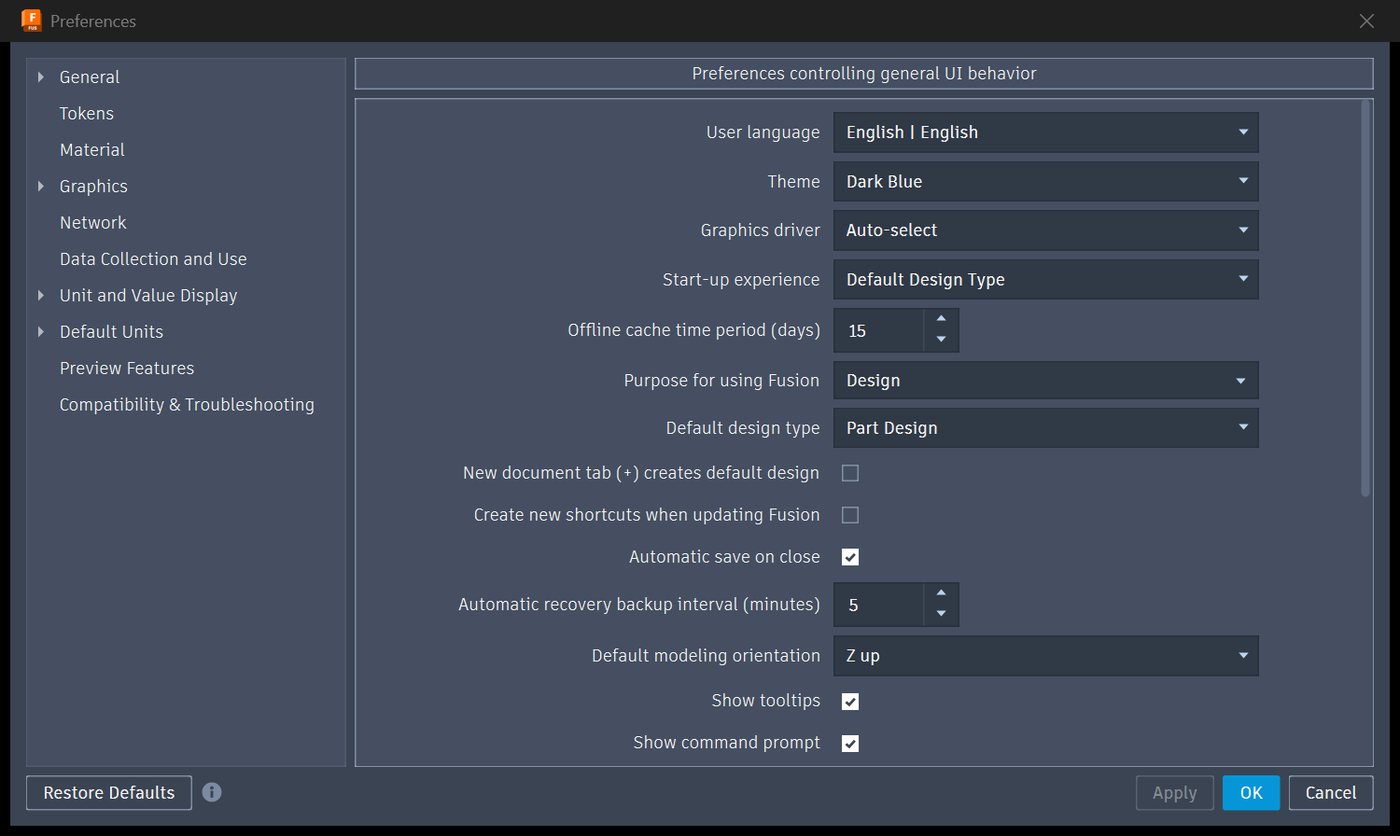
1. Preferences opens on General. Note the collapse arrow beside "General".
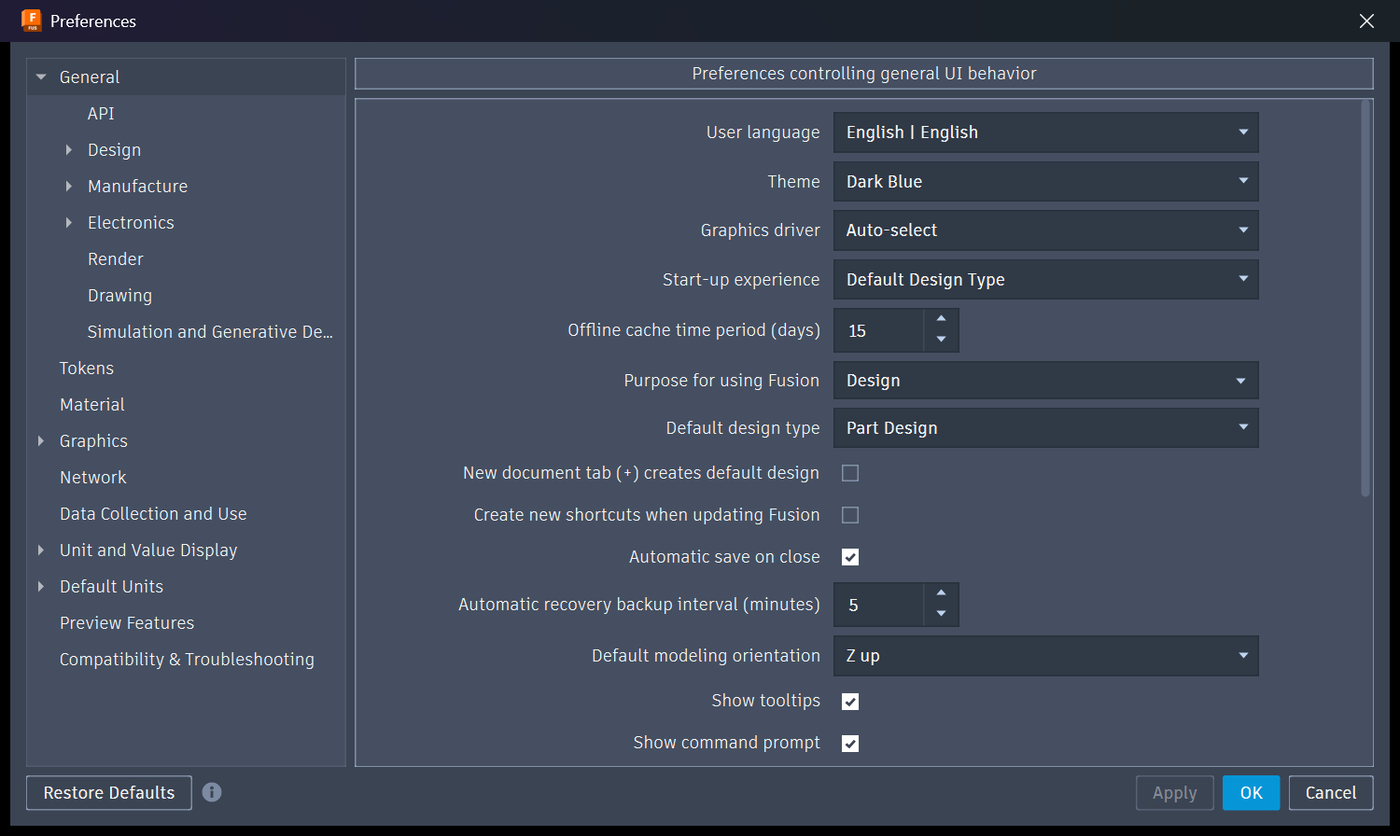
2. General expanded. API, Design, Manufacture, Electronics, Render, Drawing and Simulation appear. None of these are in the UIA tree.
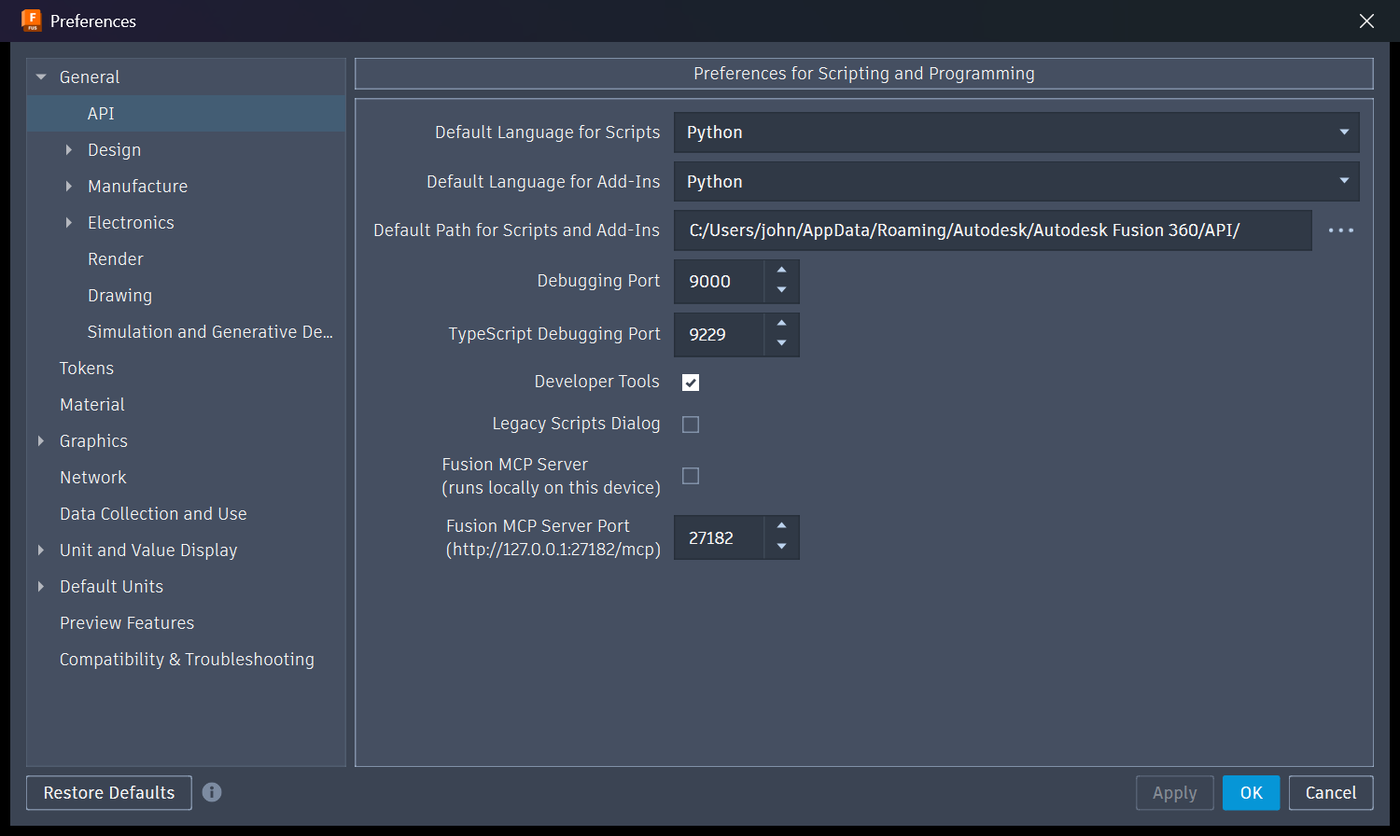
3. The API page, with Fusion MCP Server (runs locally on this device) and its port, 27182.
Using it
adom-desktop fusion_prefs_open  '{"section":"api"}'   # opens + navigates + screenshots
# LOOK at the returned screenshot, then click any control:
adom-desktop desktop_click '{"space":"image","shotId":"<from response>","x":690,"y":476,"hwnd":<hwnd>}'
adom-desktop fusion_prefs_close '{"save":true}'       # Apply + OK
fusion_prefs_open returns shotId, imageWidth, imageHeight, screenshot and knownSections.
Sections it can jump to: general, api, design, manufacture, electronics, render,
drawing, material, graphics, network, preview features.
The rule that bites: nothing is saved until Apply
Changes are discarded unless Apply/OK is clicked. Killing or restarting Fusion with the dialog still open loses them.
This is not theoretical. It is exactly how an earlier MCP enable silently reverted: the box was
ticked, Fusion was restarted before Apply, and the port stayed closed while everything looked
correct. Always finish with fusion_prefs_close {"save":true}.
Worked example: enabling the MCP server
That whole flow is wrapped as one verb, and it is the model for automating any other preference:
adom-desktop fusion_mcp_enable '{}'
which opens Preferences, expands General, selects API, ticks the box, clicks Apply then OK, and verifies the port is listening before reporting success. See the MCP server guide.
Doing this for other settings
The pattern generalizes:
fusion_prefs_open {"section":"<section>"}- Read the screenshot, find the control you want
desktop_click {space:"image", shotId, x, y, hwnd}fusion_prefs_close {"save":true}- Verify the effect, do not trust the click. For MCP that means probing the port; for a rendering setting it means observing the change.
If you automate a section often, add its fractional coordinates to _PREF_SECTIONS in server.py
so fusion_prefs_open can jump straight there.
Never surprise the user
Opening Preferences takes the foreground on a machine someone is working on. The bridge puts a caption up first saying what it is doing and why, sized to how long the sentence takes to read, and never leaves it up longer than about three seconds. Background UIA is always preferred; foreground is a last resort for controls Qt does not expose.
# Driving Fusion's preferences
Fusion's Python API exposes only a **thin slice** of its preferences. Everything else, including
the Fusion MCP Server toggle, is UI-only. This is how the bridge reaches all of it, and why the
technique matters well beyond one checkbox.
## What the API gives you
| object | what you can set |
|---|---|
| `generalPreferences` | theme, orbit scheme, modeling orientation, scroll-zoom direction, camera pivot, gesture nav |
| `apiPreferences` | `debuggingPort`, `defaultScriptLanguage`, `defaultPathForScriptsAndAddIns`, `isDeveloperToolsEnabled` |
| `defaultUnitsPreferences`, `graphicsPreferences`, `networkPreferences`, `materialPreferences` | a handful each |
That is it. There is **no API for the MCP server toggle**, verified by enumerating every
non-callable attribute on `apiPreferences` on Fusion 2703.1.20. So a useful setting was
unreachable from code.
`fusion_set_preference` / `fusion_get_preferences` cover the API-exposed slice. Everything below is
for the rest.
## What works: Preferences opens by command
```
Commands.Start PreferencesCommand
```
No menu hunting, no clicking the profile icon, no coordinate guessing to get the dialog up. Fire it
through `fusion_execute_text_command` and the dialog appears.
Better still, the **left-hand section tree is exposed to UIA**, so top-level sections (General,
Tokens, Material, Graphics, Network, Data Collection and Use, Unit and Value Display, Default Units,
Preview Features, Compatibility & Troubleshooting) can be found by name in the background.
## The catch: child sections are invisible to UIA
The sections *under* General (API, Design, Manufacture, Electronics, Render, Drawing, Simulation)
are rendered **lazily by Qt** and never enter the UIA tree, even after `desktop_ui_expand` reports
success. Dumping the dialog's controls returns the ten top-level `TreeItem`s and nothing else.
So navigating into a child section needs an **image-space click**, which takes the foreground. That
is why the bridge announces it with a short on-screen caption saying why, and why `fusion_prefs_open`
hands you a screenshot to click rather than pretending control names exist.
## The three steps, as they look
**1. Preferences opens on General.** Note the collapse arrow beside "General".

**2. General expanded.** API, Design, Manufacture, Electronics, Render, Drawing and Simulation
appear. None of these are in the UIA tree.

**3. The API page**, with `Fusion MCP Server (runs locally on this device)` and its port, 27182.

## Using it
```bash
adom-desktop fusion_prefs_open '{"section":"api"}' # opens + navigates + screenshots
# LOOK at the returned screenshot, then click any control:
adom-desktop desktop_click '{"space":"image","shotId":"<from response>","x":690,"y":476,"hwnd":<hwnd>}'
adom-desktop fusion_prefs_close '{"save":true}' # Apply + OK
```
`fusion_prefs_open` returns `shotId`, `imageWidth`, `imageHeight`, `screenshot` and `knownSections`.
Sections it can jump to: `general`, `api`, `design`, `manufacture`, `electronics`, `render`,
`drawing`, `material`, `graphics`, `network`, `preview features`.
## The rule that bites: nothing is saved until Apply
> Changes are **discarded** unless Apply/OK is clicked. Killing or restarting Fusion with the dialog
> still open loses them.
This is not theoretical. It is exactly how an earlier MCP enable silently reverted: the box was
ticked, Fusion was restarted before Apply, and the port stayed closed while everything *looked*
correct. Always finish with `fusion_prefs_close {"save":true}`.
## Worked example: enabling the MCP server
That whole flow is wrapped as one verb, and it is the model for automating any other preference:
```bash
adom-desktop fusion_mcp_enable '{}'
```
which opens Preferences, expands General, selects API, ticks the box, clicks Apply then OK, and
verifies the port is listening before reporting success. See
[the MCP server guide](fusion-mcp-server.md).
## Doing this for other settings
The pattern generalizes:
1. `fusion_prefs_open {"section":"<section>"}`
2. Read the screenshot, find the control you want
3. `desktop_click {space:"image", shotId, x, y, hwnd}`
4. `fusion_prefs_close {"save":true}`
5. **Verify the effect**, do not trust the click. For MCP that means probing the port; for a
rendering setting it means observing the change.
If you automate a section often, add its fractional coordinates to `_PREF_SECTIONS` in `server.py`
so `fusion_prefs_open` can jump straight there.
## Never surprise the user
Opening Preferences takes the foreground on a machine someone is working on. The bridge puts a
caption up first saying what it is doing and why, sized to how long the sentence takes to read, and
never leaves it up longer than about three seconds. Background UIA is always preferred; foreground
is a last resort for controls Qt does not expose.