Adom Library
Public Made by Adomby adom
adom-lbr — the EDA library translator. Bring a component in from any supported EDA tool and convert it to any other (KiCad ⇄ Altium ⇄ EAGLE/Fusion) through one canonical adom-lbr JSON — symbol + footp
adom-lbr
adom-lbr — the EDA library translator. Bring a component in from any supported EDA tool and convert it to any other — KiCad ⇄ Altium ⇄ EAGLE/Fusion — through one canonical part format, with native Altium output and no local EDA software.
The adom-lbr JSON is Adom's own canonical part: one document carrying the symbol, footprint, 3D reference, and the pin↔pad map. adom-lbr is the translator around it — import a component from KiCad or Altium, then convert the adom-lbr JSON to any other tool: native Altium (.SchLib / .PcbLib / .IntLib), a KiCad .kicad_sym + .kicad_mod, or an EAGLE/Fusion .lbr. Any EDA tool in, any EDA tool out — the canonical JSON is the hub, so every source pairs with every target. The Altium libraries are written natively — the exact OLE2/CFBF binary — so no copy of Altium is needed at conversion time. Standalone Rust, no Node, no gallia.
("lbr" = Adom Library, the adom-lbr JSON — not EAGLE's .lbr, which is just one of the output formats.)
Formats & targets
| Direction | Format | Used by |
|---|---|---|
| Hub | adom-lbr JSON (symbol + footprint + graphics + pin↔pad map) | the canonical format everything converts to/from |
| Import → hub | KiCad .kicad_sym + .kicad_mod → adom-lbr JSON |
bring a KiCad part in |
| Import → hub | Altium .SchLib / .PcbLib / .IntLib → adom-lbr JSON |
bring an Altium part in — pins, pads, and silk/courtyard/fab layers |
| Export → Altium | native .SchLib + .PcbLib, or one bundled .IntLib |
Altium Designer — written natively, no Altium needed |
| Export → Fusion/EAGLE | EAGLE .lbr (symbol + package + connects) |
Autodesk Fusion 360 Electronics, EAGLE, OrCAD |
| Export → KiCad | native .kicad_sym + .kicad_mod (layers preserved) |
KiCad 6+ |
| Merge | add a part's symbol into an existing .SchLib |
install a part into a user's Altium library |
Altium footprint graphics keep their layers across the round trip — silk /
courtyard / fab decode into neutral roles and re-encode onto the right Altium
layers (outline → Mechanical 13 "Assembly Top", courtyard → Mechanical 15
"Courtyard Top"). Verified byte-exact (Altium → JSON → Altium → JSON).
The Send to bar in the live app pushes the loaded library to whichever of those tools you're running (via the Adom Desktop bridge).
adom-lbr Manager — browse the wiki, inspect any part
adom-lbr manage opens a web app that lists every component on the wiki; click
one and it renders the schematic symbol, footprint, and 3D model on the
fly from the part's adom-lbr JSON (or, if the page has none, from its KiCad files).
It surfaces the footprint layer stackup — what layer each silk / courtyard / fab /
copper element becomes in KiCad and Altium, side by side — plus a per-layer
show/hide filter, drag-to-pan / scroll-to-zoom viewers, and hover-to-highlight
on pins & pads showing each one's number and name.
adom-lbr manage --port 8785 # → http://localhost:8785 (list ▸ click ▸ viewer)
The 3-column library viewer — and an interactive embed
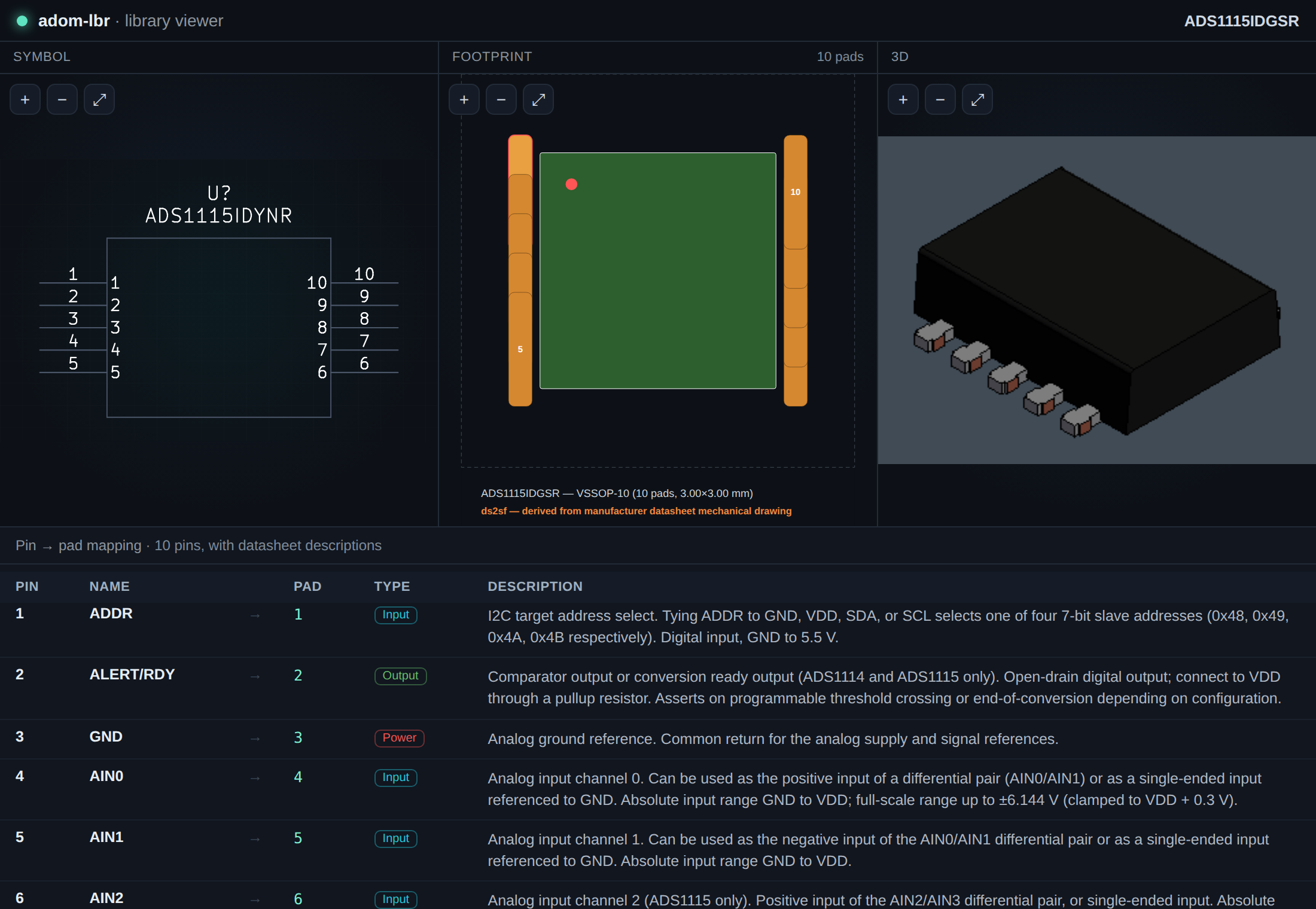
▶ Open the live ADS1115 3-column viewer — the exact self-contained file adom-lbr embed produces, served straight from this page (pan/zoom each panel; the pin→pad table is fully populated from the datasheet). It is built to sit in an <iframe> once the wiki enables component-page iframe embedding.
adom-lbr embed exports a Fusion 360-style three-column viewer as one self-contained .html file: symbol in column 1, footprint in column 2, the 3D chip in column 3 — each independently pan/zoomable — with the full pin → pad mapping table below, carrying each pin's type and datasheet description. It's built to drop straight into an <iframe> on a wiki component page: a single portable file, no server, no external assets.
adom-lbr embed --dir <chip-dir> # → <mpn>-lbr-embed.html
<iframe src="…/<mpn>-lbr-embed.html" width="100%" height="640" style="border:0"></iframe>
It assembles the three renders, the pin→pad connects, and the datasheet pin descriptions from a chip directory — exactly the part data adom-symbol, adom-footprint, ds2sf and chip-thumbnailer already produce.
The library at a glance
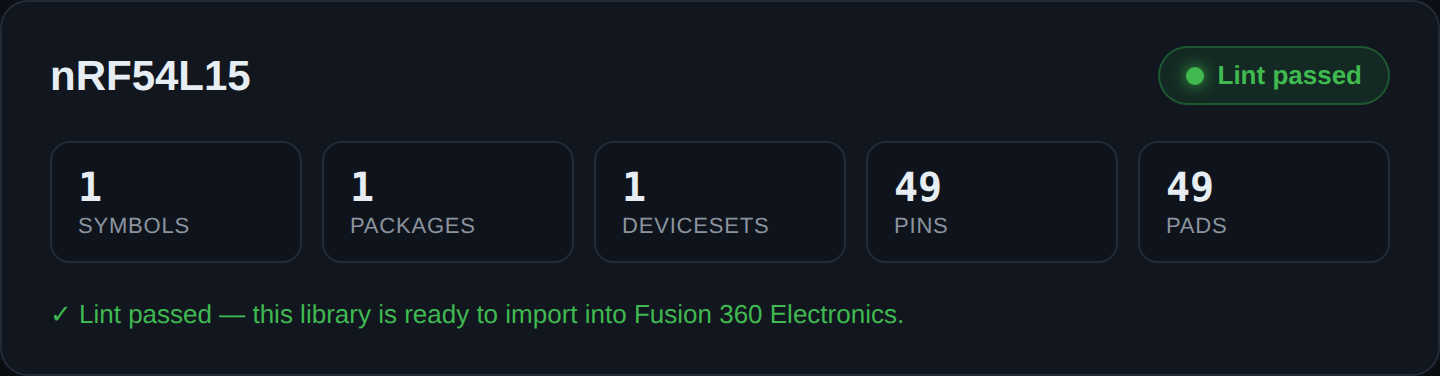
Load an .lbr and the viewer breaks it down at a glance — symbols, packages, devicesets, pins, pads — and re-lints it server-side. A green Lint passed badge means the library is ready to import into Fusion 360 Electronics with no surprises. The top bar carries the Send to targets (KiCad / Fusion / Altium / OrCAD).
The linter catches what Fusion rejects
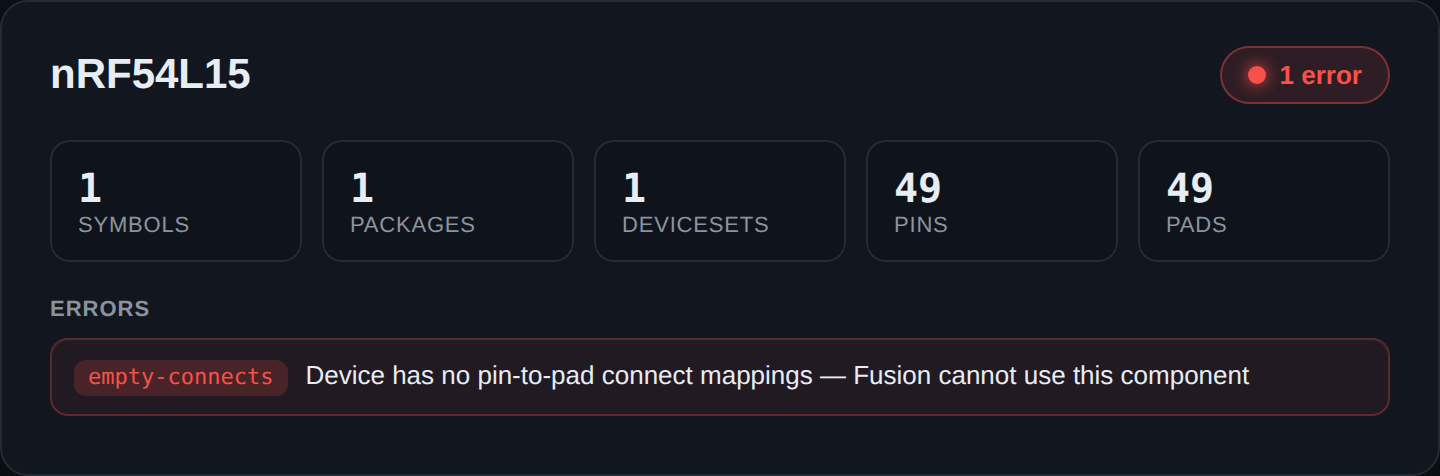
This is the whole point. Fusion will silently show "No Components" or refuse to place a part when a library is subtly broken — adom-lbr catches it first. Here the deviceset has no pin-to-pad connect mappings, so the linter flags empty-connects with a plain-English reason: "Fusion cannot use this component." It also catches missing packages, devices with no package attribute, malformed XML, and invisible symbol bodies — each with a code and a fix.
Generate from the command line
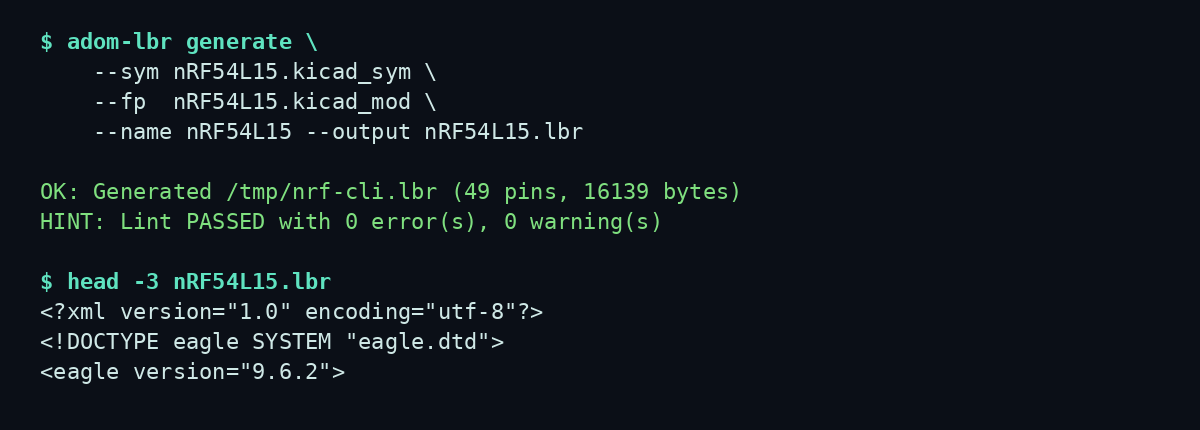
generate builds the whole library in one shot from a .kicad_sym (+ optional .kicad_mod), lint-checks it, and writes a native .lbr. The same engine powers the Send to → Fusion/Altium/OrCAD flow in adom-symbol and adom-footprint, so whatever you see in those apps is exactly what lands in your library.
What it does
generate—.kicad_sym(+.kicad_mod) → native.lbr, lint-checked for Fusion compatibility.lint/validate— catch the things Fusion rejects: missing connects, incomplete devicesets, bad pad maps.import— EAGLE.lbr→ KiCad.kicad_sym.- Live app — a viewer that lints the loaded
.lbrand shows symbols / packages / devicesets / pins / pads at a glance.
Send to
Fusion 360 (open the .lbr directly), Altium / OrCAD (download the .lbr + import steps; native exporters on the roadmap), KiCad (converted back to .kicad_sym).
Open source — check it out, vibe-code it, send it back
adom-lbr is MIT and fully open. The complete Rust source is in this page's Files tab — browse it, or grab src/ + Cargo.toml.
- Build it.
cargo build --releasedrops a standalone binary (no Node, no gallia). - Point your install at your checkout.
adompkg link john/adom-lbr ./adom-lbrso theadom-lbryou run is your local copy. - Vibe-code a change. Open the folder in Claude Code and describe what you want — a new lint rule, another export target, a smarter symbol synthesizer. The lint rules live in one readable list, easy to extend.
- Send it back. Open a pull request on this page (the wiki reviews and merges per-repo PRs), or start a discussion thread. Good additions get folded into the shipped app.
Part of the Adom EDA family
Used by chip-fetcher and the Send-to flow across adom-symbol and adom-footprint; pairs with ds2sf.
Run it
adom-lbr generate --sym part.kicad_sym --fp part.kicad_mod --name PART --output part.lbr
adom-lbr serve --port 8784          # live linter app (AI-drivable)
adom-lbr embed --dir <chip-dir>     # Fusion-style 3-column viewer as one .html
MIT, contributions welcome.
# adom-lbr
**adom-lbr — the EDA library translator. Bring a component in from any supported EDA tool and convert it to any other — KiCad ⇄ Altium ⇄ EAGLE/Fusion — through one canonical part format, with native Altium output and no local EDA software.**
The **adom-lbr JSON** is Adom's own canonical part: one document carrying the symbol, footprint, 3D reference, and the pin↔pad map. adom-lbr is the translator around it — **import a component from KiCad or Altium**, then convert the adom-lbr JSON to **any** other tool: **native Altium** (`.SchLib` / `.PcbLib` / `.IntLib`), a **KiCad** `.kicad_sym` + `.kicad_mod`, or an **EAGLE/Fusion** `.lbr`. **Any EDA tool in, any EDA tool out** — the canonical JSON is the hub, so every source pairs with every target. The Altium libraries are written **natively** — the exact OLE2/CFBF binary — so no copy of Altium is needed at conversion time. Standalone Rust, no Node, no gallia.
("lbr" = **Adom Library**, the adom-lbr JSON — not EAGLE's `.lbr`, which is just one of the output formats.)
## Formats & targets
| Direction | Format | Used by |
|---|---|---|
| **Hub** | **adom-lbr JSON** (symbol + footprint + graphics + pin↔pad map) | the canonical format everything converts to/from |
| **Import → hub** | KiCad `.kicad_sym` + `.kicad_mod` → adom-lbr JSON | bring a KiCad part in |
| **Import → hub** | **Altium `.SchLib` / `.PcbLib` / `.IntLib` → adom-lbr JSON** | bring an Altium part in — pins, pads, and silk/courtyard/fab **layers** |
| **Export → Altium** | native `.SchLib` + `.PcbLib`, or one bundled `.IntLib` | Altium Designer — written natively, no Altium needed |
| **Export → Fusion/EAGLE** | EAGLE `.lbr` (symbol + package + connects) | Autodesk Fusion 360 Electronics, EAGLE, OrCAD |
| **Export → KiCad** | native `.kicad_sym` + `.kicad_mod` (layers preserved) | KiCad 6+ |
| **Merge** | add a part's symbol into an existing `.SchLib` | install a part into a user's Altium library |
Altium footprint graphics keep their **layers** across the round trip — silk /
courtyard / fab decode into neutral roles and re-encode onto the right Altium
layers (outline → Mechanical 13 "Assembly Top", courtyard → Mechanical 15
"Courtyard Top"). Verified byte-exact (`Altium → JSON → Altium → JSON`).
The **Send to** bar in the live app pushes the loaded library to whichever of those tools you're running (via the Adom Desktop bridge).
## adom-lbr Manager — browse the wiki, inspect any part
`adom-lbr manage` opens a web app that **lists every component on the wiki**; click
one and it renders the **schematic symbol**, **footprint**, and **3D model** on the
fly from the part's adom-lbr JSON (or, if the page has none, from its KiCad files).
It surfaces the **footprint layer stackup** — what layer each silk / courtyard / fab /
copper element becomes in **KiCad *and* Altium**, side by side — plus a per-layer
show/hide filter, drag-to-pan / scroll-to-zoom viewers, and **hover-to-highlight**
on pins & pads showing each one's number and name.
```bash
adom-lbr manage --port 8785 # → http://localhost:8785 (list ▸ click ▸ viewer)
```
## The 3-column library viewer — and an interactive embed

▶ **[Open the live ADS1115 3-column viewer](https://wiki.adom.inc/api/v1/pages/john/adom-lbr/files/demo/ads1115-viewer.html)** — the exact self-contained file `adom-lbr embed` produces, served straight from this page (pan/zoom each panel; the pin→pad table is fully populated from the datasheet). It is built to sit in an `<iframe>` once the wiki enables component-page iframe embedding.
`adom-lbr embed` exports a **Fusion 360-style three-column viewer** as one self-contained `.html` file: **symbol** in column 1, **footprint** in column 2, the **3D chip** in column 3 — each independently pan/zoomable — with the full **pin → pad mapping table** below, carrying each pin's **type and datasheet description**. It's built to drop straight into an `<iframe>` on a **wiki component page**: a single portable file, no server, no external assets.
```bash
adom-lbr embed --dir <chip-dir> # → <mpn>-lbr-embed.html
```
```html
<iframe src="…/<mpn>-lbr-embed.html" width="100%" height="640" style="border:0"></iframe>
```
It assembles the three renders, the pin→pad connects, and the datasheet pin descriptions from a chip directory — exactly the part data adom-symbol, adom-footprint, ds2sf and chip-thumbnailer already produce.
## The library at a glance

Load an `.lbr` and the viewer breaks it down at a glance — **symbols, packages, devicesets, pins, pads** — and re-lints it server-side. A green **Lint passed** badge means the library is ready to import into Fusion 360 Electronics with no surprises. The top bar carries the **Send to** targets (KiCad / Fusion / Altium / OrCAD).
## The linter catches what Fusion rejects

This is the whole point. Fusion will silently show "No Components" or refuse to place a part when a library is subtly broken — adom-lbr catches it first. Here the deviceset has **no pin-to-pad connect mappings**, so the linter flags `empty-connects` with a plain-English reason: *"Fusion cannot use this component."* It also catches missing packages, devices with no package attribute, malformed XML, and invisible symbol bodies — each with a code and a fix.
## Generate from the command line

`generate` builds the whole library in one shot from a `.kicad_sym` (+ optional `.kicad_mod`), lint-checks it, and writes a native `.lbr`. The same engine powers the **Send to → Fusion/Altium/OrCAD** flow in adom-symbol and adom-footprint, so whatever you see in those apps is exactly what lands in your library.
## What it does
- **`generate`** — `.kicad_sym` (+ `.kicad_mod`) → native `.lbr`, lint-checked for Fusion compatibility.
- **`lint` / `validate`** — catch the things Fusion rejects: missing connects, incomplete devicesets, bad pad maps.
- **`import`** — EAGLE `.lbr` → KiCad `.kicad_sym`.
- **Live app** — a viewer that lints the loaded `.lbr` and shows symbols / packages / devicesets / pins / pads at a glance.
## Send to
Fusion 360 (open the `.lbr` directly), Altium / OrCAD (download the `.lbr` + import steps; native exporters on the roadmap), KiCad (converted back to `.kicad_sym`).
## Open source — check it out, vibe-code it, send it back
adom-lbr is MIT and **fully open**. The complete Rust source is in this page's **Files** tab — browse it, or grab `src/` + `Cargo.toml`.
1. **Build it.** `cargo build --release` drops a standalone binary (no Node, no gallia).
2. **Point your install at your checkout.** `adompkg link john/adom-lbr ./adom-lbr` so the `adom-lbr` you run is your local copy.
3. **Vibe-code a change.** Open the folder in Claude Code and describe what you want — a new lint rule, another export target, a smarter symbol synthesizer. The lint rules live in one readable list, easy to extend.
4. **Send it back.** Open a **pull request** on this page (the wiki reviews and merges per-repo PRs), or start a discussion thread. Good additions get folded into the shipped app.
## Part of the Adom EDA family
Used by **chip-fetcher** and the Send-to flow across **adom-symbol** and **adom-footprint**; pairs with **ds2sf**.
## Run it
```bash
adom-lbr generate --sym part.kicad_sym --fp part.kicad_mod --name PART --output part.lbr
adom-lbr serve --port 8784 # live linter app (AI-drivable)
adom-lbr embed --dir <chip-dir> # Fusion-style 3-column viewer as one .html
```
MIT, contributions welcome.