Adom Desktop - Puppeteer Bridge
Public Made by Adomby adom
The Adom Desktop Puppeteer (pup) bridge — drive a real headful browser on the user's desktop from the cloud: open/screenshot/eval/record. Cold-start drives the browser ALREADY on the machine (installed Chrome, else Microsoft Edge — every Windows PC ships with Edge) with a fresh isolated profile, so the common case needs NO download; Chrome for Testing is fetched only as a last resort. Two artifacts: the Releases zip is the bridge runtime (also bundled in Adom Desktop); the pkg installs the container-side Claude skills.
Adom Desktop — Puppeteer (pup) Bridge
Drive a browser on the user's desktop from the cloud: open/close windows + tabs, navigate, screenshot, eval JS, record windows. pup is a generic, non-profile browser — every session is a fresh, isolated Chrome/Edge process, never the user's real signed-in browser. It drives the browser already on the machine (installed Chrome, else Microsoft Edge — every Windows PC ships Edge), so the common case needs no download; Chrome for Testing is auto-fetched only as a last resort when the box has no Chromium browser at all. Windows open in the background by default so pup never disrupts the user.
To drive the user's real, signed-in Chrome/Edge (their cookies, SSO, saved logins), that's the Adom browser extension's
nbrowser_*verbs — a separate bridge, not pup.
Canonical page: https://wiki.adom.inc/adom/adom-desktop-puppeteer-bridge
Install vs Download — which is which (and why the version numbers differ)
The page header shows two things, for two different places. Most people need only the first.
| On the page | What it is | Who runs it | You usually… |
|---|---|---|---|
Install — adom-wiki pkg install … |
The AI skill pack — the pup skills that teach a cloud/container AI how to drive the bridge. Docs only, no runtime; drops into ~/.claude/skills + ~/.codex/skills. |
your container / cloud AI | run this (or it arrives via sync_skills) |
Download for your machine — adom-bridge-puppeteer-v<ver>.zip |
The bridge runtime — the actual Node program (browser detection + driving) that runs on the desktop. | Adom Desktop, on the user's PC | do nothing — Adom Desktop auto-installs & auto-updates it; the manual download is only for offline/manual installs |
Why two different version numbers? They're independent artifacts. The Install (pkg) version bumps
whenever the skills/docs change (often). The Download (runtime) version bumps only when the bridge
code changes (rarely). So it's normal to see e.g. Install v1.8.27 and Download v1.8.20 — nothing is
out of sync; they just version on their own clocks.
(There's also a third copy — the runtime is bundled inside the Adom Desktop installer as a first-run
seed, superseded by a newer cache copy via updateManifestUrl. You never touch it directly.)
Use it
# everyday: open + screenshot. Opens in the BACKGROUND automatically — no need to lower it,
# and it's fully drivable/screenshottable while hidden, so the user is never interrupted.
adom-desktop browser_open_window '{"sessionId":"myapp-web","owner":"myapp","url":"http://localhost:3000"}'
adom-desktop browser_screenshot  '{"sessionId":"myapp-web"}'

# readiness (use browser_readiness, NOT browser_status). On a box with Chrome or Edge this is
# instantly {ready:true} with no download. Only a box with no Chromium at all fetches Chrome for
# Testing in the background — poll until ready, then open.
adom-desktop browser_readiness '{}'      # → {ready:true, browserKind:"chrome"|"edge"|...}
- Task-prefix your
sessionId+ passowner— sessions are shared across every AI thread on the desktop; that lets pup protect your window from another thread navigating it away. foreground:trueis the only way to show a window — sizing/positioning does not foreground it.
Full everyday usage (tabs, recording, window ownership, cold-start playbook) is in the pup skill
(SKILL.md).
Window-type taskbar icons: read a pup window at a glance

Every pup window's taskbar icon states what kind of thing it is showing. All five share the same drawing (the teal Adom tile carrying a solid browser window) and differ only in the window's content: a monochrome glyph on the 24x24 Adom house grid, per the brand icon law (single color, no gradients, no emoji):
| Icon | Window content | Means |
|---|---|---|
 |
open book | Adom wiki, public view: logged out, what the world sees |
 |
book + person | Adom wiki, signed in: the user's logged-in view (private source, drafts, owner cards) |
 |
the Adom mark | An Adom app: localhost or a cloud-slug proxy URL |
 |
globe | The web: any other site (ti.com, digikey, ...) |
 |
two panes | Mixed: the window's tabs span more than one category |
- The category is derived from all tabs in the window; it updates live (add a digikey tab to a wiki window and the icon flips to mixed within about a second).
- The overlay badge riding the icon's corner is separate and sacred: it is the active tab's own favicon, so you always see which site you are looking at. In grouped-taskbar mode it shows window/tab counters instead.
- The tab title carries the same login signal in text: a solid dot (
● Logged in) or hollow dot (○ Public) leads the title of every Adom wiki tab. - Under the hood, each window's identity (icon, name, Alt-Tab entry) rides a per-session Windows
AppUserModelID that carries the category: the only way Win11 allows a taskbar tile to change
live. Grouped mode instead keeps one stable, pinnable
Adom.Pupidentity.
Real windows, one per type
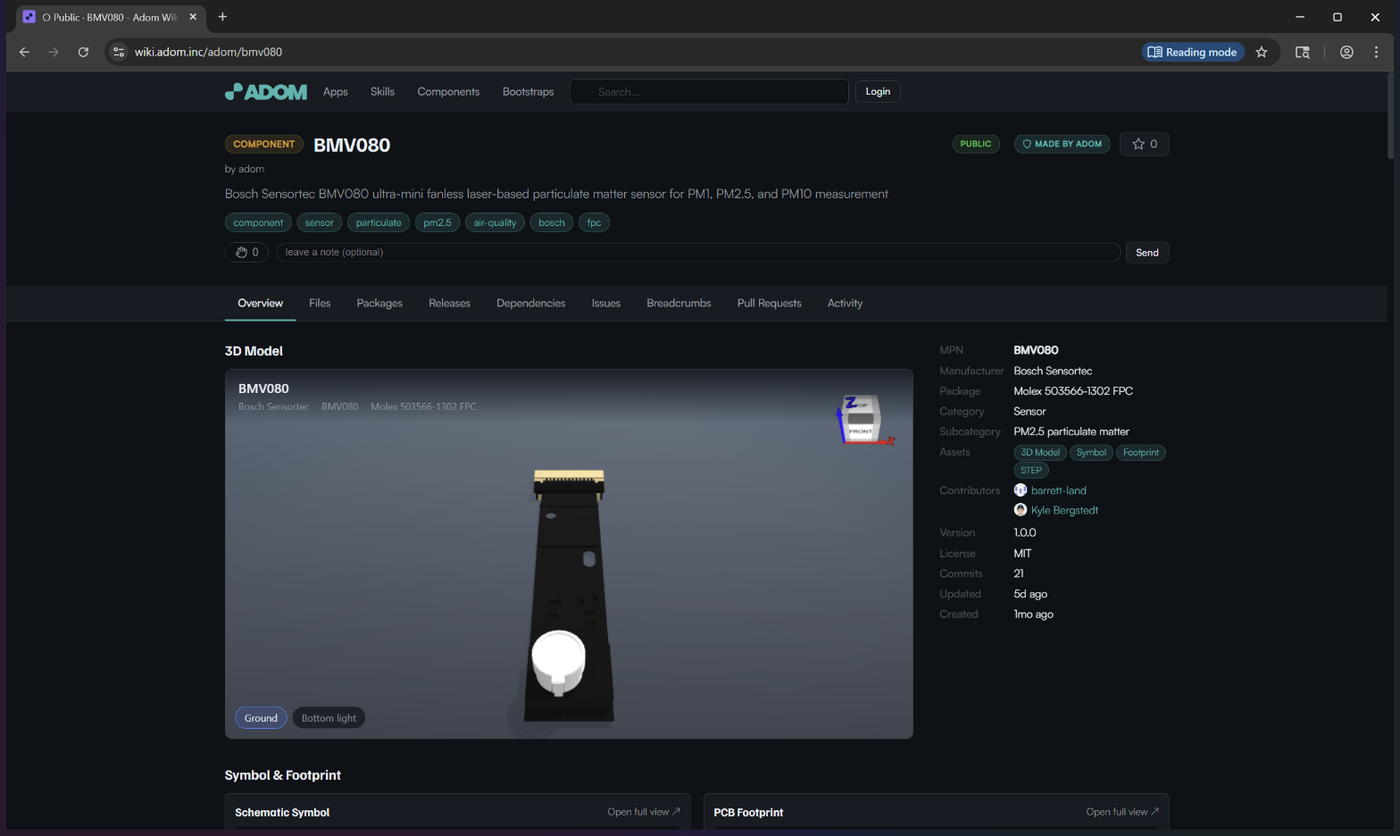
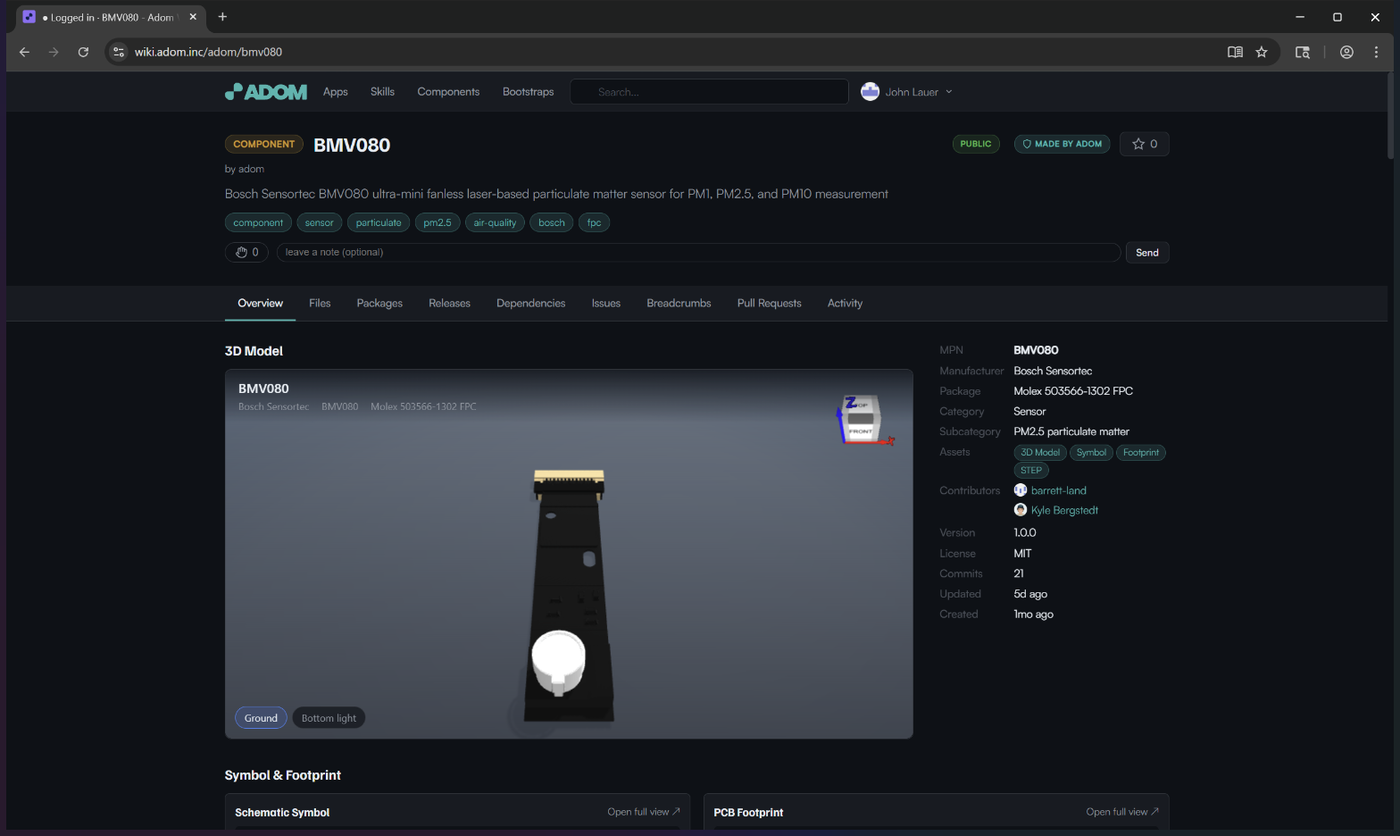
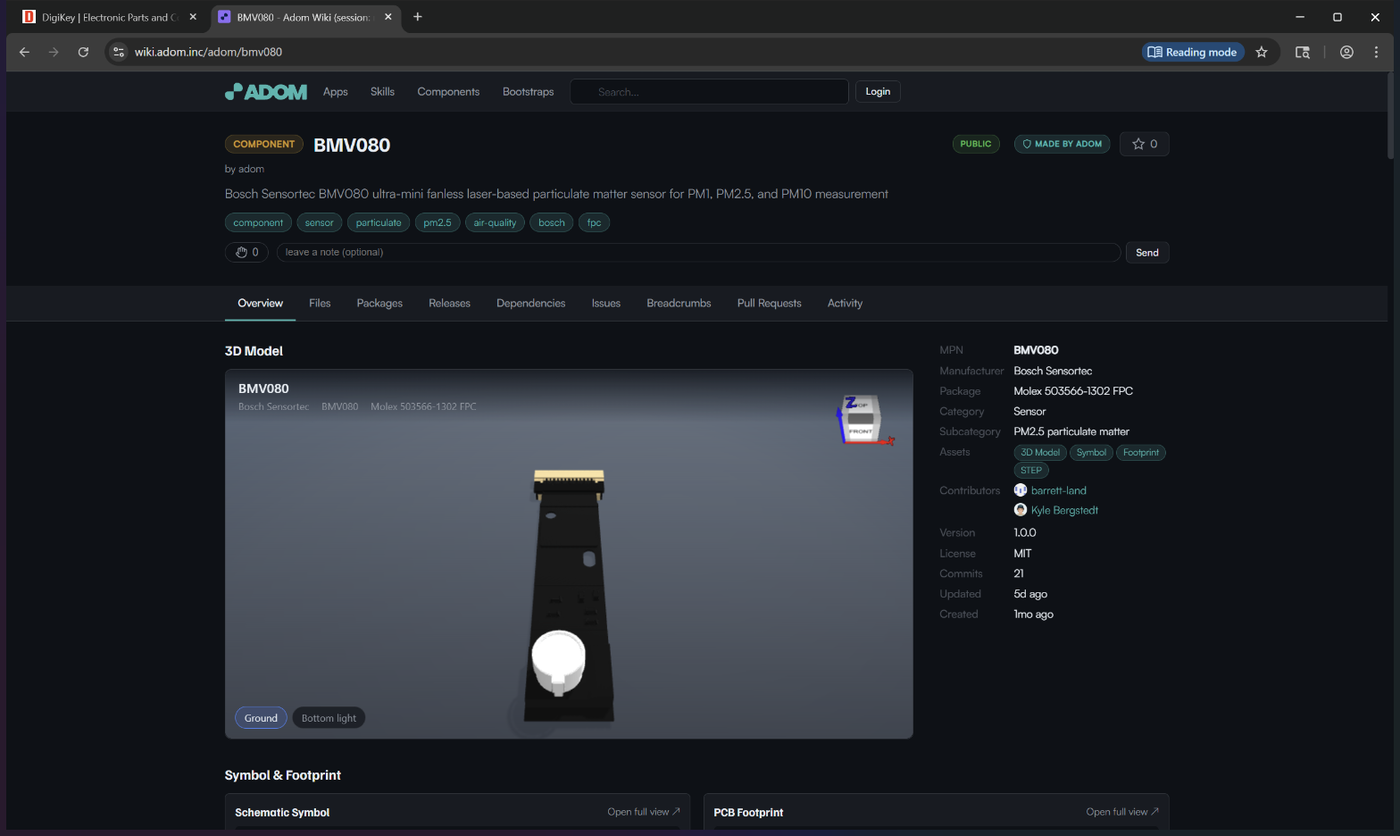
Full windows as pup opens them (title bar, tabs, page). Note the tab title glyphs on the wiki pair and the signed-in header on the second:
Adom wiki, PUBLIC (tab: ○ Public, page header shows Login):
Adom wiki, SIGNED IN (tab: ● Logged in, page header shows the user's name):
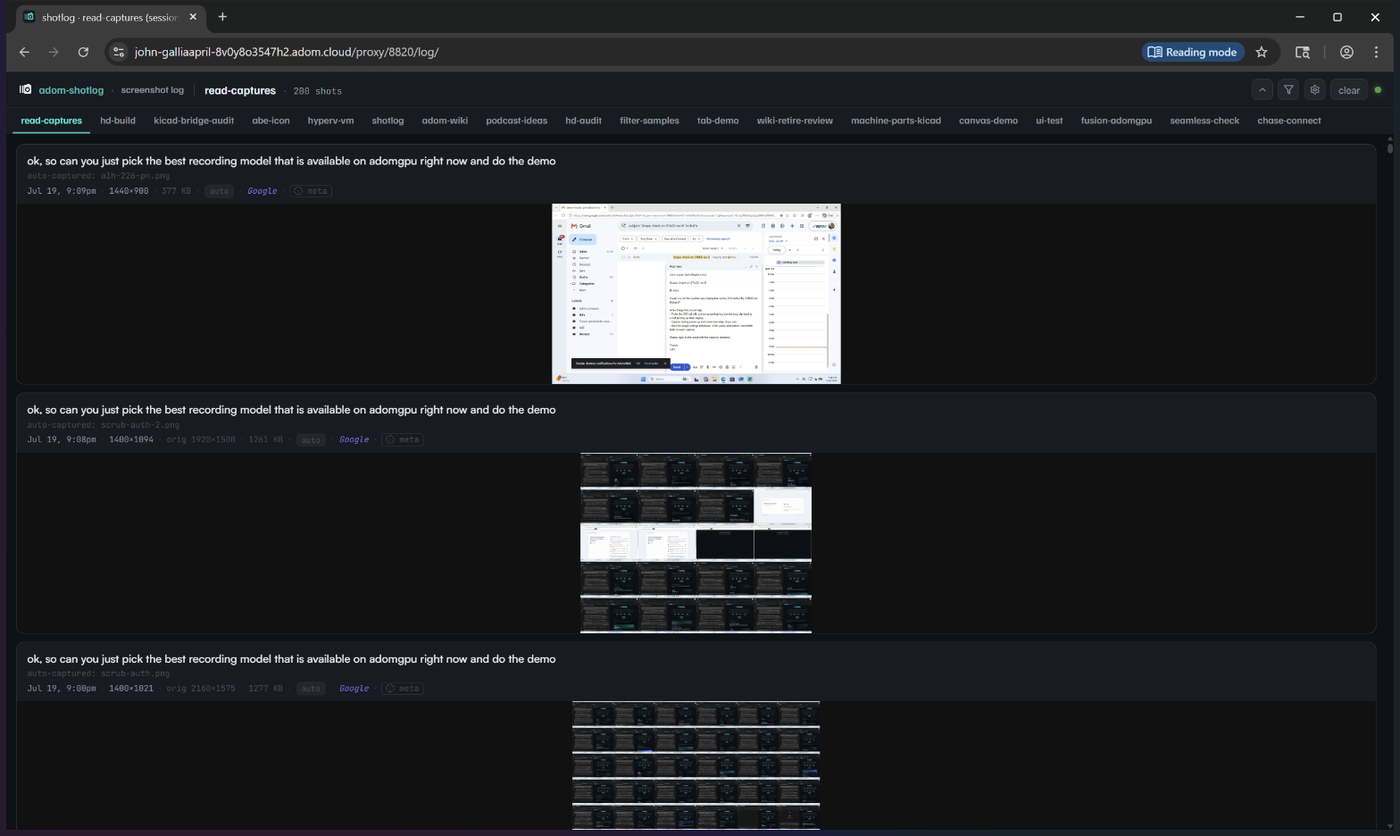
An Adom app (here: the shotlog viewer on a cloud slug URL):
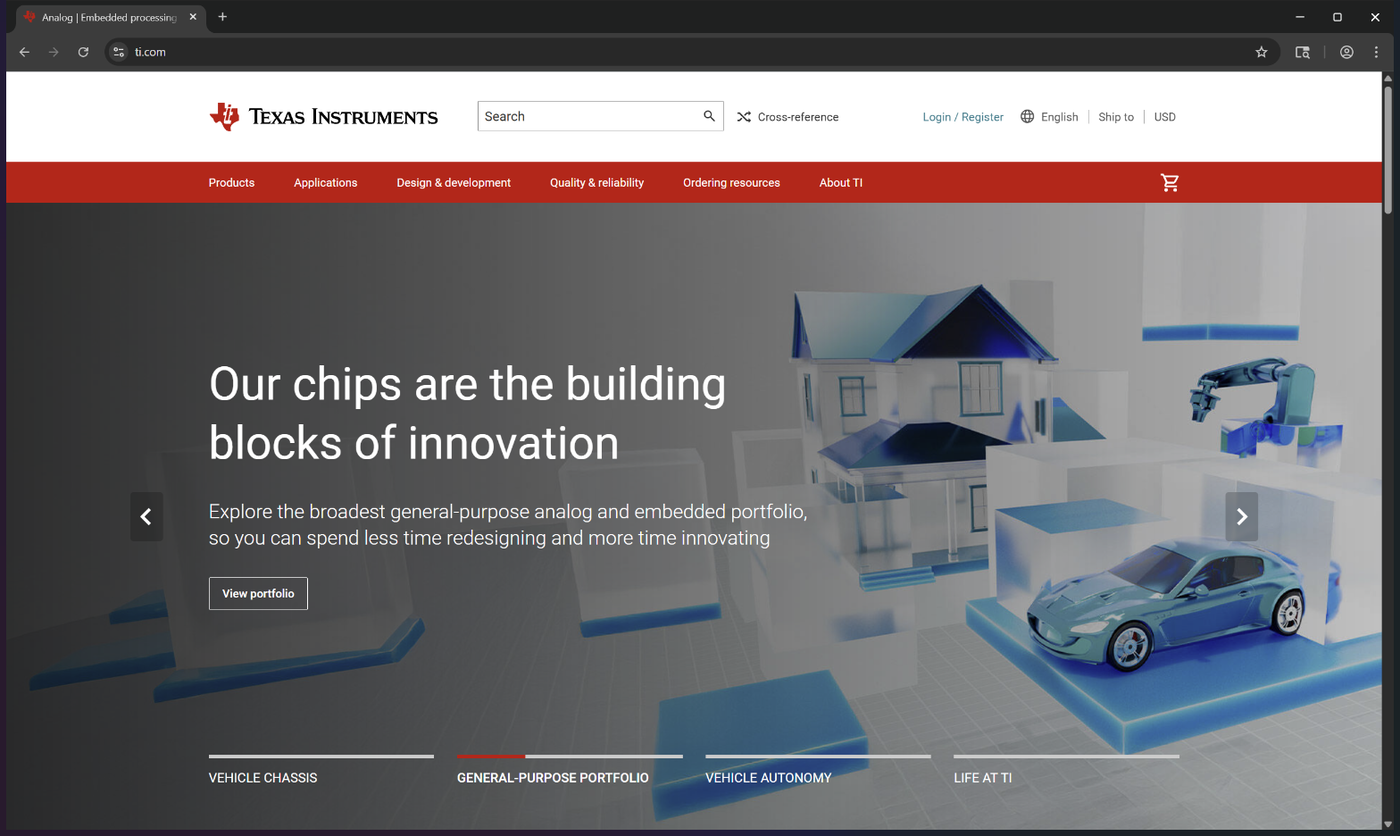
The web (ti.com):
Mixed (a digikey tab and a wiki tab in one window):
Overlay badges: the corner of the taskbar icon

The base icon states the window TYPE; the small overlay riding its lower-right corner carries LIVE detail, composited exactly like this:
| Overlay | When | What it tells you |
|---|---|---|
| the active tab's favicon on a dark rounded plate | split mode, page serves a favicon | which site the active tab is on, at a glance |
| a count badge (white digit, dark plate) | split mode, 2+ tabs and no favicon | how many tabs the window holds |
| the dual counter (dark = windows, teal = total tabs) | grouped mode | how much is stacked under the single Adom Pup button |
The overlay never carries branding or state that belongs to the base icon: it is live per-window detail only, and the favicon always wins the slot when one exists.
The Adom wiki: logged-in vs public view, and the taskbar toggle
pup can show any Adom wiki page from two viewpoints, and both the AI and the user can switch:
- Public (default): a fresh logged-out profile: exactly what the world sees. Use it to verify what a publish actually exposed.
- Signed in:
browser_open_window {..., wikiView:"authed"}routes to a reserved persistent profile whose cookie jar holds the user's ~30-day SSO session. One login serves every AI thread on the machine. First use returnswikiLoginNeeded:true; the user signs in once, in that window.
The user can flip a wiki window themselves: right-click its taskbar button: the jump list
carries "Adom wiki: switch to logged-in view" (or "...switch to public view"). Clicking it
relaunches that same window under the other cookie jar, brings it to the front, and shows an
on-screen caption while it works ("Switching to the logged-in view of the Adom wiki", then
"Adom wiki: now the LOGGED-IN view (Their Name)"). The AI-side equivalent is the
browser_wiki_set_view verb, which exists for that jump-list click: AI threads should pass
wikiView on open instead.
One session, one OS window
Every pup session gets its own OS window, even when sessions share a browser profile (as all signed-in wiki windows share the authed cookie jar). This is what makes per-window identity possible: a window's title belongs to its active tab, so windows that share sessions as tabs cannot be found, branded, flashed, or given jump lists individually. Sharing a profile shares the cookies; it never merges windows.
Recording
pup can record what it drives — a single tab/window or the whole desktop — straight from the cloud, with no HUD and no need to bring the window forward.
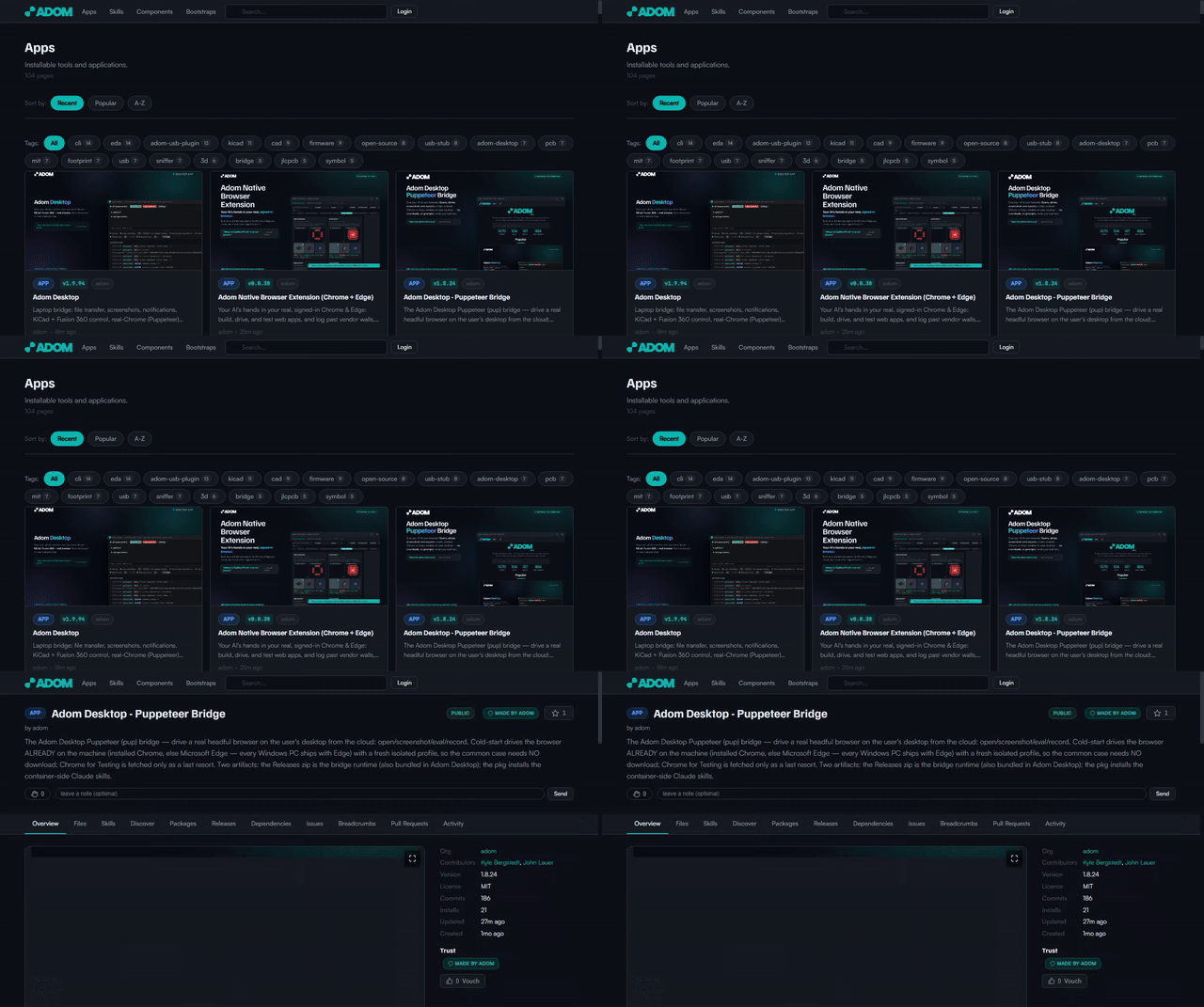
Above: a GIF preview of a real browser_record capture (≈8.6 s, the tab navigating the Adom wiki, recorded in the background on a VM). The native capture is the WebM linked below — this GIF is just an inline preview.
Two recorders — pick by what you're capturing
| Verb pair | Captures | How it works under the hood |
|---|---|---|
browser_record_start / browser_record_stop |
ONE pup tab/window — the page content | CDP Page.startScreencast (JPEG frames, up to ~50 fps) piped to ffmpeg, encoded to VP9 in real time → one .webm. Tab-scoped at the protocol level, so it captures the exact tab even in the background — no getDisplayMedia, no picker, no foreground. |
desktop_record_start / desktop_record_stop |
the WHOLE desktop (multiple apps, dialogs) | Screen capture via MediaRecorder → one .webm; ffmpeg remuxes it to stamp a proper Duration. |
adom-desktop browser_record_start '{"sessionId":"demo-web"}'          # → { recordingId }
# ...drive the scene: navigate, click, type, scroll...
adom-desktop browser_record_stop  '{"sessionId":"demo-web","recordingId":"<id>"}'   # → { path: "...webm" }
ffmpeg is required for recording. The bridge auto-detects it (a WinGet Gyan.FFmpeg install, PATH,
or common dirs) and re-checks lazily on record_start — so if it's missing you can
winget install Gyan.FFmpeg and just retry, no bridge restart. browser_record_status /
browser_record_list (and the desktop_record_* equivalents) report in-flight and finished captures.
Formats — one native format, easy conversion
pup records to one format natively: WebM (VP9) — for both recorders. It doesn't offer a format switch; instead, convert with the bundled ffmpeg when you need MP4 or GIF. Real numbers from the ≈8.6 s demo above (1264×705):
| Format | Codec | Size | How you get it | Best for | Watch out for |
|---|---|---|---|---|---|
| WebM (view) | VP9 | 143 KB | pup's native output — no step | Chrome/Edge/Firefox, small + high quality, the source of truth | Older Safari, PowerPoint, and some chat apps don't accept VP9/WebM |
| MP4 (view) | H.264 | 135 KB | transcode (below) | Universal — Safari, iOS, PowerPoint, Slack/Teams, "send it to anyone" | H.264 needs even width & height — odd dims (like 705) fail at frame 0; the scale filter forces even |
| GIF (view) | — | 192 KB | transcode (below) | Auto-playing, looping inline preview in any README/chat/GitHub — no player, no click (like the one above) | No audio, capped colors, and it balloons fast at higher fps/resolution/length — keep it short + downscaled |
# → MP4 (H.264 — universal). The scale filter forces EVEN dimensions (H.264 rejects odd w/h → frame 0).
ffmpeg -i rec.webm -vf "scale=trunc(iw/2)*2:trunc(ih/2)*2" -c:v libx264 -crf 23 -pix_fmt yuv420p -movflags +faststart rec.mp4

# → GIF (silent, looping inline preview). Palette pass keeps colors clean; drop fps/scale to shrink.
ffmpeg -i rec.webm -vf "fps=12,scale=640:-1:flags=lanczos,split[s0][s1];[s0]palettegen[p];[s1][p]paletteuse" rec.gif
Rule of thumb: keep WebM for archiving + web embeds; make an MP4 the moment a human on Safari/ PowerPoint/phone needs it; make a short GIF only for an inline auto-play preview.
Source & development
This bridge is cloud-owned here (extracted from adom-desktop/plugins/puppeteer, mirroring the
kicad/fusion bridges). Adom Desktop ships a bundled seed and auto-pulls newer versions from this page.
- Clone the source:
adom-wiki repo clone adom/adom-desktop-puppeteer-bridge - Runtime lives in
src/(server.js,chrome.js,bridge.json, …); the release zip issrc/at zip-root. - Maintainer skills (
pup-bridge-dev,pup-bridge-publish) are source-only — indev-skills/+publish-skills/, not shipped in the pkg (per the Bridge SDK a pkg ships only user skills). Skill map:
| Skill | Ships in pkg? | What it's for |
|---|---|---|
pup (root SKILL.md) |
✅ user | Start here — mental model (CDP-launched fresh process of the installed browser, rendered-but-backgrounded), when-vs-extension, quick start |
pup-windows-sessions-tabs |
✅ user | sessionIds, window ownership (don't steal another thread's window), background-vs-foreground, many tabs in one window |
pup-screenshots-recording |
✅ user | Screenshots (full-page/full-res) + recording; driving/verifying tricky pages (shadow DOM, nested scroll) |
pup-browsers-and-chrome |
✅ user | Browser detection/launch, browser_use, installing Chrome/CfT (incl. UAC-notify), readiness, cold-start errors |
pup-adom-wiki |
✅ user | Driving + verifying wiki.adom.inc pages in pup (view/screenshot/verify; the login situation) |
pup-bridge-dev / pup-bridge-publish |
❌ source-only | MAINTAINERS: bridge internals + the publish/release recipe (in dev-skills//publish-skills/, not shipped) |
- Ownership boundary:
CLAUDE.md. Publish recipe:PUBLISHING.md. History:CHANGELOG.md.
Extend pup — add your own pup skill (third parties)
Built a skill that drives pup for a specific job (a site-specific scraper, a visual test flow, a domain widget)? You don't need write access here — surface it from this page with a breadcrumb:
- Publish your skill to your own wiki page (see the
adom-wiki/wiki-skillpackskills). Make it a normal user skill sopkg installdrops it into a container's~/.claude/skills. - Drop a breadcrumb on this page pointing at it:
It's pending until the page owner approves it, then it shows in this page's Breadcrumbs tab.adom-wiki breadcrumb post adom/adom-desktop-puppeteer-bridge \ --label "Your skill name — one-line what it does" \ --target-url "https://wiki.adom.inc/<owner>/<your-slug>" \ --category "skill" - Discovery is automatic: an agent working with pup can list related third-party skills with
adom-wiki breadcrumb list adom/adom-desktop-puppeteer-bridge— approved breadcrumbs are how pup finds community skills that build on it.
Keep breadcrumbs on-topic (they genuinely extend pup / browser-driving); off-topic ones get rejected.
Related
- Bridge SDK guide —
bridge.jsonschema, packaging, lifecycle - KiCad bridge · Fusion 360 bridge
- Adom Desktop (parent app)
MIT licensed.
# Adom Desktop — Puppeteer (pup) Bridge
Drive a browser on the user's desktop from the cloud: open/close windows + tabs, navigate, screenshot,
eval JS, record windows. pup is a **generic, non-profile browser** — every session is a **fresh, isolated
Chrome/Edge process**, never the user's real signed-in browser. It drives the browser **already on the
machine** (installed Chrome, else Microsoft Edge — every Windows PC ships Edge), so the common case needs
**no download**; **Chrome for Testing** is auto-fetched only as a last resort when the box has no
Chromium browser at all. Windows open in the **background by default** so pup never disrupts the user.
> To drive the user's **real, signed-in** Chrome/Edge (their cookies, SSO, saved logins), that's the
> **Adom browser extension's `nbrowser_*` verbs** — a separate bridge, not pup.
Canonical page: **https://wiki.adom.inc/adom/adom-desktop-puppeteer-bridge**
## Install vs Download — which is which (and why the version numbers differ)
The page header shows **two** things, for two different places. Most people need only the first.
| On the page | What it is | Who runs it | You usually… |
|---|---|---|---|
| **Install** — `adom-wiki pkg install …` | The **AI skill pack** — the `pup` skills that teach a cloud/container AI how to drive the bridge. Docs only, no runtime; drops into `~/.claude/skills` + `~/.codex/skills`. | your **container / cloud AI** | **run this** (or it arrives via `sync_skills`) |
| **Download for your machine** — `adom-bridge-puppeteer-v<ver>.zip` | The **bridge runtime** — the actual Node program (browser detection + driving) that runs on the desktop. | **Adom Desktop**, on the user's PC | **do nothing** — Adom Desktop **auto-installs & auto-updates** it; the manual download is only for offline/manual installs |
**Why two different version numbers?** They're independent artifacts. The **Install (pkg)** version bumps
whenever the *skills/docs* change (often). The **Download (runtime)** version bumps only when the *bridge
code* changes (rarely). So it's normal to see e.g. Install `v1.8.27` and Download `v1.8.20` — nothing is
out of sync; they just version on their own clocks.
*(There's also a third copy — the runtime is **bundled inside the Adom Desktop installer** as a first-run
seed, superseded by a newer cache copy via `updateManifestUrl`. You never touch it directly.)*
## Use it
```bash
# everyday: open + screenshot. Opens in the BACKGROUND automatically — no need to lower it,
# and it's fully drivable/screenshottable while hidden, so the user is never interrupted.
adom-desktop browser_open_window '{"sessionId":"myapp-web","owner":"myapp","url":"http://localhost:3000"}'
adom-desktop browser_screenshot '{"sessionId":"myapp-web"}'
# readiness (use browser_readiness, NOT browser_status). On a box with Chrome or Edge this is
# instantly {ready:true} with no download. Only a box with no Chromium at all fetches Chrome for
# Testing in the background — poll until ready, then open.
adom-desktop browser_readiness '{}' # → {ready:true, browserKind:"chrome"|"edge"|...}
```
- **Task-prefix your `sessionId` + pass `owner`** — sessions are shared across every AI thread on the
desktop; that lets pup protect your window from another thread navigating it away.
- **`foreground:true` is the only way to show a window** — sizing/positioning does not foreground it.
Full everyday usage (tabs, recording, window ownership, cold-start playbook) is in the `pup` skill
(`SKILL.md`).
## Window-type taskbar icons: read a pup window at a glance

Every pup window's **taskbar icon states what kind of thing it is showing**. All five share the same
drawing (the teal Adom tile carrying a solid browser window) and differ only in the window's
*content*: a monochrome glyph on the 24x24 Adom house grid, per the brand icon law (single color,
no gradients, no emoji):
| Icon | Window content | Means |
|---|---|---|
|  | open book | **Adom wiki, public view**: logged out, what the world sees |
|  | book + person | **Adom wiki, signed in**: the user's logged-in view (private source, drafts, owner cards) |
|  | the Adom mark | **An Adom app**: localhost or a cloud-slug proxy URL |
|  | globe | **The web**: any other site (ti.com, digikey, ...) |
|  | two panes | **Mixed**: the window's tabs span more than one category |
- The category is derived from **all tabs** in the window; it updates **live** (add a digikey tab
to a wiki window and the icon flips to *mixed* within about a second).
- The **overlay badge** riding the icon's corner is separate and sacred: it is the **active tab's
own favicon**, so you always see which site you are looking at. In grouped-taskbar mode it shows
window/tab counters instead.
- The **tab title** carries the same login signal in text: a solid dot (`● Logged in`) or hollow dot
(`○ Public`) leads the title of every Adom wiki tab.
- Under the hood, each window's identity (icon, name, Alt-Tab entry) rides a per-session Windows
AppUserModelID that **carries the category**: the only way Win11 allows a taskbar tile to change
live. Grouped mode instead keeps one stable, pinnable `Adom.Pup` identity.
## Real windows, one per type
Full windows as pup opens them (title bar, tabs, page). Note the tab title glyphs on the wiki pair
and the signed-in header on the second:
**Adom wiki, PUBLIC** (tab: `○ Public`, page header shows Login):

**Adom wiki, SIGNED IN** (tab: `● Logged in`, page header shows the user's name):

**An Adom app** (here: the shotlog viewer on a cloud slug URL):

**The web** (ti.com):

**Mixed** (a digikey tab and a wiki tab in one window):

## Overlay badges: the corner of the taskbar icon

The base icon states the window TYPE; the small overlay riding its lower-right corner carries
LIVE detail, composited exactly like this:
| Overlay | When | What it tells you |
|---|---|---|
| the active tab's **favicon** on a dark rounded plate | split mode, page serves a favicon | which site the active tab is on, at a glance |
| a **count badge** (white digit, dark plate) | split mode, 2+ tabs and no favicon | how many tabs the window holds |
| the **dual counter** (dark = windows, teal = total tabs) | grouped mode | how much is stacked under the single Adom Pup button |
The overlay never carries branding or state that belongs to the base icon: it is live per-window
detail only, and the favicon always wins the slot when one exists.
## The Adom wiki: logged-in vs public view, and the taskbar toggle
pup can show any Adom wiki page from **two viewpoints**, and both the AI and the user can switch:
- **Public (default)**: a fresh logged-out profile: exactly what the world sees. Use it to verify
what a publish actually exposed.
- **Signed in**: `browser_open_window {..., wikiView:"authed"}` routes to a reserved persistent
profile whose cookie jar holds the user's ~30-day SSO session. One login serves **every** AI
thread on the machine. First use returns `wikiLoginNeeded:true`; the user signs in once, in that
window.
**The user can flip a wiki window themselves**: right-click its taskbar button: the jump list
carries **"Adom wiki: switch to logged-in view"** (or "...switch to public view"). Clicking it
relaunches that same window under the other cookie jar, brings it to the front, and shows an
on-screen caption while it works ("Switching to the logged-in view of the Adom wiki", then
"Adom wiki: now the LOGGED-IN view (Their Name)"). The AI-side equivalent is the
`browser_wiki_set_view` verb, which exists for that jump-list click: AI threads should pass
`wikiView` on open instead.
## One session, one OS window
Every pup session gets its **own OS window**, even when sessions share a browser profile (as all
signed-in wiki windows share the authed cookie jar). This is what makes per-window identity
possible: a window's title belongs to its active tab, so windows that share sessions as tabs
cannot be found, branded, flashed, or given jump lists individually. Sharing a profile shares the
cookies; it never merges windows.
## Recording
pup can record what it drives — a **single tab/window** or the **whole desktop** — straight from the
cloud, with no HUD and no need to bring the window forward.

*Above: a GIF preview of a real `browser_record` capture (≈8.6 s, the tab navigating the Adom wiki, recorded in the background on a VM). The native capture is the WebM linked below — this GIF is just an inline preview.*
### Two recorders — pick by what you're capturing
| Verb pair | Captures | How it works under the hood |
|---|---|---|
| **`browser_record_start` / `browser_record_stop`** | ONE pup **tab/window** — the page content | **CDP `Page.startScreencast`** (JPEG frames, up to ~50 fps) piped to **ffmpeg**, encoded to **VP9** in real time → one `.webm`. Tab-scoped at the protocol level, so it captures the exact tab even in the **background** — no `getDisplayMedia`, no picker, no foreground. |
| **`desktop_record_start` / `desktop_record_stop`** | the WHOLE **desktop** (multiple apps, dialogs) | Screen capture via **MediaRecorder** → one `.webm`; ffmpeg remuxes it to stamp a proper Duration. |
```bash
adom-desktop browser_record_start '{"sessionId":"demo-web"}' # → { recordingId }
# ...drive the scene: navigate, click, type, scroll...
adom-desktop browser_record_stop '{"sessionId":"demo-web","recordingId":"<id>"}' # → { path: "...webm" }
```
**ffmpeg** is required for recording. The bridge auto-detects it (a WinGet `Gyan.FFmpeg` install, PATH,
or common dirs) and re-checks **lazily on `record_start`** — so if it's missing you can
`winget install Gyan.FFmpeg` and just retry, no bridge restart. `browser_record_status` /
`browser_record_list` (and the `desktop_record_*` equivalents) report in-flight and finished captures.
### Formats — one native format, easy conversion
pup records to **one** format natively: **WebM (VP9)** — for both recorders. It doesn't offer a format
switch; instead, convert with the bundled ffmpeg when you need MP4 or GIF. Real numbers from the ≈8.6 s
demo above (1264×705):
| Format | Codec | Size | How you get it | Best for | Watch out for |
|---|---|---|---|---|---|
| **WebM** ([view](https://wiki.adom.inc/api/v1/pages/adom-desktop-puppeteer-bridge/files/pup-recording-demo.webm)) | VP9 | **143 KB** | pup's **native** output — no step | Chrome/Edge/Firefox, small + high quality, the source of truth | Older **Safari**, PowerPoint, and some chat apps don't accept VP9/WebM |
| **MP4** ([view](https://wiki.adom.inc/api/v1/pages/adom-desktop-puppeteer-bridge/files/pup-recording-demo.mp4)) | H.264 | **135 KB** | transcode (below) | **Universal** — Safari, iOS, PowerPoint, Slack/Teams, "send it to anyone" | H.264 needs **even width & height** — odd dims (like 705) fail at frame 0; the `scale` filter forces even |
| **GIF** ([view](https://wiki.adom.inc/api/v1/pages/adom-desktop-puppeteer-bridge/files/pup-recording-demo.gif)) | — | **192 KB** | transcode (below) | Auto-playing, looping **inline preview** in any README/chat/GitHub — no player, no click (like the one above) | No audio, capped colors, and it balloons fast at higher fps/resolution/length — keep it short + downscaled |
```bash
# → MP4 (H.264 — universal). The scale filter forces EVEN dimensions (H.264 rejects odd w/h → frame 0).
ffmpeg -i rec.webm -vf "scale=trunc(iw/2)*2:trunc(ih/2)*2" -c:v libx264 -crf 23 -pix_fmt yuv420p -movflags +faststart rec.mp4
# → GIF (silent, looping inline preview). Palette pass keeps colors clean; drop fps/scale to shrink.
ffmpeg -i rec.webm -vf "fps=12,scale=640:-1:flags=lanczos,split[s0][s1];[s0]palettegen[p];[s1][p]paletteuse" rec.gif
```
**Rule of thumb:** keep **WebM** for archiving + web embeds; make an **MP4** the moment a human on Safari/
PowerPoint/phone needs it; make a short **GIF** only for an inline auto-play preview.
## Source & development
This bridge is cloud-owned here (extracted from `adom-desktop/plugins/puppeteer`, mirroring the
kicad/fusion bridges). Adom Desktop ships a bundled seed and auto-pulls newer versions from this page.
- Clone the source: `adom-wiki repo clone adom/adom-desktop-puppeteer-bridge`
- Runtime lives in `src/` (`server.js`, `chrome.js`, `bridge.json`, …); the release zip is `src/` at zip-root.
- **Maintainer skills** (`pup-bridge-dev`, `pup-bridge-publish`) are **source-only** — in `dev-skills/` +
`publish-skills/`, not shipped in the pkg (per the Bridge SDK a pkg ships only user skills). Skill map:
| Skill | Ships in pkg? | What it's for |
|---|---|---|
| `pup` (root SKILL.md) | ✅ user | Start here — mental model (CDP-launched fresh process of the installed browser, rendered-but-backgrounded), when-vs-extension, quick start |
| `pup-windows-sessions-tabs` | ✅ user | sessionIds, window ownership (don't steal another thread's window), background-vs-foreground, many tabs in one window |
| `pup-screenshots-recording` | ✅ user | Screenshots (full-page/full-res) + recording; driving/verifying tricky pages (shadow DOM, nested scroll) |
| `pup-browsers-and-chrome` | ✅ user | Browser detection/launch, `browser_use`, installing Chrome/CfT (incl. UAC-notify), readiness, cold-start errors |
| `pup-adom-wiki` | ✅ user | Driving + verifying `wiki.adom.inc` pages in pup (view/screenshot/verify; the login situation) |
| `pup-bridge-dev` / `pup-bridge-publish` | ❌ source-only | MAINTAINERS: bridge internals + the publish/release recipe (in `dev-skills/`/`publish-skills/`, not shipped) |
- Ownership boundary: `CLAUDE.md`. Publish recipe: `PUBLISHING.md`. History: `CHANGELOG.md`.
## Extend pup — add your own pup skill (third parties)
Built a skill that drives pup for a specific job (a site-specific scraper, a visual test flow, a
domain widget)? You don't need write access here — surface it from this page with a **breadcrumb**:
1. **Publish your skill** to your own wiki page (see the `adom-wiki` / `wiki-skillpack` skills). Make it a
normal user skill so `pkg install` drops it into a container's `~/.claude/skills`.
2. **Drop a breadcrumb on this page** pointing at it:
```bash
adom-wiki breadcrumb post adom/adom-desktop-puppeteer-bridge \
  --label "Your skill name — one-line what it does" \
  --target-url "https://wiki.adom.inc/<owner>/<your-slug>" \
  --category "skill"
```
It's **pending until the page owner approves it**, then it shows in this page's **Breadcrumbs** tab.
3. **Discovery is automatic:** an agent working with pup can list related third-party skills with
`adom-wiki breadcrumb list adom/adom-desktop-puppeteer-bridge` — approved breadcrumbs are how pup finds
community skills that build on it.
Keep breadcrumbs on-topic (they genuinely extend pup / browser-driving); off-topic ones get rejected.
## Related
- [Bridge SDK guide](https://wiki.adom.inc/adom/adom-desktop-bridges) — `bridge.json` schema, packaging, lifecycle
- [KiCad bridge](https://wiki.adom.inc/adom/adom-desktop-kicad-bridge) · [Fusion 360 bridge](https://wiki.adom.inc/adom/adom-desktop-fusion-bridge)
- [Adom Desktop (parent app)](https://wiki.adom.inc/adom/adom-desktop)
MIT licensed.