Adom Browser Extension
Public Made by Adomby adom
Your AI's hands in your real, signed-in browser. The Adom Browser Extension (abe) works with both Chrome and Edge: build, drive, and test web apps, and log past vendor walls, in the browser you already use - cookies, SSO, saved logins and captcha trust intact. The nbrowser_* bridge (pup's counterpart) runs in your actual logged-in profile.
Uninstalling the extension (the background-first process)
How the Adom browser extension is removed from the user's real Chrome/Edge. Like install, this is our
orchestration over adom-desktop's generic OS verbs (desktop_navigate, desktop_find_control,
desktop_ui_click, desktop_ui_set, desktop_screenshot_window) - AD has no "uninstall extension"
feature. Full step detail + recovery lives in the uninstalling-the-extension skill; this page is
the walkthrough with screenshots.
Two rules that make or break it
- Background-first; never force the foreground. Stealing focus is rude AND corrupts the flow: if the
user keeps typing, their keystrokes land in the control you just focused (the Search box), silently
changing your filter and hiding the card you were about to remove. (We hit this live: a foregrounded
search became
Adomsand the Adom card vanished.) Drive with background UIA. There is exactly one unavoidable foreground beat (the confirm bubble, Step 3) - narrate it and keep it to ~1 second. - Isolate the target, or you can remove the WRONG extension. Every extension card's Remove button
has the same accessible name "Remove" (
automationId:"removeButton"), so a blind click is ambiguous. Filter the list to the Adom card first.
Step 1 - open chrome://extensions in your OWN background window
Open a fresh background window you own (nbrowser_open_window {focused:false}), find its hwnd, then
desktop_navigate {hwnd, url:"chrome://extensions"} (use edge://extensions for Edge - the scheme must
match the browser). Screenshot to confirm the page loaded and the Adom card is present.
Step 2 - isolate the Adom card (the safety guard)
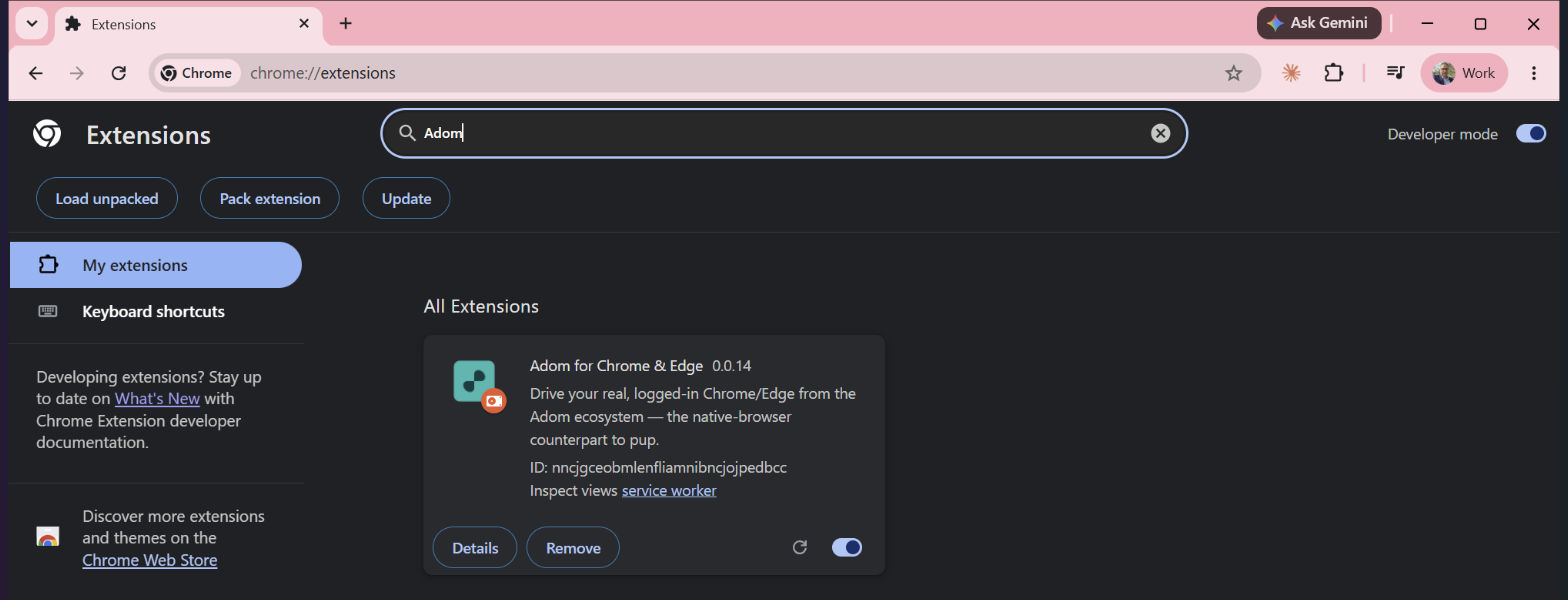
Set the search box (background desktop_ui_set {contains:"Search extensions", text:"Adom"}) so only the
Adom card remains. Screenshot and confirm exactly one card shows before going further - this is what
makes the Remove button unambiguous:
Step 3 - Remove + confirm (the one brief, narrated foreground beat)
The confirm bubble (Remove "Adom for Chrome & Edge"?) is a Chromium owned popup that dies on focus
loss, so the window must hold focus across trigger -> confirm. This is the one place foreground is
unavoidable, so caption the user ("one moment, please don't type"), then do it fast and atomically:
desktop_ui_click {contains:"Remove"} (trigger) -> wait ~1s -> desktop_ui_click {scope:"popups", role:"button", name:"Remove"} (confirm). Do not insert a screenshot between trigger and confirm -
the bubble auto-closes in ~1-2s.
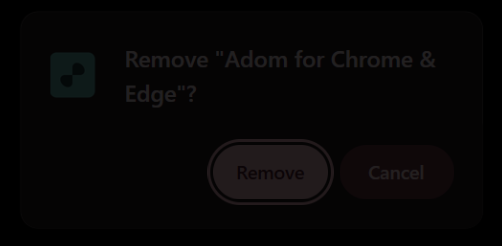
To photograph the bubble (as above) without removing anything, do a separate pass: trigger Remove, then
desktop_screenshot_window {hwnd:<browser>} - the bubble rides back in the response's screenshots[]
array (it is an owned popup) - then click Cancel instead of Remove.
Step 4 - verify it is gone (screenshot AND state)
- Screenshot: the Adom card is gone (the filtered list shows "No search results found").
- State: poll
nbrowser_profiles/nbrowser_status- thechrome:/edge:profile key drops within ~1-2s as the service worker dies. That dropped key is the authoritative "it actually unloaded."
Cross-browser + full cleanup
- Edge: identical via
edge://extensions; verify theedge:key drops. - Just unload vs full decommission: removing the card unloads the extension. To fully remove it, also
delete the HKCU native-messaging host (
...\NativeMessagingHosts\inc.adom.native_browser, plus the Edge key) and, if wanted,adom-desktop bridge_uninstall {name:"native-browser"}. For "take it out of my browser," Steps 1-4 are enough.
Reinstall
Removal + reinstall is also how you apply an updated extension/ build. Reinstall with the
First-time install flow / installing-the-extension skill.
# Uninstalling the extension (the background-first process)
How the Adom browser extension is removed from the user's real Chrome/Edge. Like install, this is **our**
orchestration over adom-desktop's **generic** OS verbs (`desktop_navigate`, `desktop_find_control`,
`desktop_ui_click`, `desktop_ui_set`, `desktop_screenshot_window`) - AD has no "uninstall extension"
feature. Full step detail + recovery lives in the **`uninstalling-the-extension`** skill; this page is
the walkthrough with screenshots.
## Two rules that make or break it
1. **Background-first; never force the foreground.** Stealing focus is rude AND corrupts the flow: if the
user keeps typing, their keystrokes land in the control you just focused (the Search box), silently
changing your filter and hiding the card you were about to remove. (We hit this live: a foregrounded
search became `Adoms` and the Adom card vanished.) Drive with background UIA. There is exactly **one**
unavoidable foreground beat (the confirm bubble, Step 3) - narrate it and keep it to ~1 second.
2. **Isolate the target, or you can remove the WRONG extension.** Every extension card's Remove button
has the **same** accessible name "Remove" (`automationId:"removeButton"`), so a blind click is
ambiguous. Filter the list to the Adom card first.
## Step 1 - open chrome://extensions in your OWN background window
Open a fresh background window you own (`nbrowser_open_window {focused:false}`), find its `hwnd`, then
`desktop_navigate {hwnd, url:"chrome://extensions"}` (use `edge://extensions` for Edge - the scheme must
match the browser). Screenshot to confirm the page loaded and the Adom card is present.
## Step 2 - isolate the Adom card (the safety guard)
Set the search box (background `desktop_ui_set {contains:"Search extensions", text:"Adom"}`) so only the
Adom card remains. **Screenshot and confirm exactly one card shows** before going further - this is what
makes the Remove button unambiguous:

## Step 3 - Remove + confirm (the one brief, narrated foreground beat)
The confirm bubble (`Remove "Adom for Chrome & Edge"?`) is a Chromium **owned popup that dies on focus
loss**, so the window must hold focus across trigger -> confirm. This is the one place foreground is
unavoidable, so caption the user ("one moment, please don't type"), then do it fast and atomically:
`desktop_ui_click {contains:"Remove"}` (trigger) -> wait ~1s -> `desktop_ui_click {scope:"popups",
role:"button", name:"Remove"}` (confirm). Do **not** insert a screenshot between trigger and confirm -
the bubble auto-closes in ~1-2s.

To photograph the bubble (as above) without removing anything, do a separate pass: trigger Remove, then
`desktop_screenshot_window {hwnd:<browser>}` - the bubble rides back in the response's `screenshots[]`
array (it is an owned popup) - then click **Cancel** instead of Remove.
## Step 4 - verify it is gone (screenshot AND state)
- **Screenshot:** the Adom card is gone (the filtered list shows "No search results found").
- **State:** poll `nbrowser_profiles` / `nbrowser_status` - the `chrome:` / `edge:` profile key **drops**
within ~1-2s as the service worker dies. That dropped key is the authoritative "it actually unloaded."
## Cross-browser + full cleanup
- **Edge:** identical via `edge://extensions`; verify the `edge:` key drops.
- **Just unload vs full decommission:** removing the card unloads the extension. To fully remove it, also
delete the HKCU native-messaging host (`...\NativeMessagingHosts\inc.adom.native_browser`, plus the Edge
key) and, if wanted, `adom-desktop bridge_uninstall {name:"native-browser"}`. For "take it out of my
browser," Steps 1-4 are enough.
## Reinstall
Removal + reinstall is also how you apply an updated `extension/` build. Reinstall with the
**[First-time install flow](INSTALL-FLOW.md)** / `installing-the-extension` skill.