
Install?
This package installs the SKILLS into your container so your AI knows how to drive your real signed-in Chrome and Edge; Bridge loads the bridge runtime itself from the release zip.
adom-wiki pkg install adom/nb-bridgeLatest: v0.16.42, published
Dependencies 1 app
- app adom/adom-bridge ^2.0.3
Contents
- Just say "nb"
- The two layers
- Who we are, and why this extension needs broad browser capabilities
- What it does for you
- Chip-fetcher - fill your CAD library while you keep designing
- Adom Symbol - schematic symbols, generated and previewed live
- Web-based EDA & CAD - try a design change and see it routed
- 3D board CAD - review the layout in the browser
- Adom Chipsmith - check a part fits its footprint before it ships
- Every permission, justified
- A real example - debugging an authenticated Mouser / DigiKey app
- You're always in control
- What's new
- Fork & develop your own
- Sub-skills
- Three version numbers, three different things (they are NOT the same)
- Contributing a sub-skill
- Privacy
- How the install actually works (end to end)
- The AI installs it for you (auto-install)
- Dependencies
- Architecture (why it's shaped this way)
- Repo layout
- What you can do (live)
- Try the handshake locally (dev)
- Recording - full-framerate, in the background (the doctrine)
- The two scenarios
- The two engines
- The share picker - and how to skip it (agent-driven, zero clicks)
- Distribution
README
markdownAdom Native Browser
Control of the browser you already use - in two layers, with two abbreviations worth learning on day one:
- nb (layer 1) is Adom Native Browser itself: your AI opens URLs in your real, signed-in Chrome or Edge - your cookies, SSO, saved logins, and captcha trust intact. Works the moment Bridge is installed, with nothing added to your browser at all.
- nbe (layer 2) is the Adom Native Browser Extension: install it into a profile and your AI can actually drive that browser - read, click, type, screenshot, use your saved logins - all under safety rules enforced in code.
Every Adom AI resolves both abbreviations. Say "nb" in a prompt and it knows you mean your real browser; say "install nbe" and it knows you want the full layer 2.
Just say "nb"
nb is the short name for this whole thing - use it in your prompts and your AI knows exactly
what you mean. Name a browser and profile with the nb [browser] [profile] pattern: "nb chrome",
"nb edge", "nb chrome work", "nb chrome personal".
Things you can say today, with nothing installed (layer 1):
"Open the wiki in nb." "Open this signup link in nb chrome work so I can approve it." "Put the Google consent page in nb - I'm already signed in there."
Things you can say once the extension is in (layer 2, nbe):
"Log into DigiKey in nb with my saved password." "Fill out this form in nb - I'm signed in already." "Download that datasheet in nb, it's behind a login." "Test my web app in nb chrome and screenshot it."
And the one that gets you from layer 1 to layer 2:
"Install nbe in my Chrome."
The two layers
Layer 1, nb: open your real browser. Works on day one. No browser extension, no setup. Bridge already knows every Chrome and Edge profile on your machine, so your AI can:
- Open a URL in the right profile, in the background (
nbrowser_open_os_window). The window opens minimized with its taskbar button flashing orange, and you click it when you are ready. Your focus is never stolen. This is the OAuth workhorse: for adom-google, Autodesk, or any sign-in where you are already authenticated in your own browser, the AI puts the consent page in the correct profile and you just click Approve. - Know who is who (
nbrowser_profiles): every profile with its email and the display name you see on the browser's own profile button, so work and personal never get confused. - Wake a sleeping profile with no window at all (
nbrowser_wake_profile), inventory every browser window with ownership attribution (nbrowser_os_windows), and clean up windows behind a deliberately hard two-step attestation gate (nbrowser_force_close).
At this layer the AI can open and manage windows but cannot see inside them: no reading, no clicking, no screenshots. You do the in-page work. That is enough for a surprising number of jobs, above all finishing a sign-in.
Layer 2, nbe: let the AI actually drive. The upgrade.
Install nbe, the Adom Native Browser Extension, into a profile and that profile becomes fully drivable: navigate,
read the page, click by visible text, type with real isTrusted input, upload files with no OS
picker, run JavaScript, screenshot and record in the background, wait on selectors and downloads, use
saved logins and TOTP behind strict gates. This is the counterpart to pup, with the same command
surface (nbrowser_* mirrors pup_*), except every verb runs inside your actual logged-in
profile, so it sails through login walls and captchas that block pup's empty controlled Chromium.
Layer 2 is also where the trust surface lives. Every window an AI opens is registered with a stated purpose. While an AI is driving, the taskbar button shows your own profile picture with the Adom mark on it, and it returns to normal the moment driving stops. Windows you opened are off limits, and that rule is enforced in code, not policy.
Every layer-1 response tells the AI honestly what it could not do and what layer 2 would add, so the upgrade suggestion arrives at a natural moment instead of as a wall.
Cloud containers, Hydrogen, and the adom-bridge CLI all reach this the same way they reach pup:
relay -> Bridge -> bridge.
Who we are, and why this extension needs broad browser capabilities
Adom Industries is an AI electronics-prototyping company - a full, AI-native development environment for the entire electronics industry, where developers everywhere build on top of us. Our ecosystem and our users are continuously writing and running code: web-based oscilloscopes, web-based EDA & CAD software, and applications that drive and control real circuit boards - all in the browser, all day, every day.
Because Adom is a complete "vibe coding" development environment - an AI assistant and a developer building software together in real time - the Extension operates the browser the same way a human developer does: open and navigate pages, read and screenshot, fill forms, click, inspect the DOM, run and debug JavaScript, and manage tabs, windows, downloads, and the developer's own signed-in sessions. It is the same category of capability as the Claude browser extension - the AI agent's hands inside your own browser, acting only on the commands you give it.
What it does for you
Five real apps from the Adom ecosystem - each shown in a short demo video, the AI driving the live app in a real, logged-in Chrome window through this extension, and how it helps you get the work done. Every clip below was recorded on a genuine browser session - there are no developer-mode warnings and no debugger banners.
Chip-fetcher - fill your CAD library while you keep designing
Sourcing CAD for a BOM is tedious - symbol, footprint, 3D model, and datasheet for every part. Your AI drives the chip-fetcher dashboard in your browser, working down the parts list and pulling each one's full CAD bundle into your library, so the components are ready to drop into your design instead of you hunting them down one tab at a time.
Adom Symbol - schematic symbols, generated and previewed live
You need a schematic symbol for a chip - pins grouped sensibly, the 3D package shown right on the symbol. Your AI drives Adom Symbol in the browser, generating the symbol from the datasheet pinout, arranging the pins by function, and embedding the 3D model - then previews it live so you can eyeball it before it lands in your library.
Web-based EDA & CAD - try a design change and see it routed
Mid-design you want to try a change and see it routed. Your AI opens the EDA tool in the browser you're already signed into, fills the schematic, re-runs the autorouter, and inspects the nets - turning "try this and tell me what breaks" into something it just does, in the same session where your part libraries already live.
3D board CAD - review the layout in the browser
Before a board goes out, you want to look at the actual layout. Your AI opens the 3D board viewer in your browser, frames the camera, and x-rays the board to reveal the traces underneath - so reviewing a PCB is a conversation, not a context-switch into a separate desktop tool.
Adom Chipsmith - check a part fits its footprint before it ships
Before a part goes onto a board, its 3D model and footprint have to actually line up. Your AI drives Adom Chipsmith in the browser to drop the chip onto its pads and check the fit visually - catching a mis-seated or wrong-variant model before it ever reaches the PCB.
Every permission, justified
A development environment has to operate the browser the way a developer does. Each permission maps to a concrete action you ask for - to deliver the features above, never to collect data.
A real example - debugging an authenticated Mouser / DigiKey app
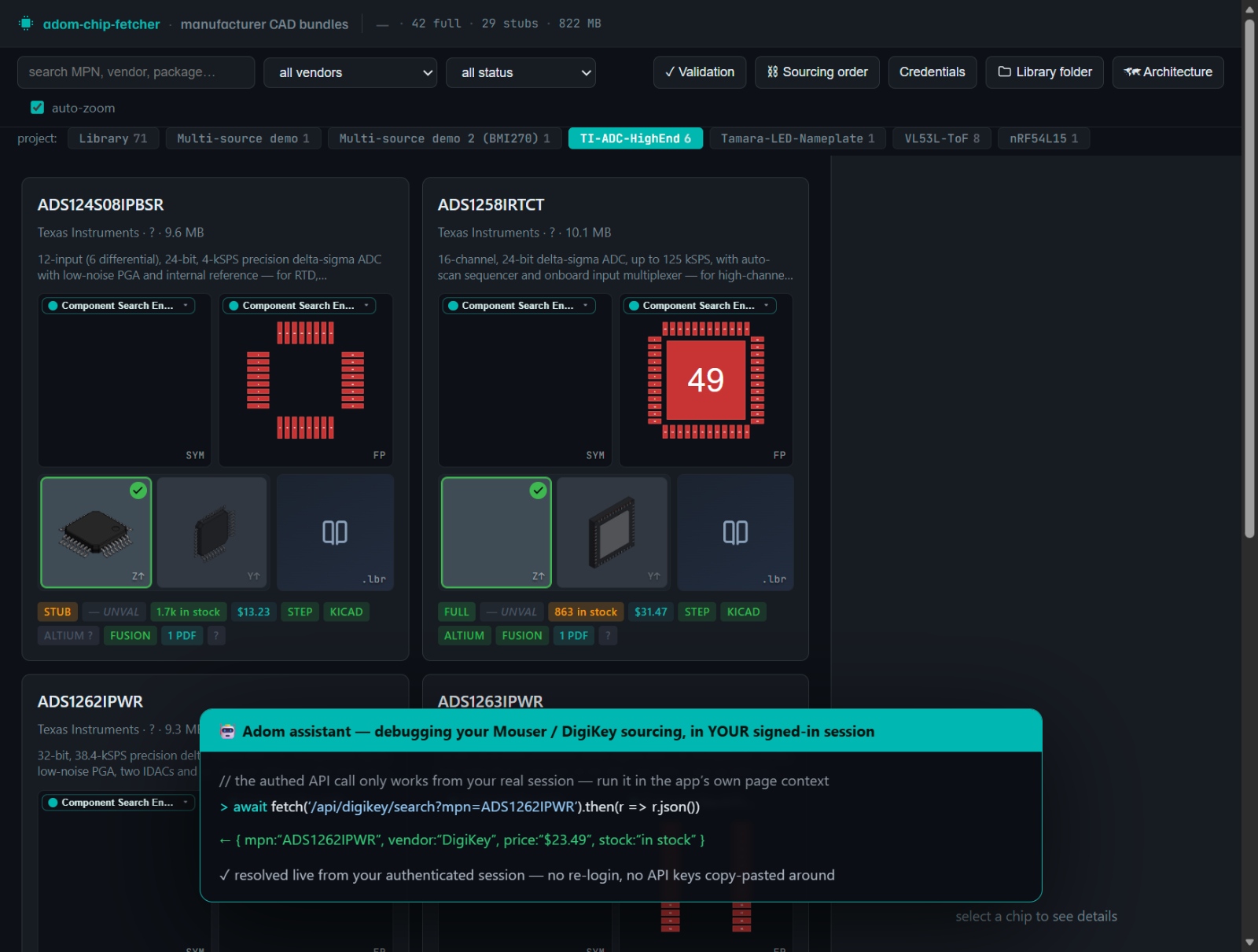
You're building an app that pulls live pricing and stock from the Mouser and DigiKey APIs - calls that only succeed from your signed-in session. A response comes back empty, so you ask your Adom assistant to debug it, and it does exactly what you'd do in DevTools, in your own logged-in tab:
evalsawait fetch('/api/digikey/search?mpn=ADS1262IPWR').then(r => r.json())right in your app's page context and reads back the real authenticated response;- inspects the console + network for the failing call - the
401, the malformed auth header; - patches the code, re-runs the call, and confirms the parts resolve - without you leaving your seat.
That's the whole reason for debugger, cookies, and <all_urls>: a developer debugging their own web app
against authenticated third-party APIs needs full DevTools-grade access in their real session. Take it
away and this is just a worse screenshot tool. The table below maps every capability to a concrete request.
| Permission | What the user-requested feature needs it for |
|---|---|
debugger |
Drive, inspect, screenshot, and debug the live page via the DevTools protocol - exactly what building and testing a web app requires. Attached only while a command runs, detached when idle. |
host: <all_urls> |
A dev environment must work on whatever app you're building or testing - there's no fixed allow-list for "the whole web." Exercised only per command, never to crawl. |
cookies |
Use your existing signed-in dev tools and services without forcing a re-login. Used to perform your task, never collected. |
nativeMessaging |
The core transport - connects the extension to your local Bridge so your AI session can send commands and receive results. |
tabs · scripting · webNavigation |
Open/switch/reload the tabs you operate, read the DOM and fill fields, and run each command at the right moment (e.g. "navigate, then screenshot"). |
downloads |
Save files you ask to download - exports, CAD/3D assets, datasheets - into your own profile. |
tabCapture · desktopCapture |
Record a walkthrough of your own page when you explicitly ask for one. |
storage · alarms |
Remember your session-to-window map and keep the connection alive - minimal local state only. |
No remotely-hosted code. All logic ships in the package; it evaluates JavaScript only on the page you point it at, via the debugger/scripting APIs - never by loading external scripts.
You're always in control
- It acts only on your command - every action is initiated by you, or by your Adom session working on your behalf.
- It's visible when it's driving - Chrome's "started debugging this browser" bar appears whenever a debugger-using command runs; the extension lazy-attaches and idle-detaches after a few seconds, so the bar is only up while it's actually working.
- Idle by default - it does nothing unless your Bridge and an Adom session are connected, and you can remove it at any time to end all access.
What's new
September 2026 (bridge 0.16, extension 0.2.15)
- Windows open where you would put them. Every nb window lands on your primary monitor's work area
with a 10 px inset, the same placement rule pup uses, instead of Chrome's own 60 percent default for an
extension-created window. A
newWindowSizesetting (fill, 95, 90, 75, or Chrome's default) lives in the NB Dashboard. - Mouse wheel and canvas zoom.
nbrowser_scroll(andnbrowser_input_dispatch {type:"wheel"}) send a real trusted wheel at a point, which is what a Babylon or three.js camera listens for. An unknown input type is refused instead of silently becoming a click, and hover accepts raw coordinates. - Measured progress.
nbrowser_progressreports every in-flight verb with a percent and an ETA sized from that machine's own history; slow verbs carry a terminal progress block on their reply. - Use the browser that is there. On a fresh Windows box nb drives Edge, including a profile with no
signed-in account, and only offers to install Chrome when no supported browser exists or you ask for
Chrome by name. If a Windows security prompt is waiting and its notification was muted,
nbrowser_chrome_statussays so andnbrowser_install_chrome {retryUac:true}shows the prompt again. - nb never touches a window it did not open. Window identity is resolved among the windows of the session's own browser only, an unresolved window is left alone, and the taskbar identity names the app and profile, never a task.
- Send to AI lets you pick the AI. The dashboard's prompts open Hydrogen's AI picker and report real delivery status from the job, including a cancel.
- The toolbar icon is a choice. The extension stays an unpinned, small surface in your own browser by default; a host that loads it into its own window (pup) can pin it and show an "nb" badge.
- Background-safe contracts. Every window verb answers
windowEtiquette, and an unjustified foreground is refused witherrorCode: "foreground_reason_required".nbrowser_close_windowanswers in well under a second again (it had been timing out while the window closed anyway).
Earlier
- Custom-element / shadow-DOM sites just work (Schwab, QuickBooks, and friends). The finder behind clicks/eval/select pierces open shadow roots, so a control whose real options hide in a web component is found by visible text or a stable attribute - no more falling back to fragile screenshot-coordinate clicks.
nbrowser_select {label|near, optionText}- pick a dropdown option by its TEXT (custom or native): it opens the control, waits for the options, clicks the exact match, and returns the selected value so you can verify. This is what stops coordinate clicks landing on the wrong row of a virtualized list (mis-selecting a bank account by one row).- Background clicks that actually land - a window fully occluded by your own maximized window used to make isTrusted clicks silently miss (Chrome occlusion). The extension now emulates focus so clicks/typing land while the window stays in the background - no focus theft, ever.
- Exact screenshot→click mapping - every
nbrowser_screenshotreturns aviewportcoordinate-map (innerWidth/height, devicePixelRatio, scrollX/Y, resize ratio), so a screenshot pixel maps to a click coordinate precisely, even after the page scrolls. - No cross-profile mistakes -
open_windowpins its session to the profile it opened in (later verbs auto-route there);nbrowser_resolve_profileseagerly resolves each profile's email so keys arechrome:[email protected]up front instead ofpending-N. - The AI installs it for you, on a fresh machine, with nothing pre-installed - proven end-to-end: a brand-new Bridge install with no bridge and no system Node goes from zero to a drivable, real signed-in browser (the bridge reuses Bridge's managed Node so the native host always starts). See The AI installs it for you.
- Cold-start aware -
nbrowser_readinessis a read-only probe (ready/needs-extension) so the AI knows to offer the install exactly when you need a login, and the ab-levelbridge_readinessanswers "what tools do I have" without spawning anything. - Drive ALL your browser profiles (your work + personal Chrome/Edge profiles, …), not just one -
nbrowser_profiles/nbrowser_use_profileswitch instantly, with a persistent security blocklist to exclude any. - Know which of your tools you're signed into -
nbrowser_credentialsis a read-only query over the browser's own saved-login store (Chrome + Edge); it never stores or exposes passwords. - Sign into your tools hands-free - focus the field → the browser autofills → submit, so the services and dev tools you already use just work in your real, signed-in session.
- Window control -
nbrowser_fullscreen/window_state(fullscreen / maximize / move / tile),login_state, and a robust hover that reveals tooltips on non-interactive elements.
Fork & develop your own
Third parties are welcome to build their own version. The Fork & develop guide → walks through getting the source, loading it in Chrome and Edge developer mode (with screenshots), having Bridge load it for you, and the edit → reload dev loop.
Sub-skills
Three version numbers, three different things (they are NOT the same)
This page carries three independent version streams. Confusing them is the usual cause of a "why won't it connect" dead end:
| Stream | What it is | Where you see it | Current |
|---|---|---|---|
| Bridge runtime | the local server Bridge runs (bridge.json version) |
the Download card | 0.16.x |
| Skills package + NB Dashboard | the docs your AI reads and the dock dashboard (pkg install, root package.json) |
the Install card | 0.16.x, the SAME number as the runtime since 0.16.0 |
| Extension + host | the MV3 extension + native host loaded into Chrome/Edge (extension/manifest.json) |
chrome://extensions |
0.2.x, its own number |
The runtime, the dashboard and the skills package share ONE version since 0.16.0 and ship together. The
extension keeps its own 0.2.x number because it does not travel with a release: it is a folder loaded
into your browser. The skew that matters for connectivity is extension vs bridge.json
expectedExtensionVersion (the extension the running bridge speaks to). nbrowser_readiness reports it
as staleProfiles (a connected profile running an older build) and staleOnDisk (the folder on disk is
older). The fix is always the same: refresh the extension/ (and host/) folder from this page, then
reload EVERY profile you drive, including ones you wake later, and reload a second time if the version
does not move (the first reload after a folder change can still serve the old files).
What
pkg installgives you: this package installs the bridge's SKILLS into your container so your AI knows how to drive your real signed-in Chrome and Edge; Bridge loads the bridge runtime itself from the release zip. The skills alone give you no bridge, and a bridge alone gives a calling AI no skills, so most setups want both. (Bridge v1.9.142+ already ships this bridge as a default seed, so extension-free control works on a fresh install with no steps at all.)
adom-wiki pkg install adom/nb-bridge installs this whole skill set - the core driving mechanics
plus a growing list of site recipes that teach the AI how to drive specific websites. Each links
to its full readme.
Start here
| Skill | What it covers |
|---|---|
adom-native-browser |
The main skill / router. When to reach for the real browser (login/forms) vs pup, the nbrowser_readiness cold-start check, the offer-to-install hook, the three install surfaces (skills + bridge + extension), and the map to every sub-skill. |
Core mechanics
| Skill | What it covers |
|---|---|
driving-the-extension |
The full nbrowser_* surface: the CDP-vs-native "debugging" bar, isTrusted input + xy-finding, multi-profile driving, the credential-library query + login automation, the taskbar status feature. |
native-browser-safety |
The cardinal safety rules: only drive windows YOU opened, background-by-default, the credential gating, and the blocklist. Read before driving. |
installing-the-extension |
How WE install the extension into the user's Chrome/Edge over Bridge's generic verbs (dev-mode Load-unpacked, one-click consent, verify-by-screenshot). |
uninstalling-the-extension |
Clean removal - filter to the Adom card so Remove is unambiguous, the confirm-bubble beat, verify by screenshot + dropped profile key. |
native-browser-recording |
Full-framerate background recording of the user's real, logged-in Chrome - the occlusion-flag mode, the restart-into-background-recording flow, and the offer-to-revert-for-battery step (the unique capability). |
driving-the-desktop |
OS-level control via desktop_* when CDP can't reach (extension lifecycle, chrome:// pages, native dialogs, popups) - including the ⛔ never-drive-a-PWA-window guard and the v20 saved-password ban. |
driving-the-extension-demo |
A runnable demo playbook - recipes + the recording gotchas (window-capture-vs-CDP white pages, the keep-awake guard). |
cross-platform-dev |
The Windows-first → Kyle-ports-Mac dev flow for the bridge/host/extension. |
Site recipes - the extension also supports pluggable per-site playbooks that teach the AI a specific
app's flow (selectors, multi-step forms, gotchas). The index and the contribution model live in
driving-sites.
Contributing a sub-skill
The recipe set is meant to grow - anyone can add one, and it stays part of this one repo (we don't spin up a separate wiki page per bundled skill):
- Add
skills/driving-<site>/SKILL.md- copy the template indriving-sites. - Register it in
install.sh,uninstall.sh,package.jsonfiles[], and the index indriving-sites. - Open a PR on this page.
Prefer to own + version it yourself? Publish your recipe as your own wiki page and breadcrumb it
back to this page instead (the wiki Family pattern - see driving-sites). Either way it's discoverable
from here.
Privacy
The Extension runs inside your own browser and acts only on the commands you - or your Adom AI session, working on your behalf - give it. The pages and screenshots it reads go to your own Adom session to carry out the task you asked for, and it works through your existing signed-in sessions so the tools you already use just work. Saved passwords stay with the browser; its own autofill enters them. Full policy: Privacy Policy (Markdown) → · HTML version →
How the install actually works (end to end)
New to this and wondering what happens the first time, from a cloud / Hydrogen container all the way to your real browser doing something useful? The First-time install flow → walks every step and endpoint: how the container reaches Bridge over the relay, who installs the bridge / host / extension (and who does NOT), how the bridge knows the extension connected, how skills propagate, and how third parties add sub-skills so the extension keeps getting better.
Removing it (or reinstalling to apply an updated build) is documented too: Uninstall flow →
- background-first, the search-filter guard so you never remove the wrong extension, and the one brief narrated foreground beat the confirm bubble forces.
The AI installs it for you (auto-install)
You never touch chrome://extensions yourself. This is a proactively-offered tool: the moment a
task needs your real, signed-in browser (log into a vendor, fill a form on an authenticated page, pull
a file behind a login), your Adom AI offers to install it and then does the whole thing for you -
about a minute, you click one Start button, that's it.
How the AI drives it (the flow, proven end-to-end on a fresh machine):
- Detect - a plain request like "log into DigiKey for me" surfaces this tool via wiki discovery;
the AI checks
adom-bridge nbrowser_readiness. - Install the bridge if missing -
bridge_install {manifestUrl}. Bridge provisions Node itself (system, or a portable no-UAC copy) and spawns the bridge - you are never asked to install Node or anything else. - Offer + load the extension - if readiness says
needs-extension, the AI asks once (anotify_userStart button), then drives your browser's dev-mode Load unpacked over Bridge's generic OS verbs (push theextension/folder, register the native-messaging host in HKCU, toggle Developer mode, pick the folder), and verifies by screenshot that the Adom card loaded enabled with no errors. - Confirm + drive -
nbrowser_readinessflips toready; the AI proceeds with your task.
The recipe, hardening, and every picker/OS-dialog trap live in the installing-the-extension
skill; the step-by-step first-time walk-through is the First-time install flow.
Cardinal rule throughout: the AI does everything it can itself - it never makes you do a step it could do.
Dependencies
| Dependency | Required? | Why |
|---|---|---|
Bridge (>= 2.0.3) |
Yes | This is a bridge that rides Bridge. The container drives it entirely through the adom-bridge CLI (nbrowser_* verbs relayed to the bridge). Bridge also spawns the bridge, provisions its Node runtime, and auto-updates it. The one hard dependency. |
| Node (in Bridge) | Yes, auto-provided | The bridge + native host are Node. You never install it - Bridge provisions Node 22 (system if present, else a portable no-UAC copy) and the bridge publishes that path so the Chrome-launched host reuses it. (SDK runtime contract.) |
| Chrome and/or Edge | Yes | The extension loads into your real browser. Either works (one codebase); the extension ID is pinned so the native-host registration is deterministic. |
| The MV3 extension + native-messaging host | Yes, installed by us | Shipped in this repo (extension/, host/); the AI deploys + registers them during auto-install. |
| npm packages (for the bridge) | None | The bridge uses only Node core (http/net); its Release zip is source-only, no node_modules. |
The skills package declares adom/adom-bridge as its one dependency; everything else is either
provided by Bridge or bundled in this repo.
Architecture (why it's shaped this way)
An MV3 extension can't host a listening port, and per
adom-bridge/skills/PORTS.md no fixed/scan port survives
Windows (HNS silently reserves contiguous chunks). So the transport is native messaging:
ab ──HTTP /command (ephemeral, discovery file)──► bridge/server.js
                                                      ▲ raw-TCP loopback (ephemeral)
                                                      │
                              host/native-host.js (Chrome-launched, stdio↔TCP pump)
                                                      ▲ native-messaging framing over stdio
                                                      │
                              extension/  (MV3 SW holds connectNative port)
                                ├─ chrome.debugger/CDP  → screenshot, eval, input, navigate (pup parity)
                                └─ chrome.tabs/downloads/cookies → native-API verbs
- bridge/ - ab-spawned Node server. Binds
127.0.0.1:0(ephemeral, PORTS.md-compliant), writes a discovery file, exposes/status+/commandto ab, and a raw-TCP loopback the host dials. - host/ - tiny native-messaging host. Chrome/Edge launch it on
connectNative('inc.adom.native_browser'); it reads the bridge's discovery file and pumps stdio ↔ the bridge loopback. The extension never touches a TCP port. - extension/ - the MV3 extension (one codebase, Chrome + Edge). SW stays alive via the host's ~20s keepalive ping (no offscreen document needed).
Repo layout
| Path | What |
|---|---|
extension/ |
MV3 extension (manifest, src/sw.js, src/cdp.js, src/native.js, popup) |
bridge/ |
ab bridge (bridge.json manifest + server.js + package.json) |
host/ |
native-messaging host (native-host.js, .bat, manifest template) |
install/ |
bridges-cache copy + HKCU host registration + force-install policy |
skills/ |
repo-local skills (incl. the Windows-first → Kyle-ports-Mac dev flow) |
wiki/ |
page.json - this repo's own Adom Wiki page metadata |
What you can do (live)
Driving the user's real browser, verified end-to-end:
- Navigate & manage windows/tabs -
open_window,navigate,switch_tab, … (nativechrome.*, no debugger bar). isTrustedinput that React/SPAs accept -click,double_click,right_click,hover,type,press_key(viachrome.debugger/CDP). Click by visible text and the smart finder reads the element'sgetBoundingClientRectto compute its xy - DOM-truth, not pixel-guessing.- The gliding Adom cursor -
cursor:true+intent:"Clicking the Pay button"shows a teal arrow + pulsing ring that glides to the target while narrating its intention (trust-building, mimics Hydrogen). - Screenshots - replies carry
fullPath(+ a 1568 pxsafePathwhen wider); ab pulls the PNG to your machine automatically. - Authed
fetch_url- uses the user's REAL cookies, so it grabs files behind a login. - Taskbar status -
flash/taskbarpaint a "come look" flash, a progress bar (green/yellow-for-human-gates/red), and an "Adom is driving" overlay badge on the real browser's taskbar button (modes:quiet/chatty/off). SeeTASKBAR-FEATURE.md. - Recording -
record_start {method:"wgc"}(Windows, via Bridge - no picker, background) orgetdisplaymedia(cross-platform).
The full verb catalog is self-describing. The list above is the 80% surface; the bridge exposes
45 nbrowser_* verbs, and nbrowser_describe returns the complete machine-readable catalog -
each verb's input/output, timeout, and a rich hint / related / pitfalls. Every verb response also
carries a top-level _hint (what happened, the next verb, the trap), so the driving AI is guided on
each call. Human-readable breakdown: skills/driving-the-extension/SKILL.md.
The chrome.debugger "started debugging this browser" bar appears only while a CDP verb (input /
screenshot / eval) is active - the bridge lazy-attaches and idle-detaches after ~8s. Native verbs never
show it.
Try the handshake locally (dev)
# 1. Run the bridge standalone (binds an ephemeral port + writes the discovery file):
node bridge/server.js
#    -> prints: [native-browser] bridge up: ab http :<P>  host tcp :<H>
#    GET http://127.0.0.1:<P>/status  ->  {"ok":true,"bridge":"native-browser",...}

# 2. Load extension/ unpacked in Chrome AND Edge (chrome://extensions → Developer mode → Load unpacked)
#    note the assigned extension ID.

# 3. Register the native host (Windows, per-user, no UAC) - see install/ for the scripted version:
#    host-manifest.json "path" -> absolute path to host/native-host.bat
#    host-manifest.json "allowed_origins" -> ["chrome-extension://<ext-id>/"]
#    HKCU\Software\Google\Chrome\NativeMessagingHosts\inc.adom.native_browser -> manifest path
#    (Edge: ...\Microsoft\Edge\NativeMessagingHosts\...)

# 4. The extension popup should show "connected". Then through ab:
#    adom-bridge nbrowser_status   ->  {ok:true, ext:"nbe", browser:"chrome"|"edge"}
Recording - full-framerate, in the background (the doctrine)
Why this matters - and why we keep relearning it. Demos must look amazing, which means full-resolution, high-framerate (20-60 fps) capture. That single requirement drives every choice here. The enemy is paint-throttling, not the codec: Chrome correctly stops painting occluded / background / static windows (battery), and capture is event-driven, so a throttled page silently drops to ~5 fps ("frozen" / sped-up video). Every technique below keeps frames flowing. (Pup's
pup_record_startCDP screencast is a perfectly good 20-30 fps engine when the page paints - the full cross-surface reference, incl. Hydrogen and the foreground-rebump trick, is in the demo-recording skill'srecording-mechanics.md.)
Background recording needs TWO things, both required:
- A high-fps engine -
wgc(60 fps, Windows, picker-free) orgetdisplaymedia(the WebRTC/Meet pipeline, 30-60 fps, cross-platform). - A browser that keeps painting the occluded window at full rate - which requires the background
launch flags
--disable-features=CalculateNativeWinOcclusion --disable-backgrounding-occluded-windows --disable-renderer-backgrounding --disable-background-timer-throttling. Without them Chrome stops painting an occluded window - which is its correct, battery-saving default - and the engine captures blank/frozen frames. Those flags are an exception we want only for the recorded window, only while recording, then put back.
The two scenarios
- Scenario 1 - recording that does NOT need the user's login → use
pup. Pup is a browser we launch, already running with the background flags, so it captures full-framerate in the background out of the box; the user's real Chrome is untouched and they keep working. Preferred whenever the app doesn't need the user's real session. - Scenario 2 - recording that NEEDS the user's login → native Chrome (this extension). Only the
user's real Chrome has their cookies/logins. To record it at full framerate in the background:
- Check whether native Chrome already runs with the flags.
- If not → ASK + WARN the user we must fully restart their Chrome. Then fully kill the entire
chrome.exeprocess tree - native Chrome spawns many helper/background processes (GPU, utility, crashpad, the background-mode launcher), so closing the window is NOT enough; the flags don't apply until everychrome.exeis gone - wait for full shutdown, and relaunch with their real profile (logins survive in the profile dir; tabs return via session-restore) plus the flags. - Record the native window at full framerate in the background (
wgc, orgetdisplaymedia+--auto-select-desktop-capture-source) while they keep working. - Later, OFFER TO REVERT: "Chrome is in full-background recording mode, which uses more battery - want us to put you back to normal?" → if yes, fully restart Chrome again without the flags. Best of all worlds: real session and amazing recordings and normal battery the rest of the time.
The hard requirement under both transitions is a robust full-restart of native Chrome (kill the whole process tree, confirm it's down, relaunch with profile + flags - and again to revert).
⛔ Never, no matter how tempting: foreground the window to "fix" a blank recording (defeats the whole point - the user must keep working) · leave the background flags on globally/permanently (drains laptop battery) · use CDP screencast for demo video (low framerate, ugly).
The two engines
The browser can be recorded with either of two engines. Pick with method; on Windows it defaults to
wgc (via Bridge), otherwise getdisplaymedia.
getdisplaymedia (a.k.a. desktopCapture) |
wgc (Windows Graphics Capture, via Bridge) |
|
|---|---|---|
| Platforms | ✅ macOS, Ubuntu, Windows (cross-platform) | ⛔ Windows only (needs Bridge) |
| Engine | Same WebRTC pipeline Google Meet uses | OS-level Windows Graphics Capture → mp4 |
| FPS | High (30-60) | High (up to 60) |
| Picker | ❌ Chrome forces a one-time "choose what to share" picker per recording - no silent variant exists in any browser | ✅ None - agent picks the window by handle |
| Background | ✅ keeps capturing the chosen surface even when occluded… | ✅ true background |
| Display wake-lock | ⚠️ holds the display awake while sharing (can't blank the screen) | ✅ none |
| Output | WebM (base64 returned) | mp4 (file path) |
| Where it runs | the extension (offscreen MediaRecorder) |
the bridge → Bridge (desktop_record_window_*, standalone - never Hydrogen) |
Rule of thumb: on Windows (Bridge), use wgc - it's picker-free and truly background,
ideal for "record while the user does something else." Everywhere else (Mac/Ubuntu, or older ab), use
getdisplaymedia and accept the one-time share picker. The verbs expose both so the caller/AI can
choose and we can compare them head-to-head.
The share picker - and how to skip it (agent-driven, zero clicks)
getDisplayMedia/desktopCapture shows a forced "choose what to share" picker - Chrome security
forbids an extension from selecting the source programmatically (anti-spyware). There is no API
bypass. To record without a human click, use one of:
wgc(Windows + ah) - the agent records a window by handle; no picker exists. ✅ best on Win.getdisplaymedia+ Chrome launch flag--auto-select-desktop-capture-source="<window title>"- when we launch Chrome (e.g. Hydrogen launches it), the picker auto-selects the matching window and is skipped. ✅ cross-platform (Mac/Ubuntu/Windows) → this is the Mac/Ubuntu answer.
On an already-running, un-managed Chrome (not launched by us, no Hydrogen) the pick is unavoidable - that's the manual/ad-hoc fallback only.
Status:
getdisplaymedia(with picker) implemented in-extension; non-blocking (record_startreturns immediately, pollrecord_statusuntilrecording). Pending: (a)wgcbridge→ah delegation; (b) Hydrogen launching Chrome with--auto-select-desktop-capture-sourcefor click-free cross-platform capture; (c) large-recording file-save (base64 return is fine for short clips only).
Distribution
Three channels (see the plan): self-hosted .crx + force-install policy (primary, managed machines),
Chrome Web Store + Edge Add-ons (official public - $5 once on Chrome, free on Edge), load-unpacked
(dev). Verbs stay nbrowser_* regardless of store display name ("Adom for Chrome & Edge").