Adom Browser Extension
Public Made by Adomby adom
Your AI's hands in your real, signed-in browser. The Adom Browser Extension (abe) works with both Chrome and Edge: build, drive, and test web apps, and log past vendor walls, in the browser you already use - cookies, SSO, saved logins and captcha trust intact. The nbrowser_* bridge (pup's counterpart) runs in your actual logged-in profile.
First-time install, end to end: from a container to your real browser doing something useful
This page answers one question in detail: you are an AI working in a cloud container (or the WSL2 container inside Hydrogen Desktop), the user asks you to do something in their real browser. What actually happens, step by step, the very first time? There are several moving pieces and they live on two different machines, so it is worth laying out precisely.
One-paragraph version: the container never talks to the browser extension directly. It talks to adom-desktop (AD) on the user's laptop over the relay, using the
adom-desktop nbrowser_*CLI. On first use you ask AD to install the bridge (one call), the user (or AD) gets the extension loaded into Chrome/Edge, AD registers the tiny native-messaging host, and from then on every action is justadom-desktop nbrowser_*. The container's only local artifact is the skills that teach you those verbs. Nothing in the container listens for the browser; the laptop reaches back through the relay.
The five pieces, and which machine each lives on
| Piece | Lives on | Role |
|---|---|---|
| Your AI session + skills | the container (cloud or HD/WSL2) | You. The installed skills (driving-the-extension, native-browser-safety, ...) teach you the nbrowser_* verbs and the safety rules. |
adom-desktop (AD) |
the user's laptop | The hub. Receives your verbs over the relay, routes nbrowser_* to the bridge, ships results back. Always present. |
The bridge (bridge/server.js) |
the laptop (in AD's bridges-cache) |
AD-spawned Node server. Binds an ephemeral loopback port, exposes /command to AD, and a raw-TCP loopback the host dials. Handles nbrowser_* and delegates wgc recording to AD. |
The native-messaging host (host/native-host.js) |
the laptop | A tiny stdio<->TCP pump. Chrome/Edge launch it when the extension calls connectNative; it reads the bridge's discovery file and connects the extension to the bridge. |
The extension (extension/) |
the user's Chrome/Edge | The hands. MV3 service worker that runs CDP + native chrome.* calls inside the user's real, signed-in profile. |
 CONTAINER (cloud or HD/WSL2)                 USER'S LAPTOP
 +---------------------------+      relay      +-------------------------------------------+
 |  your AI session          |  wss://...:8765 |  adom-desktop (AD)                         |
 |  + installed skills       |  ============>  |     |  routes nbrowser_*                  |
 |  `adom-desktop nbrowser_*`|                 |     v                                     |
 |  `adom-wiki ...` (install)|                 |  bridge/server.js  (ephemeral loopback)   |
 +---------------------------+                 |     ^  raw-TCP loopback                   |
                                               |     |                                     |
                                               |  host/native-host.js (stdio <-> TCP pump) |
                                               |     ^  native-messaging framing (stdio)   |
                                               |     |                                     |
                                               |  extension (MV3 SW) in Chrome / Edge      |
                                               +-------------------------------------------+
Endpoints: what talks to what (and what does NOT)
- Container -> AD: the relay,
wss://<container>.adom.cloud:8765. You speakadom-desktop nbrowser_*. - AD -> bridge: HTTP
POST /commandon the bridge's ephemeral127.0.0.1port (written to a discovery file; PORTS.md-compliant, never a fixed port). - host -> bridge: raw TCP on a second ephemeral loopback port the bridge writes to the same discovery file. The host reads the file; the extension never learns a port.
- extension <-> host: Chrome native-messaging framing over stdio (4-byte length + JSON).
- What is NOT an endpoint: there is no container-side port to the extension, and the extension never opens a socket. An MV3 extension cannot host a port, and per PORTS.md no fixed port survives Windows HNS anyway, so native messaging is the only compliant transport. The laptop reaches back to the container through the same relay the rest of AD uses.
So to your earlier question: no, the container does not run a CLI that talks to the extension. It
runs adom-desktop, and AD owns the rest of the chain.
First-time install, step by step (through your first useful action)
0. Discovery (before anything is installed)
The user says something like "drive my real Chrome" / "log into DigiKey for me" / "control my
browser." The wiki discovery layer matches that intent to this page via its discovery_triggers
(adom-wiki discover find "..."), so you find adom/adom-browser-extension without it being
pre-installed.
1. Install the package (skills land in the container)
adom-wiki pkg install adom/adom-browser-extension
This runs install.sh, which copies the bundled skills into ~/.claude/skills/ in the container.
Now your session knows the nbrowser_* surface and the safety doctrine. (Details: see How skills
propagate, below.) This step is container-local; it does not touch the laptop.
2. Install the bridge on the laptop (one AD call)
adom-desktop bridge_install '{"manifestUrl":"https://wiki.adom.inc/api/pages/adom/adom-browser-extension/files/native-browser-bridge-manifest.json"}'
AD downloads the bridge zip the manifest points to, sha256-verifies it, and extracts it into
%LOCALAPPDATA%\Adom Desktop\bridges-cache\native-browser\. AD's registry auto-discovers it and
routes the nbrowser_ prefix to it. You only do this once - AD persists the manifest URL and
auto-updates the bridge on launch and every 4 hours (AD 1.9.26+), so future bridge versions land
without a reinstall.
3. Register the native-messaging host (laptop, no admin)
The host is what lets the extension reach the bridge. On a managed/golden-image machine this is baked
by install/install.ps1, which:
- copies
bridge/into the cache (same as step 2 for unmanaged installs), - writes
host/host-manifest.json(itspath->host/native-host.bat,allowed_origins-> the exact extension ID), and - registers it under
HKCU\Software\Google\Chrome\NativeMessagingHosts\inc.adom.native_browser(and the Edge key with-Edge). HKCU means no UAC prompt.
4. Get the extension into Chrome and/or Edge
This is the piece that is not done by the bridge, and - important - not built into adom-desktop
either. AD deliberately stays generic: it exposes only OS-automation primitives
(desktop_navigate, desktop_find_control, desktop_ui_click, desktop_ui_set,
desktop_screenshot). The extension-specific dev-mode install is orchestrated by code WE own in this
repo (the installing-the-extension + driving-the-desktop skills), which drive those generic verbs
to perform the load-unpacked. AD provides the clicks; we own the recipe. Three ways the extension gets
loaded:
- Chrome Web Store / Edge Add-ons (production) - but ~2 months out. The user installs it (or a managed policy force-installs it by store ID); required for silent install on a normal, non-enterprise machine. Store review is slow (budget ~2 months for the broad-permission set), so until then, dev-mode load-unpacked below is the day-one install path for real users.
- Dev-mode "Load unpacked", driven by our own orchestration over AD's generic verbs. Our installer
(see
installing-the-extension) openschrome://extensions/edge://extensionsin a background window, toggles Developer mode, clicks Load unpacked, fills the native folder picker to theextension/folder, then verifies the card loaded + captures the extension ID, syncs the host manifest'sallowed_originsto that ID, and confirmsnbrowser_statusconnects. This is the code we own and keep hardening; the folder-picker step is the fragile part we iterate on. - Manual load-unpacked. The user does it themselves (the Fork and develop guide shows it).
⛔ The install drives the user's screen in the BACKGROUND - never force the browser to the foreground. Stealing focus (
desktop_bring_to_front, or any SendInput verb that foregrounds first) is rude AND corrupts the install: if the user keeps typing, their keystrokes land in the control you just focused (e.g. the extensions search box), silently changing your filter and hiding the card you were acting on. We learned this live - a foregrounded search becameAdomsand the extension "vanished." The orchestration uses background UIA (desktop_ui_click/desktop_ui_set/desktop_navigate/desktop_screenshot_window) throughout. The one unavoidable foreground is the folder-picker fill: the picker opens behind the user's windows, so the agent brings it to front (desktop_bring_to_front) and then types the path itself (ctrl+l->desktop_type-> Enter -> Select Folder) - a brief (~2s) burst with a "please don't type" caption. Verified live: that focus beat is required (SendInput sent blind goes to the user's foreground window, not the picker). Do NOT ask the user to type/paste the ~50-char path, and do NOT rely on the clipboard (desktop_clipboard_setdid not stick on a real machine). For consent, usenotify_user(a Start button) +notify_responseto wait for the click - then run the fast script.
What each step looks like (real screenshots)
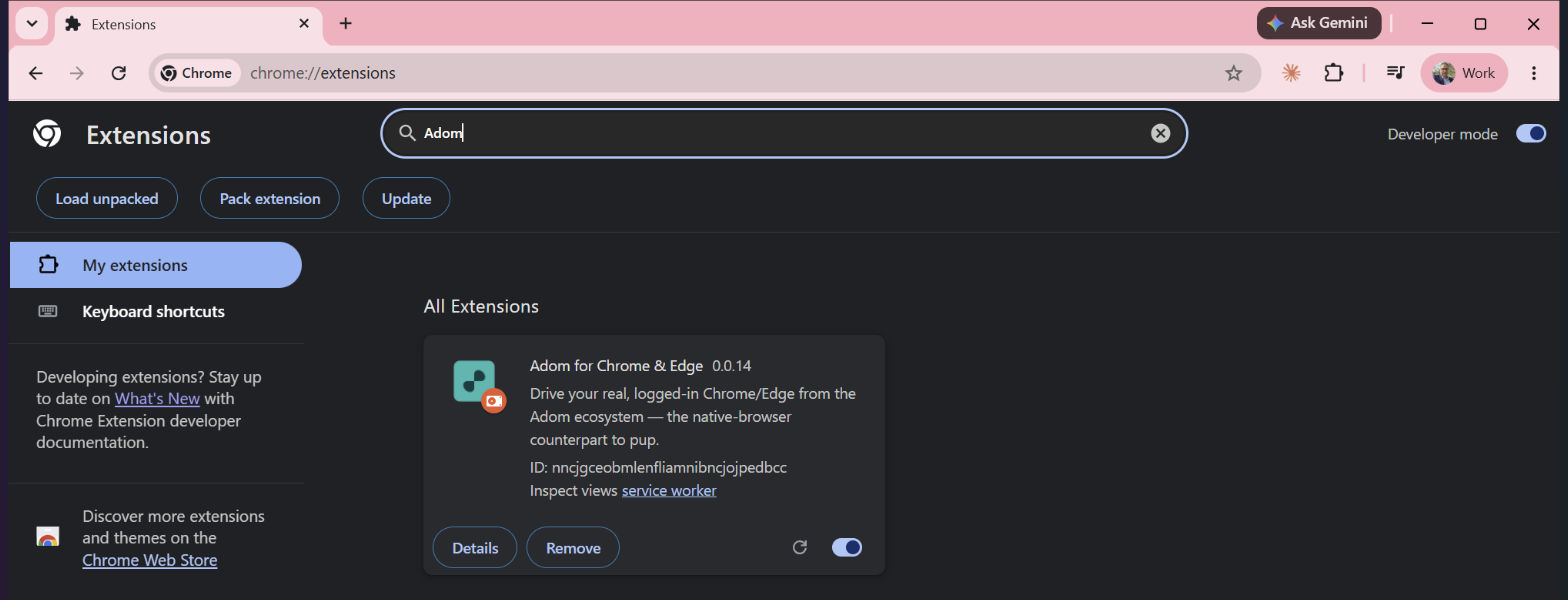
1. The chrome://extensions page - Developer mode on (top-right), the Load unpacked button,
and (after install) the Adom card loaded clean: Enabled, the pinned ID, an active service worker, and
no red "Errors" button. The screenshot is the only check that catches a card that loaded with
errors, so always read it. (Tip: after desktop_navigate, verify the page actually rendered - the tab
title becomes "Extensions" - not just that the omnibox shows the URL.)
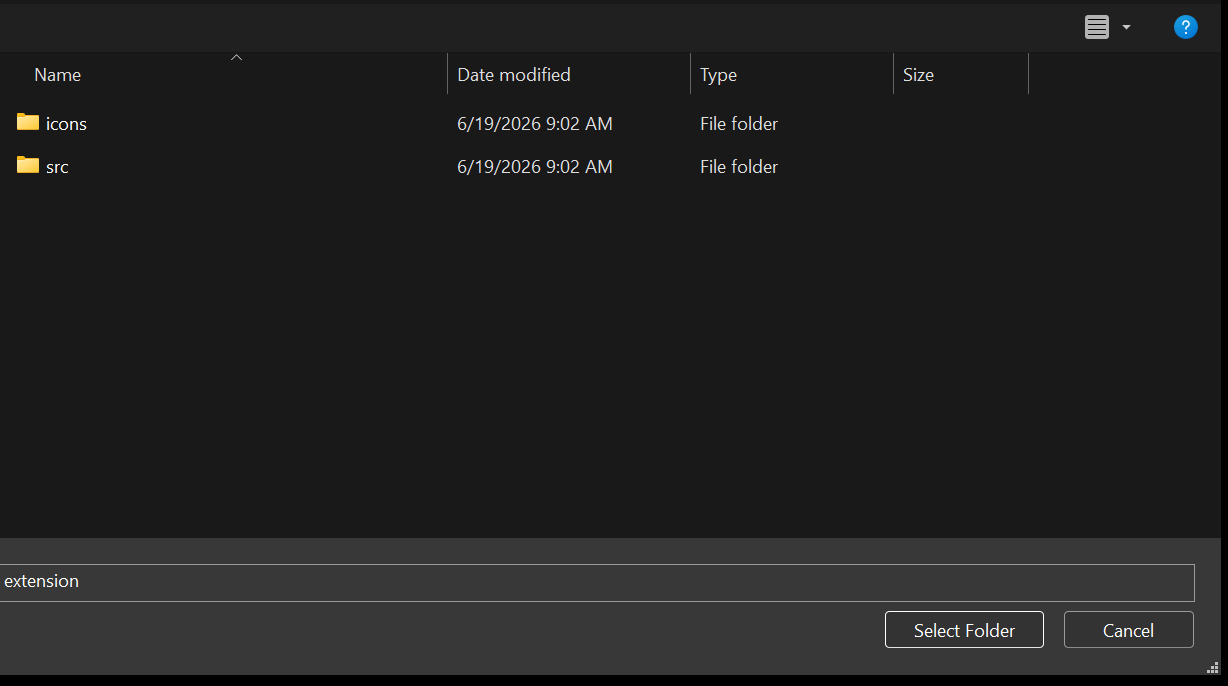
2. The Load-unpacked folder picker, pointed at the extension/ folder (icons, src, Folder =
"extension"). It opens in an arbitrary last-used directory, so the agent brings it to the front and
types the path (bring_to_front -> ctrl+l -> type -> Enter), then screenshot-verifies the path
before clicking Select Folder - the wrong folder loads a broken/old build silently:
Chrome and Edge are independent: load it in whichever the user wants, or both. The host is registered per browser (step 3), so each browser the extension runs in connects its own host.
5. First connect - how the bridge knows the extension is there
When the extension's service worker starts (which happens once that browser has at least one open
window in a driven profile), it calls connectNative('inc.adom.native_browser'). Chrome launches the
host, the host reads the bridge discovery file and dials the bridge's loopback, and sends a hello
with the profile id. That is the moment the bridge knows the extension is live. Check it:
adom-desktop nbrowser_status     # ext connected? which browser/profile?
adom-desktop nbrowser_profiles   # every BROWSER x PROFILE you can drive
If nbrowser_status says not connected, the usual cause is that the profile has no open window
(an MV3 service worker sleeps when its profile has no windows). Opening a window wakes it. The bridge
knows the extension is connected; it cannot see an installed-but-asleep extension until it dials in.
6. Your first useful action
Always work in a window you open (never the user's existing ones - see native-browser-safety):
adom-desktop nbrowser_open_window '{"url":"https://www.digikey.com","focused":false}'   # background; returns a sessionId
adom-desktop nbrowser_screenshot  '{"sessionId":"<id>","maxWidth":1500}'                # see the page without foregrounding it
adom-desktop nbrowser_credentials '{"match":"digikey"}'                                 # is there a saved login?
# ...click the sign-in field (Chrome autofills), submit, then fetch the CAD file behind the login.
adom-desktop nbrowser_close_window '{"sessionId":"<id>"}'
That round-trip - container -> relay -> AD -> bridge -> host -> extension -> back - is the whole point: it runs in the user's real, signed-in profile, so cookies/SSO/saved-logins/captcha all just work.
Who installs what (the short answer to "does the bridge install the extension?")
| Component | Installed by | Notes |
|---|---|---|
| Skills (in the container) | adom-wiki pkg install -> install.sh |
Container-local; this is all the container keeps. |
| Bridge (laptop cache) | adom-desktop bridge_install (once) |
Auto-updates after that. |
| Native-messaging host (HKCU) | install/install.ps1 (or the golden-image bake) |
Per-browser; no UAC. |
| Extension (in Chrome/Edge) | Web Store / managed policy, or AD-driven Load unpacked, or the user |
Not the bridge. The bridge is the runtime server; it does not push the extension into the browser. |
No, the bridge does not install the extension into the browser, and it does not need to: the
extension arrives via the store or via AD driving chrome://extensions, and the bridge only ever
talks to it once it connects.
After the first install: it is all adom-desktop nbrowser_*
Once the four laptop pieces exist (bridge + host + extension + the connection), the container side is
just the adom-desktop nbrowser_* CLI plus the skills that teach it. No re-install per task. The
bridge auto-updates; the extension auto-updates from the store (or you re-Load unpacked in dev).
How skills propagate
Skills are plain SKILL.md files shipped in the package's files[] and copied into
~/.claude/skills/<name>/ by install.sh (removed by uninstall.sh). Two layers reach a user:
- Pre-install discovery: the page's
discovery_triggerssurface it by intent, so an agent finds the page (and its README) before anything is installed. - Post-install knowledge: after
adom-wiki pkg install, the bundled skills load into the agent's context, giving it the full verb surface + the safety rules.
The main skill is driving-the-extension; the rest are sub-skills focused on one topic
(native-browser-safety, native-browser-recording, driving-the-desktop, cross-platform-dev),
plus site recipes that teach one website's flow (driving-sites is the index; driving-gusto,
reading-google-messages are examples). They all install together from this one repo.
Third-party sub-skills: how the extension gets really good
The recipe set is meant to grow, and anyone can add to it. Two supported paths:
- Contribute a sub-skill into this repo (a PR). Add
skills/driving-<site>/SKILL.md(copy the template indriving-sites), register it ininstall.sh,uninstall.sh,package.jsonfiles[], and thedriving-sitesindex, then open a PR on this page (adom-wiki pr ...). Merged recipes ship to every user on the next package version. - Own and version it yourself, then breadcrumb it back. Publish your recipe as your own wiki
page (with its own
discovery_triggers) and drop a breadcrumb on this page (adom-wiki breadcrumb ..., the "I built an add-on for X" trail marker). It stays discoverable from here while you keep ownership and your own release cadence.
Either way the new skill is discoverable by intent, so the more people add site recipes and task playbooks, the more the extension can do out of the box. A good sub-skill is narrow and concrete: the site, the selectors, the multi-step flow, and the gotchas - written so an AI can follow it cold.
Honest status (what is live vs pending)
- Live: the container -> relay -> AD -> bridge -> host -> extension round-trip, the
nbrowser_*surface,bridge_install+ auto-update, HKCU host registration, load-unpacked in Chrome and Edge, skill install via the package. - Pending: Chrome Web Store / Edge Add-ons publication (required for silent install on normal, non-enterprise machines - until then production installs lean on load-unpacked or managed policy), and the macOS host/policy port (Windows-first; the bridge and extension are already OS-agnostic).
See also: Architecture (in the main README), the Fork and develop guide
(docs/DEVELOPING.md), and the native-browser-safety skill for the rules every agent must follow
when driving the real browser.
# First-time install, end to end: from a container to your real browser doing something useful
This page answers one question in detail: **you are an AI working in a cloud container (or the WSL2
container inside Hydrogen Desktop), the user asks you to do something in their real browser. What
actually happens, step by step, the very first time?** There are several moving pieces and they live
on two different machines, so it is worth laying out precisely.
> One-paragraph version: the **container never talks to the browser extension directly**. It talks to
> **adom-desktop (AD)** on the user's laptop over the relay, using the `adom-desktop nbrowser_*` CLI.
> On first use you ask AD to install the **bridge** (one call), the user (or AD) gets the **extension**
> loaded into Chrome/Edge, AD registers the tiny **native-messaging host**, and from then on every
> action is just `adom-desktop nbrowser_*`. The container's only local artifact is the **skills** that
> teach you those verbs. Nothing in the container listens for the browser; the laptop reaches back
> through the relay.
## The five pieces, and which machine each lives on
| Piece | Lives on | Role |
|---|---|---|
| **Your AI session + skills** | the **container** (cloud or HD/WSL2) | You. The installed skills (`driving-the-extension`, `native-browser-safety`, ...) teach you the `nbrowser_*` verbs and the safety rules. |
| **`adom-desktop` (AD)** | the user's **laptop** | The hub. Receives your verbs over the relay, routes `nbrowser_*` to the bridge, ships results back. Always present. |
| **The bridge** (`bridge/server.js`) | the **laptop** (in AD's `bridges-cache`) | AD-spawned Node server. Binds an ephemeral loopback port, exposes `/command` to AD, and a raw-TCP loopback the host dials. Handles `nbrowser_*` and delegates `wgc` recording to AD. |
| **The native-messaging host** (`host/native-host.js`) | the **laptop** | A tiny stdio<->TCP pump. Chrome/Edge launch it when the extension calls `connectNative`; it reads the bridge's discovery file and connects the extension to the bridge. |
| **The extension** (`extension/`) | the user's **Chrome/Edge** | The hands. MV3 service worker that runs CDP + native `chrome.*` calls inside the user's real, signed-in profile. |
```
CONTAINER (cloud or HD/WSL2) USER'S LAPTOP
+---------------------------+ relay +-------------------------------------------+
| your AI session | wss://...:8765 | adom-desktop (AD) |
| + installed skills | ============> | | routes nbrowser_* |
| `adom-desktop nbrowser_*`| | v |
| `adom-wiki ...` (install)| | bridge/server.js (ephemeral loopback) |
+---------------------------+ | ^ raw-TCP loopback |
| | |
| host/native-host.js (stdio <-> TCP pump) |
| ^ native-messaging framing (stdio) |
| | |
| extension (MV3 SW) in Chrome / Edge |
+-------------------------------------------+
```
## Endpoints: what talks to what (and what does NOT)
- **Container -> AD:** the relay, `wss://<container>.adom.cloud:8765`. You speak `adom-desktop nbrowser_*`.
- **AD -> bridge:** HTTP `POST /command` on the bridge's ephemeral `127.0.0.1` port (written to a
discovery file; PORTS.md-compliant, never a fixed port).
- **host -> bridge:** raw TCP on a second ephemeral loopback port the bridge writes to the same
discovery file. The host reads the file; the extension never learns a port.
- **extension <-> host:** Chrome native-messaging framing over stdio (4-byte length + JSON).
- **What is NOT an endpoint:** there is **no container-side port to the extension**, and the extension
**never opens a socket**. An MV3 extension cannot host a port, and per PORTS.md no fixed port
survives Windows HNS anyway, so native messaging is the only compliant transport. The laptop reaches
back to the container through the same relay the rest of AD uses.
So to your earlier question: **no, the container does not run a CLI that talks to the extension.** It
runs `adom-desktop`, and AD owns the rest of the chain.
## First-time install, step by step (through your first useful action)
### 0. Discovery (before anything is installed)
The user says something like "drive my real Chrome" / "log into DigiKey for me" / "control my
browser." The wiki discovery layer matches that intent to this page via its `discovery_triggers`
(`adom-wiki discover find "..."`), so you find **adom/adom-browser-extension** without it being
pre-installed.
### 1. Install the package (skills land in the container)
```
adom-wiki pkg install adom/adom-browser-extension
```
This runs `install.sh`, which copies the bundled skills into `~/.claude/skills/` **in the container**.
Now your session knows the `nbrowser_*` surface and the safety doctrine. (Details: see *How skills
propagate*, below.) This step is container-local; it does not touch the laptop.
### 2. Install the bridge on the laptop (one AD call)
```
adom-desktop bridge_install '{"manifestUrl":"https://wiki.adom.inc/api/pages/adom/adom-browser-extension/files/native-browser-bridge-manifest.json"}'
```
AD downloads the bridge zip the manifest points to, sha256-verifies it, and extracts it into
`%LOCALAPPDATA%\Adom Desktop\bridges-cache\native-browser\`. AD's registry auto-discovers it and
routes the `nbrowser_` prefix to it. **You only do this once** - AD persists the manifest URL and
**auto-updates** the bridge on launch and every 4 hours (AD 1.9.26+), so future bridge versions land
without a reinstall.
### 3. Register the native-messaging host (laptop, no admin)
The host is what lets the extension reach the bridge. On a managed/golden-image machine this is baked
by `install/install.ps1`, which:
- copies `bridge/` into the cache (same as step 2 for unmanaged installs),
- writes `host/host-manifest.json` (its `path` -> `host/native-host.bat`, `allowed_origins` -> the
exact extension ID), and
- registers it under `HKCU\Software\Google\Chrome\NativeMessagingHosts\inc.adom.native_browser` (and
the Edge key with `-Edge`). HKCU means **no UAC prompt**.
### 4. Get the extension into Chrome and/or Edge
This is the piece that is **not** done by the bridge, and - important - **not built into adom-desktop
either**. AD deliberately stays **generic**: it exposes only OS-automation primitives
(`desktop_navigate`, `desktop_find_control`, `desktop_ui_click`, `desktop_ui_set`,
`desktop_screenshot`). The **extension-specific dev-mode install is orchestrated by code WE own in this
repo** (the `installing-the-extension` + `driving-the-desktop` skills), which drive those generic verbs
to perform the load-unpacked. AD provides the clicks; we own the recipe. Three ways the extension gets
loaded:
- **Chrome Web Store / Edge Add-ons (production) - but ~2 months out.** The user installs it (or a
managed policy force-installs it by store ID); required for silent install on a normal, non-enterprise
machine. Store review is slow (budget ~2 months for the broad-permission set), **so until then,
dev-mode load-unpacked below is the day-one install path for real users.**
- **Dev-mode "Load unpacked", driven by our own orchestration over AD's generic verbs.** Our installer
(see `installing-the-extension`) opens `chrome://extensions` / `edge://extensions` in a background
window, toggles **Developer mode**, clicks **Load unpacked**, fills the native folder picker to the
`extension/` folder, then **verifies the card loaded + captures the extension ID**, syncs the host
manifest's `allowed_origins` to that ID, and confirms `nbrowser_status` connects. This is the code we
own and keep hardening; the folder-picker step is the fragile part we iterate on.
- **Manual load-unpacked.** The user does it themselves (the *Fork and develop* guide shows it).
> ⛔ **The install drives the user's screen in the BACKGROUND - never force the browser to the
> foreground.** Stealing focus (`desktop_bring_to_front`, or any SendInput verb that foregrounds first)
> is rude AND corrupts the install: if the user keeps typing, their keystrokes land in the control you
> just focused (e.g. the extensions search box), silently changing your filter and hiding the card you
> were acting on. We learned this live - a foregrounded search became `Adoms` and the extension
> "vanished." The orchestration uses background UIA (`desktop_ui_click` / `desktop_ui_set` /
> `desktop_navigate` / `desktop_screenshot_window`) throughout. The **one** unavoidable foreground is the
> folder-picker fill: the picker opens *behind* the user's windows, so the agent **brings it to front**
> (`desktop_bring_to_front`) and then types the path itself (`ctrl+l` -> `desktop_type` -> Enter ->
> Select Folder) - a brief (~2s) burst with a "please don't type" caption. Verified live: that focus
> beat is required (SendInput sent blind goes to the user's foreground window, not the picker). Do NOT
> ask the user to type/paste the ~50-char path, and do NOT rely on the clipboard (`desktop_clipboard_set`
> did not stick on a real machine). For consent, use `notify_user` (a Start button) + `notify_response`
> to wait for the click - then run the fast script.
### What each step looks like (real screenshots)
**1. The `chrome://extensions` page** - **Developer mode** on (top-right), the **Load unpacked** button,
and (after install) the **Adom** card loaded clean: Enabled, the pinned ID, an active service worker, and
**no red "Errors" button**. The screenshot is the only check that catches a card that loaded *with*
errors, so always read it. (Tip: after `desktop_navigate`, verify the page actually rendered - the tab
title becomes "Extensions" - not just that the omnibox shows the URL.)

**2. The Load-unpacked folder picker, pointed at the `extension/` folder** (`icons`, `src`, Folder =
"extension"). It opens in an arbitrary last-used directory, so the agent **brings it to the front and
types the path** (`bring_to_front` -> `ctrl+l` -> type -> Enter), then **screenshot-verifies the path
before** clicking **Select Folder** - the wrong folder loads a broken/old build silently:

Chrome and Edge are independent: load it in whichever the user wants, or both. The host is registered
per browser (step 3), so each browser the extension runs in connects its own host.
### 5. First connect - how the bridge knows the extension is there
When the extension's service worker starts (which happens once that browser has at least one open
window in a driven profile), it calls `connectNative('inc.adom.native_browser')`. Chrome launches the
host, the host reads the bridge discovery file and dials the bridge's loopback, and sends a `hello`
with the profile id. **That is the moment the bridge knows the extension is live.** Check it:
```
adom-desktop nbrowser_status # ext connected? which browser/profile?
adom-desktop nbrowser_profiles # every BROWSER x PROFILE you can drive
```
If `nbrowser_status` says not connected, the usual cause is that the profile has **no open window**
(an MV3 service worker sleeps when its profile has no windows). Opening a window wakes it. The bridge
knows the extension is **connected**; it cannot see an installed-but-asleep extension until it dials in.
### 6. Your first useful action
Always work in a window **you** open (never the user's existing ones - see `native-browser-safety`):
```
adom-desktop nbrowser_open_window '{"url":"https://www.digikey.com","focused":false}' # background; returns a sessionId
adom-desktop nbrowser_screenshot '{"sessionId":"<id>","maxWidth":1500}' # see the page without foregrounding it
adom-desktop nbrowser_credentials '{"match":"digikey"}' # is there a saved login?
# ...click the sign-in field (Chrome autofills), submit, then fetch the CAD file behind the login.
adom-desktop nbrowser_close_window '{"sessionId":"<id>"}'
```
That round-trip - container -> relay -> AD -> bridge -> host -> extension -> back - is the whole point:
it runs in the user's real, signed-in profile, so cookies/SSO/saved-logins/captcha all just work.
## Who installs what (the short answer to "does the bridge install the extension?")
| Component | Installed by | Notes |
|---|---|---|
| Skills (in the container) | `adom-wiki pkg install` -> `install.sh` | Container-local; this is all the container keeps. |
| Bridge (laptop cache) | `adom-desktop bridge_install` (once) | Auto-updates after that. |
| Native-messaging host (HKCU) | `install/install.ps1` (or the golden-image bake) | Per-browser; no UAC. |
| Extension (in Chrome/Edge) | Web Store / managed policy, **or** AD-driven `Load unpacked`, **or** the user | **Not the bridge.** The bridge is the runtime server; it does not push the extension into the browser. |
**No, the bridge does not install the extension into the browser**, and it does not need to: the
extension arrives via the store or via AD driving `chrome://extensions`, and the bridge only ever
*talks to* it once it connects.
## After the first install: it is all `adom-desktop nbrowser_*`
Once the four laptop pieces exist (bridge + host + extension + the connection), the container side is
just the `adom-desktop nbrowser_*` CLI plus the skills that teach it. No re-install per task. The
bridge auto-updates; the extension auto-updates from the store (or you re-`Load unpacked` in dev).
## How skills propagate
Skills are plain `SKILL.md` files shipped in the package's `files[]` and copied into
`~/.claude/skills/<name>/` by `install.sh` (removed by `uninstall.sh`). Two layers reach a user:
- **Pre-install discovery:** the page's `discovery_triggers` surface it by intent, so an agent finds
the page (and its README) before anything is installed.
- **Post-install knowledge:** after `adom-wiki pkg install`, the bundled skills load into the agent's
context, giving it the full verb surface + the safety rules.
The main skill is `driving-the-extension`; the rest are **sub-skills** focused on one topic
(`native-browser-safety`, `native-browser-recording`, `driving-the-desktop`, `cross-platform-dev`),
plus **site recipes** that teach one website's flow (`driving-sites` is the index; `driving-gusto`,
`reading-google-messages` are examples). They all install together from this one repo.
## Third-party sub-skills: how the extension gets really good
The recipe set is meant to **grow**, and anyone can add to it. Two supported paths:
1. **Contribute a sub-skill into this repo (a PR).** Add `skills/driving-<site>/SKILL.md` (copy the
template in `driving-sites`), register it in `install.sh`, `uninstall.sh`, `package.json` `files[]`,
and the `driving-sites` index, then open a PR on this page (`adom-wiki pr ...`). Merged recipes ship
to every user on the next package version.
2. **Own and version it yourself, then breadcrumb it back.** Publish your recipe as your **own** wiki
page (with its own `discovery_triggers`) and drop a **breadcrumb** on this page (`adom-wiki
breadcrumb ...`, the "I built an add-on for X" trail marker). It stays discoverable from here while
you keep ownership and your own release cadence.
Either way the new skill is discoverable by intent, so the more people add site recipes and task
playbooks, the more the extension can do out of the box. A good sub-skill is narrow and concrete:
the site, the selectors, the multi-step flow, and the gotchas - written so an AI can follow it cold.
## Honest status (what is live vs pending)
- **Live:** the container -> relay -> AD -> bridge -> host -> extension round-trip, the `nbrowser_*`
surface, `bridge_install` + auto-update, HKCU host registration, load-unpacked in Chrome and Edge,
skill install via the package.
- **Pending:** Chrome Web Store / Edge Add-ons publication (required for silent install on normal,
non-enterprise machines - until then production installs lean on load-unpacked or managed policy),
and the macOS host/policy port (Windows-first; the bridge and extension are already OS-agnostic).
See also: **Architecture** (in the main README), the **Fork and develop** guide
(`docs/DEVELOPING.md`), and the **native-browser-safety** skill for the rules every agent must follow
when driving the real browser.