Hydrogen Desktop
Public Made by Adomby adom
The full Adom Hydrogen workspace as a native Windows app — AI-driven electronics design, running locally.
Installing Hydrogen Desktop — the full walkthrough
This is the complete first-run experience, screen by screen — from downloading the installer to a fully configured AI electronics-design workspace. The whole thing takes ~2–4 minutes on a typical machine (most of it the one-time workspace download), and it's hands-off: HD drives the setup and you just watch it tick green. There are only two human moments — signing in to Adom and signing in to Claude.
New here? Start on the Hydrogen Desktop page and grab the latest signed
Hydrogen.Desktop_…_x64-setup.exefrom the Releases tab.
1 · Download & run the installer
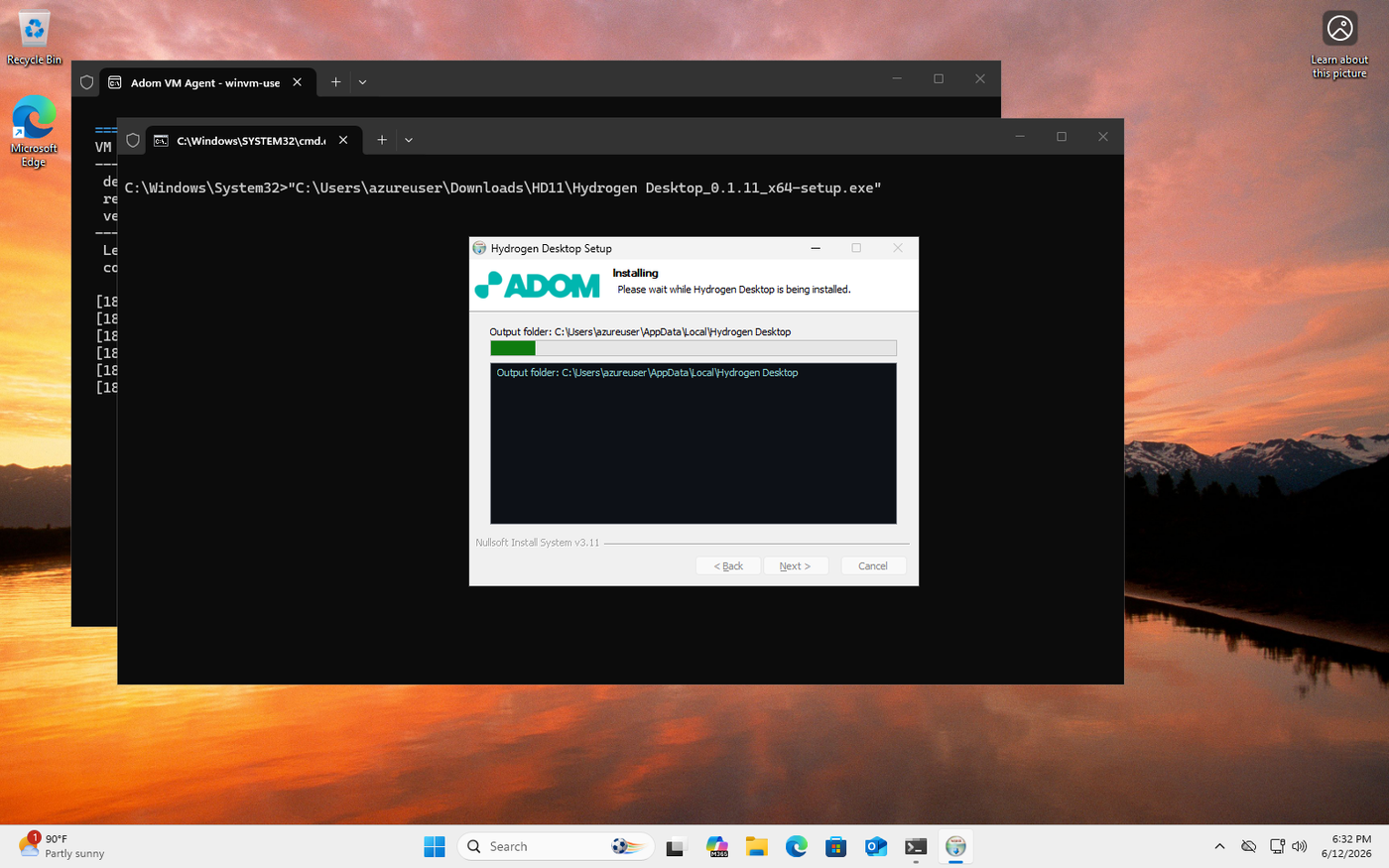
Download the signed Hydrogen Desktop … x64-setup.exe from the Releases on the page and run it.
It's signed by Adom Industries, Inc. (the same publisher as Adom Desktop), so Windows
SmartScreen recognizes it. It installs per-user — no admin prompt — and launches HD when it
finishes.
2 · Sign in to Adom (human moment #1)
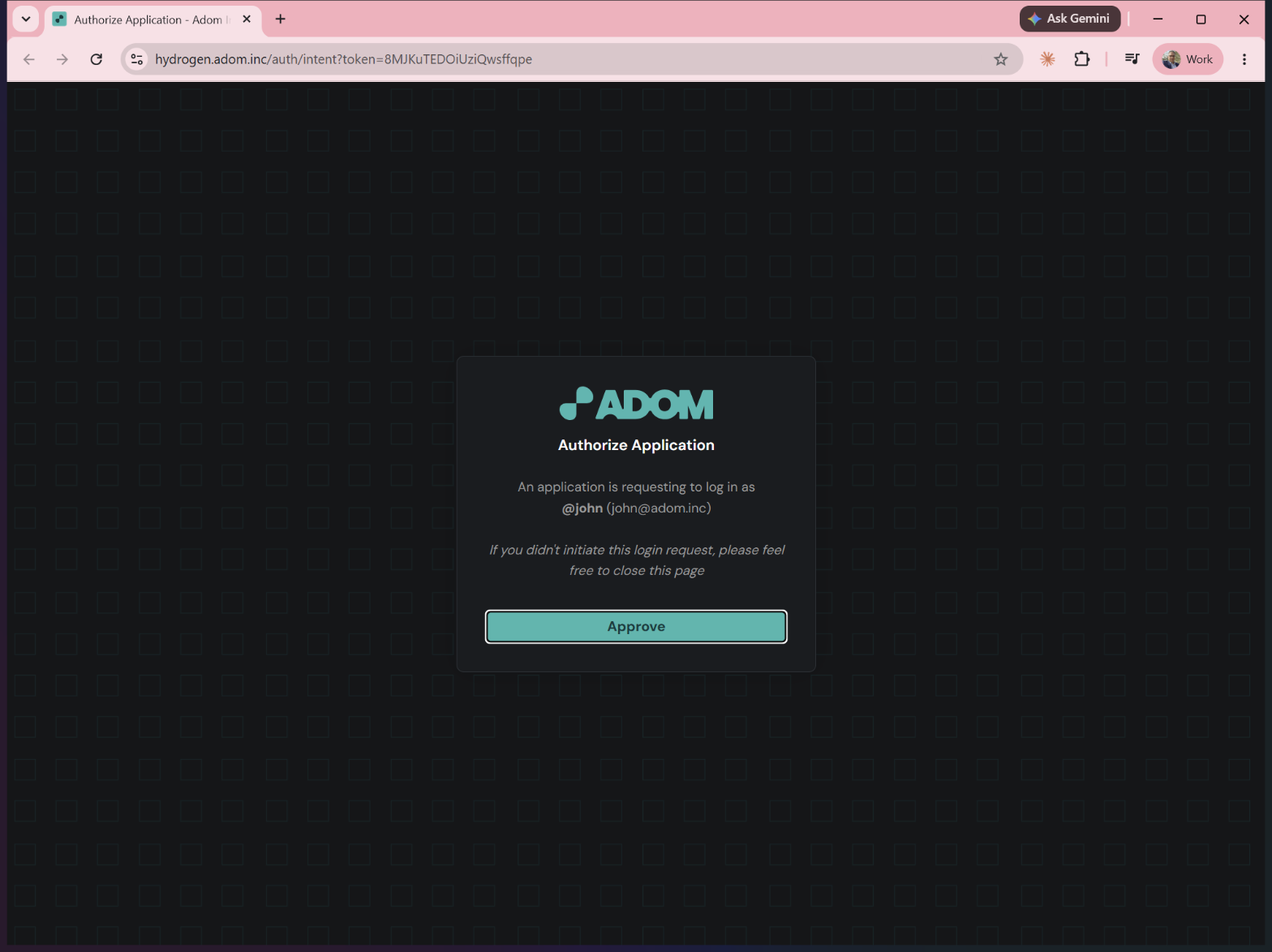
The one thing HD needs from you up front is your Adom account — that's your identity and your toolchain. HD opens the sign-in page and brings it to the front; you click Approve, and HD takes over from there. (Your Adom account is identity only — the work runs locally on your machine.)
3 · HD builds your Linux workspace (WSL2)
HD's first and biggest job is creating the Linux environment everything else runs in: a dedicated
WSL2 Ubuntu 24.04 distro called Adom-Workspace, provisioned from a pre-baked, SHA-verified
~400 MB "golden" image.
If your PC doesn't have WSL2 yet, HD turns it on for you — the one point where Windows needs a single reboot. After the restart, HD picks right back up on its own. You may briefly see Windows' own "Welcome to Windows Subsystem for Linux" window pop up during this step; HD works around it and keeps going — you don't need to touch it.
HD then imports the image, starts code-server (VS Code in the browser) inside the distro, and refuses to advance until the environment is genuinely up and answering.
4 · The automated setup cascade (20 steps, streamed live)
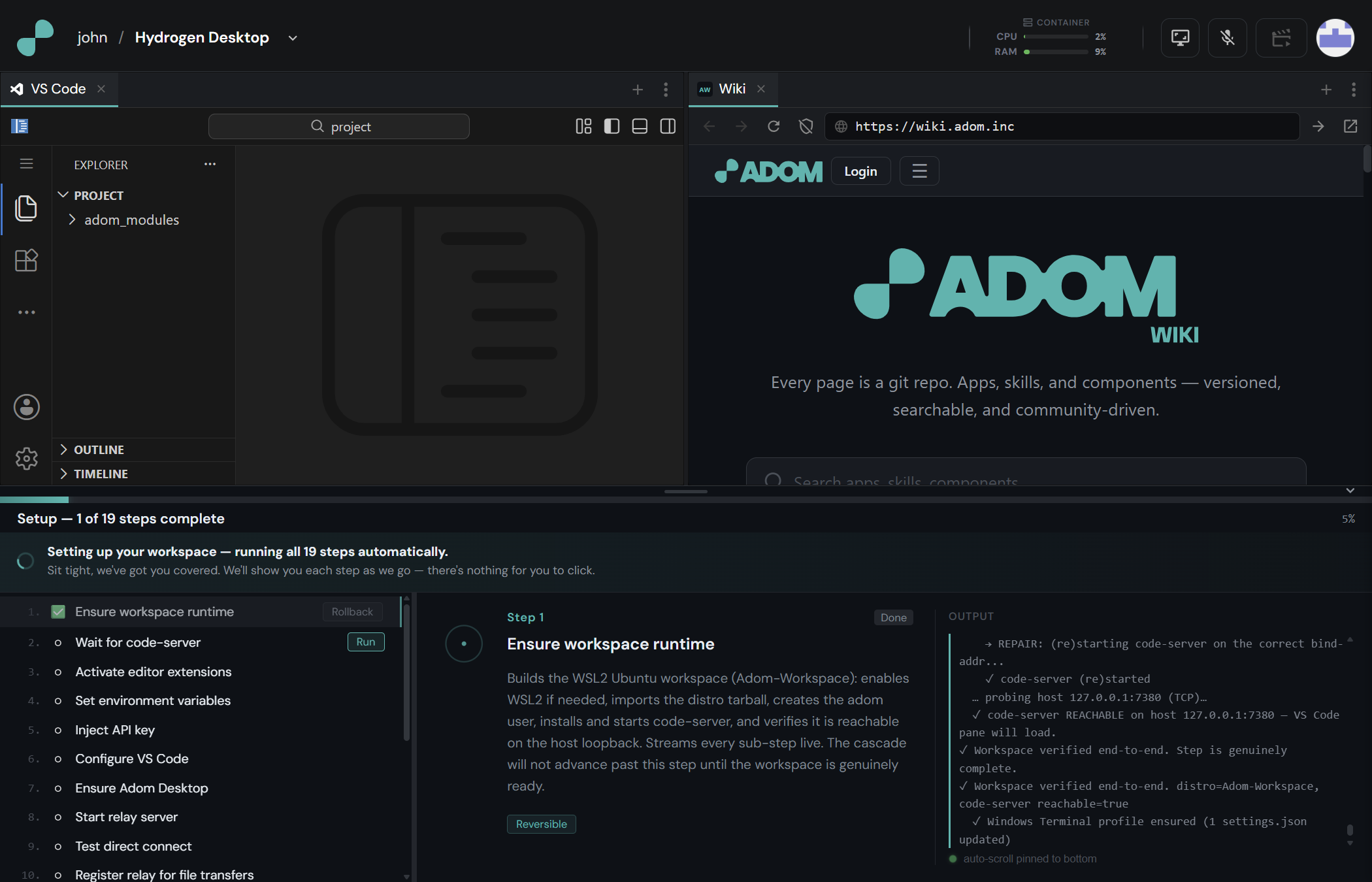
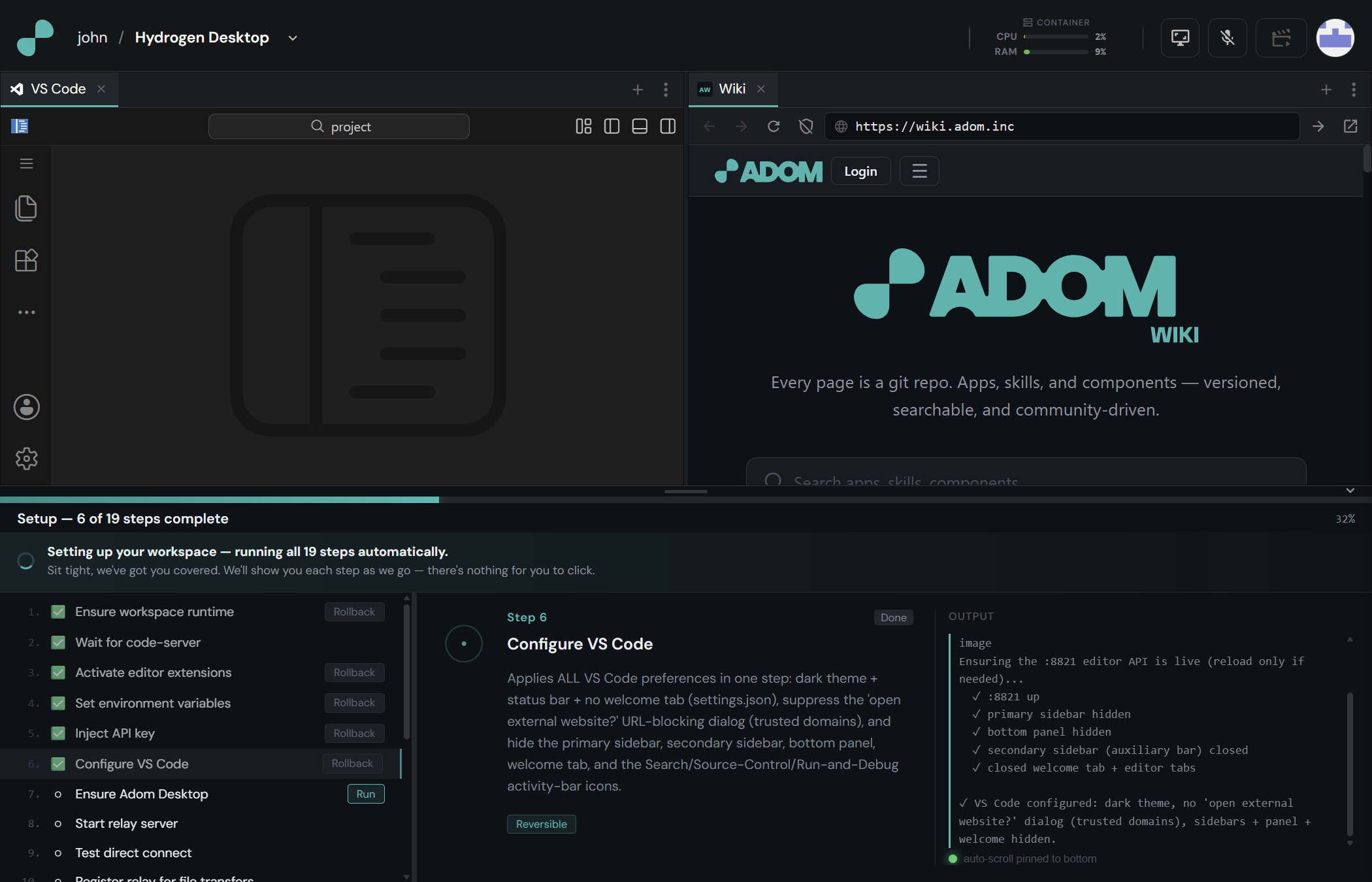
With the workspace up, HD runs the rest of setup automatically, streaming every step live in the Setup panel. Each step proves it actually worked before the next begins.
Wire up the editor & platform
| Step | What it does |
|---|---|
wait-codeserver |
Confirms VS Code (code-server) is reachable inside the workspace. |
install-adom-vscode |
Activates the pre-baked adom-vscode extension (an editor reload). |
set-env-vars |
Writes the Adom platform URLs into the workspace. |
inject-api-key |
Injects + validates your Adom session token so every tool authenticates as you. |
configure-vscode |
Applies a clean dark VS Code layout. |
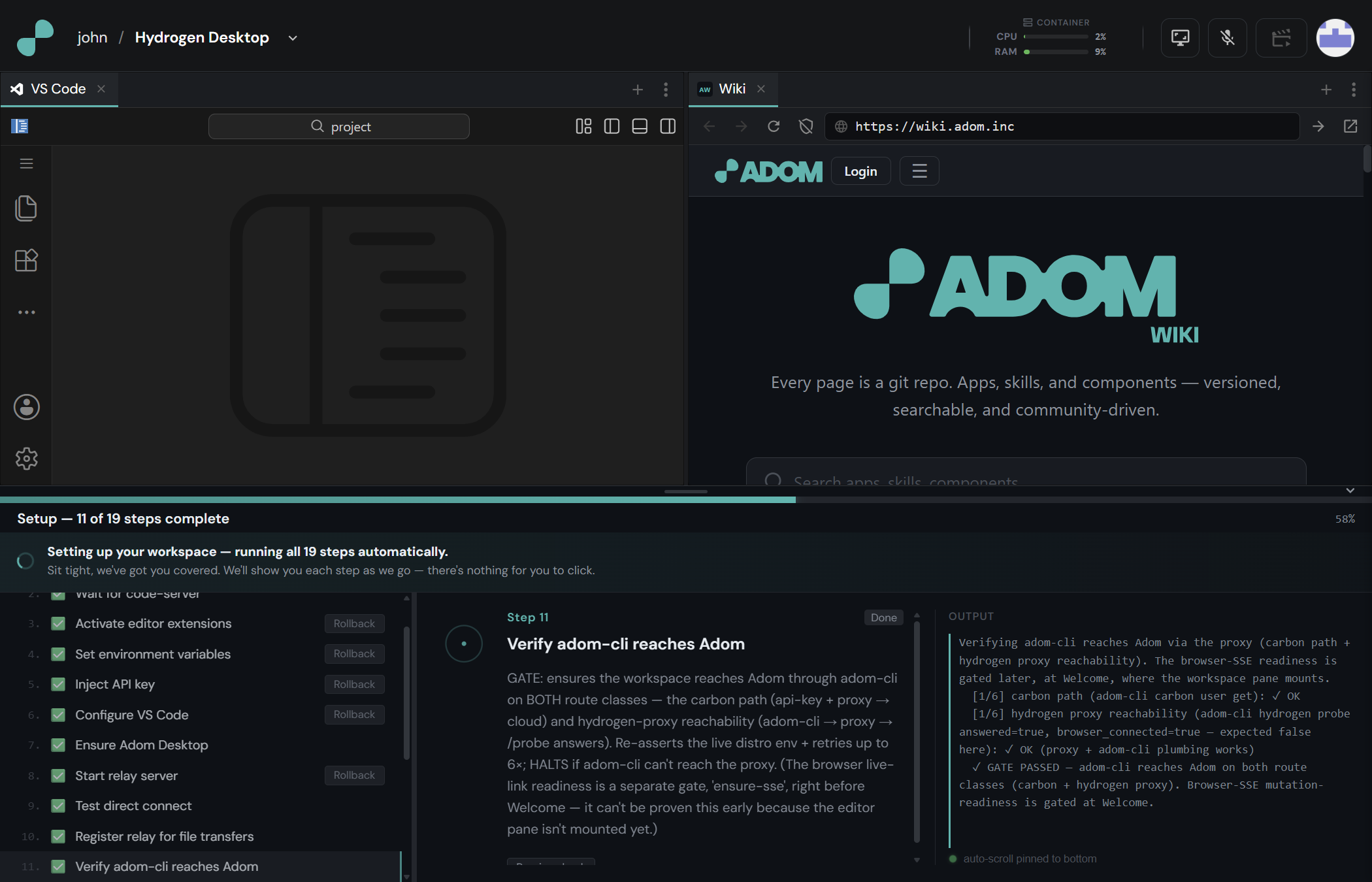
Bring up the bridge to your real desktop, and prove every path works
| Step | What it does |
|---|---|
ensure-adom-desktop |
Confirms the Adom Desktop companion (the bridge to your real machine) is running. |
start-relay |
Starts the in-workspace relay that connects to Adom Desktop. |
test-direct-connect / test-relay |
Tests both the fast direct path and the file-transfer path. |
test-adom-cli |
Hard gate: adom-cli must reach Adom on both the cloud and proxy routes — if not, HD stops here rather than limp forward. |
5 · Sign in to Claude (human moment #2)
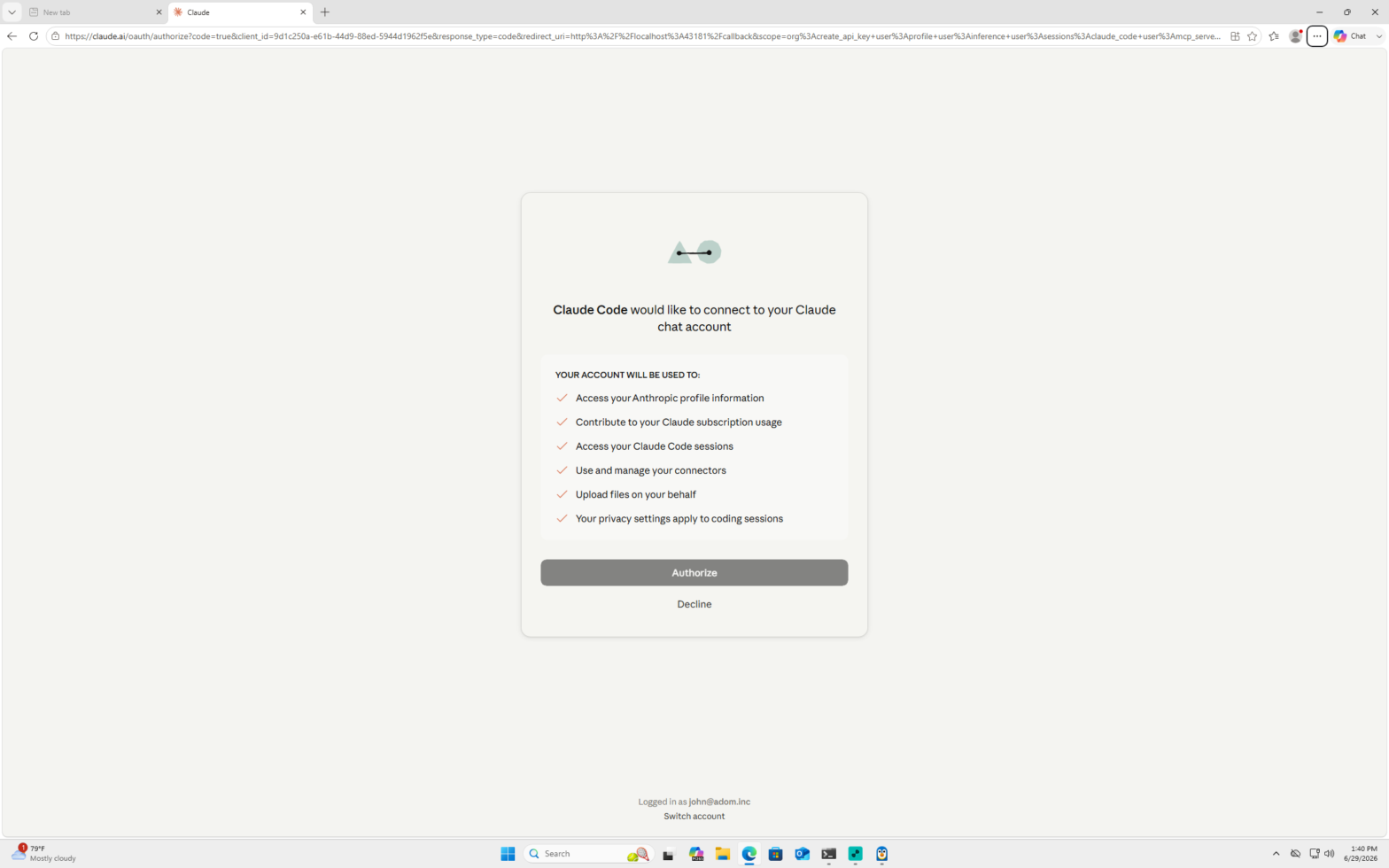
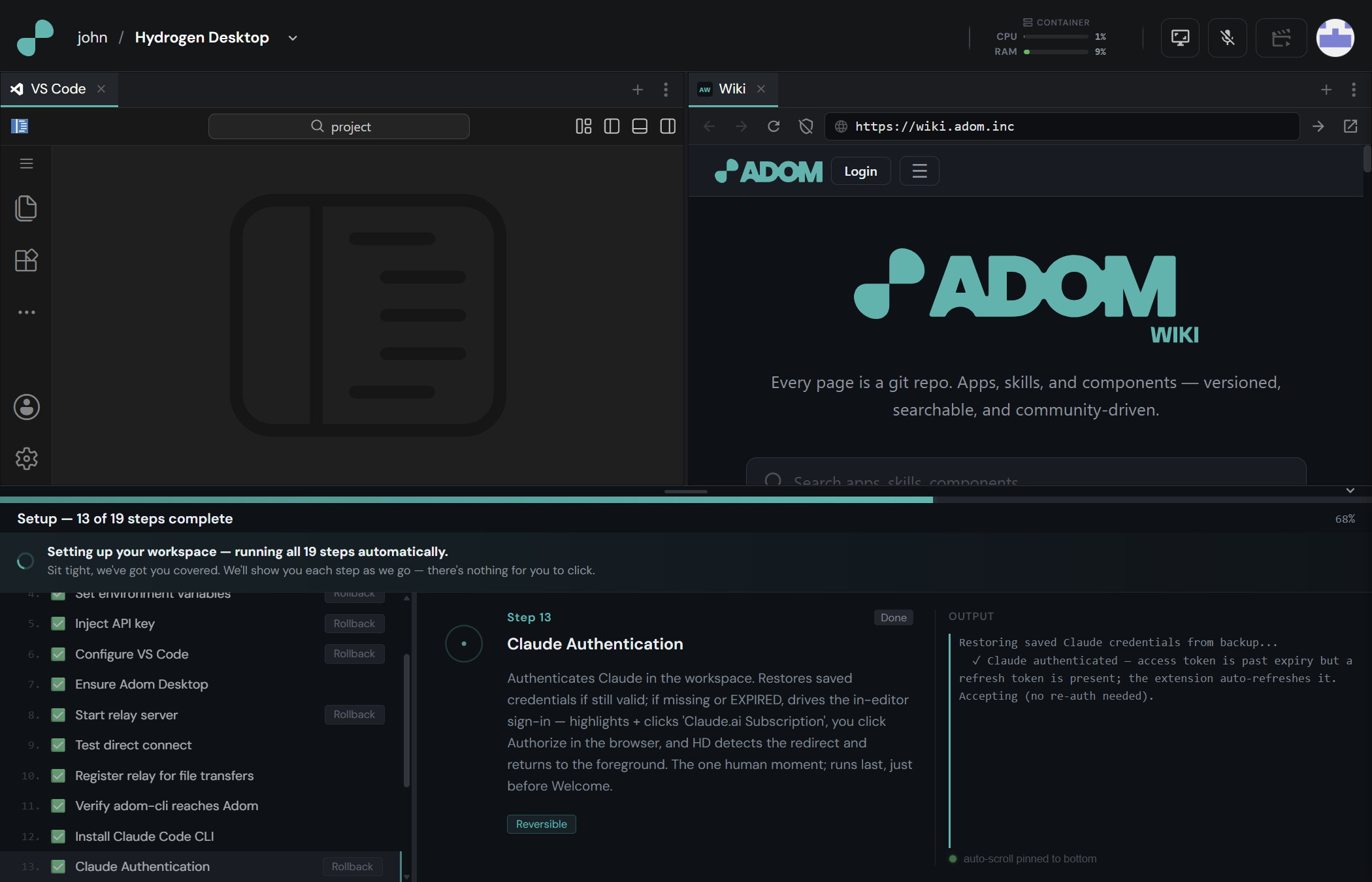
HD installs the Claude Code CLI (install-claude-cli), then reaches the one step that needs
you again: signing in to Claude. HD restores your saved Claude credentials if they're still
valid; otherwise it opens the Claude consent in the browser and you click Authorize. HD
deliberately saves this single human moment for last, after all the hands-off work is done.
6 · Final verification + your first AI conversations
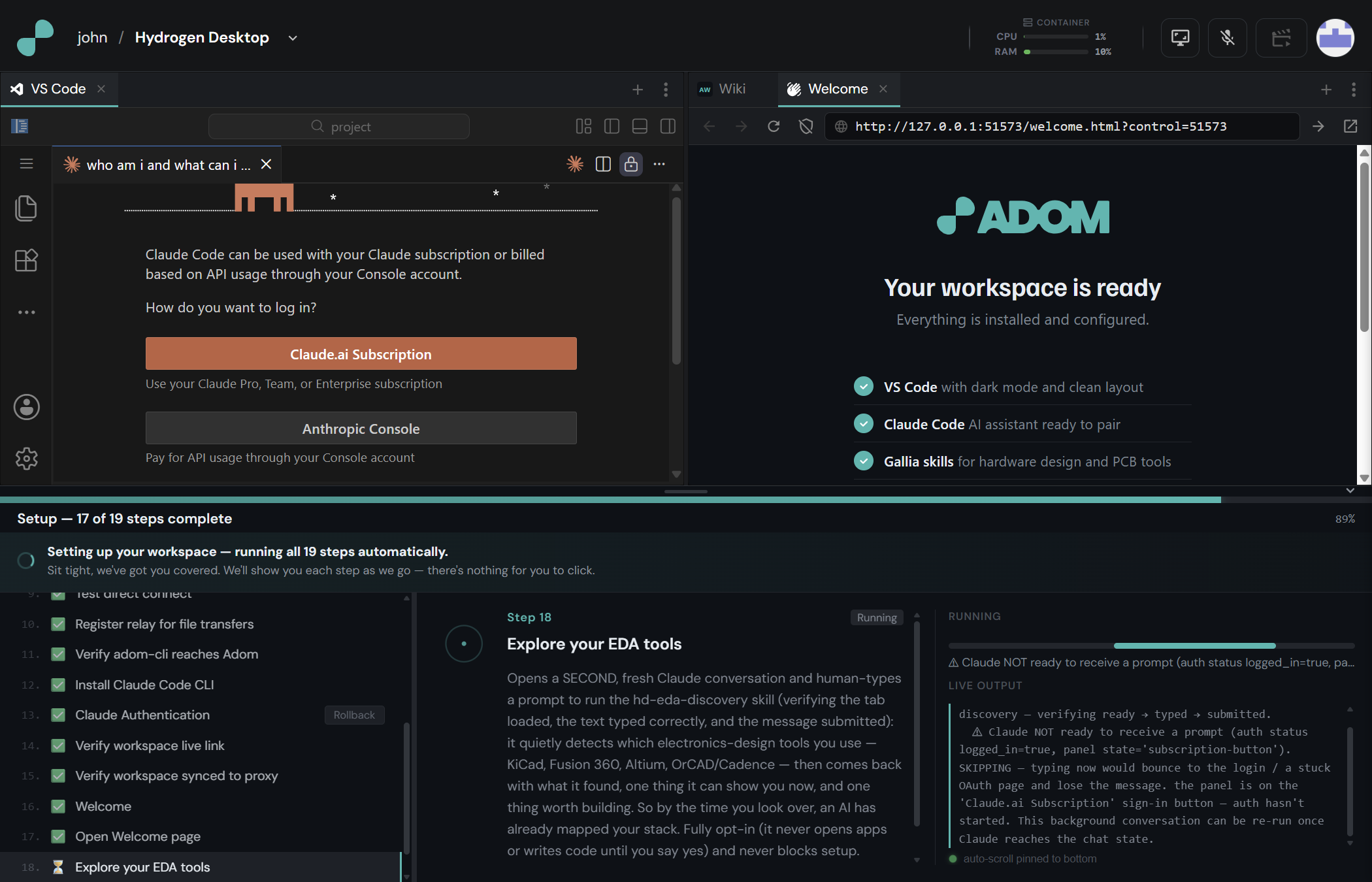
HD finishes by proving the whole thing is healthy and opening your first AI threads for you:
| Step | What it does |
|---|---|
ensure-sse / verify-workspace |
Final health checks that everything is live. |
welcome |
Opens the Welcome thread with your first prompt already sent. |
open-welcome |
Brings the Welcome page forward. |
eda-discovery |
Spins up a thread that detects which EDA tools you use (KiCad, Fusion 360, Altium, OrCAD/Cadence) and reports back. |
instapcb-quote |
Locates your InstaPCB quotes and offers a live re-pricing loop as your KiCad board changes. |
Every one of these is fully opt-in — nothing opens an app or writes code until you say so.
7 · Done — a working AI electronics-design workspace
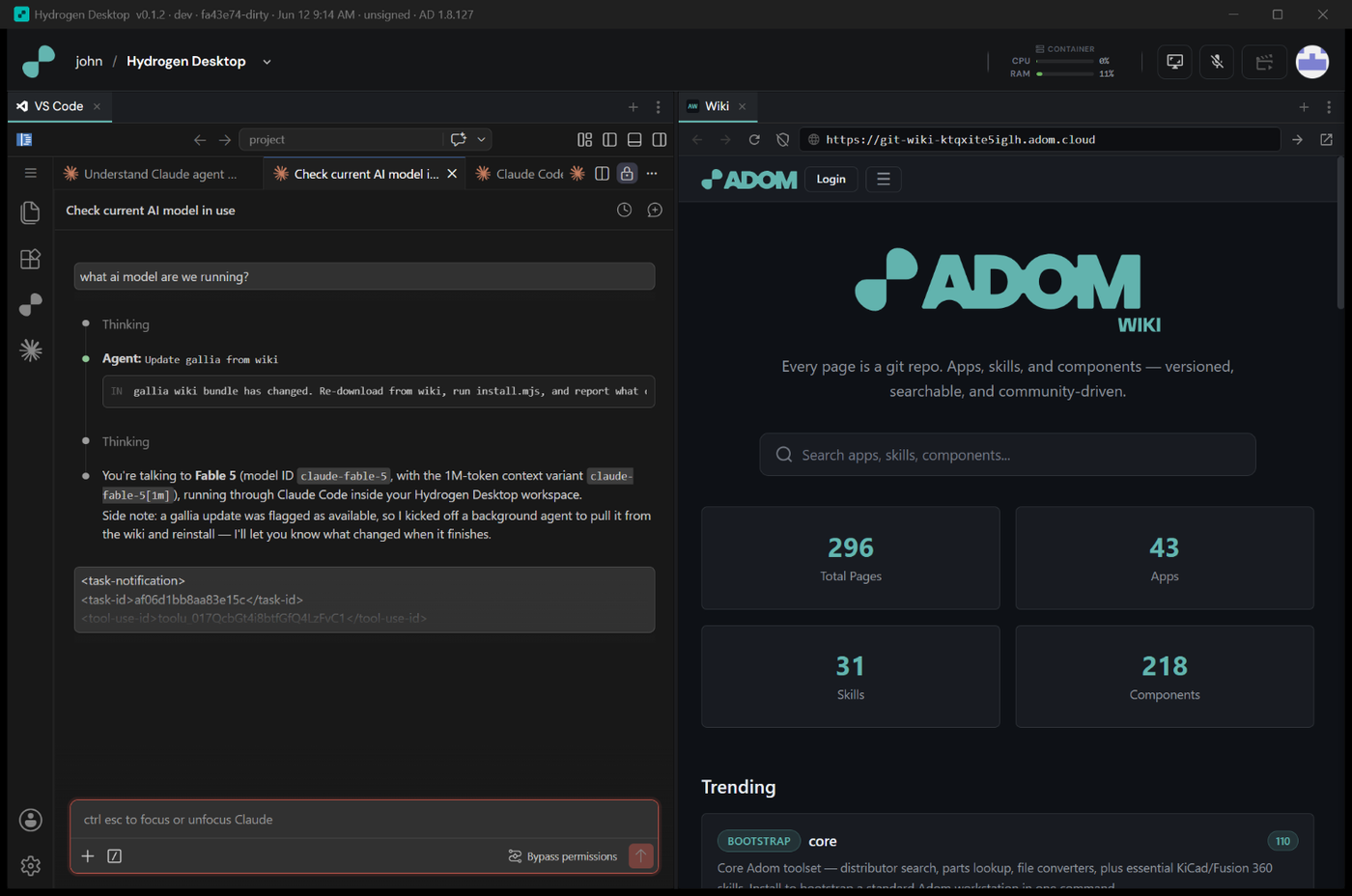
When the cascade finishes you're looking at a fully configured editor with Claude Code ready, your Welcome page open, and a live bridge to your real desktop so the AI can drive KiCad and Fusion 360. From one installer to a working local AI workspace, hands-off, in a few minutes.
Trouble? See the Troubleshooting section on the main page. The most common one: if you step away during the Claude sign-in and the link times out, just click "Sign in again" then Authorize — HD picks it up and finishes.
# Installing Hydrogen Desktop — the full walkthrough
This is the complete first-run experience, screen by screen — from downloading the installer to a
fully configured AI electronics-design workspace. The whole thing takes **~2–4 minutes** on a
typical machine (most of it the one-time workspace download), and it's **hands-off**: HD drives the
setup and you just watch it tick green. There are only **two human moments** — signing in to Adom
and signing in to Claude.
> New here? Start on the [Hydrogen Desktop page](https://wiki.adom.inc/adom/hydrogen-desktop) and
> grab the latest signed `Hydrogen.Desktop_…_x64-setup.exe` from the **Releases** tab.
---
## 1 · Download & run the installer
Download the signed `Hydrogen Desktop … x64-setup.exe` from the Releases on the page and run it.
It's signed by **Adom Industries, Inc.** (the same publisher as Adom Desktop), so Windows
SmartScreen recognizes it. It installs **per-user — no admin prompt** — and launches HD when it
finishes.

---
## 2 · Sign in to Adom *(human moment #1)*
The one thing HD needs from you up front is your Adom account — that's your identity and your
toolchain. HD opens the sign-in page and brings it to the front; you click **Approve**, and HD
takes over from there. (Your Adom account is identity only — the work runs locally on your machine.)

---
## 3 · HD builds your Linux workspace (WSL2)
HD's first and biggest job is creating the Linux environment everything else runs in: a dedicated
**WSL2 Ubuntu 24.04** distro called **`Adom-Workspace`**, provisioned from a pre-baked, SHA-verified
~400 MB "golden" image.
If your PC doesn't have WSL2 yet, HD turns it on for you — **the one point where Windows needs a
single reboot.** After the restart, HD picks right back up on its own. You may briefly see Windows'
own **"Welcome to Windows Subsystem for Linux"** window pop up during this step; HD works around it
and keeps going — you don't need to touch it.
HD then imports the image, starts **code-server** (VS Code in the browser) inside the distro, and
**refuses to advance until the environment is genuinely up and answering.**

---
## 4 · The automated setup cascade (20 steps, streamed live)
With the workspace up, HD runs the rest of setup automatically, streaming every step live in the
Setup panel. Each step proves it actually worked before the next begins.
**Wire up the editor & platform**
| Step | What it does |
|---|---|
| `wait-codeserver` | Confirms VS Code (code-server) is reachable inside the workspace. |
| `install-adom-vscode` | Activates the pre-baked **adom-vscode** extension (an editor reload). |
| `set-env-vars` | Writes the Adom platform URLs into the workspace. |
| `inject-api-key` | Injects + validates your Adom session token so every tool authenticates **as you**. |
| `configure-vscode` | Applies a clean dark VS Code layout. |

**Bring up the bridge to your real desktop, and prove every path works**
| Step | What it does |
|---|---|
| `ensure-adom-desktop` | Confirms the **Adom Desktop** companion (the bridge to your real machine) is running. |
| `start-relay` | Starts the in-workspace relay that connects to Adom Desktop. |
| `test-direct-connect` / `test-relay` | Tests both the fast direct path and the file-transfer path. |
| `test-adom-cli` | **Hard gate:** `adom-cli` must reach Adom on *both* the cloud and proxy routes — if not, HD stops here rather than limp forward. |

---
## 5 · Sign in to Claude *(human moment #2)*
HD installs the Claude Code CLI (`install-claude-cli`), then reaches the **one step that needs
you again**: signing in to Claude. HD restores your saved Claude credentials if they're still
valid; otherwise it opens the Claude consent in the browser and you click **Authorize**. HD
deliberately saves this single human moment for last, after all the hands-off work is done.


---
## 6 · Final verification + your first AI conversations
HD finishes by proving the whole thing is healthy and opening your first AI threads for you:
| Step | What it does |
|---|---|
| `ensure-sse` / `verify-workspace` | Final health checks that everything is live. |
| `welcome` | Opens the **Welcome** thread with your first prompt already sent. |
| `open-welcome` | Brings the Welcome page forward. |
| `eda-discovery` | Spins up a thread that detects which EDA tools you use (KiCad, Fusion 360, Altium, OrCAD/Cadence) and reports back. |
| `instapcb-quote` | Locates your InstaPCB quotes and offers a **live re-pricing loop** as your KiCad board changes. |
Every one of these is **fully opt-in** — nothing opens an app or writes code until you say so.

---
## 7 · Done — a working AI electronics-design workspace
When the cascade finishes you're looking at a fully configured editor with **Claude Code ready**,
your Welcome page open, and a live **bridge to your real desktop** so the AI can drive KiCad and
Fusion 360. From one installer to a working local AI workspace, hands-off, in a few minutes.

---
*Trouble? See the **Troubleshooting** section on the
[main page](https://wiki.adom.inc/adom/hydrogen-desktop). The most common one: if you step away
during the Claude sign-in and the link times out, just click **"Sign in again"** then **Authorize**
— HD picks it up and finishes.*