Hydrogen Desktop
Public Made by Adomby adom
The full Adom Hydrogen workspace as a native Windows app — AI-driven electronics design, running locally.
Claude Conversation Management — and taking a conversation to claude.ai / your phone
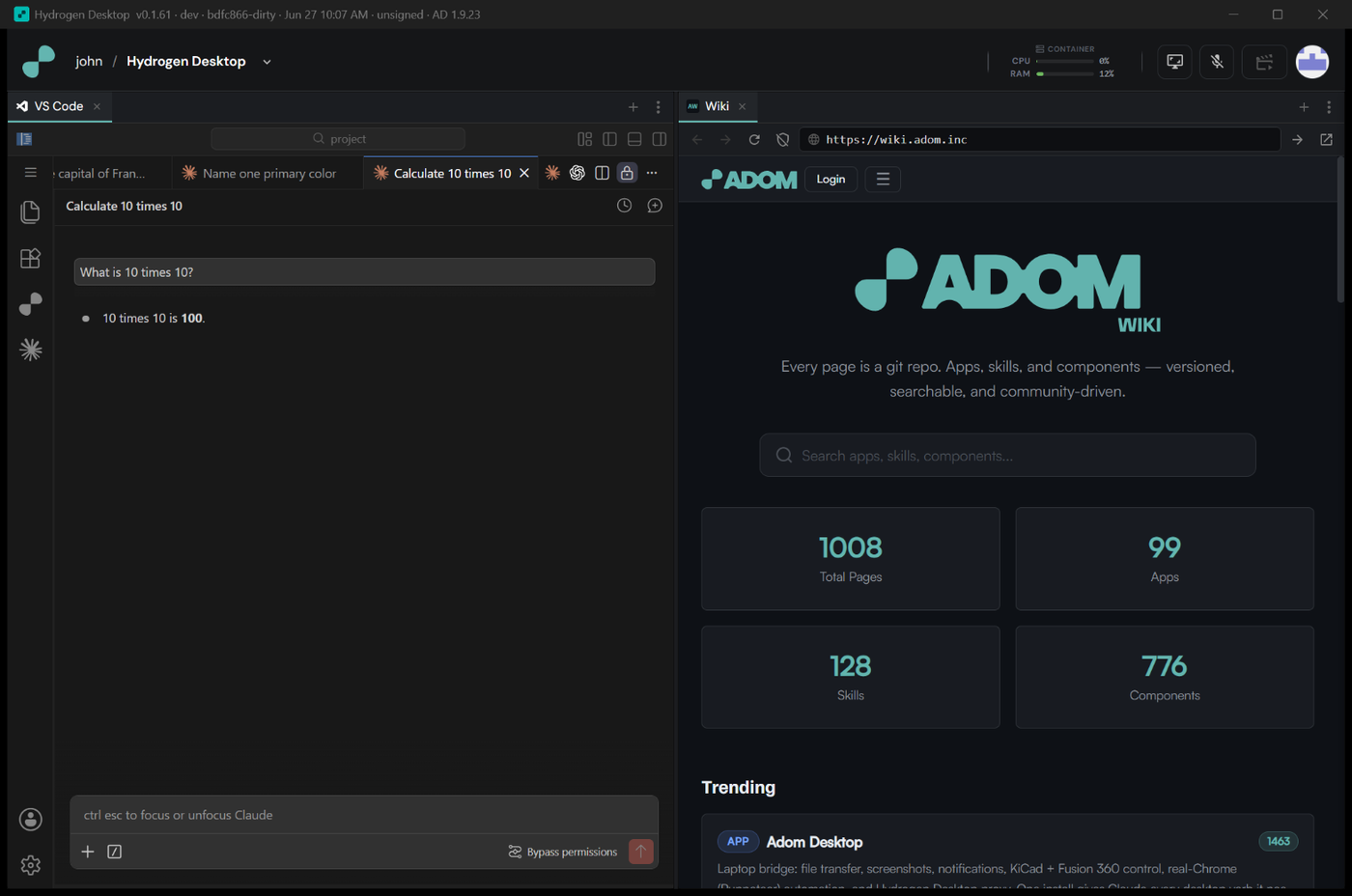
Hydrogen Desktop runs Claude Code as conversation tabs inside the editor. HD exposes a first-class API to manage those conversations — list them, open and close them, switch between them, read each one's full state, type into a specific one, and turn on Remote Control so you can continue the same conversation on claude.ai or the Claude mobile app.
Everything here works for you, for the AI inside your workspace, and for HD's own setup steps — they all call the same endpoints. It all runs in the background: no window focus, no stolen keystrokes.
Why this matters
- Run several conversations at once and drive each independently — one mapping your design stack, one wiring up InstaPCB pricing, one answering a quick question — all scriptable.
- Keep going on your phone. Turn on Remote Control and HD hands you a
claude.aiURL. Open it in any browser or the Claude mobile app and you're looking at — and controlling — the same conversation in the cloud. Start at your desk in HD, continue from the couch on your phone. - Nothing gets lost. Every conversation is stored as a local log you can read, and HD can hand you its session id automatically.
The model: every conversation has a stable id
Each conversation is addressed by a stable context_id. That's how you reliably target
one — not its tab position (tabs come and go) and not its title (untitled until you send a
message). Ask HD for the list, then act on a conversation by its id.
The control API runs on a dynamic local port — find it in the HD log or via port discovery. Examples below use
$HDforhttp://127.0.0.1:<port>.
See what's open
curl -s $HD/claude/conversations
{
  "count": 2,
  "conversations": [
    { "ordinal": 3, "active": true, "loaded": true, "context_id": 7,
      "title": "Calculate 10 times 10", "tab_label": "Calculate 10 times 10",
      "compose_text": "", "msg_count": 16,
      "session_id": "566cec21-d84f-4600-a119-e31f88683ff3",
      "rc_active": false, "remote_control_url": null },
    { "ordinal": 1, "active": false, "loaded": false, "context_id": null,
      "title": "Find the capital of France", "tab_label": "Find the capital of Fran…",
      "compose_text": null, "msg_count": null,
      "session_id": "b352055b-471f-46dc-b412-a4450642e831",
      "rc_active": null, "remote_control_url": null }
  ]
}
- The list merges three sources so you see everything: the tab bar (every conversation +
which is
active), the live webviews (rich data forloadedtabs), and the on-disk logs (GUIDs). loaded:falsemeans VS Code disposed that background tab's webview — itscontext_id,compose_text,msg_count, andrc_activereadnulluntil you activate it. Itssession_idstill resolves when the title matches the log.titleis the name Claude gives the conversation after its first message (before that it'sUntitled);rc_activeshows whether Remote Control is on.
Open, close, switch
curl -s -X POST $HD/claude/new-conversation       # open a new conversation tab
curl -s -X POST $HD/claude/tabs/close-all          # close them all (and clean the blank panel)
curl -s -X POST $HD/claude/tabs/activate -d '{"label":"Eiffel"}'   # switch by title
curl -s -X POST $HD/claude/tabs/close-empty-groups # remove a stale empty split panel
HD keeps your editor tidy: it removes leftover empty editor panels automatically on launch, while preserving an intentional two-group (left/right) layout if you use one.
Type a message into a specific conversation
# Instant (fast):
curl -s -X POST $HD/claude/inject \
  -d '{"text":"summarize this repo","context_index":16,"typed":false,"submit":true}'

# With the human typing animation, then send:
curl -s -X POST $HD/claude/inject \
  -d '{"text":"hello","context_index":16,"typed":true,"delay_ms":50,"submit":true}'
typed:true= animated character-by-character;false= instant paste.submit:true= press Enter;false= leave it in the compose box as a draft.- It lands in exactly that conversation, even with many open and even when it's not the one on screen.
⭐ Remote Control: continue on claude.ai / your phone
curl -s -X POST $HD/claude/remote-control -d '{"context_index":7}'
{
  "ok": true,
  "rc_active": true,
  "context_id": 7,
  "remote_control_url": "https://claude.ai/code/session_014koKPJxmjYpnX2SjRRqrD3"
}
Open that remote_control_url on claude.ai (in your browser or the Claude mobile
app) and you can see and drive that exact conversation from anywhere. This is the bridge
from "a conversation locked inside my desktop app" to "my conversation, in the cloud, on any
device."
Remote Control is a toggle, so this endpoint detects the current state first: re-calling it
on an already-on conversation just returns the existing URL (it won't switch it off), and
{enable:false} turns it off. Each conversation's state shows up as rc_active in
/claude/conversations.
How HD knows which on-disk log is which conversation
Claude stores each conversation as ~/.claude/projects/<project>/<uuid>.jsonl (with its
sessionId, generated title, and every message). The conversation's webview doesn't expose
that GUID, so HD matches a live conversation to its log by the first user message — exact
and unique — then fills in the session_id and the authoritative title for you. So you never
have to hunt through log files by hand; GET /claude/conversations gives you the id directly.
Read a full transcript anytime:
cat ~/.claude/projects/*/<session_id>.jsonl
For the AI in your workspace
Your in-workspace AI can do all of the above. The bundled hd-claude-management skill
documents every endpoint with examples, so you can ask things like "open three conversations
and ask each a different question" or "turn on remote control for this conversation and give
me the link for my phone."
Endpoint reference
| Endpoint | Method | What it does |
|---|---|---|
/claude/conversations |
GET | Full per-conversation data incl. session_id |
/claude/contexts |
GET | Light list: context_id + compose_text |
/claude/tabs |
GET | Raw editor tabs |
/claude/new-conversation |
POST | Open a new conversation tab |
/claude/tabs/close-all |
POST | Close all tabs + remove the empty panel |
/claude/tabs/activate |
POST | Switch visible tab by {index} or {label} |
/claude/tabs/close-empty-groups |
POST | Remove empty editor groups (keeps populated) |
/claude/inject |
POST | Type into {context_index} (typed,submit,delay_ms) |
/claude/remote-control |
POST | Turn on RC → returns the claude.ai cloud URL |
# Claude Conversation Management — and taking a conversation to claude.ai / your phone
Hydrogen Desktop runs Claude Code as **conversation tabs** inside the editor. HD exposes a
**first-class API** to manage those conversations — list them, open and close them, switch
between them, read each one's full state, type into a specific one, and **turn on Remote
Control so you can continue the same conversation on claude.ai or the Claude mobile app**.
Everything here works for **you**, for the **AI inside your workspace**, and for HD's own
setup steps — they all call the same endpoints. It all runs in the background: no window
focus, no stolen keystrokes.

## Why this matters
- **Run several conversations at once** and drive each independently — one mapping your
design stack, one wiring up InstaPCB pricing, one answering a quick question — all
scriptable.
- **Keep going on your phone.** Turn on Remote Control and HD hands you a `claude.ai` URL.
Open it in any browser or the Claude mobile app and you're looking at — and controlling —
the *same* conversation in the cloud. Start at your desk in HD, continue from the couch on
your phone.
- **Nothing gets lost.** Every conversation is stored as a local log you can read, and HD
can hand you its session id automatically.
## The model: every conversation has a stable id
Each conversation is addressed by a stable **`context_id`**. That's how you reliably target
one — not its tab position (tabs come and go) and not its title (untitled until you send a
message). Ask HD for the list, then act on a conversation by its id.
> The control API runs on a dynamic local port — find it in the HD log or via port
> discovery. Examples below use `$HD` for `http://127.0.0.1:<port>`.
## See what's open
```bash
curl -s $HD/claude/conversations
```
```jsonc
{
"count": 2,
"conversations": [
{ "ordinal": 3, "active": true, "loaded": true, "context_id": 7,
"title": "Calculate 10 times 10", "tab_label": "Calculate 10 times 10",
"compose_text": "", "msg_count": 16,
"session_id": "566cec21-d84f-4600-a119-e31f88683ff3",
"rc_active": false, "remote_control_url": null },
{ "ordinal": 1, "active": false, "loaded": false, "context_id": null,
"title": "Find the capital of France", "tab_label": "Find the capital of Fran…",
"compose_text": null, "msg_count": null,
"session_id": "b352055b-471f-46dc-b412-a4450642e831",
"rc_active": null, "remote_control_url": null }
]
}
```
- The list **merges three sources** so you see everything: the tab bar (every conversation +
which is `active`), the live webviews (rich data for `loaded` tabs), and the on-disk logs (GUIDs).
- `loaded:false` means VS Code disposed that background tab's webview — its `context_id`,
`compose_text`, `msg_count`, and `rc_active` read `null` until you activate it. Its `session_id`
still resolves when the title matches the log.
- `title` is the name Claude gives the conversation after its first message (before that it's
`Untitled`); `rc_active` shows whether Remote Control is on.
## Open, close, switch
```bash
curl -s -X POST $HD/claude/new-conversation # open a new conversation tab
curl -s -X POST $HD/claude/tabs/close-all # close them all (and clean the blank panel)
curl -s -X POST $HD/claude/tabs/activate -d '{"label":"Eiffel"}' # switch by title
curl -s -X POST $HD/claude/tabs/close-empty-groups # remove a stale empty split panel
```
HD keeps your editor tidy: it removes leftover **empty** editor panels automatically on
launch, while **preserving** an intentional two-group (left/right) layout if you use one.
## Type a message into a specific conversation
```bash
# Instant (fast):
curl -s -X POST $HD/claude/inject \
-d '{"text":"summarize this repo","context_index":16,"typed":false,"submit":true}'
# With the human typing animation, then send:
curl -s -X POST $HD/claude/inject \
-d '{"text":"hello","context_index":16,"typed":true,"delay_ms":50,"submit":true}'
```
- `typed`: `true` = animated character-by-character; `false` = instant paste.
- `submit`: `true` = press Enter; `false` = leave it in the compose box as a draft.
- It lands in **exactly** that conversation, even with many open and even when it's not the
one on screen.
## ⭐ Remote Control: continue on claude.ai / your phone
```bash
curl -s -X POST $HD/claude/remote-control -d '{"context_index":7}'
```
```jsonc
{
"ok": true,
"rc_active": true,
"context_id": 7,
"remote_control_url": "https://claude.ai/code/session_014koKPJxmjYpnX2SjRRqrD3"
}
```
Open that `remote_control_url` on **claude.ai** (in your browser or the **Claude mobile
app**) and you can see and drive that exact conversation from anywhere. This is the bridge
from "a conversation locked inside my desktop app" to "my conversation, in the cloud, on any
device."
Remote Control is a **toggle**, so this endpoint detects the current state first: re-calling it
on an already-on conversation just returns the existing URL (it won't switch it off), and
`{enable:false}` turns it off. Each conversation's state shows up as `rc_active` in
`/claude/conversations`.
## How HD knows which on-disk log is which conversation
Claude stores each conversation as `~/.claude/projects/<project>/<uuid>.jsonl` (with its
`sessionId`, generated title, and every message). The conversation's webview doesn't expose
that GUID, so HD matches a live conversation to its log by the **first user message** — exact
and unique — then fills in the `session_id` and the authoritative title for you. So you never
have to hunt through log files by hand; `GET /claude/conversations` gives you the id directly.
Read a full transcript anytime:
```bash
cat ~/.claude/projects/*/<session_id>.jsonl
```
## For the AI in your workspace
Your in-workspace AI can do all of the above. The bundled **`hd-claude-management`** skill
documents every endpoint with examples, so you can ask things like *"open three conversations
and ask each a different question"* or *"turn on remote control for this conversation and give
me the link for my phone."*
## Endpoint reference
| Endpoint | Method | What it does |
|---|---|---|
| `/claude/conversations` | GET | Full per-conversation data incl. `session_id` |
| `/claude/contexts` | GET | Light list: `context_id` + `compose_text` |
| `/claude/tabs` | GET | Raw editor tabs |
| `/claude/new-conversation` | POST | Open a new conversation tab |
| `/claude/tabs/close-all` | POST | Close all tabs + remove the empty panel |
| `/claude/tabs/activate` | POST | Switch visible tab by `{index}` or `{label}` |
| `/claude/tabs/close-empty-groups` | POST | Remove empty editor groups (keeps populated) |
| `/claude/inject` | POST | Type into `{context_index}` (`typed`,`submit`,`delay_ms`) |
| `/claude/remote-control` | POST | Turn on RC → returns the `claude.ai` cloud URL |