Fusion JLCPCB Export
Public Made by Adomby adom
Export the complete JLCPCB manufacturing package (gerbers + BOM with LCSC + CPL) from a Fusion board, by asking your AI.
name: fusion-jlcpcb-export description: Export the full JLCPCB manufacturing package (gerber ZIP + BOM with LCSC part numbers + CPL pick-and-place) from an open Fusion 360 Electronics board, via the Adom Desktop Fusion bridge. Use on "export for jlcpcb", "jlc bom and cpl", "export jlcpcb files", "files to get a jlcpcb quote", "export the bom with part numbers", "jlcpcb assembly files".
Fusion JLCPCB Export
Produce everything JLCPCB needs to quote and assemble a board, the gerber ZIP, the BOM (with the LCSC part number per component), and the CPL (pick-and-place), from a Fusion 360 Electronics design, all by asking the AI.
This skill ships its own EAGLE ULP and runs it through the Fusion bridge's generic
fusion_electron_run verb. It does not modify the bridge. It is the working example of
extending the Fusion bridge independently (no fork, no pull request): bring a ULP,
run it through electron_run.
Triggers (the kind of thing the user says):
- "export the jlcpcb files for this board"
- "get me a jlcpcb quote: gerbers, bom, and pick-and-place, then upload to jlcpcb.com"
- "export the bom with the lcsc part numbers and the cpl"
Prerequisite
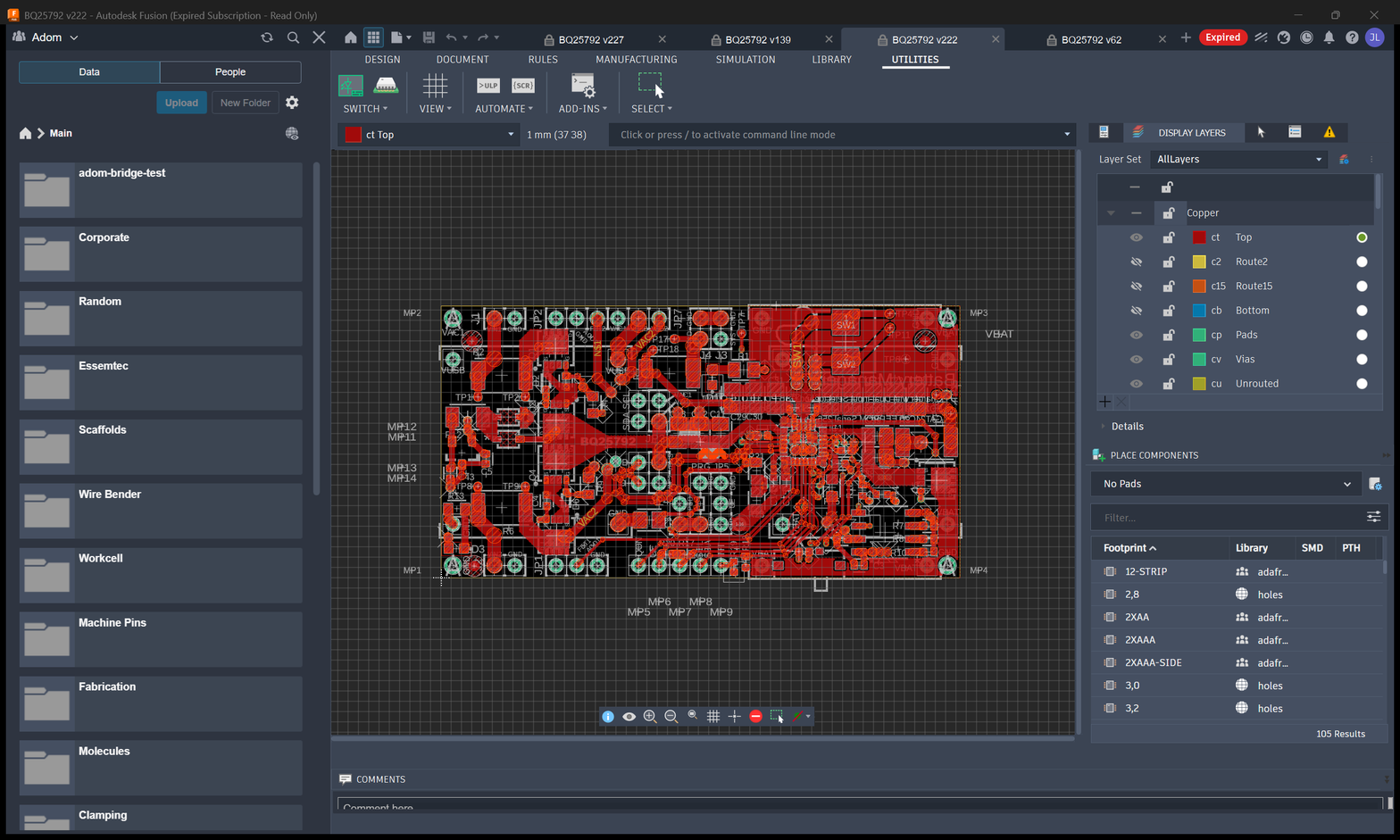
- The Fusion bridge is connected (
adom-desktop ping) and the board is open in Fusion's 2D PCB Editor. If it is on the 3D view or schematic, switch first:adom-desktop fusion_show_2d_board '{}'. - This skill is installed, so its ULP is at
~/.claude/skills/fusion-jlcpcb-export/ulp/jlcpcb_smta_exporter.ulp.
The export, step by step
1. Gerbers + drill (the fab files)
adom-desktop fusion_export_gerbers '{"outputDir":"C:/tmp/jlc"}'
# -> <board>_gerbers.zip : copper layers, soldermask, silkscreen, paste, outline, Excellon drill.
The bridge auto-detects 2 vs 4 layers and runs the matching bundled JLCPCB CAM job.
2. BOM + CPL (the assembly files, with the LCSC part numbers)
Send this skill's ULP to the machine, then run it through electron_run, passing the
output directory so it writes where you want:
# a) copy the ULP to the user's machine (once per session is fine)
adom-desktop send_files '{"filePaths":["~/.claude/skills/fusion-jlcpcb-export/ulp/jlcpcb_smta_exporter.ulp"],"dest":"C:/tmp/jlc"}'

# b) run it. Pass ONLY the output directory, the ULP builds <board>_bom.csv / _cpl.csv / _info.txt there.
adom-desktop fusion_electron_run '{"command":"set confirm yes;RUN '\''C:/tmp/jlc/jlcpcb_smta_exporter.ulp'\'' '\''C:/tmp/jlc'\''"}'

# c) pull the results back
adom-desktop pull_file '{"filePaths":["C:/tmp/jlc/<board>_bom.csv","C:/tmp/jlc/<board>_cpl.csv"]}'
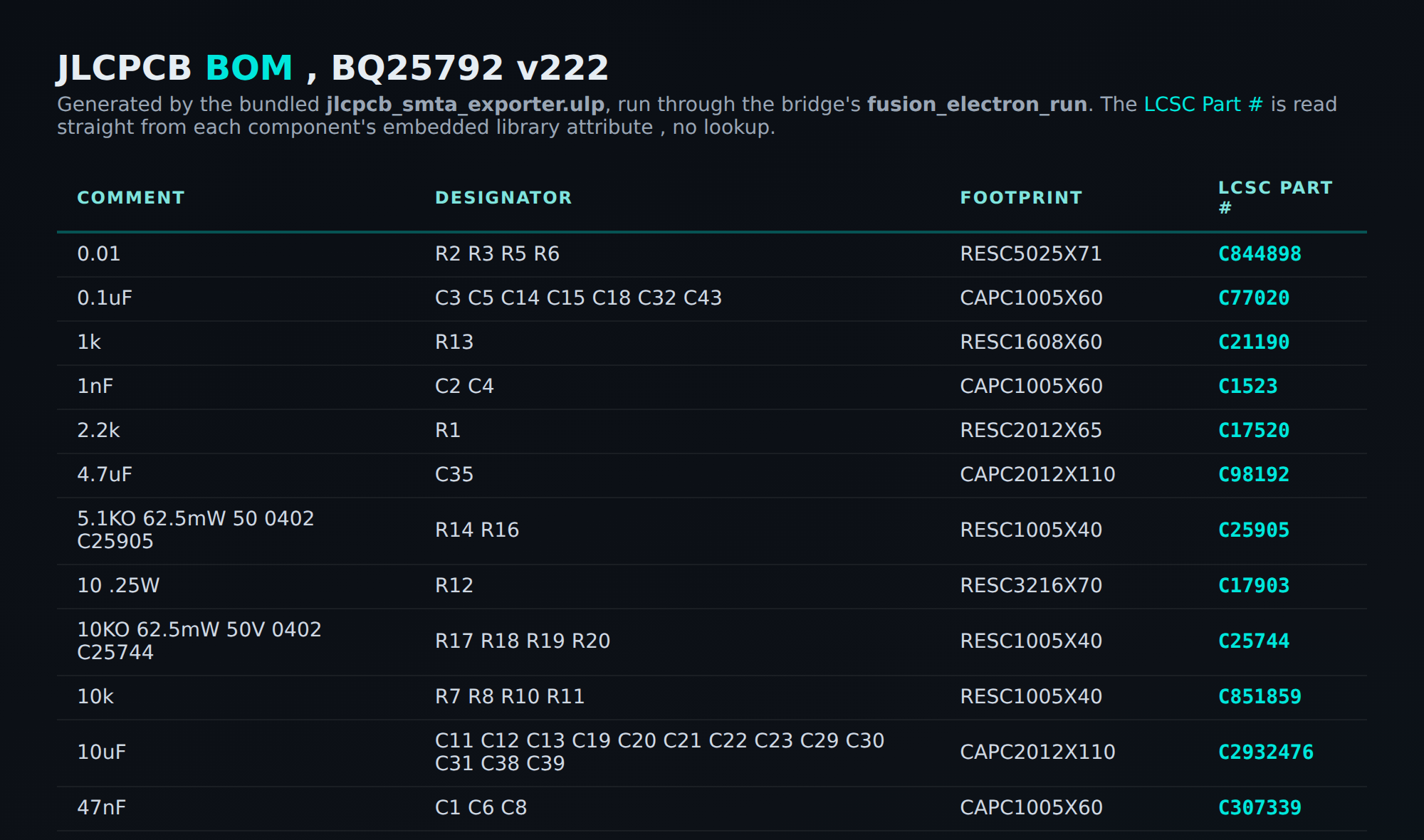
The BOM is JLCPCB-formatted, Comment,Designator,Footprint,LCSC Part #:
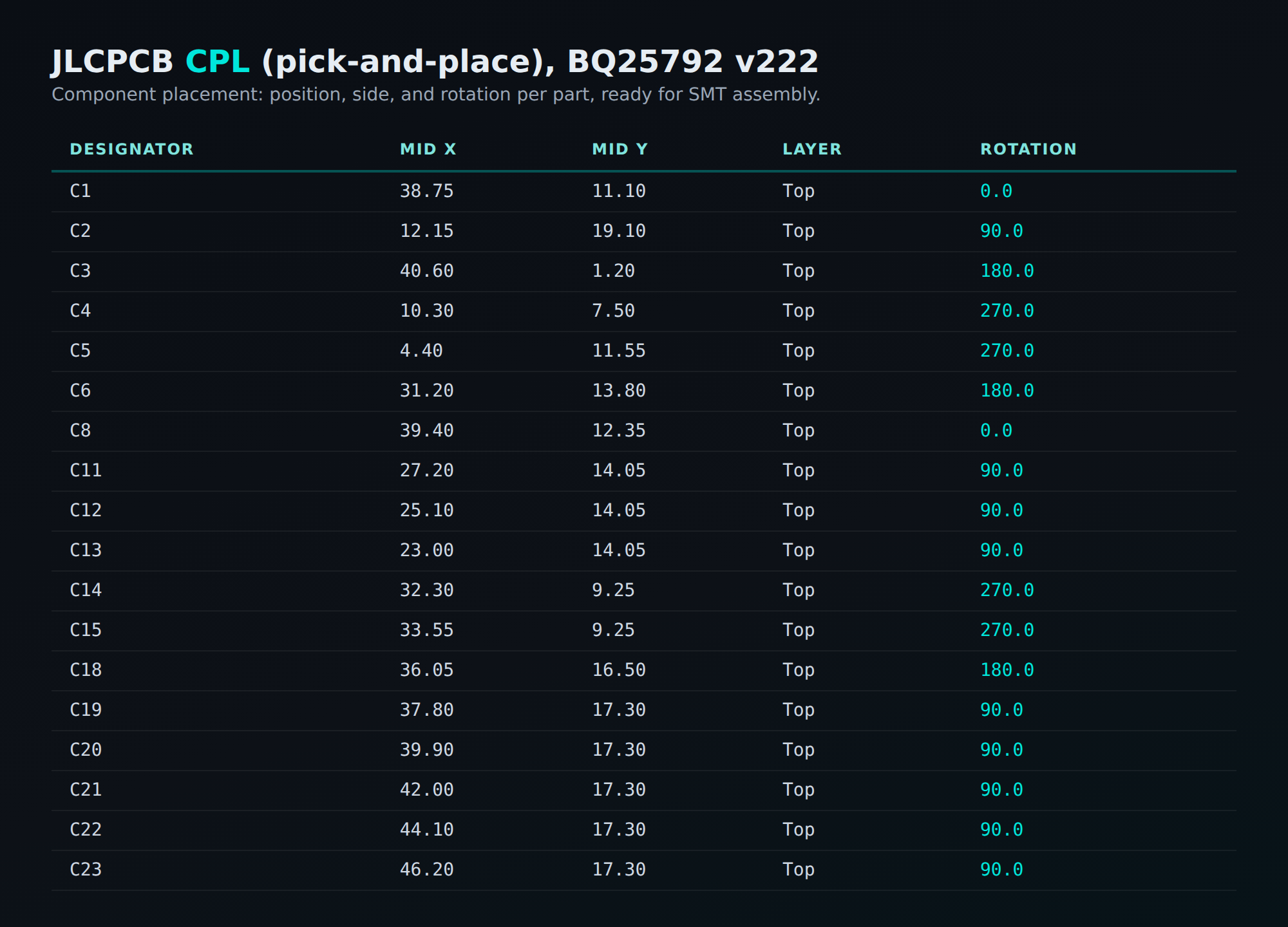
The CPL is JLCPCB pick-and-place, Designator,Mid X,Mid Y,Layer,Rotation:
3. The complete package
The gerber ZIP + the BOM + the CPL are everything JLCPCB needs. Next, get the quote.
Getting the quote (drive jlcpcb.com all the way to the final review)
The user said "take it through the quote": drive their own logged-in Chrome through the whole SMT assembly flow and STOP at the final Quote & Order screen without clicking Save to Cart / submitting, so they can review parts, placement, and price before ordering.
Hard rules (the user was emphatic about these)
- Drive everything yourself, including login. NEVER ask the user to click, log in, or "drive manually." If they are logged out, sign them in (see Login below). Asking them to do a step you can do is exactly what they do not want.
- Keep the browser window in the BACKGROUND. Never
desktop_bring_to_front. CDP eval, CDP screenshots, anddesktop_screenshot_windowall work on a background window, so you never steal focus or interrupt their other work. - Never submit the order. Stop at the final review.
Drive the real Chrome over CDP (the proven path)
The user's real Chrome runs the adom-browser-extension (CDP bridge, verbs nbrowser_*), so they are
already signed in to JLCPCB and the quote lands on their account.
adom-desktop nbrowser_status '{}'                                           # confirm ext connected
adom-desktop nbrowser_open_tab '{"url":"https://cart.jlcpcb.com/quote"}'    # opens a DEDICATED tab; returns tabId
# everything else is nbrowser_eval against that tabId (runs JS in the page, NO focus change):
adom-desktop nbrowser_eval '{"tabId":"<id>","expr":"<js>"}'
adom-desktop nbrowser_screenshot '{"tabId":"<id>"}'                        # page screenshot (base64), background
adom-desktop desktop_screenshot_window '{"hwnd":<chrome hwnd>}'            # FULL window (with chrome), background
Upload any file via DataTransfer (no OS file picker needed). Base64 the file, stream it into the page in <40k chunks (CLI arg cap), then set the input:
// per chunk (comma-op = ONE expression, which nbrowser_eval requires):
(window.__b += "<chunk>", window.__b.length)
// then build a File and set it on the right input[type=file]:
(function(){var s=atob(window.__b),u=new Uint8Array(s.length);for(var i=0;i<s.length;i++)u[i]=s.charCodeAt(i);
var f=new File([u],"name.ext",{type:"..."});var inp=document.querySelectorAll('input[type=file]')[IDX];
var dt=new DataTransfer();dt.items.add(f);inp.files=dt.files;inp.dispatchEvent(new Event('change',{bubbles:true}));})()
The full step sequence
- Gerbers: inject the gerber ZIP onto the file input. JLCPCB renders + detects layers/size.
- PCB Assembly: click
.switch-btninside the.switch-boxto toggle assembly on; click Next. - Login if needed: if Next lands on
passport.jlcpcb.com/.../login, sign them in yourself. Click the "Sign in with Google" button, then onaccounts.google.com(CDP eval works there too) click their account row, then the OAuth Continue button. It redirects back logged in; the uploaded board persists. This is one-time; afterwards every run is fully background. Pick the user's primary work Google account. - BOM + CPL: on the SMT order page click Next to reveal Add BOM File / Add CPL File (two file inputs). Inject the BOM CSV on input[0], the CPL CSV on input[1]. Click Process BOM & CPL. (The inputs clear after the change event, that is normal; JLCPCB already read them.)
- Parts availability: JLCPCB matches each BOM line to a stocked LCSC part. Through-hole jumpers / mounting pads (no LCSC) appear under Unmatched components, that is expected, they are not SMT assembled. Click Next: a dialog warns "below parts won't be assembled... Continue", click Continue to proceed (do NOT re-upload).
- Component Placements: JLCPCB draws every part at its CPL X/Y + rotation. Click Next.
- Quote & Order: the final price breakdown with Save to Cart. STOP here. Do not click it.
Screenshot each step with desktop_screenshot_window {hwnd} (full window, shows it is the user's Chrome).
Quick anonymous price (no login)
For just a board render + bare-board price with zero setup, do step 1 in a headless pup browser
(browser_open_window + browser_eval with the same DataTransfer trick + browser_screenshot). JLCPCB
renders gerbers anonymously; assembly (steps 2+) needs login, so use the real Chrome for the full quote.
Why the LCSC numbers are already there (no lookup)
The part number is not looked up after the fact. A good engineer embeds the
distributor part number on the component in the library, at part-selection time, as an
attribute. Open any component's Properties in the 2D board and you will see an
Attributes section with LCSC (e.g. C2987638), alongside DESC and JLC_ROTATION.
That attribute rides through the schematic and board, and the ULP reads it per part.
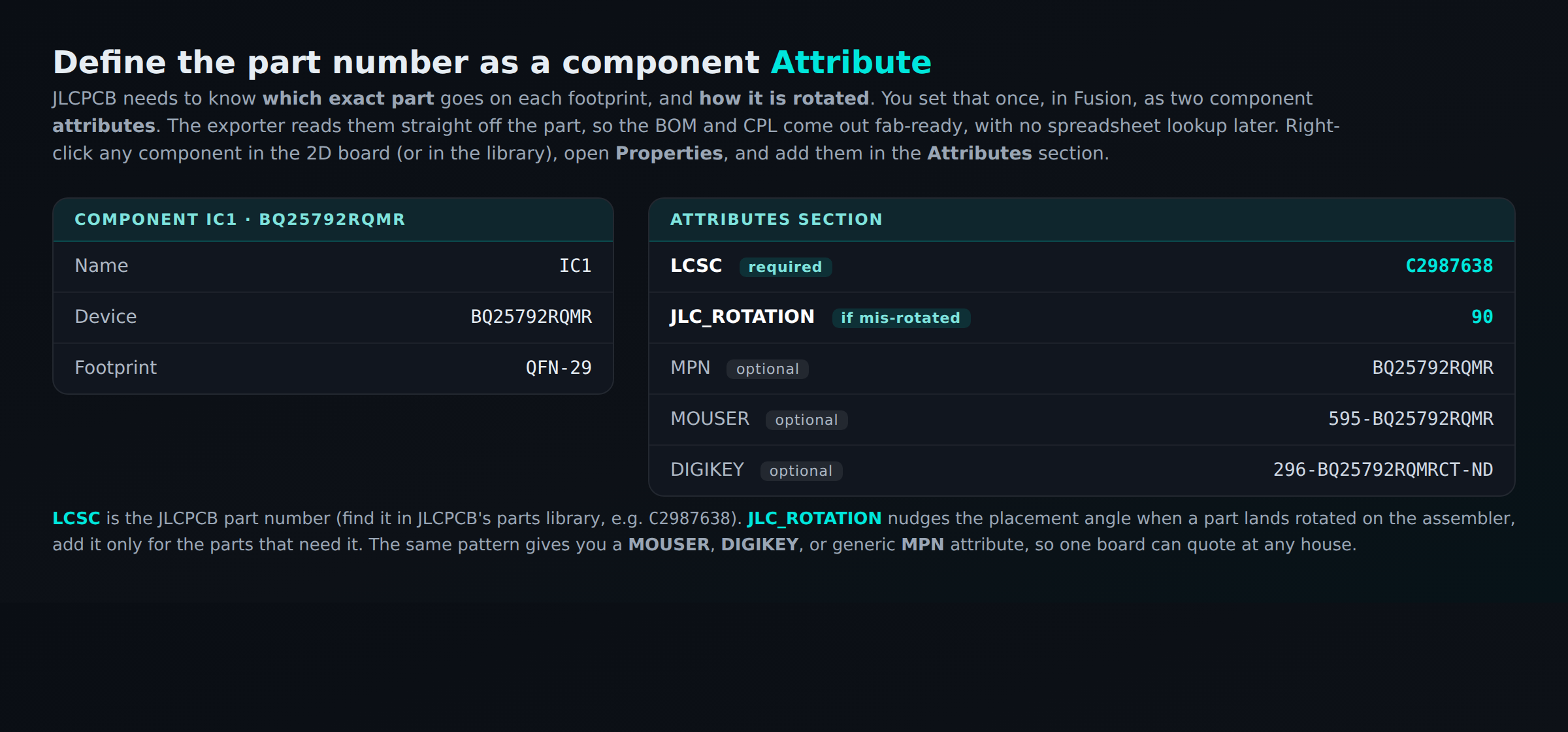
JLC_ROTATION (degrees) only matters for parts that land mis-oriented on the assembler; the ULP
applies it to the CPL Rotation column. Add it per part as needed.
The same mechanism is general: a component can equally carry MOUSER_PN, DIGIKEY_PN,
MPN, or MANUFACTURER attributes. Set the attributes for whatever distributor you order
from, and the BOM carries them. Connectors / jumpers / through-hole parts that are not
SMT-assembled correctly come out with a blank LCSC.
How this skill extends the bridge (the pattern to copy)
The Fusion bridge exposes primitives, not every workflow. fusion_electron_run runs any
EAGLE command, including RUN <ulp>. So anyone can add a capability without touching the
bridge: ship a ULP in your own skill, send_files it to the machine, and run it through
electron_run. That is what this skill does with jlcpcb_smta_exporter.ulp (OXullo
Intersecans' open-source JLCPCB generator, MIT). Copy this structure to contribute your own.
Credits
jlcpcb_smta_exporter.ulp (c) OXullo Intersecans, MIT. Generates BOM/CPL for the JLCPCB
SMT/TH dual-side assembly service.
---
name: fusion-jlcpcb-export
description: Export the full JLCPCB manufacturing package (gerber ZIP + BOM with LCSC part numbers + CPL pick-and-place) from an open Fusion 360 Electronics board, via the Adom Desktop Fusion bridge. Use on "export for jlcpcb", "jlc bom and cpl", "export jlcpcb files", "files to get a jlcpcb quote", "export the bom with part numbers", "jlcpcb assembly files".
---
# Fusion JLCPCB Export
Produce everything JLCPCB needs to quote and assemble a board, the **gerber ZIP**, the
**BOM** (with the **LCSC part number** per component), and the **CPL** (pick-and-place),
from a Fusion 360 Electronics design, all by asking the AI.
This skill ships its own EAGLE ULP and runs it through the Fusion bridge's generic
`fusion_electron_run` verb. It does not modify the bridge. It is the working example of
**extending the Fusion bridge independently** (no fork, no pull request): bring a ULP,
run it through `electron_run`.
Triggers (the kind of thing the user says):
- "export the jlcpcb files for this board"
- "get me a jlcpcb quote: gerbers, bom, and pick-and-place, then upload to jlcpcb.com"
- "export the bom with the lcsc part numbers and the cpl"

## Prerequisite
- The Fusion bridge is connected (`adom-desktop ping`) and the board is open in Fusion's
**2D PCB Editor**. If it is on the 3D view or schematic, switch first:
`adom-desktop fusion_show_2d_board '{}'`.
- This skill is installed, so its ULP is at `~/.claude/skills/fusion-jlcpcb-export/ulp/jlcpcb_smta_exporter.ulp`.
## The export, step by step
### 1. Gerbers + drill (the fab files)
```bash
adom-desktop fusion_export_gerbers '{"outputDir":"C:/tmp/jlc"}'
# -> <board>_gerbers.zip : copper layers, soldermask, silkscreen, paste, outline, Excellon drill.
```
The bridge auto-detects 2 vs 4 layers and runs the matching bundled JLCPCB CAM job.
### 2. BOM + CPL (the assembly files, with the LCSC part numbers)
Send this skill's ULP to the machine, then run it through `electron_run`, passing the
**output directory** so it writes where you want:
```bash
# a) copy the ULP to the user's machine (once per session is fine)
adom-desktop send_files '{"filePaths":["~/.claude/skills/fusion-jlcpcb-export/ulp/jlcpcb_smta_exporter.ulp"],"dest":"C:/tmp/jlc"}'
# b) run it. Pass ONLY the output directory, the ULP builds <board>_bom.csv / _cpl.csv / _info.txt there.
adom-desktop fusion_electron_run '{"command":"set confirm yes;RUN '\''C:/tmp/jlc/jlcpcb_smta_exporter.ulp'\'' '\''C:/tmp/jlc'\''"}'
# c) pull the results back
adom-desktop pull_file '{"filePaths":["C:/tmp/jlc/<board>_bom.csv","C:/tmp/jlc/<board>_cpl.csv"]}'
```
**The BOM** is JLCPCB-formatted, `Comment,Designator,Footprint,LCSC Part #`:

**The CPL** is JLCPCB pick-and-place, `Designator,Mid X,Mid Y,Layer,Rotation`:

### 3. The complete package
The gerber ZIP + the BOM + the CPL are everything JLCPCB needs. Next, get the quote.
## Getting the quote (drive jlcpcb.com all the way to the final review)
The user said "take it through the quote": drive **their own logged-in Chrome** through the whole SMT
assembly flow and **STOP at the final Quote & Order screen without clicking Save to Cart / submitting**,
so they can review parts, placement, and price before ordering.
### Hard rules (the user was emphatic about these)
- **Drive everything yourself, including login. NEVER ask the user to click, log in, or "drive
manually."** If they are logged out, sign them in (see Login below). Asking them to do a step you can
do is exactly what they do not want.
- **Keep the browser window in the BACKGROUND.** Never `desktop_bring_to_front`. CDP eval, CDP
screenshots, and `desktop_screenshot_window` all work on a background window, so you never steal focus
or interrupt their other work.
- **Never submit the order.** Stop at the final review.
### Drive the real Chrome over CDP (the proven path)
The user's real Chrome runs the `adom-browser-extension` (CDP bridge, verbs `nbrowser_*`), so they are
already signed in to JLCPCB and the quote lands on their account.
```bash
adom-desktop nbrowser_status '{}' # confirm ext connected
adom-desktop nbrowser_open_tab '{"url":"https://cart.jlcpcb.com/quote"}' # opens a DEDICATED tab; returns tabId
# everything else is nbrowser_eval against that tabId (runs JS in the page, NO focus change):
adom-desktop nbrowser_eval '{"tabId":"<id>","expr":"<js>"}'
adom-desktop nbrowser_screenshot '{"tabId":"<id>"}' # page screenshot (base64), background
adom-desktop desktop_screenshot_window '{"hwnd":<chrome hwnd>}' # FULL window (with chrome), background
```
**Upload any file via DataTransfer** (no OS file picker needed). Base64 the file, stream it into the page
in <40k chunks (CLI arg cap), then set the input:
```js
// per chunk (comma-op = ONE expression, which nbrowser_eval requires):
(window.__b += "<chunk>", window.__b.length)
// then build a File and set it on the right input[type=file]:
(function(){var s=atob(window.__b),u=new Uint8Array(s.length);for(var i=0;i<s.length;i++)u[i]=s.charCodeAt(i);
var f=new File([u],"name.ext",{type:"..."});var inp=document.querySelectorAll('input[type=file]')[IDX];
var dt=new DataTransfer();dt.items.add(f);inp.files=dt.files;inp.dispatchEvent(new Event('change',{bubbles:true}));})()
```
### The full step sequence
1. **Gerbers**: inject the gerber ZIP onto the file input. JLCPCB renders + detects layers/size.
2. **PCB Assembly**: click `.switch-btn` inside the `.switch-box` to toggle assembly on; click **Next**.
3. **Login if needed**: if Next lands on `passport.jlcpcb.com/.../login`, sign them in yourself. Click the
"Sign in with Google" button, then on `accounts.google.com` (CDP eval works there too) click their
account row, then the OAuth **Continue** button. It redirects back logged in; the uploaded board persists.
This is one-time; afterwards every run is fully background. Pick the user's primary work Google account.
4. **BOM + CPL**: on the SMT order page click **Next** to reveal **Add BOM File** / **Add CPL File** (two
file inputs). Inject the BOM CSV on input[0], the CPL CSV on input[1]. Click **Process BOM & CPL**.
(The inputs clear after the change event, that is normal; JLCPCB already read them.)
5. **Parts availability**: JLCPCB matches each BOM line to a stocked LCSC part. Through-hole jumpers /
mounting pads (no LCSC) appear under **Unmatched components**, that is expected, they are not SMT
assembled. Click **Next**: a dialog warns "below parts won't be assembled... Continue", click
**Continue** to proceed (do NOT re-upload).
6. **Component Placements**: JLCPCB draws every part at its CPL X/Y + rotation. Click **Next**.
7. **Quote & Order**: the final price breakdown with **Save to Cart**. **STOP here. Do not click it.**
Screenshot each step with `desktop_screenshot_window {hwnd}` (full window, shows it is the user's Chrome).
### Quick anonymous price (no login)
For just a board render + bare-board price with zero setup, do step 1 in a headless pup browser
(`browser_open_window` + `browser_eval` with the same DataTransfer trick + `browser_screenshot`). JLCPCB
renders gerbers anonymously; assembly (steps 2+) needs login, so use the real Chrome for the full quote.
## Why the LCSC numbers are already there (no lookup)
The part number is **not** looked up after the fact. A good engineer embeds the
distributor part number on the component **in the library, at part-selection time**, as an
**attribute**. Open any component's Properties in the 2D board and you will see an
`Attributes` section with `LCSC` (e.g. `C2987638`), alongside `DESC` and `JLC_ROTATION`.
That attribute rides through the schematic and board, and the ULP reads it per part.

`JLC_ROTATION` (degrees) only matters for parts that land mis-oriented on the assembler; the ULP
applies it to the CPL `Rotation` column. Add it per part as needed.
The same mechanism is general: a component can equally carry `MOUSER_PN`, `DIGIKEY_PN`,
`MPN`, or `MANUFACTURER` attributes. Set the attributes for whatever distributor you order
from, and the BOM carries them. Connectors / jumpers / through-hole parts that are not
SMT-assembled correctly come out with a blank LCSC.
## How this skill extends the bridge (the pattern to copy)
The Fusion bridge exposes **primitives**, not every workflow. `fusion_electron_run` runs any
EAGLE command, including `RUN <ulp>`. So anyone can add a capability **without touching the
bridge**: ship a ULP in your own skill, `send_files` it to the machine, and run it through
`electron_run`. That is what this skill does with `jlcpcb_smta_exporter.ulp` (OXullo
Intersecans' open-source JLCPCB generator, MIT). Copy this structure to contribute your own.
## Credits
`jlcpcb_smta_exporter.ulp` (c) OXullo Intersecans, MIT. Generates BOM/CPL for the JLCPCB
SMT/TH dual-side assembly service.