Fusion - the Fusion 360 Bridge
Public Made by Adomby adom
Drive Autodesk Fusion 360 from the cloud via Adom Bridge: component libraries, IPC package generation, board layout, exports (STEP/Gerbers/BOM/CPL), fast APS cloud search, and parametric modeling.
3D board view, export, and STEP colorization
Getting a Fusion design out as 3D geometry that renders well on the web, and recoloring imported STEP so a machine reads as a machine instead of a grey blob.
The 3D PCB view
adom-desktop fusion_show_3d_board '{}'
The 3D PCB is generated from the .brd and is a leaf in the electronics chain. You cannot pull
an editable board back out of it, which is why you always open the PROJECT rather than the 3D child.
See schematics.
Export formats
| verb | format |
|---|---|
fusion_export_step |
STEP |
fusion_export_iges |
IGES |
fusion_export_stl |
STL |
fusion_export_3mf |
3MF |
fusion_export_obj |
OBJ |
fusion_export_usdz |
USDZ |
fusion_export_optimized_glb |
web-grade GLB, see below |
All carry 300s timeouts. These drive the desktop exportManager, so they need the Fusion desktop
app. On Linux, where desktop Fusion has no build, use the web-export path instead (see the
fusion-web-export skill).
fusion_export_optimized_glb, and why raw GLB is unusable
A raw Fusion GLB of a populated board is roughly 16 MB across ~25,000 draw calls, which stalls a web viewer. The optimized path exports STEP (plus optional silkscreen) and runs it through service-step2glb in molecule mode: anchor to the machine pins, bake silkscreen, gold pins, join/weld/prune, then Draco compression.
Result: about 465 KB and ~31 draw calls. That is the difference between a page that renders and one that hangs.
adom-desktop fusion_export_optimized_glb '{"outputPath":"C:/tmp/board.glb","silkscreen":true}'
adom-desktop fusion_fetch_optimized_glb  '{"jobId":"..."}'   # finish a big board
It bounded-waits (wait, default 90s). Small boards return complete; big boards return
{pending, jobId} and you finish with fusion_fetch_optimized_glb.
Stackup rules for a board GLB
Getting these wrong produces a model that looks right and measures wrong:
- The board bbox is the FR4 body, never the whole assembly. Components overhang the edges and tower above it.
- Each overlay sits at its own layer's z: copper at FR4-top, silk above mask.
- Copper traces are real 35um 3D bodies, colored like the FR4 by default. To make routing visible, recolor them and make the mask translucent in the raw GLB before optimizing.
- Put the measured stackup table on the board's wiki page.
fusion_board_stackupgives you the numbers.
Colorizing an imported STEP
A STEP file imported into Fusion typically arrives as one undifferentiated grey solid. Every body is the same color, so a machine assembly reads as a featureless blob and is useless as a viewer asset or a diagram.
Fusion's API can set appearance per body or per occurrence, so this is scriptable through
fusion_run_modeling_script: walk the occurrences, match components by name, and assign an
appearance from the material library to each group. Frame, rails, motors, tooling and enclosure each
get their own color, and the result exports through the same GLB path above.
The pattern:
# inside fusion_run_modeling_script
# 1. walk design.rootComponent.occurrences
# 2. bucket components by name (frame / rail / motor / tooling / cover ...)
# 3. assign an appearance per bucket from the appearance library
# 4. export via fusion_export_optimized_glb
Because it is name-driven, it survives a re-import of an updated STEP: the same rules recolor the new geometry without hand-picking bodies in the UI.
Worked example: the Essemtec pick-and-place
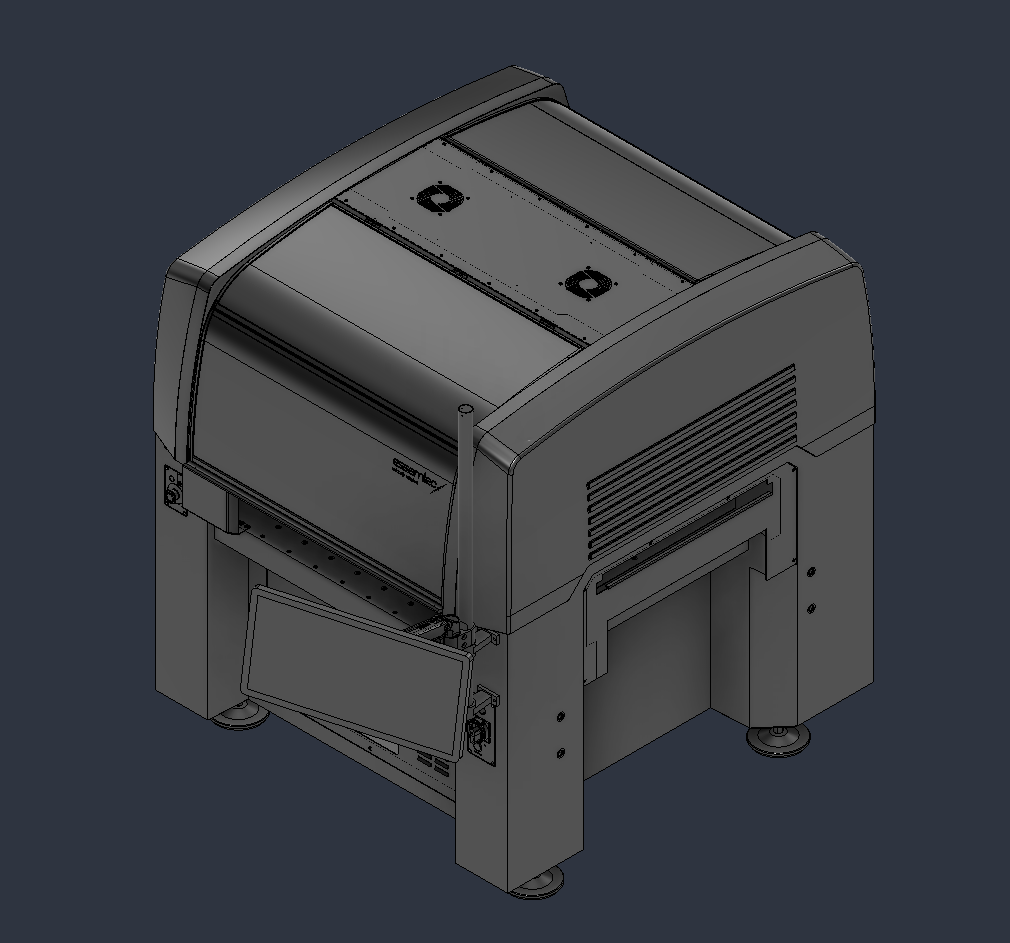
Drew ran this on the Essemtec machine. The STEP arrived as one undifferentiated grey solid, every body the same colour, so the shrouds, frame, interior and rails were indistinguishable.
Before. The imported STEP: a single grey mass. You can barely tell the enclosure from the base.
After. Name-driven appearances applied per occurrence: white shrouds, black base and frame, a dark interior that now reads as depth, and the red rail picked out.
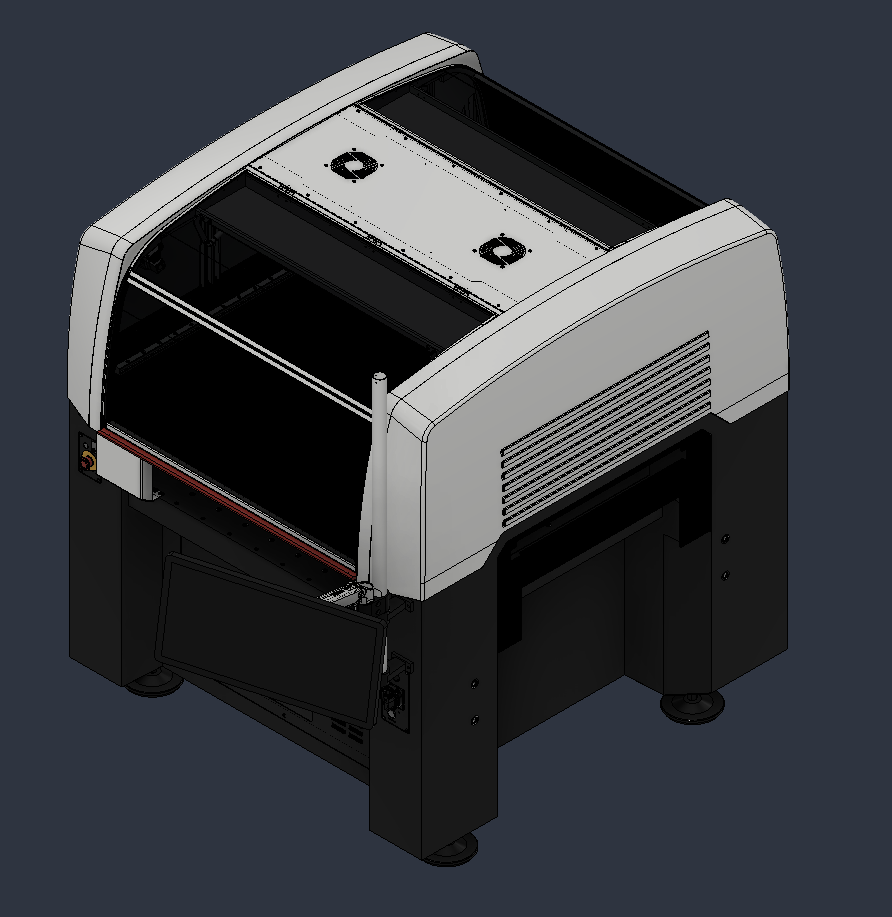
Same geometry in both. Nothing was remodelled: only appearance was assigned per occurrence. The second one reads as a machine, which is what makes it usable as a viewer asset, a wiki hero, or a diagram someone can point at.
Because the rules match on component names, they survive a re-import. Drop in an updated STEP from the vendor and the same script recolours the new geometry without hand-picking bodies in the UI.
Library 3D packages
Separate from board export, the bridge builds 3D packages for component libraries:
fusion_make_3d_package, fusion_attach_3d_package, fusion_build_library_3d,
fusion_capture_library_views. See electronics libraries.
One relevant fix: auto-orient used to rotate the smallest bbox dimension to Z, which is right for a flat SMD chip and wrong for a tall through-hole pin, so tall parts were laid on their side. Tall parts now stay vertical.
Gotchas
- Export verbs need the desktop app. There is no Linux desktop Fusion.
- A relay timeout at ~60s on a large export does not mean failure; the work continues on the bridge.
- Do not quantize an optimized GLB's bounds; the bounds lie afterwards. Use
--instance falsewhen optimizing library group GLBs.
# 3D board view, export, and STEP colorization
Getting a Fusion design out as 3D geometry that renders well on the web, and recoloring imported
STEP so a machine reads as a machine instead of a grey blob.
## The 3D PCB view
```bash
adom-desktop fusion_show_3d_board '{}'
```
The 3D PCB is **generated from the `.brd`** and is a leaf in the electronics chain. You cannot pull
an editable board back out of it, which is why you always open the PROJECT rather than the 3D child.
See [schematics](schematics.md).
## Export formats
| verb | format |
|---|---|
| `fusion_export_step` | STEP |
| `fusion_export_iges` | IGES |
| `fusion_export_stl` | STL |
| `fusion_export_3mf` | 3MF |
| `fusion_export_obj` | OBJ |
| `fusion_export_usdz` | USDZ |
| `fusion_export_optimized_glb` | **web-grade GLB, see below** |
All carry 300s timeouts. These drive the desktop `exportManager`, so they need the Fusion desktop
app. On Linux, where desktop Fusion has no build, use the web-export path instead (see the
`fusion-web-export` skill).
## `fusion_export_optimized_glb`, and why raw GLB is unusable
A raw Fusion GLB of a populated board is roughly **16 MB across ~25,000 draw calls**, which stalls a
web viewer. The optimized path exports STEP (plus optional silkscreen) and runs it through
service-step2glb in molecule mode: anchor to the machine pins, bake silkscreen, gold pins,
join/weld/prune, then Draco compression.
Result: about **465 KB and ~31 draw calls**. That is the difference between a page that renders and
one that hangs.
```bash
adom-desktop fusion_export_optimized_glb '{"outputPath":"C:/tmp/board.glb","silkscreen":true}'
adom-desktop fusion_fetch_optimized_glb '{"jobId":"..."}' # finish a big board
```
It bounded-waits (`wait`, default 90s). Small boards return `complete`; big boards return
`{pending, jobId}` and you finish with `fusion_fetch_optimized_glb`.
### Stackup rules for a board GLB
Getting these wrong produces a model that looks right and measures wrong:
- The **board bbox is the FR4 body**, never the whole assembly. Components overhang the edges and
tower above it.
- Each overlay sits at **its own layer's z**: copper at FR4-top, silk above mask.
- Copper traces are real 35um 3D bodies, colored like the FR4 by default. To make routing visible,
recolor them and make the mask translucent **in the raw GLB before optimizing**.
- Put the measured stackup table on the board's wiki page. `fusion_board_stackup` gives you the
numbers.
## Colorizing an imported STEP
A STEP file imported into Fusion typically arrives as one undifferentiated grey solid. Every body is
the same color, so a machine assembly reads as a featureless blob and is useless as a viewer asset
or a diagram.
Fusion's API can set appearance per body or per occurrence, so this is scriptable through
`fusion_run_modeling_script`: walk the occurrences, match components by name, and assign an
appearance from the material library to each group. Frame, rails, motors, tooling and enclosure each
get their own color, and the result exports through the same GLB path above.
The pattern:
```python
# inside fusion_run_modeling_script
# 1. walk design.rootComponent.occurrences
# 2. bucket components by name (frame / rail / motor / tooling / cover ...)
# 3. assign an appearance per bucket from the appearance library
# 4. export via fusion_export_optimized_glb
```
Because it is name-driven, it survives a re-import of an updated STEP: the same rules recolor the
new geometry without hand-picking bodies in the UI.
### Worked example: the Essemtec pick-and-place
Drew ran this on the Essemtec machine. The STEP arrived as one undifferentiated grey solid, every
body the same colour, so the shrouds, frame, interior and rails were indistinguishable.
**Before.** The imported STEP: a single grey mass. You can barely tell the enclosure from the base.

**After.** Name-driven appearances applied per occurrence: white shrouds, black base and frame, a
dark interior that now reads as depth, and the red rail picked out.

Same geometry in both. Nothing was remodelled: only appearance was assigned per occurrence. The
second one reads as a machine, which is what makes it usable as a viewer asset, a wiki hero, or a
diagram someone can point at.
Because the rules match on component names, they survive a re-import. Drop in an updated STEP from
the vendor and the same script recolours the new geometry without hand-picking bodies in the UI.
## Library 3D packages
Separate from board export, the bridge builds 3D packages for component libraries:
`fusion_make_3d_package`, `fusion_attach_3d_package`, `fusion_build_library_3d`,
`fusion_capture_library_views`. See [electronics libraries](electronics-libraries.md).
One relevant fix: auto-orient used to rotate the **smallest** bbox dimension to Z, which is right for
a flat SMD chip and wrong for a tall through-hole pin, so tall parts were laid on their side. Tall
parts now stay vertical.
## Gotchas
- Export verbs need the **desktop** app. There is no Linux desktop Fusion.
- A relay timeout at ~60s on a large export does not mean failure; the work continues on the bridge.
- Do not quantize an optimized GLB's bounds; the bounds lie afterwards. Use `--instance false` when
optimizing library group GLBs.