Shotlog - Screenshot Log
Public Made by Adomby adom
See the shots your AI never showed you, and know it actually SAW them. adom-shotlog streams every screenshot the AI gathers into a live gallery (webview/pup/browser/phone), reports whether a human is really watching and on which surface, and ingests Adom Bridge child-window arrays via --meta.

Install?
See the shots your AI never showed you, and know it actually SAW them. adom-shotlog streams every screenshot the AI gathers into a live gallery (webview/pup/browser/phone), reports whether a human is really watching and on which surface, and ingests Adom Bridge child-window arrays via --meta.
adom-wiki pkg install adom/adom-shotlogLatest: v0.29.1, published
Contents
- Install
- One central broker, many AI threads
- The read-hook: every screenshot any AI reads, captured automatically
- It adapts to your surface
- Webview (the default in Hydrogen): a slim 20% right-side panel
- Refer to a shot by name
- Phone
- Pup and plain browser
- Is a human actually seeing it?
- It refuses to log a shot blind
- Killer feature: a whole parent + child-window array in one card
- Settings
- CLI reference
- Skill pack
- Dependencies
README
markdownadom-shotlog
See the shots your AI never showed you.
Your AI screenshots your app constantly while it builds and tests, but it is text-centric, so those shots get buried in tool output and you never actually see them. adom-shotlog is the fix: a tiny Rust CLI plus server where any AI thread drops each screenshot into a channel, and you watch them stream into a live, newest-first gallery, on whatever surface you are using: a Hydrogen webview, a pup window, your native browser, or your phone.
Install
adom-wiki pkg install adom/adom-shotlog
The CLI installs as adom-shotlog (with a back-compat shotlog alias).
One central broker, many AI threads
There is one shotlog server per container, and the same binary is both the server and the CLI. adom-shotlog serve spawns the broker on port 8820; inject, open, viewers, and channels are CLI verbs that talk to it.
Every AI thread in the container simply runs adom-shotlog inject, which posts to that one local server. So the server is a central broker: it owns every channel, tracks every viewer (which surface, and whether it is actually on-screen), and manages all the viewer surfaces. Many threads can be sending you shots at once, each into its own channel, and the broker keeps a live view/tab for each. Run adom-shotlog channels to see the whole picture: every channel, its shot count, when it last updated, and who is watching right now.
Disk stays bounded automatically: each channel keeps its newest 200 shots on disk (SHOTLOG_MAX_SHOTS), older files are deleted as new ones arrive, and channels idle for 30 days are pruned entirely (SHOTLOG_RETENTION_DAYS, 0 disables).
The read-hook: every screenshot any AI reads, captured automatically
shotlog ships a Claude Code PostToolUse(Read) hook (hooks/shotlog-on-read.sh). Once installed, whenever ANY AI thread reads an image file to analyze it, the hook automatically injects that exact image into the shared read-captures channel. You see every screenshot every AI looked at, deterministically, with zero AI cooperation required. It is the purest form of the shotlog mission: the AI cannot forget to show you what it saw.
adom-shotlog install deploys the hook and registers it in ~/.claude/settings.json (surgically, never touching your other hooks), and every serve startup re-verifies both, healing them if missing, so the pipeline cannot silently rot. The hook also self-heals the broker if it is not running.
The send-hook: what the AI said about it. A capture taken on read only knows the file name. When an AI then sends that image to you with a caption ("Domino with bottom pours: 0.3 mm gap, two vias per pad..."), the companion PostToolUse(SendUserFile) hook (hooks/shotlog-on-send.sh) makes the caption the shot's description, matched to the shot by the image's content, and the card updates live. The automatic description is kept as auto_description. Images sent without being read are added with their caption. adom-shotlog annotate -d "..." <file> does the same by hand.
Related guarantees: the broker is single-instance per port (a second serve detects the healthy broker and defers gracefully, warning if versions differ), and read-captures stays disk-bounded by the retention policy.
It adapts to your surface
shotlog notices which surface is watching a channel and behaves accordingly. It never steals your OS foreground.
Which surface should you use? For most day-to-day work, the skinny 20%-wide webview is the sweet spot, and it's the most-used surface: it stays docked on the right of your Hydrogen workspace, always visible while you keep working, auto-updating as shots land, without covering anything. Reach for pup only when you need to inspect a shot full-size (pup is a real full-browser window, so zooming a card uses nearly the whole screen; the skinny webview can't zoom past its own panel width). A common rhythm: live in the 20% webview, and pop a specific shot to pup (or fullscreen) when you want to read fine detail. Set your default in Settings (below); it stays per environment, so you can run webview in the cloud and pup on your desktop if you like.
Webview (the default in Hydrogen): a slim 20% right-side panel
The nicest setup, and the default when you run inside Hydrogen: a ~20%-wide webview panel pinned to the right of your workspace. Open it that way:
adom-shotlog open -c my-project --skinny # a ~20% right-side column
- It auto-updates live over a WebSocket: the moment any thread injects a shot, the card appears at the top of that channel, no refresh, no polling.
- One panel, shotlog's own tabs: the viewer is a single app that manages a tab per channel itself (read-captures pinned first as the global auto-capture feed). New shots flash their tab orange, show an unseen badge, and (by default) auto-switch to the updated channel - all inside the app, no workspace tab juggling.
- If a shot lands in a channel with nobody watching, the broker auto-opens the slim 20% webview for it, so a shot is never logged invisibly. (Opt out with
SHOTLOG_NO_FORCE_OPEN=1.) - Newest first, lightly: the shots at the top load first; shots below the fold load as you scroll to them, and shots that stay several screens away are unloaded again after 20 seconds, so a 200-shot log never holds 200 decoded images. Card heights are reserved up front, so nothing shifts while that happens.
- One click zooms: click any thumbnail and it fills the window (in Hydrogen that is a 90% lightbox; in pup or a browser it is true fullscreen). The next click anywhere, the dark margin around the image, Esc, or the ✕ takes you straight back to the list. The ⛶ icon appears when you hover a thumbnail as a reminder that a click zooms.
- Own column (Settings, off by default): if you live in webviews, shotlog can open as its OWN narrow third column at the right edge (10% of the screen by default) instead of joining your webview pane's tabs. Your webview pane keeps its width; the editor gives up the space. See Settings below.
- The clear button wipes EVERY channel (all the per-thread tabs that build up) and reports exactly what came back:
cleared N shots across M threads - freed X GB of disk. Safe for running AIs: a channel auto-recreates the moment any thread injects to it again. - The layout is fully fluid at that skinny width: the header wraps to rows, the child-window thumbnails reflow, and the outer page never shows a horizontal scrollbar.
Refer to a shot by name
Every card shows its ref (#42) in a slim strip above the thumbnail (never on the image, so a screenshot of the thumbnail stays clean). Say "#42 is the one" to your AI and it knows exactly which shot you mean. An AI iterating on variants can also give each shot a handle:
adom-shotlog inject -c hero -d "hero variant G, tighter crop" --tag heroG variant-g.png
The handle shows beside the ref (#42 heroG), and the inject reply hands the AI its ref back (Ref: #42, handle "heroG"), so "heroG is the one to use" is unambiguous on both sides. Auto-captures get a handle too when the file has a wordy name (board_v3-front.png becomes board_v3-front); timestamp-named captures keep just their ref, so the gallery is not littered with date chips. An AI reads a channel back with adom-shotlog shots -c <channel>; handles survive broker restarts.
Phone
Ask your AI to shotlog the whole thing, and it hands you one URL. Open that URL on your phone and watch every step stream in as it happens, then scroll back through the whole run whenever you want.
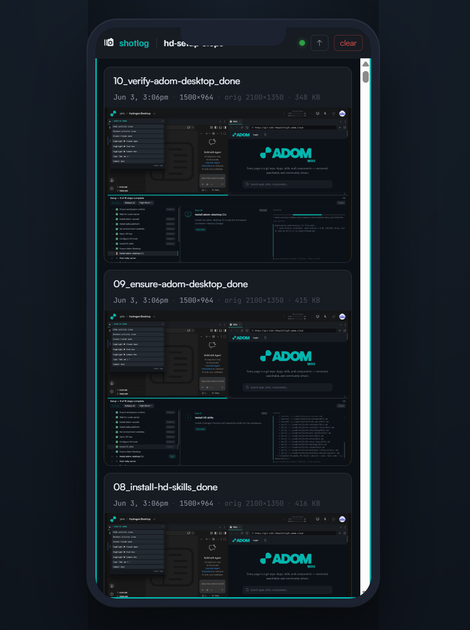
The layout adapts to the narrow screen, and while the tab is backgrounded the page title shows a ● N unseen-shots badge so you know something arrived. Combined with /remote-control, you can kick off real work from anywhere and keep vibe-coding from the passenger seat.
Pup and plain browser
Pup is the full-browser canvas: zooming a card uses nearly the whole screen, so fine text is readable (the skinny webview can never zoom past its panel width). On any viewport 900px or wider the thumbnails themselves take the card's full width at natural aspect (capped at one screen height), so a wide pup window is not wasted on margins. Or just click the Pup button in the viewer header: every webview shows it, and it switches that channel to a full pup window (the pup view shows a Webview button to switch back). The button checks whether pup is available first; if Adom Bridge isn't installed it tells you how to get it (pup is a default bridge that auto-installs with Adom Bridge). Your AI can do the same switch with one command: shotlog open -c <ch> --pup --swap (opens a tab in the shared shotlog pup window and closes the webview tab). shotlog leaves your foreground alone; the gentle cue is an automatic orange taskbar flash on updates. In any plain browser tab, the same live gallery and unseen-shots title badge apply.
Is a human actually seeing it?
An AI injecting shots into a channel nobody is watching is worse than useless, because it thinks it showed you something. So shotlog answers this in the inject response and lets a thread gate on it:
adom-shotlog viewers -c my-project # exit 0 = a human has it on-screen, 4 = open but backgrounded, 3 = nobody
The signal is authoritative: each viewer holds a WebSocket open and reports its surface (webview, pup, mobile, browser) and whether it is actually on-screen (Page Visibility) versus a background tab.
It refuses to log a shot blind
adom-shotlog always records the original capture resolution, so the gallery never shows a mystery size. It shows 1400x788, orig 1920x1080. Resizing before inject is expected (oversized images crash AI vision analysis), so most screenshot tools hand back a shrunk copy. shotlog just requires the original size to travel with it, via --orig-w/--orig-h, --orig-file, --native, or --meta.
Killer feature: a whole parent + child-window array in one card
A window capture is often not one image. A window with a dropdown, an autofill list, a confirm bubble, or a native dialog open is really a parent window with child windows: separate owned windows that a plain screenshot of the main window misses entirely.
Adom Bridge captures them for you. desktop_screenshot_window {hwnd} returns the parent image PLUS every child window in a screenshots[] array (with ownedPopupCount), each carrying its own hwnd, title, kind, rect, and coordMap. Pass that whole response to shotlog with --meta:
adom-shotlog inject -c checkout -d "checkout form, autofill dropdown + confirm dialog open" primary.png --meta ad-response.json
shotlog renders the entire array on one card, no zoom needed:
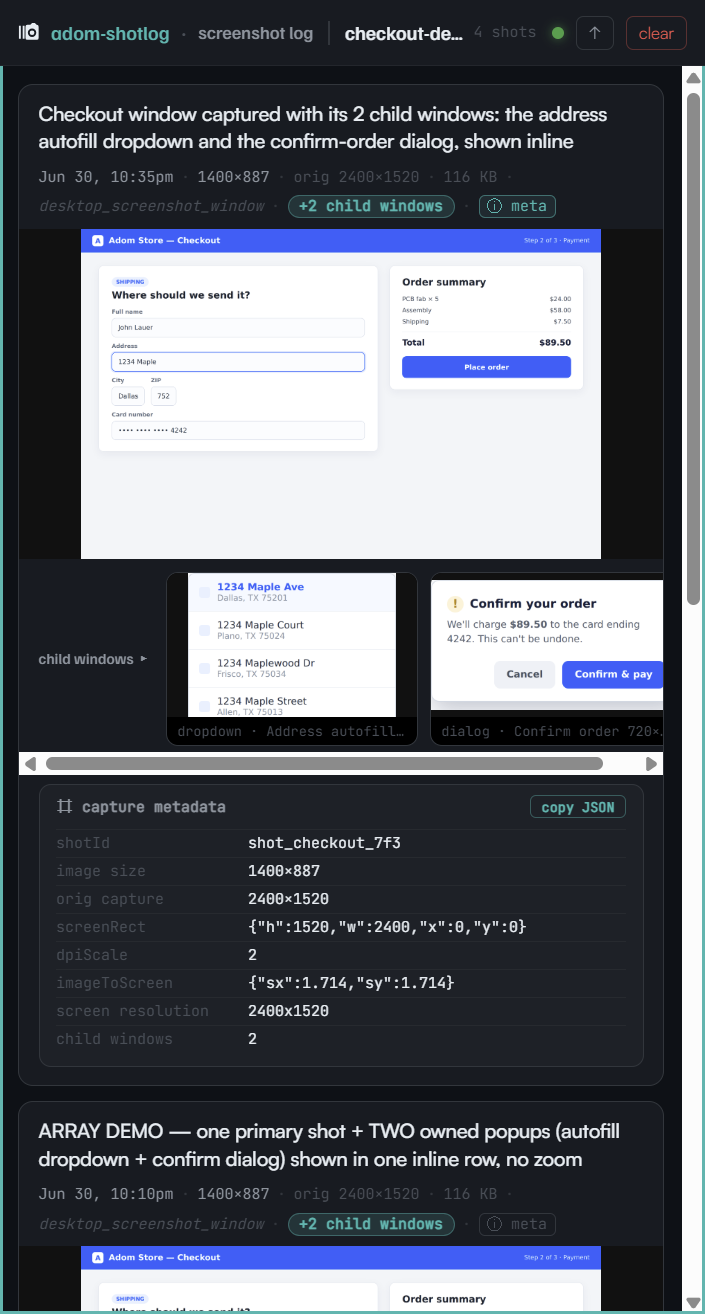
- a +N child windows badge on the card,
- a child windows row directly under the parent shot, every child window inline as its own thumbnail (labeled
kind, title, WxH), - an ⓘ meta chip that reveals the coordMap panel inline (shotId, screenRect, dpiScale, imageToScreen, screen resolution), copyable as JSON.
So one desktop_screenshot_window call, one --meta inject, and you see the whole window story: the form, the dropdown it opened, and the dialog it raised, all in a single card. Child-window PNGs are stored beside the parent and are excluded from the gallery as standalone shots. Plain single-image injects (no --meta) are unchanged; child windows are purely additive.
Settings
The viewer has a Settings dialog: the outline cog at the right end of the header opens it as a dismissible modal (Esc, the X, or a click outside closes it; the app behind dims 25% and is never blurred, so you can watch a setting take effect). It follows the Adom settings layout: six cards (Capture, Notifications, Gallery, Canvas, Webview layout, Storage), each with live status in its title, a plain-language explanation, a "Default:" hint on every row, real screenshots of both states where a setting changes something visible, and a two-click "Restore defaults" footer. The version number lives in the dialog title (and in the brand hover card) rather than the header. Every setting is also AI-drivable, ask your AI (e.g. "make shotlog default to pup") or POST it to localhost:8820/api/prefs. Settings are stored per environment in <data-dir>/.prefs.json, so your cloud (hw) and desktop (ah) shotlogs keep independent settings.
| Setting | Default | What it does |
|---|---|---|
| Auto-capture what AIs read (read-hook) | ON | Auto-inject every image any AI thread reads into the shared read-captures channel. Off = only deliberate injects show. |
| Update alerts (orange flashes) | OFF | The orange cues when new shots arrive: the webview tab highlight, the in-app channel-tab flash, and the pup taskbar flash. Tabs still come forward and unseen badges still show; turn on if you want the flashing. |
| Bring the webview tab forward | ON | When a shot lands and the Shotlog webview sits behind another tab in its Hydrogen pane, pull it to the front. Turn it off if you live in webviews: you stay on the tab you were reading; the webview still receives every shot (read-hook captures included) in the background and is fully current the moment you switch to it. |
| Auto-switch to updated channel | ON | When a shot arrives for another channel, jump that channel's tab to the front. Off = the tab just flashes + shows an unseen badge; you stay put. |
| Compact cards (image-first) | ON | The gallery shows mostly thumbnails: info text hides behind the ⓘ chip on each image (hover to reveal); the ⛶ fullscreen button stays on every thumbnail. Off = classic text-above-image cards. |
| Default canvas | webview | Where shotlog auto-opens a channel when nobody's watching: webview or pup. |
| Own column (third column at the right edge) | OFF | OFF: shotlog is a tab inside your existing webview pane, sharing it with your other webviews. ON: when a webview pane already exists, shotlog opens as its OWN narrow third column at the far right, and your webview pane keeps exactly its width (the editor gives up the space). The dialog shows a real screenshot of the layout. For people who live in webviews and still want shotlog in the corner of their eye. |
| Own column width | 10% | Width of shotlog's own column (5-30% of the screen). Only used with Own column ON. |
| Auto-size the webview panel | OFF | ON re-forces the shared webview pane to your width on every open (rude if you use webviews a lot, hence off); OFF (default) leaves the pane at whatever width you dragged it to (the width below only seeds a brand-new pane). Not used with Own column. |
| Webview panel width | 20% | The width (10-50%) used when shotlog first creates the shared webview pane. Not used with Own column. |
| Keep per channel | 200 shots | The janitor keeps only the newest N shots per channel on disk; older files are deleted as new ones arrive. Env SHOTLOG_MAX_SHOTS overrides. |
| Prune idle channels after | 30 days | Channels with no new shots for this many days are deleted entirely (checked at startup + every 6h). 0 = never. Env SHOTLOG_RETENTION_DAYS overrides. |
CLI reference
| Command | Description |
|---|---|
adom-shotlog inject |
Inject a screenshot into a channel (records the original resolution; --meta adds child windows; --tag heroG names the shot; reports its ref and whether a human is watching) |
adom-shotlog open |
Open the gallery as a Hydrogen webview tab (--skinny for the slim right panel; exit 2 = no pane found, exit 1 = adom-cli or bridge failure, with the reason printed) |
adom-shotlog shots |
Read a channel back: ref, handle, age and description of its newest shots (--tagged for handles only, --json for every field, --limit N) |
adom-shotlog viewers |
Is a human watching a channel? Exit 0 / 4 / 3, plus connected surfaces |
adom-shotlog channels |
Overview of every channel: shots, last activity, and who is watching |
adom-shotlog serve |
Start the HTTP server / broker (port 8820) |
adom-shotlog health |
Check if the server is running |
adom-shotlog install |
Install the skill, bash completions, and the shotlog alias |
Skill pack
Installing adom-shotlog also deploys its bundled skills (see the Skills tab):
- adom-shotlog-surfacing (user): surfacing a shot gently per surface, never stealing foreground.
- adom-shotlog-child-windows (user): capturing a parent window plus its child windows via
--meta. - adom-shotlog-dev (dev): build/deploy, the central-broker architecture, and the layout rules (ralph-test the skinny view, no outer-html scrollbars, pretty scrollbars).
- adom-shotlog-publishing (publish): publishing this package to wiki.adom.inc.
Dependencies
| Dependency | Required? | Why |
|---|---|---|
| adom-cli | For the webview | adom-shotlog open adds the gallery as a Hydrogen webview tab and the broker manages it. |
Adom Bridge (adom-bridge-cli) |
Optional | AI agents use it to capture screenshots (and child-window arrays) that get injected. Humans can Ctrl+V paste instead. |
No wiki package dependencies. adom-shotlog is a self-contained Rust binary.