Adom Desktop
Public Made by Adomby adom
Installs the adom-desktop CLI and its Claude skills INTO A CLOUD CONTAINER so an AI assistant there can understand and drive Adom Desktop over the relay. This is the container side, NOT the app itself. The Adom Desktop app is the signed Windows installer under Download below: run THAT on the PC you want the AI to control. Rule of thumb: pkg install here (in your Linux container), Download there (on your Windows PC). Once installed, the AI can drive file transfer, screenshots, notifications, KiCa


Adom Desktop
The bridge between a cloud AI and your real Windows desktop. A Claude agent in an Adom container, or Hydrogen Desktop running locally, connects to Adom Desktop over an encrypted relay and drives your actual machine: your signed-in browser, KiCad, Fusion 360, the shell, files, window automation, screenshots. Bridges extend that reach to any app. You stay in control: every command is visible in the Activity Log, side-effecting commands can be gated behind a one-click approval, and it binds to 127.0.0.1 only, so nothing off your machine can reach it.
- Full desktop control: windows, input, screenshots, UI Automation, the shell, files, the registry, WSL.
- Bridges: first-class mini-apps. Puppeteer (browser), KiCad, Fusion 360, your real signed-in browser, Blender, or your own.
- You are in control: localhost-only, an install-consent trust model, a visible activity log, and an approval gate for the remote cloud-AI path.
- Multi-machine: one relay can hold many desktops. Address any of them by name, or fan a command out to all.
- Self-updating and signed: every release is Azure code-signed and auto-updates from this page.
How it works
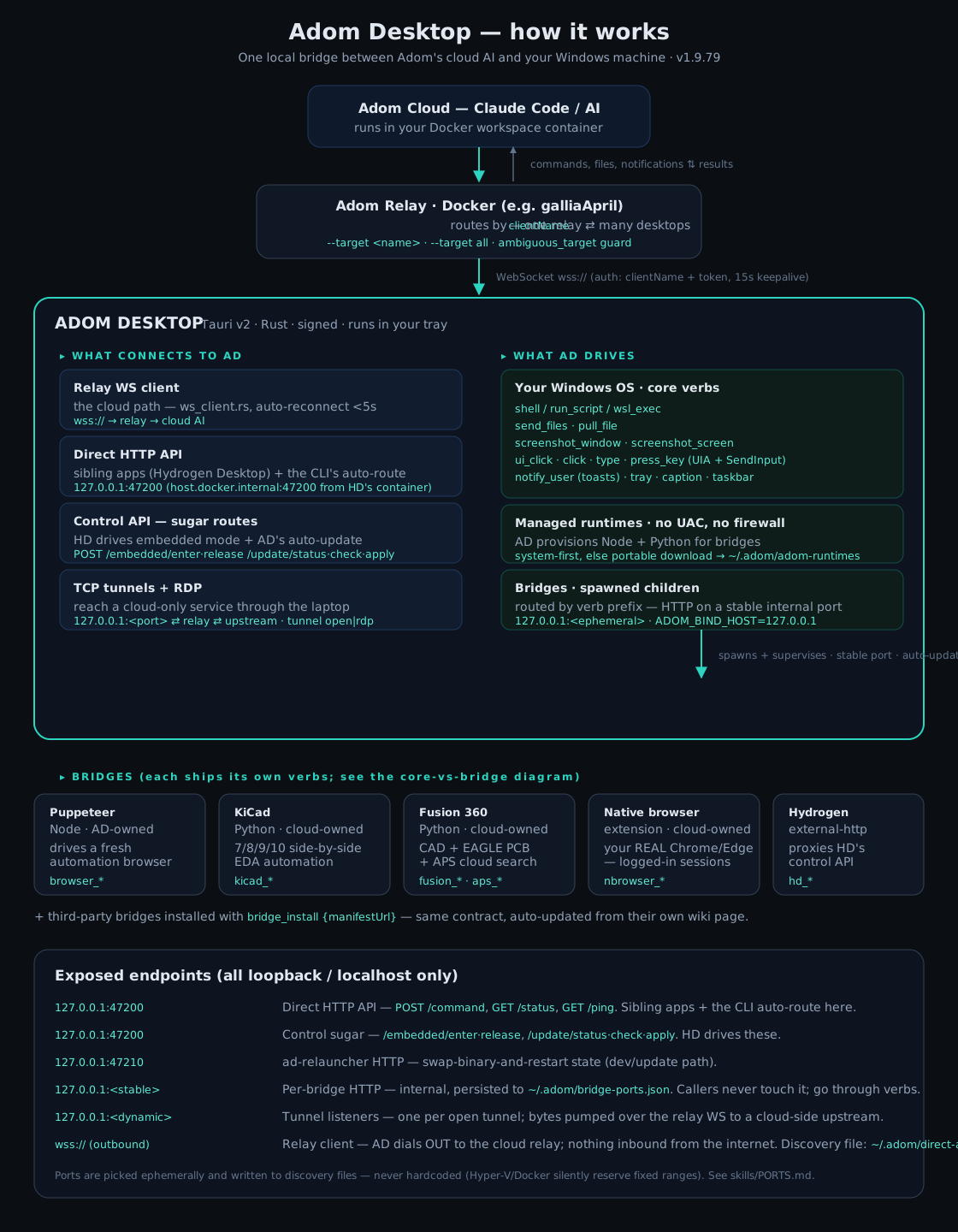
The cloud AI never touches your machine directly. It sends a verb to the relay; Adom Desktop, connected out to that relay from your desktop, executes it against Windows or forwards it to a bridge, and streams the result back. A co-resident sibling app (Hydrogen Desktop) can skip the relay and POST straight to the loopback HTTP API at 127.0.0.1.
Adom container (this package)            User's laptop
+--------------------------+             +--------------------------+
| adom-desktop CLI + skills|  <-relay->  | Adom Desktop GUI (Tauri) |
| (Claude drives verbs)    |             | KiCad, Fusion, Chrome    |
+--------------------------+             | shell, files, screens    |
                                         +--------------------------+
Install (in an Adom container)
adom-wiki pkg install adom/adom-desktop
That installs the container-side pieces: the adom-desktop CLI (SHA256-verified against this page's version.json) and the Claude skill bundle into ~/.claude/skills/:
| Skill | What Claude learns |
|---|---|
adom-desktop |
the main verb catalog: screenshots, files, shell, windows, notifications |
adom-desktop-pup |
real-Chrome (Puppeteer) automation: sessions, tabs, eval, recording |
adom-desktop-notify |
native Windows toasts: progress bars, sticky reminders, buttons that round-trip |
adom-desktop-bridge-sdk |
author your own bridge: bridge.json, health/describe/rich-hint contracts, lifecycle |
adom-desktop-bridge-ownership |
the boundary: what AD core owns versus what a bridge author owns |
adom-desktop-multi-ad |
address multiple Adom Desktops on one relay (--target, fan-out) |
adom-desktop-direct-api |
the loopback HTTP API for sibling apps |
adom-desktop-installer, adom-desktop-windows-host, adom-desktop-discovery |
install, host, and discovery details |
adom-wiki pkg update keeps it current. The KiCad and Fusion 360 bridge skills install from their own cloud-owned bridge pages.
The laptop GUI
The Windows GUI installs separately: a signed NSIS installer served from this page (Download for your machine above; Hydrogen Desktop installs it automatically). It installs to %LOCALAPPDATA%\Adom Desktop\, adds a tray icon, starts on login, and **auto-updates itself** from this page's version.json (prompt by default; every 4h and on launch).
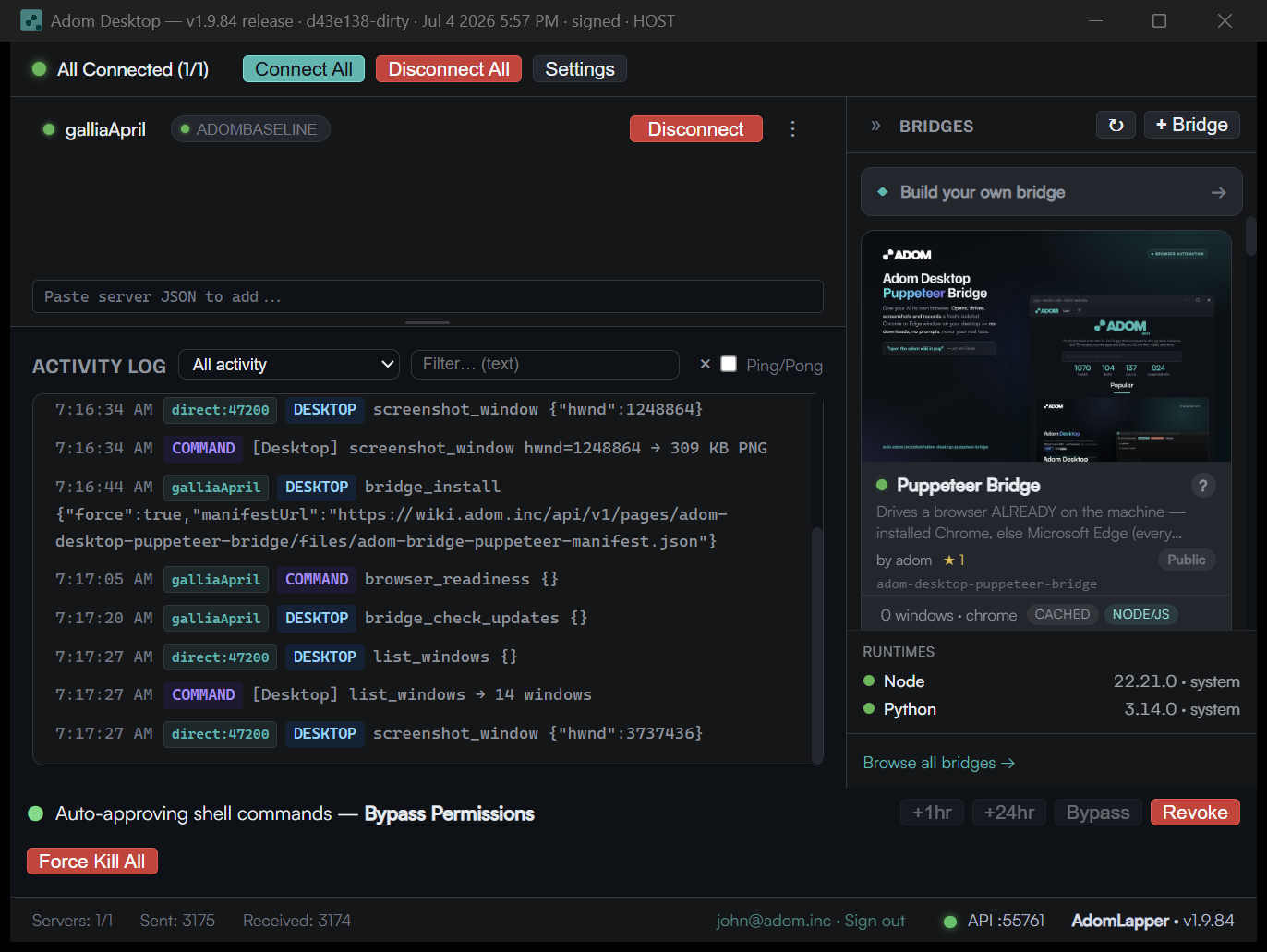
The main window (top) puts everything on one surface: Connections (each relay plus the other Adom Desktops on it as peers), the Activity Log (every command, badged by source and type, filterable), the Bridges sidebar (installed bridges as mini-app cards), the provisioned Runtimes, and the footer approval bar.
Downloads
Everything a real user installs comes from this page.
| Artifact | Platform | What it is | How to get it |
|---|---|---|---|
| Signed installer (NSIS) | Windows x64 | The GUI desktop app. Azure Trusted Signing. Installs to %LOCALAPPDATA%\Adom Desktop\ and auto-updates. |
The Download for your machine box at the top of this page. This is the one promoted Windows download. |
| CLI + skills package | Linux (container) | The adom-desktop CLI a cloud container runs, plus the Claude skill set. SHA256-verified on install. |
adom-wiki pkg install adom/adom-desktop |
version.json |
manifest | The auto-update manifest the GUI polls: per-platform installer URL, SHA256, and size. | Read automatically by the app; you never fetch it by hand. |
The Windows GUI installer is the only promoted Windows download. There is intentionally no standalone Windows CLI download. macOS is planned; the manifest reserves a slot for it.
Staying current: updates and the restart schedule
Adom Desktop polls the wiki manifest on launch and every 4 hours. Every release is Azure code-signed and its installer is SHA256-verified before it runs. What differs is urgency, and the manifest carries a priority:
| Tier | How it is presented | Overrides your mode? |
|---|---|---|
| Normal | Almost every release. A footer banner: Install now / Later. Silent in Auto, nothing in Off. | No. |
| High | A recommended fix. Auto-installs in the background (even in Prompt) with a heads-up toast, then restarts. | Overrides Prompt; still respects Off. |
| Emergency | A bug bad enough to pull from the whole fleet at once. A red, non-dismissible countdown to a forced restart; AD Authenticode-verifies the installer (must be signed by Adom Industries) before it runs. | Overrides everything, even Off, even embedded. |
You set your preference once in Settings, Updates: Prompt (default), Auto, or Off. A normal release carries no priority; the emergency tier is a deliberate, per-incident action.
When a normal update actually installs. Adom Desktop lives in the tray and can run for weeks without a restart, so a Prompt-mode update you never click would never install. The restart schedule closes that: once an update is downloaded AND you have been away from the keyboard for about 15 minutes AND AD is not mid-task, it installs and relaunches quietly. It is idle-based, not a fixed clock, so it never interrupts active work or an overnight job, and restarting Adom Desktop has no effect on your other apps (it reconnects in seconds). Turn it off in Settings, Updates, "Restart when idle to finish updates," and a Prompt-mode update simply waits for your click. Auto installs immediately; Off never auto-installs (except an Emergency release). Embedded in Hydrogen Desktop, HD owns the restart timing.
Screenshots
Anything AD can see, it can screenshot, losslessly, with no focus steal (PrintWindow or full-screen DXGI, never a foreground grab). Every image on this page was produced by these verbs. desktop_screenshot_window returns a screenshots[] array: the window plus each owned popup or child dialog as its own image (so a confirm bubble hovering over an app comes back alongside the parent, never missed); desktop_screenshot_screen grabs the full virtual screen including borderless popups; browser_screenshot grabs the pup viewport. Every shot carries a coordMap so the AI clicks what it sees ({space:"image", shotId, x, y} to real screen px, no DPI math). It stays generic: AD returns the rich array, the AI decides. ad_scroll even lets the AI page AD's own window to capture content below the fold.
Recording
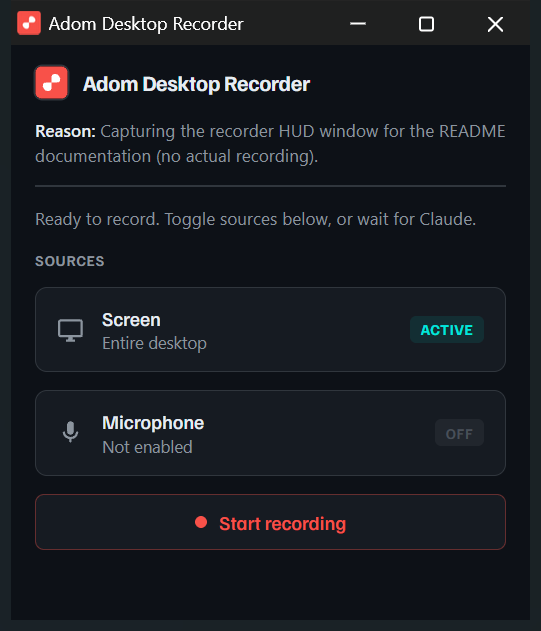
AD records the desktop or a browser session to video. The recorder HUD (above) requires a reason shown to the user up front, so a recording never starts silently, with live Screen/Microphone toggles and a Start/Stop control. desktop_recorder_open {reason} and desktop_recorder_close for the desktop; browser_record_start and browser_record_stop for the pup browser. Built for smooth, high-frame-rate video, not a choppy screenshot loop.
Bridges
Each bridge is a small, independently-versioned process the app spawns, supervises, health-checks, and auto-updates from its own wiki page. Every install ships with the six below, and each shows up in the Bridges sidebar as a card: its billboard, a health LED, and language/source badges.
Puppeteer (browser_*)
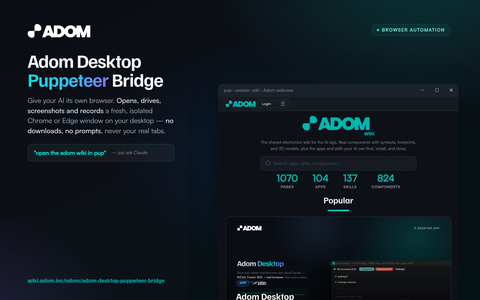
A dedicated Chrome-for-Testing (or Edge) that AD downloads and manages: open windows and tabs, drive pages, evaluate JS, screenshot, and record. No manual browser install.
Native Browser (nbrowser_*)
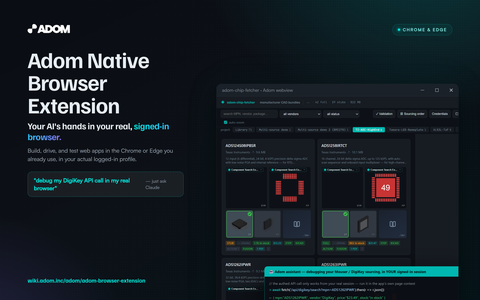
Your real, signed-in Chrome or Edge profile, for the logins and forms a throwaway automation profile cannot do. The desktop bridge is bundled and works extension-free out of the box: it discovers your browser profiles, opens URLs in the right signed-in profile (OAuth consent flows), and inventories browser windows. Installing the companion browser extension unlocks full in-page drive: tabs, clicks, JS eval, and background screenshots.
KiCad (kicad_*)
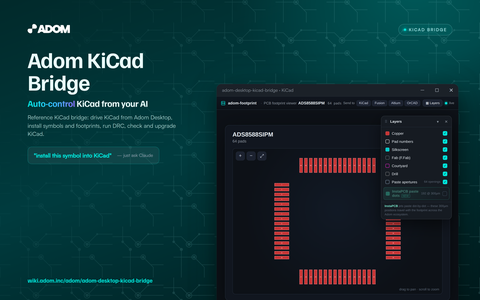
Schematic and PCB automation: DRC/ERC, gerber and STEP export, 3D board render, and netlist/footprint queries.
Fusion 360 (fusion_*) plus APS (aps_*)
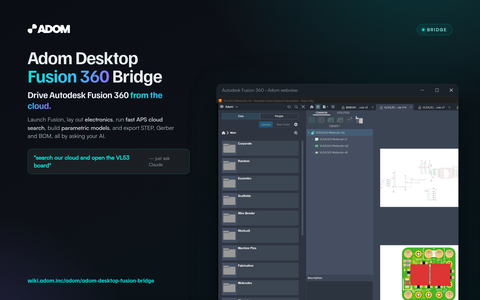
Parametric modeling scripts and exports, plus fast indexed cloud-file search through Autodesk Platform Services.
Blender (blender_*)
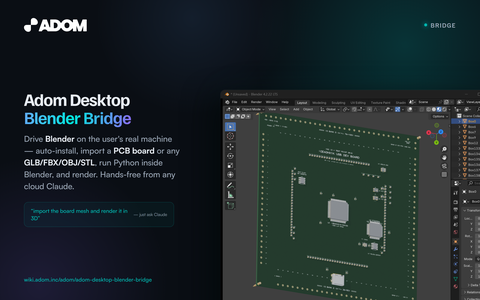
Headless Python scripting and renders.
Hydrogen Desktop (hd_*)
The local dev-environment app AD can embed into; AD relays HD's runtime state and drives its lifecycle.
Install a third-party bridge by pasting its manifest URL, or bridge_install {"manifestUrl":"..."}. Build one with the Bridge SDK.
The taskbar icon tells you the mode
AD's window carries a mode-specific app identity, so the taskbar button swaps its whole tile AND its name the moment the mode changes: no restart, no flicker.
| Icon | Mode | Taskbar name | Meaning |
|---|---|---|---|
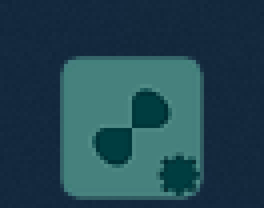 |
Standalone | Adom Desktop | AD running on its own. The default for a normal install. |
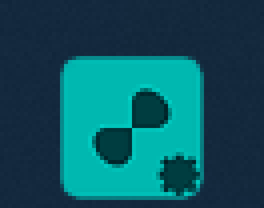 |
Embedded | Adom Desktop HD Embedded | Hydrogen Desktop launched AD and drives its lifecycle. |
Muted "Adom Desktop" = AD by itself; vivid "Adom Desktop HD Embedded" = HD has the helm. Each mode is a registered Windows app identity, and flipping the window between them makes the shell rebuild the button with the other identity's icon and name. Because the modes are distinct identities, a taskbar pin made in one mode shows the running window as a separate button while AD is in the other mode.
Window identity (branding a window the AI drives)
The same Windows shell mechanism (the Application User Model ID, or AUMID) is exposed as generic verbs so a bridge can make a window it drives present as its app. The motivating case: a Chrome for Testing window that would otherwise read "Test" with Chrome's icon in the taskbar, Alt-Tab, and the right-click menu.
desktop_register_app_identityteaches Windows what an app id means (name plus icon), HKCU only, no UAC;shortcut:falsegives a per-session identity with no Start Menu spam.desktop_set_window_identitystamps that id onto a live window plus its title-bar and Alt-Tab icon and the jump-list header.desktop_set_window_jumplistattaches a custom right-click menu and brands its header row.desktop_taskbarpaints a progress bar, an overlay badge, and the hover-preview tooltip (thumbnailTooltip, the one uncapped text surface) and clip on any window's button.
These verbs inspect any icon you pass and return an iconCheck that explains, in plain terms, why an icon renders as a generic white document (the 256px .ico size must be PNG-compressed; SVG does not load; a .ico uses a bare path while a .exe uses path,index), so the caller fixes the file instead of shipping a broken icon. The full guide ships as the adom-desktop-window-identity skill.
Settings
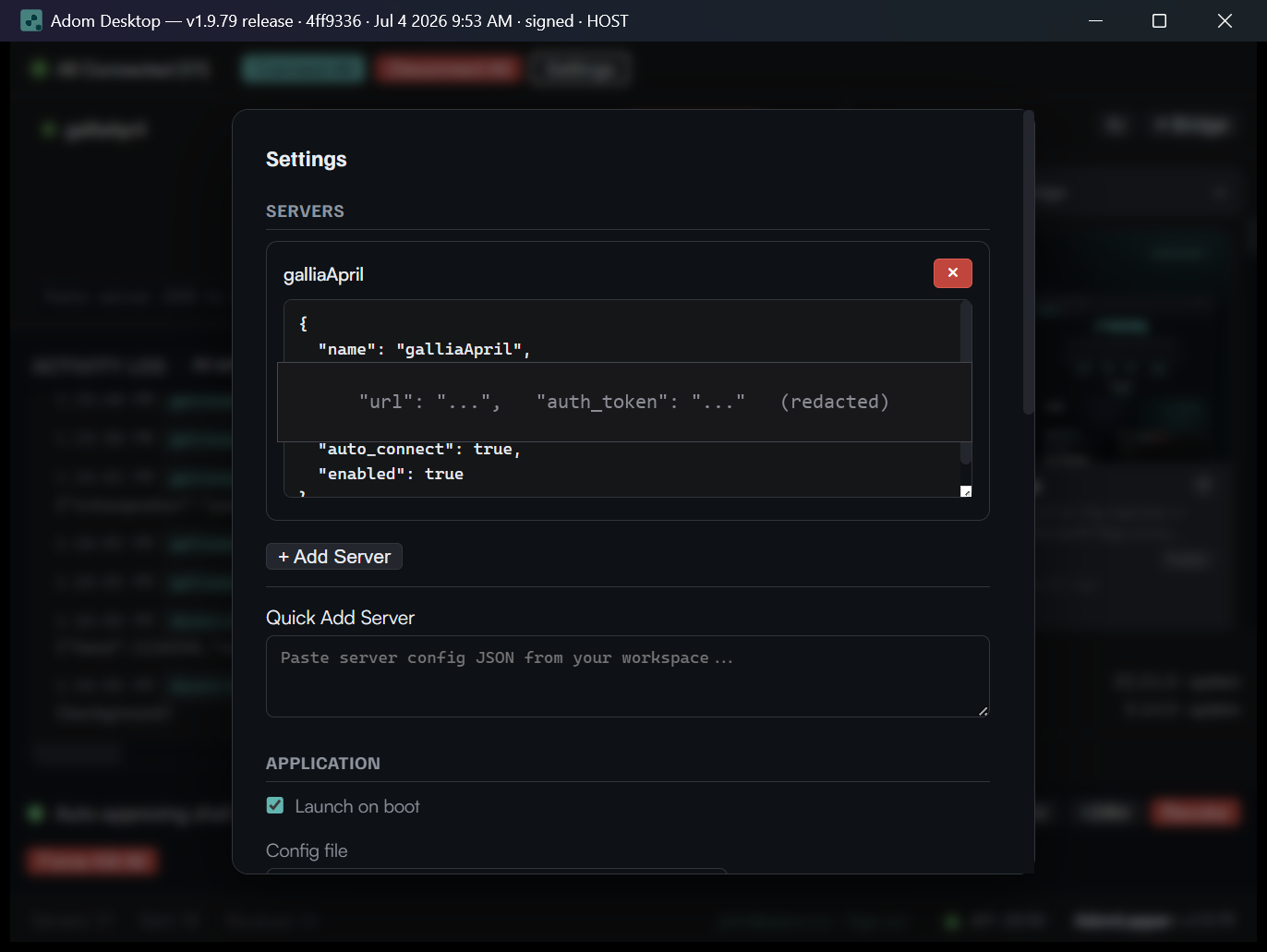
Auto-connect behavior, the update channel (prompt / auto / off) and restart when idle to finish updates, the shell-approval preference, Hydrogen Desktop integration (including exit when HD exits), and runtime prewarming. While embedded in HD, HD-owned preferences show as managed by Hydrogen Desktop.
Security and the approval gate

The trust boundary is install-consent plus the localhost bind. Installing the app (and each bridge) is you granting permission for the AI to drive your machine; if you do not want that, uninstall. And the app plus every bridge binds 127.0.0.1 only, never 0.0.0.0, so a caller must already be a program you installed on your own machine to reach it. No network attack surface by construction.
On top of that, the remote cloud-AI path is approval-gated. Verbs that run code or change the machine (shell_execute, run_script, launch_process, write_file, registry_*, process_kill, and so on) require a human grant when they arrive over the relay: +1hr / +24hr (time-boxed), Bypass (indefinite), or Revoke. The grant is human-only; local callers (your CLI, HD, bridges) are trusted by transport and never prompt; read-only verbs are never gated.
Notifications
AD speaks to you through native Windows toasts via notify_user, under Adom Desktop's own identity (the Adom logo, and Action Center history like any first-class app). A cloud AI or a bridge, even one on a different machine addressed with target, fires them to reach you wherever you are. Every image below is the real toast, captured live from the exact call shown.
Basic alert. Awareness: a build finished, a file is ready. Auto-dismisses in about 7 seconds. Add "durationLong":true to hold it around 25 seconds; "level":"error" and up do that automatically, and "emergency" also flashes the taskbar.
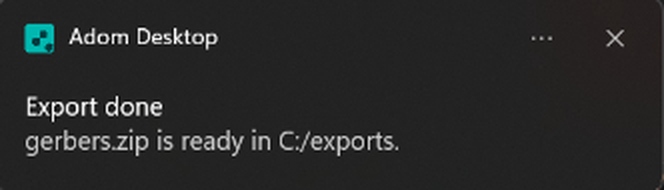
adom-desktop notify_user '{"title":"Export done","body":"gerbers.zip is ready in C:/exports."}'
Sticky choice with buttons that round-trip. Stays on screen until the user clicks (no auto-dismiss). Give it an id you choose, then read the click back.
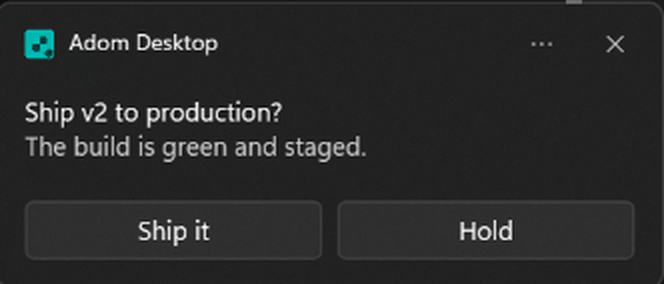
adom-desktop notify_user '{"id":"deploy-42","title":"Ship v2 to production?","body":"The build is green and staged.","scenario":"reminder","buttons":[{"label":"Ship it"},{"label":"Hold"}]}'
Progress bar. For a long job (a gerber export, a render). Re-fire with the SAME id as the job advances toward 1.0. body is optional here.
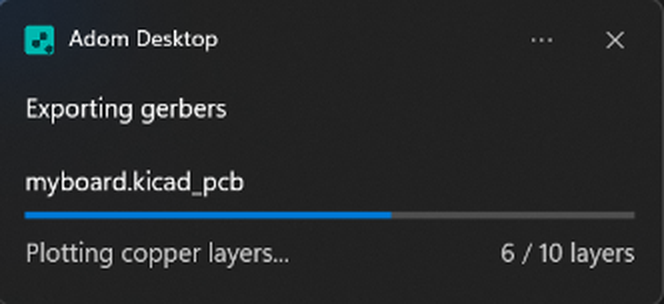
adom-desktop notify_user '{"id":"job-1","title":"Exporting gerbers","progress":{"title":"myboard.kicad_pcb","value":0.6,"status":"Plotting copper layers...","valueOverride":"6 / 10 layers"}}'
Reply input. The text field renders, but Windows does not return typed text over protocol activation, so it is display-only today. For a real choice, use buttons.
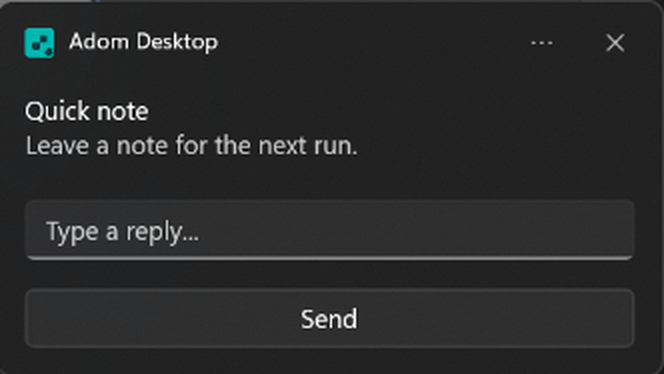
adom-desktop notify_user '{"title":"Quick note","body":"Leave a note for the next run.","scenario":"reminder","inputs":[{"id":"reply","type":"text","placeholder":"Type a reply..."}],"buttons":[{"label":"Send"}]}'
Shell-approval. Fired by AD itself when a gated command needs a human: Approve 1 hr / 24 hr / Bypass Permissions, granted straight from the toast without opening the window.
How the AI tracks the response, or expires the notify. A toast is fire-and-forget, but a clicked button is recorded durably, so the AI learns the outcome even on a headless box:
adom-desktop notify_response '{"id":"deploy-42"}'   # pending:true until clicked, then action:"Ship it"
adom-desktop notify_events '{"sinceSeq":0}'          # drain EVERY click since a cursor, no per-id polling
adom-desktop notify_dismiss '{"id":"deploy-42"}'     # retract a sticky toast once you have handled it
Clicking the toast body or any button brings the Adom Desktop window to the foreground. Full reference lives in the adom-desktop-notify skill.
Verbs
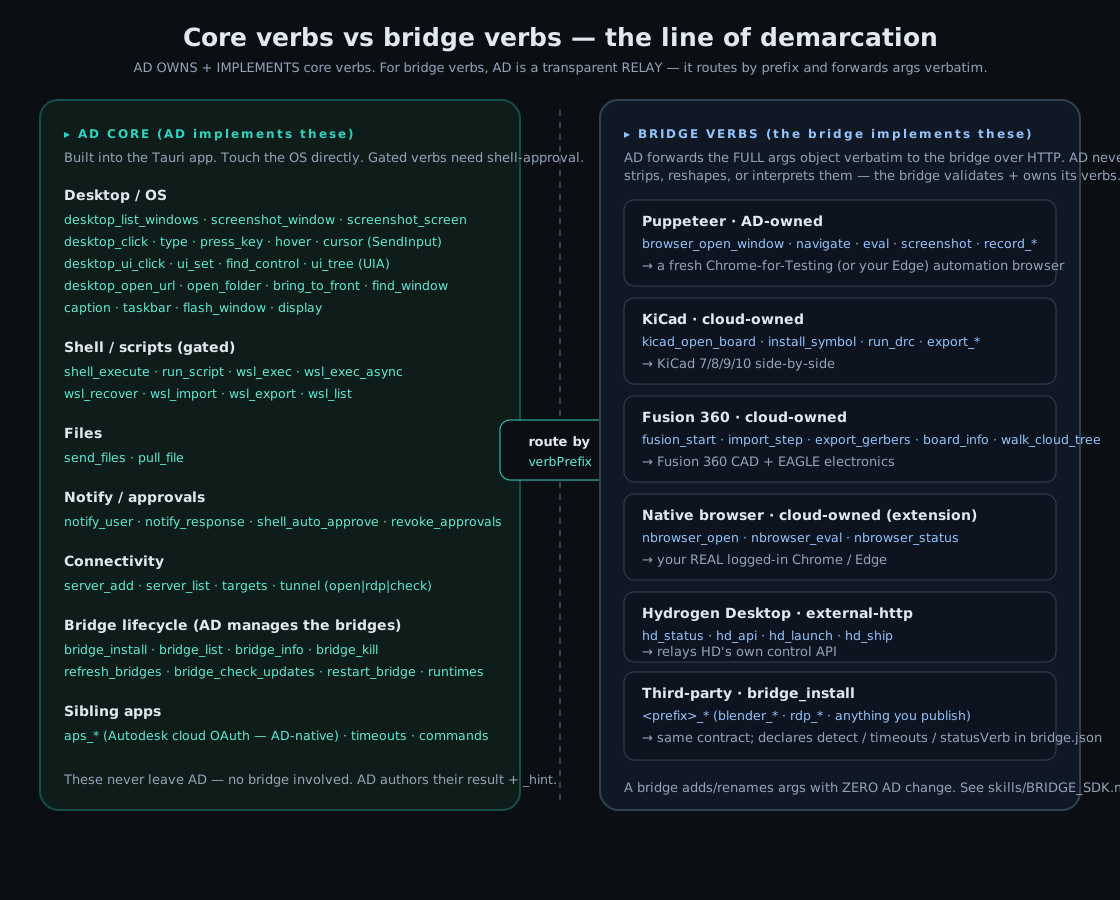
AD-core owns the generic verbs (desktop_*, shell, ui_*, files, notify_user, multi-AD). Each bridge owns its own prefix and ships its own verbs; the app relays them verbatim and stays generic. Invoke the same way on every transport, for identical JSON back:
adom-desktop screenshot_window '{"hwnd": 12345}'              # CLI (relay / direct API)
adom-desktop --target AzureVM list_windows                    # target a named machine
curl -s -X POST 127.0.0.1:47200/command \
  -d '{"command":"notify_user","args":{"title":"Hi"}}'        # loopback direct API
adom-desktop help and GET /commands are the live discovery surfaces for the full verb set.
Versioning
This package version tracks the Adom Desktop release. The scaffold is small; the multi-MB binaries are fetched at install time with SHA256 verification (the manifest's assets map carries server-computed checksums per platform).