Adom Desktop - KiCad Bridge
Public Made by Adomby adom
Reference implementation of the KiCad bridge — multi-instance Python server, forward path via kicad-cli, reverse path via in-process plugin. Most complex of the three bundled bridges.
Adom Desktop — KiCad Bridge
A reverse bridge that lets Adom Desktop (AD) — and the AI driving it — control the user's own KiCad on Windows: open and drive every editor, install symbol/footprint libraries, place parts, run DRC/ERC, export manufacturing files, and screenshot any window back to the AI.
KiCad is the user's host app. The bridge detects an existing KiCad and, if none is present, installs one for them — it never asks the user to download or click through anything by hand.
- Page / docs: https://wiki.adom.inc/adom/adom-desktop-kicad-bridge
- Bridge SDK: https://wiki.adom.inc/adom/adom-desktop-bridges
- Verb namespace:
kicad_*· Status verb:kicad_bridge_status· Health:GET /status
Every screenshot in this README was captured on ADOMBASELINE, a stock Hyper-V VM with no GPU, driven end-to-end through the bridge — install → libraries → editors → 2D → 3D. If it renders there, it renders on a real laptop.
Demo — narrated live editor tour (real screen recording)
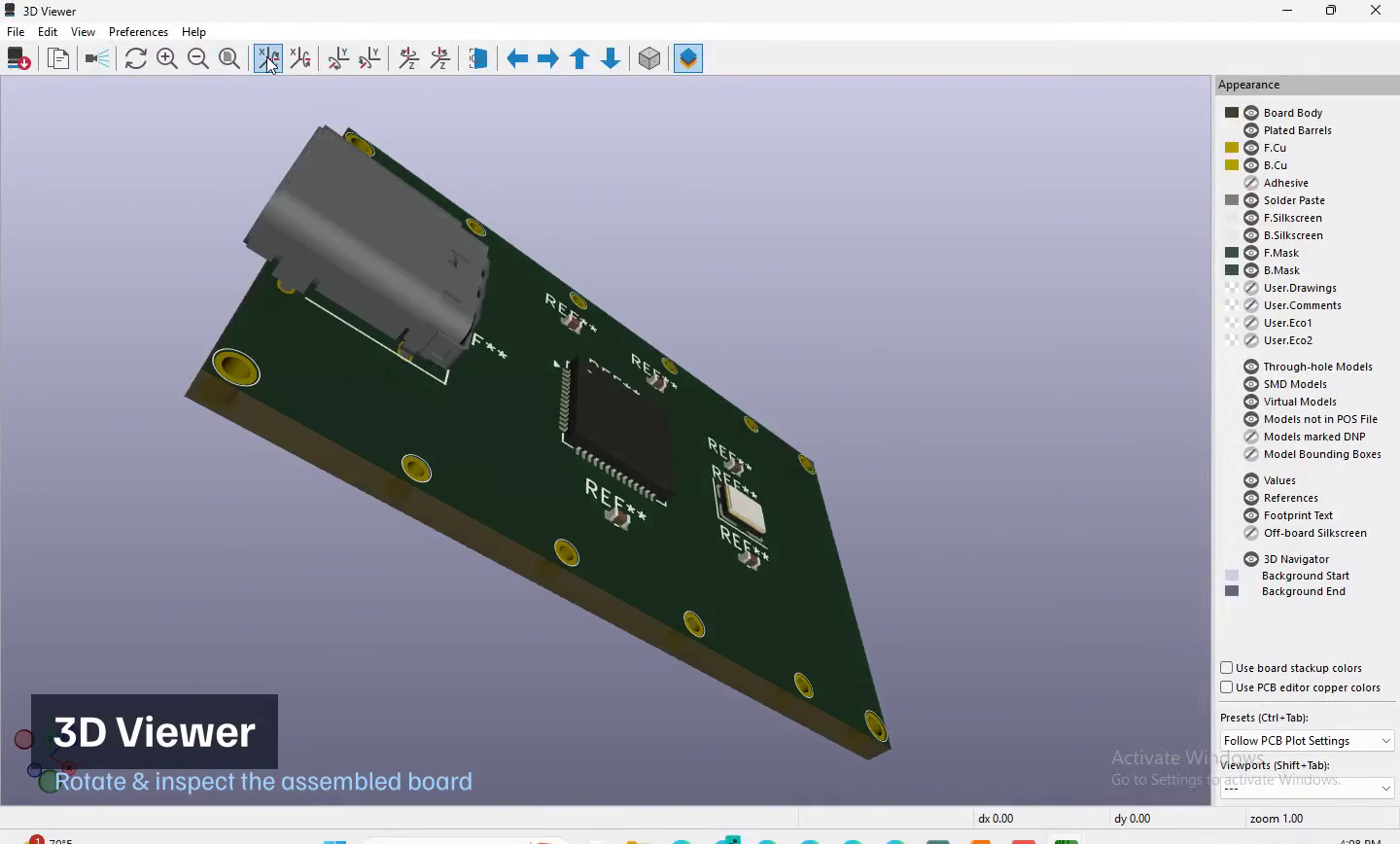
▶ Watch the demo (48s, 🔊 narrated) — the bridge driving real KiCad on a Windows VM: select a footprint and zoom the copper in the PCB editor, rotate the assembled board in 3D, then tour the schematic, symbol, and footprint editors. Genuine screen recording of the live windows (zoom / select / 3D rotation), narrated section by section — not animated stills.
The demo verb — kicad_demo
One verb that shows the whole bridge off, built for the AI that demos Adom Desktop during Hydrogen Desktop's install. Six beats, in the order a hardware person thinks:
| Beat | Shows |
|---|---|
| 1 | the schematic symbol in the user's own Symbol Editor |
| 2 | the footprint for that same part |
| 3 | that part in 3D |
| 4 | a schematic using it (U1 + two 10k resistors) |
| 5 | the 2D board layout |
| 6 | the finished board in 3D |
adom-desktop kicad_demo '{}'                      # start: prepares, warms KiCad, opens beat 1
adom-desktop kicad_demo '{"step":"footprint"}'    # ...then follow data.nextCall each time
adom-desktop kicad_demo '{"all":true}'            # bulk (non-interactive; slower than one request budget)
adom-desktop kicad_close '{"force":true}'         # tear down
It narrates itself. Every beat returns say (a line to speak), pointOut
(what's actually on screen), window (match it in kicad_screenshot_all) and
nextCall. One beat per call is the default precisely so the AI can talk, screenshot,
then move on.
It ships nothing. The two demo parts, the schematic and the board are all
generated in code, and the 3D bodies come from KiCad's own bundled
3dmodels/*.3dshapes — so the runtime zip stays small and the 3D views are real.
Parts install into the user's real Adom library; the project lands in
Documents/adom-kicad-demo.
No KiCad? It offers to install it. kicad_demo returns an offer instead of an
error; kicad_demo '{"installKiCad": true}' silently installs the official build
(per-user, no UAC) and then runs the tour. Watching the AI install your EDA tool is
itself a good demo beat.
It never takes your screen. Every window opens in the background and all input is
window-targeted (UIA / PostMessage), so you can keep working while it runs.
How it fits together
The bridge is a spawn.kind: python process AD launches on the user's machine (entrypoint: server.py, port: 0 — AD picks the port and passes ADOM_BIND_HOST). It speaks HTTP
(POST /command, GET /status) and reaches KiCad through four control surfaces, picking the
lightest one that can do the job.
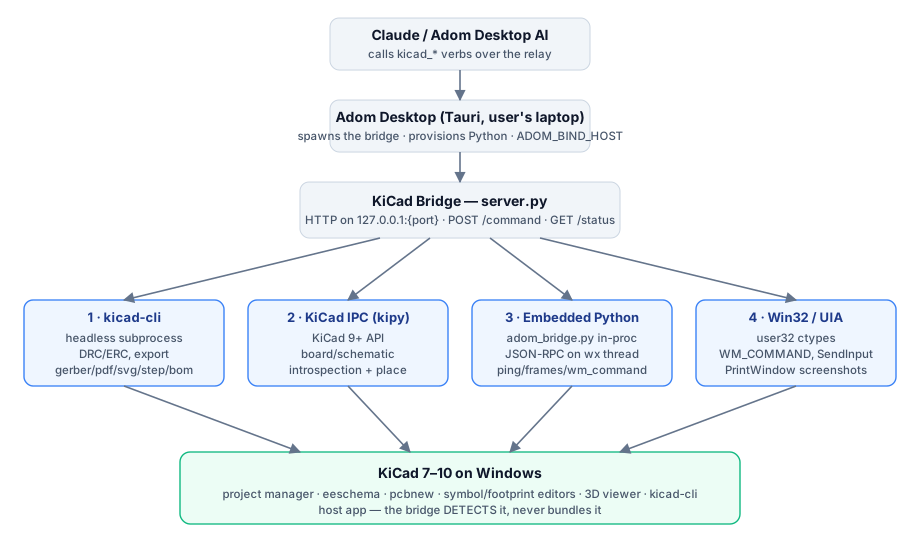
| # | Surface | Used for | Where |
|---|---|---|---|
| 1 | kicad-cli (subprocess) | headless DRC/ERC, gerber/pdf/svg/step/bom export, format upgrade | handlers/export.py, run_drc, run_erc, lint_* |
| 2 | KiCad IPC (kipy) | board/schematic introspection, confirmed footprint placement (KiCad 9+) | handlers/place_footprint.py |
| 3 | Embedded Python | JSON-RPC inside each KiCad process, dispatched on its wx UI thread | plugin_payload/adom_bridge.py, handlers/bridge_client.py |
| 4 | Win32 / UIA / SendKeys | open editors, screenshots, clicks/keys, dialog handling, window management | handlers/kicad_ui.py, handlers/close_windows.py |
The window tour
Everything below was opened and captured on the GPU-less VM. Sample data is the RP2040 breakout
generated by tour-pack-rp2040/ (an AdomRP2040 symbol + QFN-56_AdomRP2040 footprint + a board).
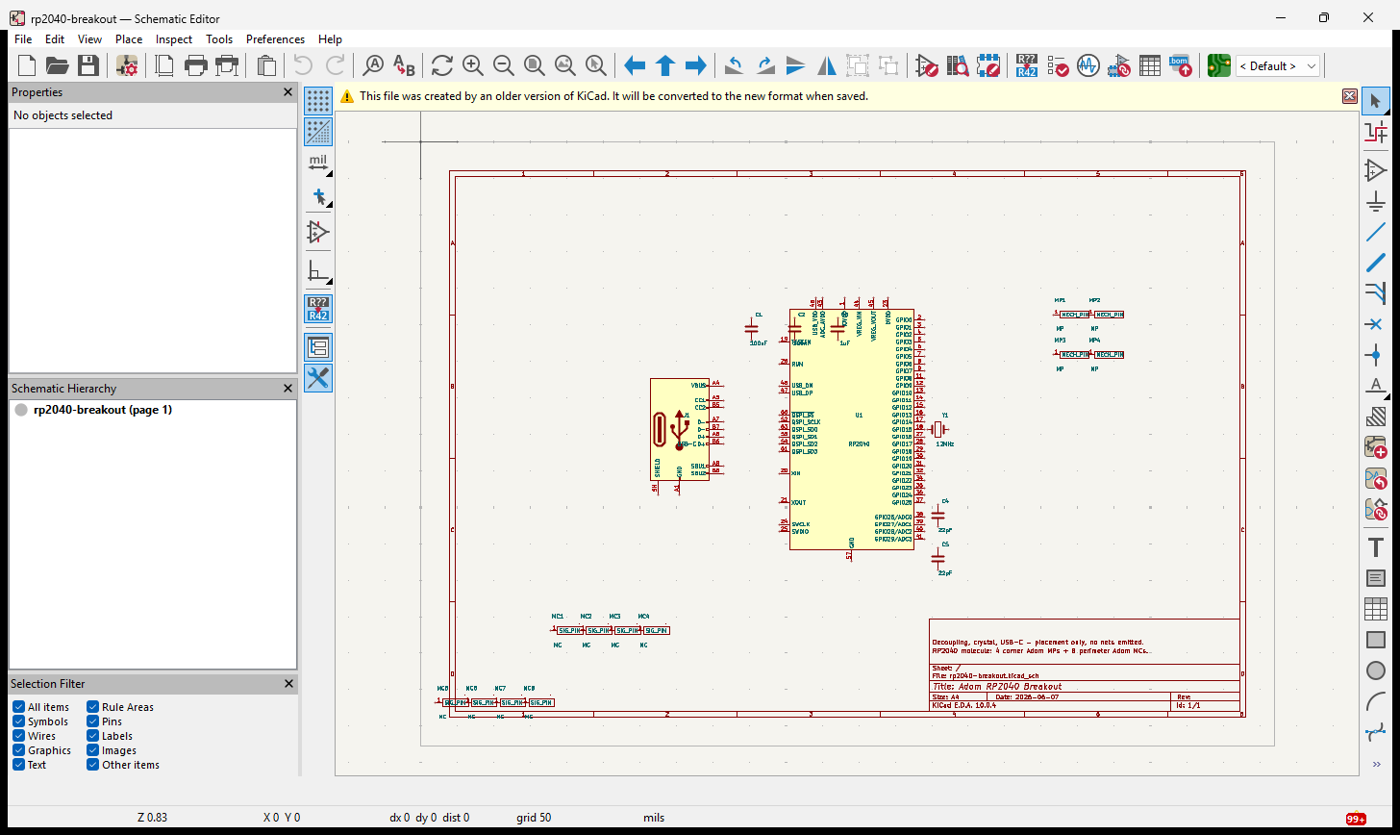
Schematic editor — kicad_open_schematic
The RP2040 breakout: the MCU (U1), USB-C, a 12 MHz crystal, decoupling, and mounting pins.
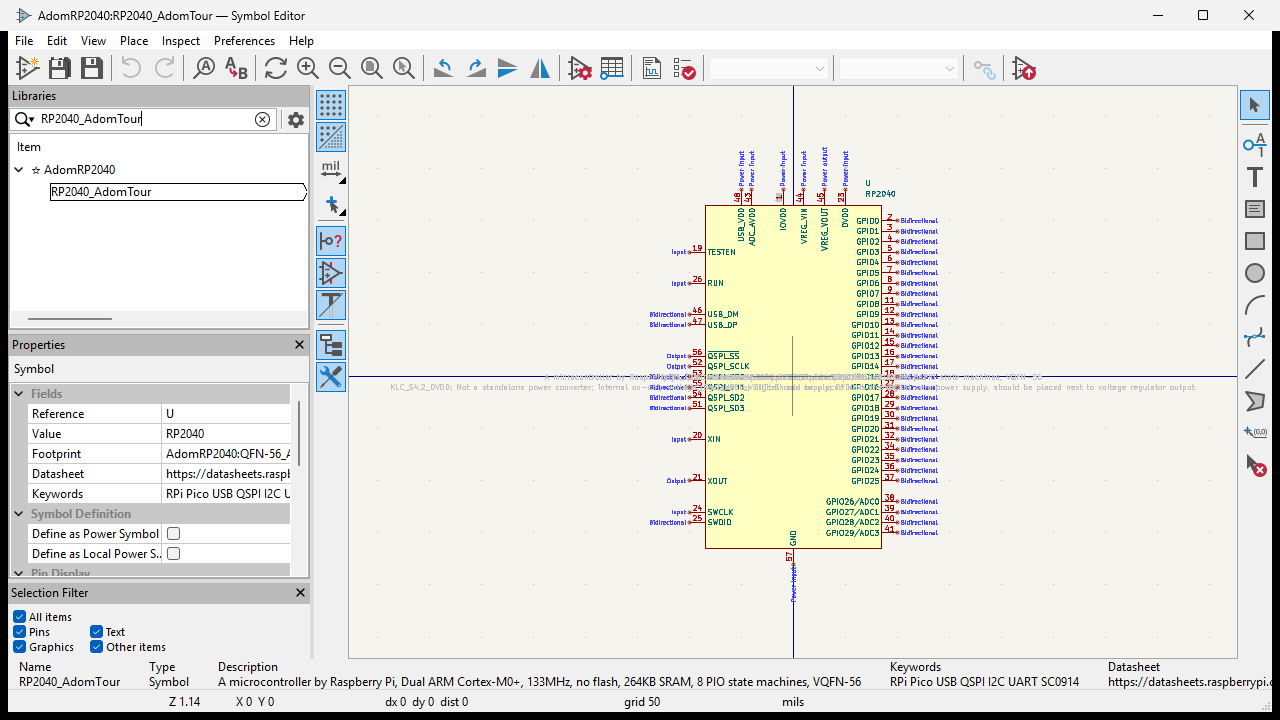
Symbol editor — kicad_open_symbol_editor
Opens straight to a symbol (kicad_install_symbol puts it in a user library first).
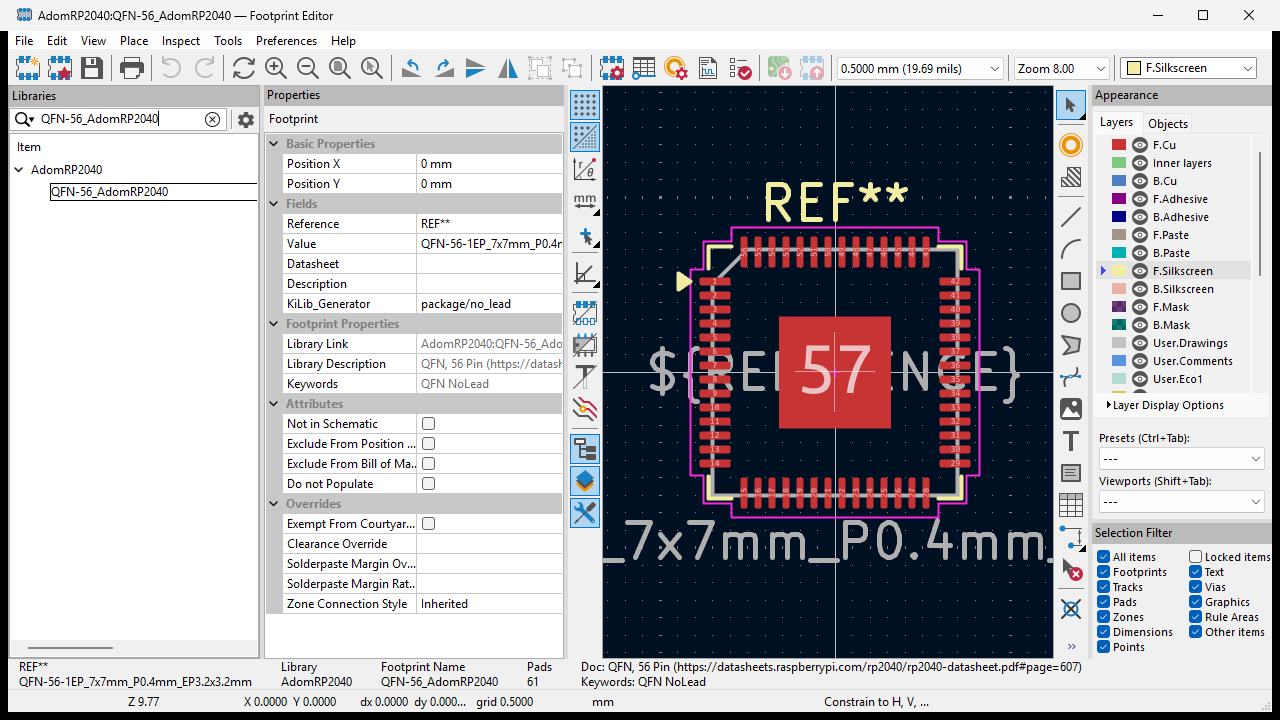
Footprint editor — kicad_open_footprint_editor
{"footprintName":"QFN-56_AdomRP2040","library":"AdomRP2040"} loads the part directly — 56 pins +
thermal pad, 7×7 mm, 0.4 mm pitch, courtyard and silkscreen.
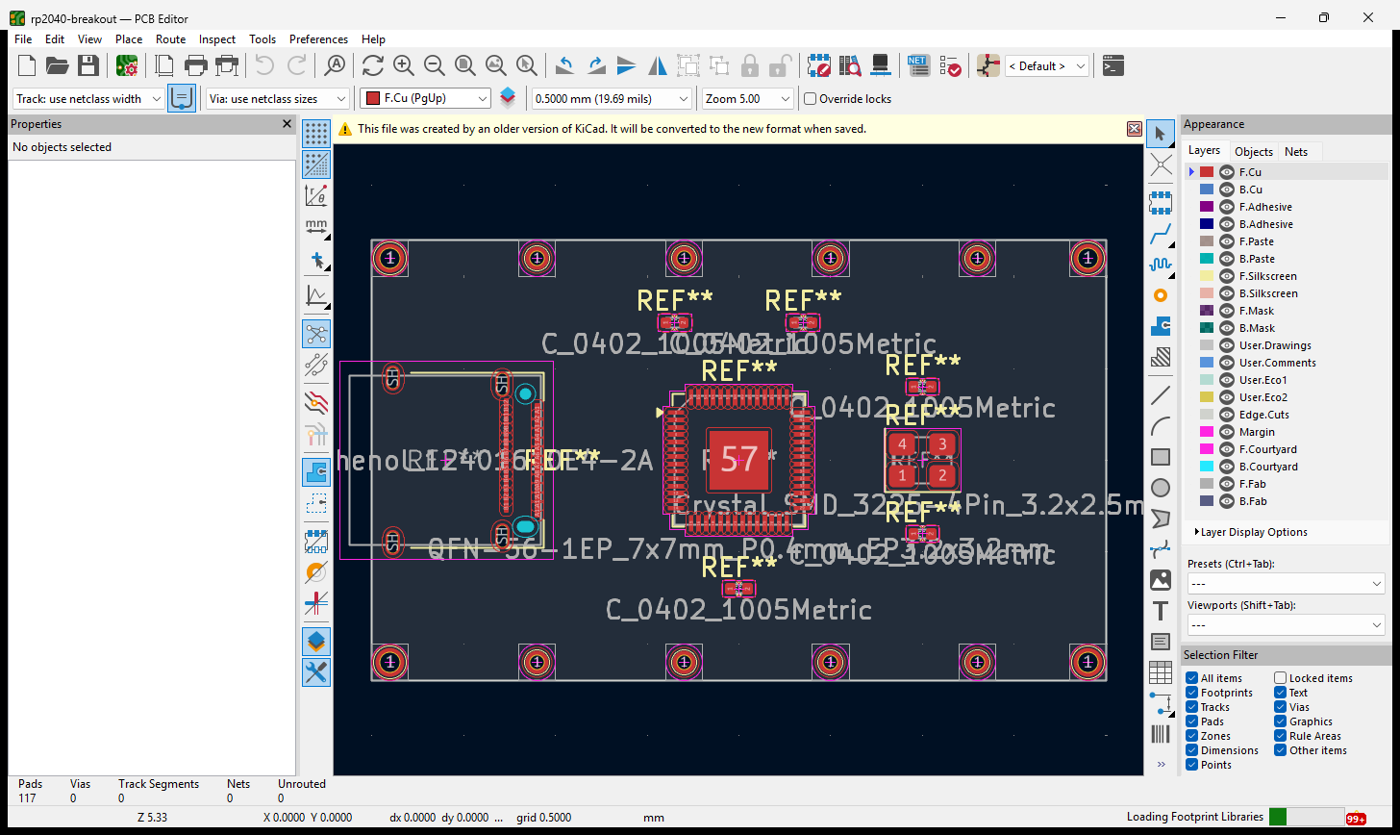
PCB editor (2D) — kicad_open_board
The routed breakout — copper, silkscreen, the QFN-56 land pattern, mounting holes.
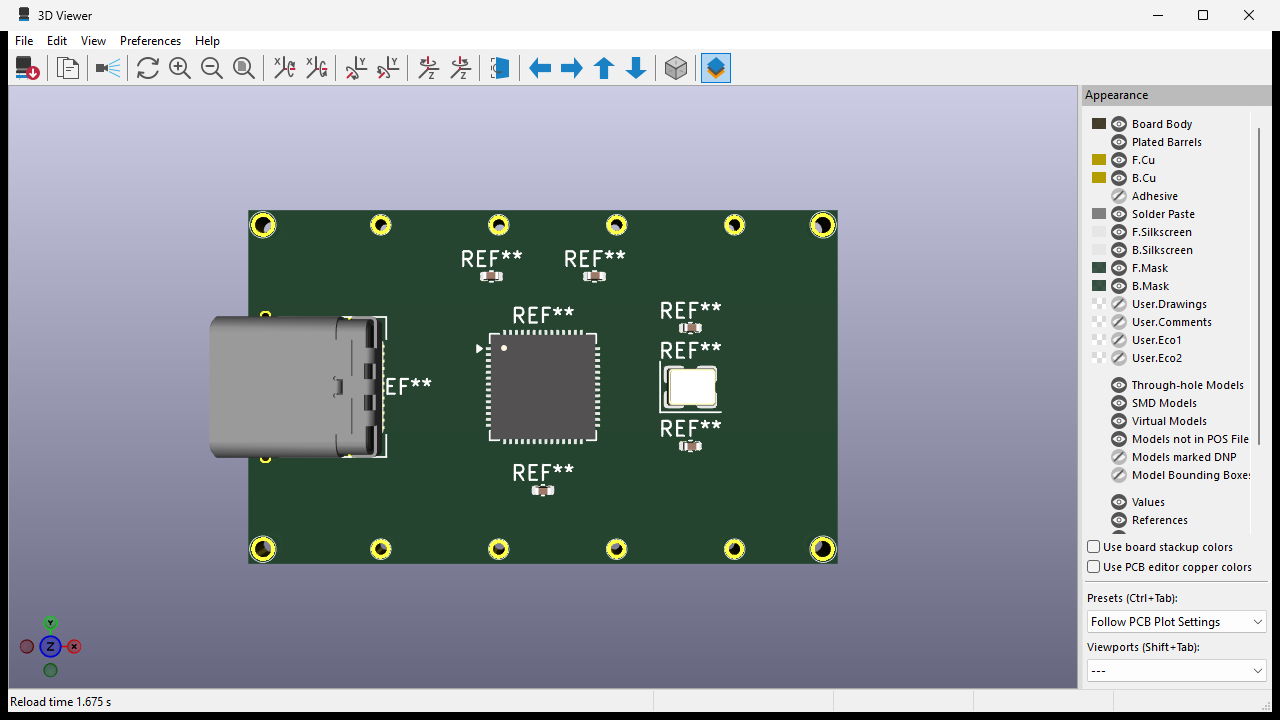
3D viewer — kicad_open_3d_viewer {"editor":"pcb"}
The full board in 3D — board body, the USB-C connector's 3D model, the QFN chip body, SMD parts, plated through-holes. Rendered on the CPU via the software-OpenGL fallback (below); reload 1.7 s.
Install & upgrade — zero manual steps
The bridge never tells the user to go download KiCad. kicad_upgrade fetches the official installer
and runs it silently, picking the scope automatically:
- Elevated AD →
/allusers /S(system-wide,%ProgramFiles%\KiCad). - Non-elevated AD →
/currentuser /S(%LocalAppData%\Programs\KiCad, no UAC prompt).
kicad_readiness reports whether KiCad is installed and ready without side effects; the AI routes on
it before offering to install. Hard-won install details (all handled for you):
- KiCad 10's NsisMultiUser installer requires a scope flag — bare
/Serrorsrc=666660. - AD's portable Python has no CA bundle; the bridge ships
certs/cacert.pemand uses it for TLS. - Downloads are size-checked against
Content-Length(a truncated installer otherwise fails at NSIS). %APPDATA%/kicad/<ver>/lib tables don't exist until first launch — the bridge bootstraps them soinstall_library/install_footprintwork on a never-opened KiCad.kicad_upgrade {"diagnoseOnly":true}reports token-elevation type +EnableLUAwithout installing.
Dialogs & error handling — the bridge clears the pointless ones
KiCad throws modal dialogs that stall automation. The bridge scans every window owned by a running KiCad process (by PID — reliable, unlike title matching), auto-expires the benign ones, screenshots what it dismissed, and returns a hint so the AI can decide what (if anything) to tell the user.
Auto-expired benign dialogs include:
- "Could not use OpenGL / falling back to software rendering" (GPU-less hosts).
- "Welcome to KiCad — starting for the first time" first-run wizard (dismissing accepts defaults).
- "This file was created by an older version of KiCad" conversion notice.
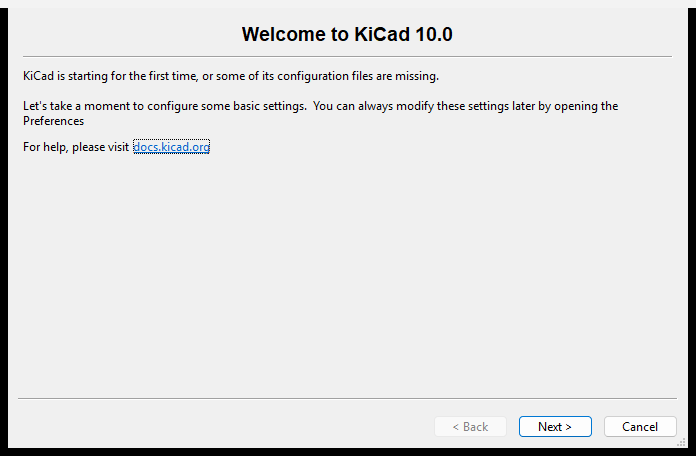
Verbs:
kicad_window_info— lists windows and self-heals (auto-expires benign dialogs) by default.kicad_dismiss_dialogs {"all":true}— clear everything blocking;{"screenshot":true}returns images of each;{"forceSoftwareCanvas":true}persists Cairo canvas;{"debug":true}dumps the raw PID-based scan.kicad_screenshot_all— one call returns every open KiCad window, so the AI can spot an error dialog it didn't expect and read the message.
Software-OpenGL fallback (last resort)
kicad_enable_software_opengl deploys Mesa's llvmpipe (a CPU OpenGL rasterizer) into KiCad's bin
so a box with no usable GPU — Hyper-V, RDP, headless CI — can still render the editors and the 3D
viewer. This is how every 3D shot above exists.
⚠️ It renders on the CPU and is slow. It is a worst-case fallback only — a real GPU (or GPU-P / DDA passthrough) is vastly better. The bridge keeps it so a GPU-less box isn't a dead end; it is never suggested proactively.
Verb reference
All 41 verbs (prefix kicad_). Call kicad_describe for the live catalog with per-verb hints,
related verbs, and pitfalls.
Windows & UI — open_board, open_schematic, open_symbol_editor, open_footprint_editor,
open_3d_viewer, open_editors, close_symbol_editor, close_footprint_editor, close_3d_viewer,
close, window_info, dismiss_dialogs, screenshot_all, send_key, click, fix_keyboard
Libraries & parts — install_library, install_symbol, install_footprint, install_plugin,
place_footprint, adom_library_status
Checks & export — run_drc, run_erc, lint_board, lint_schematic, lint_library,
format_upgrade, export_gerber, export_pdf, export_svg, export_step, export_bom_csv
Detect, install & meta — list_versions, readiness, describe, enable_software_opengl,
check_for_updates, upgrade, bridge_status, bridge_call
Running / dependencies
AD provisions everything; there is nothing to install by hand.
- Python ≥ 3.11 (AD provisions it) — stdlib only, plus the bundled
certs/cacert.pem. - KiCad ≥ 7.0 (host app;
kicad_upgradeinstalls it if absent). - OS: Windows (macOS/Linux detection stubs exist; the GUI surfaces are Windows-first).
The bridge binds ADOM_BIND_HOST on an AD-assigned port — never 0.0.0.0. Auto-updates via
updateManifestUrl in bridge.json.
Developer & publish notes live in dev-skills/ and publish-skills/ (source-only, never shipped to
a user install).
# Adom Desktop — KiCad Bridge
A **reverse bridge** that lets Adom Desktop (AD) — and the AI driving it — control the user's own
KiCad on Windows: open and drive every editor, install symbol/footprint libraries, place parts, run
DRC/ERC, export manufacturing files, and screenshot any window back to the AI.
KiCad is the user's **host app**. The bridge *detects* an existing KiCad and, if none is present,
*installs* one for them — it never asks the user to download or click through anything by hand.
- **Page / docs:** https://wiki.adom.inc/adom/adom-desktop-kicad-bridge
- **Bridge SDK:** https://wiki.adom.inc/adom/adom-desktop-bridges
- **Verb namespace:** `kicad_*` · **Status verb:** `kicad_bridge_status` · **Health:** `GET /status`
> Every screenshot in this README was captured on **ADOMBASELINE**, a stock Hyper-V VM with **no
> GPU**, driven end-to-end through the bridge — install → libraries → editors → 2D → 3D. If it
> renders there, it renders on a real laptop.
---
## Demo — narrated live editor tour (real screen recording)
[](https://wiki.adom.inc/blob/app/adom-desktop-kicad-bridge/kicad-bridge-demo.mp4)
**▶ [Watch the demo](https://wiki.adom.inc/blob/app/adom-desktop-kicad-bridge/kicad-bridge-demo.mp4)** (48s, 🔊 narrated) — the bridge driving real KiCad on a Windows VM: **select** a footprint and **zoom** the copper in the PCB editor, **rotate** the assembled board in 3D, then tour the schematic, symbol, and footprint editors. Genuine screen recording of the live windows (zoom / select / 3D rotation), narrated section by section — not animated stills.
---
## The demo verb — `kicad_demo`
One verb that shows the whole bridge off, built for the AI that demos Adom Desktop
during Hydrogen Desktop's install. Six beats, in the order a hardware person thinks:
| Beat | Shows |
|---|---|
| 1 | the **schematic symbol** in the user's own Symbol Editor |
| 2 | the **footprint** for that same part |
| 3 | that part in **3D** |
| 4 | a **schematic** using it (U1 + two 10k resistors) |
| 5 | the **2D board layout** |
| 6 | the finished **board in 3D** |
```bash
adom-desktop kicad_demo '{}' # start: prepares, warms KiCad, opens beat 1
adom-desktop kicad_demo '{"step":"footprint"}' # ...then follow data.nextCall each time
adom-desktop kicad_demo '{"all":true}' # bulk (non-interactive; slower than one request budget)
adom-desktop kicad_close '{"force":true}' # tear down
```
**It narrates itself.** Every beat returns `say` (a line to speak), `pointOut`
(what's actually on screen), `window` (match it in `kicad_screenshot_all`) and
`nextCall`. One beat per call is the default precisely so the AI can talk, screenshot,
then move on.
**It ships nothing.** The two demo parts, the schematic and the board are all
generated in code, and the 3D bodies come from KiCad's *own* bundled
`3dmodels/*.3dshapes` — so the runtime zip stays small and the 3D views are real.
Parts install into the user's real `Adom` library; the project lands in
`Documents/adom-kicad-demo`.
**No KiCad? It offers to install it.** `kicad_demo` returns an offer instead of an
error; `kicad_demo '{"installKiCad": true}'` silently installs the official build
(per-user, no UAC) and then runs the tour. Watching the AI install your EDA tool is
itself a good demo beat.
**It never takes your screen.** Every window opens in the background and all input is
window-targeted (UIA / `PostMessage`), so you can keep working while it runs.
---
## How it fits together
The bridge is a `spawn.kind: python` process AD launches on the user's machine (`entrypoint:
server.py`, `port: 0` — AD picks the port and passes `ADOM_BIND_HOST`). It speaks HTTP
(`POST /command`, `GET /status`) and reaches KiCad through **four control surfaces**, picking the
lightest one that can do the job.

| # | Surface | Used for | Where |
|---|---------|----------|-------|
| 1 | **kicad-cli** (subprocess) | headless DRC/ERC, gerber/pdf/svg/step/bom export, format upgrade | `handlers/export.py`, `run_drc`, `run_erc`, `lint_*` |
| 2 | **KiCad IPC (kipy)** | board/schematic introspection, confirmed footprint placement (KiCad 9+) | `handlers/place_footprint.py` |
| 3 | **Embedded Python** | JSON-RPC *inside* each KiCad process, dispatched on its wx UI thread | `plugin_payload/adom_bridge.py`, `handlers/bridge_client.py` |
| 4 | **Win32 / UIA / SendKeys** | open editors, screenshots, clicks/keys, dialog handling, window management | `handlers/kicad_ui.py`, `handlers/close_windows.py` |
---
## The window tour
Everything below was opened and captured on the GPU-less VM. Sample data is the **RP2040 breakout**
generated by `tour-pack-rp2040/` (an `AdomRP2040` symbol + `QFN-56_AdomRP2040` footprint + a board).
### Schematic editor — `kicad_open_schematic`
The RP2040 breakout: the MCU (U1), USB-C, a 12 MHz crystal, decoupling, and mounting pins.

### Symbol editor — `kicad_open_symbol_editor`
Opens straight to a symbol (`kicad_install_symbol` puts it in a user library first).

### Footprint editor — `kicad_open_footprint_editor`
`{"footprintName":"QFN-56_AdomRP2040","library":"AdomRP2040"}` loads the part directly — 56 pins +
thermal pad, 7×7 mm, 0.4 mm pitch, courtyard and silkscreen.

### PCB editor (2D) — `kicad_open_board`
The routed breakout — copper, silkscreen, the QFN-56 land pattern, mounting holes.

### 3D viewer — `kicad_open_3d_viewer {"editor":"pcb"}`
The full board in 3D — board body, the USB-C connector's 3D model, the QFN chip body, SMD parts,
plated through-holes. **Rendered on the CPU via the software-OpenGL fallback (below); reload 1.7 s.**

---
## Install & upgrade — zero manual steps
The bridge never tells the user to go download KiCad. `kicad_upgrade` fetches the official installer
and runs it silently, picking the scope automatically:
- **Elevated AD** → `/allusers /S` (system-wide, `%ProgramFiles%\KiCad`).
- **Non-elevated AD** → `/currentuser /S` (`%LocalAppData%\Programs\KiCad`, **no UAC prompt**).
`kicad_readiness` reports whether KiCad is installed and ready without side effects; the AI routes on
it before offering to install. Hard-won install details (all handled for you):
- KiCad 10's NsisMultiUser installer **requires** a scope flag — bare `/S` errors `rc=666660`.
- AD's portable Python has **no CA bundle**; the bridge ships `certs/cacert.pem` and uses it for TLS.
- Downloads are size-checked against `Content-Length` (a truncated installer otherwise fails at NSIS).
- `%APPDATA%/kicad/<ver>/` lib tables don't exist until first launch — the bridge **bootstraps** them
so `install_library`/`install_footprint` work on a never-opened KiCad.
- `kicad_upgrade {"diagnoseOnly":true}` reports token-elevation type + `EnableLUA` without installing.
---
## Dialogs & error handling — the bridge clears the pointless ones
KiCad throws modal dialogs that stall automation. The bridge **scans every window owned by a running
KiCad process** (by PID — reliable, unlike title matching), auto-expires the benign ones, screenshots
what it dismissed, and returns a hint so the AI can decide what (if anything) to tell the user.
Auto-expired benign dialogs include:
- **"Could not use OpenGL / falling back to software rendering"** (GPU-less hosts).
- **"Welcome to KiCad — starting for the first time"** first-run wizard (dismissing accepts defaults).
- **"This file was created by an older version of KiCad"** conversion notice.

Verbs:
- `kicad_window_info` — lists windows and **self-heals** (auto-expires benign dialogs) by default.
- `kicad_dismiss_dialogs {"all":true}` — clear everything blocking; `{"screenshot":true}` returns
images of each; `{"forceSoftwareCanvas":true}` persists Cairo canvas; `{"debug":true}` dumps the
raw PID-based scan.
- `kicad_screenshot_all` — one call returns **every** open KiCad window, so the AI can spot an error
dialog it didn't expect and read the message.
---
## Software-OpenGL fallback (last resort)
`kicad_enable_software_opengl` deploys Mesa's `llvmpipe` (a CPU OpenGL rasterizer) into KiCad's `bin`
so a box with **no usable GPU** — Hyper-V, RDP, headless CI — can still render the editors and the 3D
viewer. This is how every 3D shot above exists.
> ⚠️ It renders on the CPU and is **slow**. It is a worst-case fallback only — a real GPU (or GPU-P /
> DDA passthrough) is vastly better. The bridge keeps it so a GPU-less box isn't a dead end; it is
> never suggested proactively.
---
## Verb reference
All 41 verbs (prefix `kicad_`). Call `kicad_describe` for the live catalog with per-verb hints,
related verbs, and pitfalls.
**Windows & UI** — `open_board`, `open_schematic`, `open_symbol_editor`, `open_footprint_editor`,
`open_3d_viewer`, `open_editors`, `close_symbol_editor`, `close_footprint_editor`, `close_3d_viewer`,
`close`, `window_info`, `dismiss_dialogs`, `screenshot_all`, `send_key`, `click`, `fix_keyboard`
**Libraries & parts** — `install_library`, `install_symbol`, `install_footprint`, `install_plugin`,
`place_footprint`, `adom_library_status`
**Checks & export** — `run_drc`, `run_erc`, `lint_board`, `lint_schematic`, `lint_library`,
`format_upgrade`, `export_gerber`, `export_pdf`, `export_svg`, `export_step`, `export_bom_csv`
**Detect, install & meta** — `list_versions`, `readiness`, `describe`, `enable_software_opengl`,
`check_for_updates`, `upgrade`, `bridge_status`, `bridge_call`
---
## Running / dependencies
AD provisions everything; there is nothing to install by hand.
- **Python** ≥ 3.11 (AD provisions it) — stdlib only, plus the bundled `certs/cacert.pem`.
- **KiCad** ≥ 7.0 (host app; `kicad_upgrade` installs it if absent).
- **OS:** Windows (macOS/Linux detection stubs exist; the GUI surfaces are Windows-first).
The bridge binds `ADOM_BIND_HOST` on an AD-assigned port — never `0.0.0.0`. Auto-updates via
`updateManifestUrl` in `bridge.json`.
---
*Developer & publish notes live in `dev-skills/` and `publish-skills/` (source-only, never shipped to
a user install).*