# Adom Desktop - Fusion 360 Bridge
Drive **Autodesk Fusion 360** from the cloud through [Adom Desktop](https://wiki.adom.inc/adom/adom-desktop):
component libraries with real 3D, parametric IPC package generation with laser-etched markings,
electronics board workflows, manufacturing exports (Gerbers/BOM/CPL), per-manufacturer design rules,
and fast APS cloud-file search - all by asking your AI. Every verb returns a rich `_hint`, so a
calling AI never has to guess.
```
"generate an IPC SOIC-8 with LM358 etched on top and export the STEP" - just ask Claude
```
## The demo: one verb, a whole guided tour (`fusion_demo`)
New to this? Run **one verb** and watch:
```bash
adom-desktop fusion_demo '{}'
```
`fusion_demo` takes a first-time user from nothing to a real board. It launches Fusion, **finishes
the Autodesk sign-in**, turns on cloud search, and then walks the actual story of a PCB:
**electronics project -> schematic -> 2D board layout -> 3D board**, screenshotting each view.
It is **staged and resumable**: each call advances as far as it safely can and returns `stage`,
`done`, a `narrate` line written for a newcomer, the `screenshots` to show them, and a `_hint` with
the exact next action. Keep calling it until `done:true`.
Two things it deliberately does NOT do:
- **It never leaves you parked on the sign-in page.** It drives the sign-in through your **native
browser** (via the Adom browser extension), because that profile is usually already signed into
Autodesk - one click instead of a password + 2FA. An anonymous automation browser would force a
full fresh login, so the demo never uses one.
- **It never just name-drops cloud search.** It sets **APS** up for you, then runs a live sample
search so you watch your whole Autodesk hub return results in about two seconds.
If you decline the cloud-search setup, run `fusion_demo '{"stage":"skip_aps"}'` and the tour
continues without it. To demo a specific design: `fusion_demo '{"query":"BQ25792"}'`.
Playbook for the AI running it: the bundled **fusion-demo** skill.
## Component library manager - the Adom basic parts library
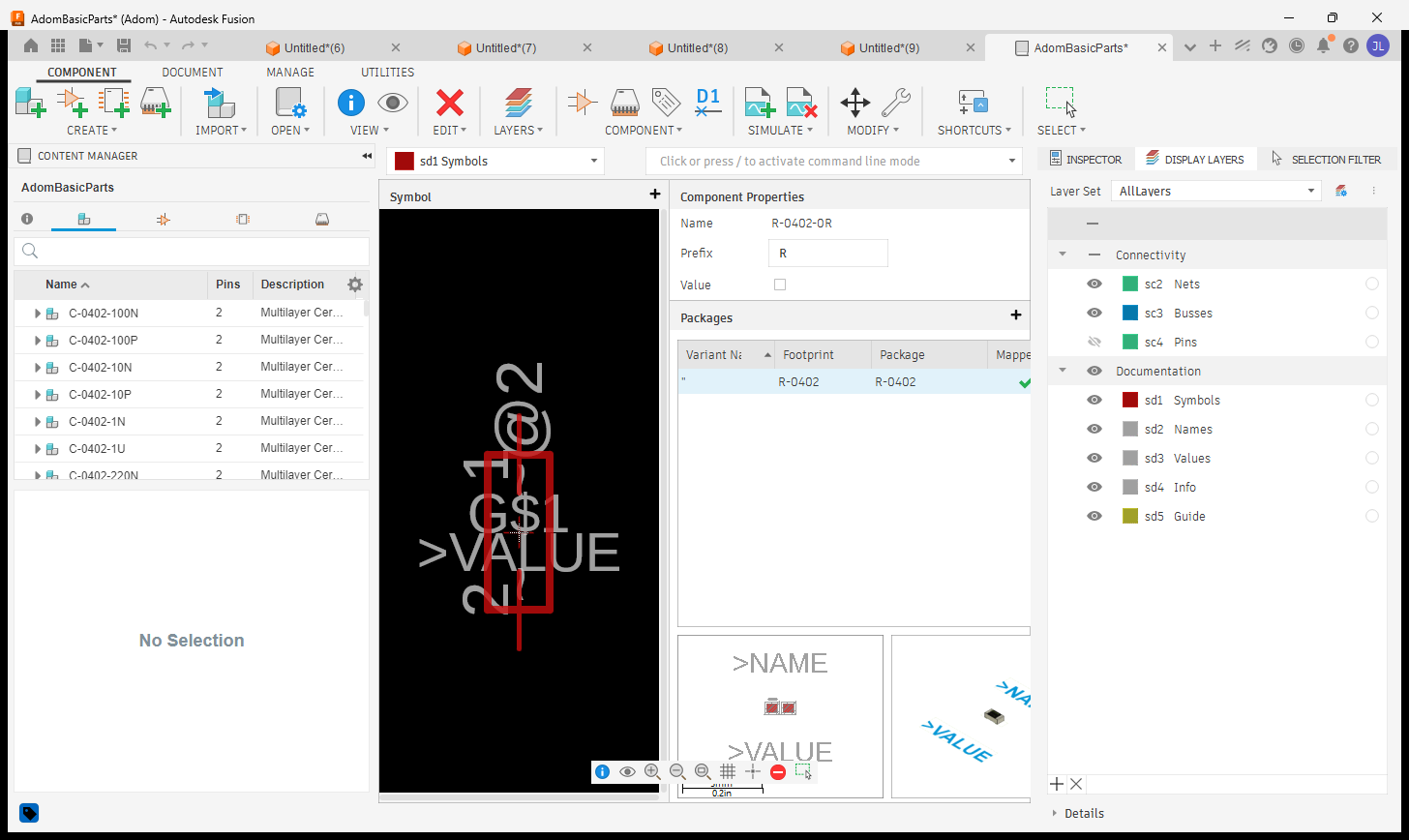
The bridge builds and opens full EAGLE-format component libraries in Fusion's library editor. Below:
the **entire Adom basic parts library** (138 parts - 0402/0603/0805 R/C/L, LEDs, and more) open in
the Content Manager: the component list, the R-0402 deviceset's schematic symbol, footprint + 3D
chip previews, and the footprint/package **Mapped** check EEs look for.
- `fusion_open_lbr` - open any `.lbr` in the library editor
- `fusion_build_library_3d` - build a whole RENDERING multi-part 3D library in one call
- `fusion_capture_library_views` - capture the symbol / footprint / component view per part
- Get the library: [adom-basic-parts-fusion-lbr](https://wiki.adom.inc/adom/adom-basic-parts-fusion-lbr)

## Generate IPC packages from parameters (ElectronicsPackageGenerator)
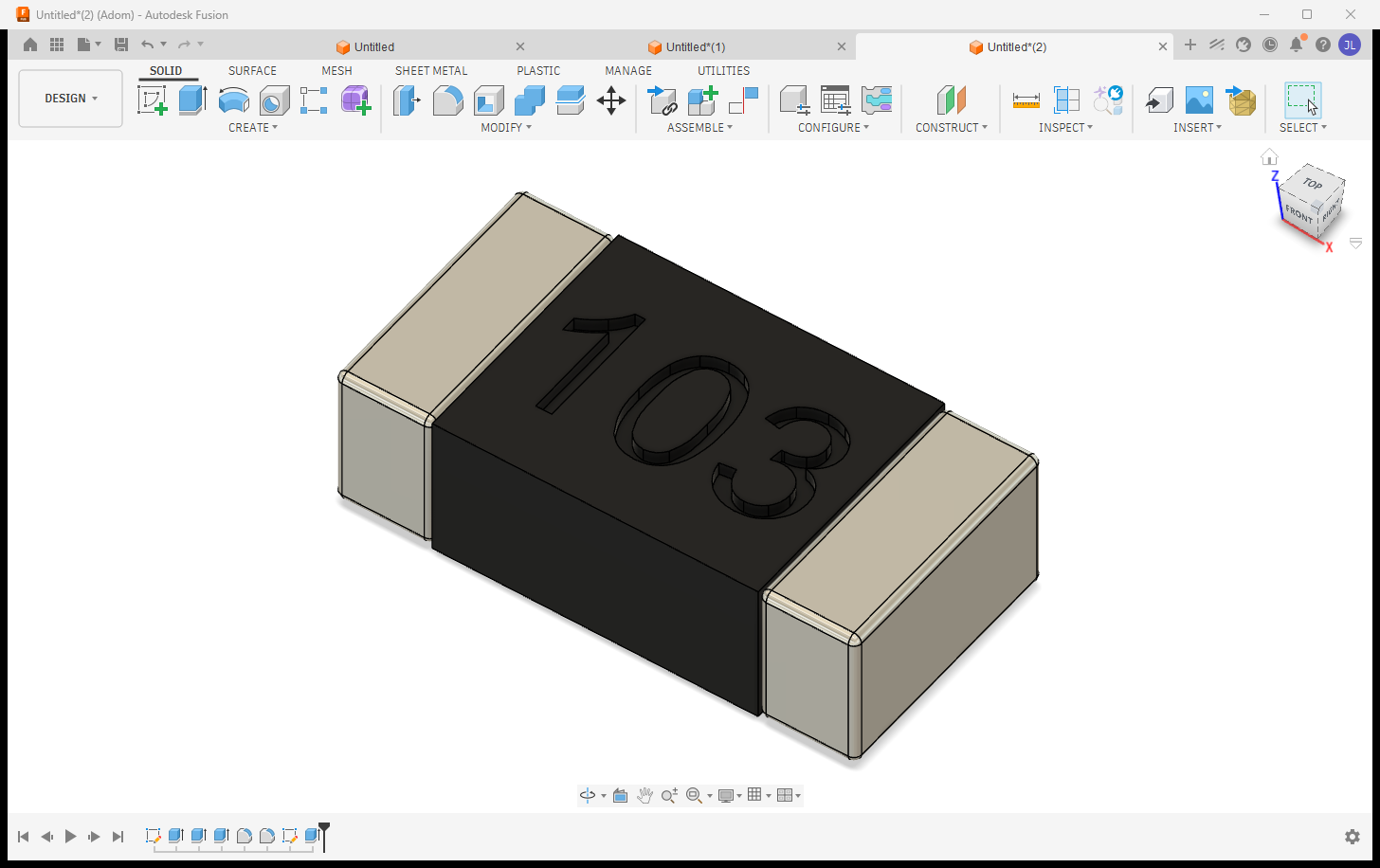
Fusion ships a built-in **ElectronicsPackageGenerator** add-in (~50 package families with IPC-7351B
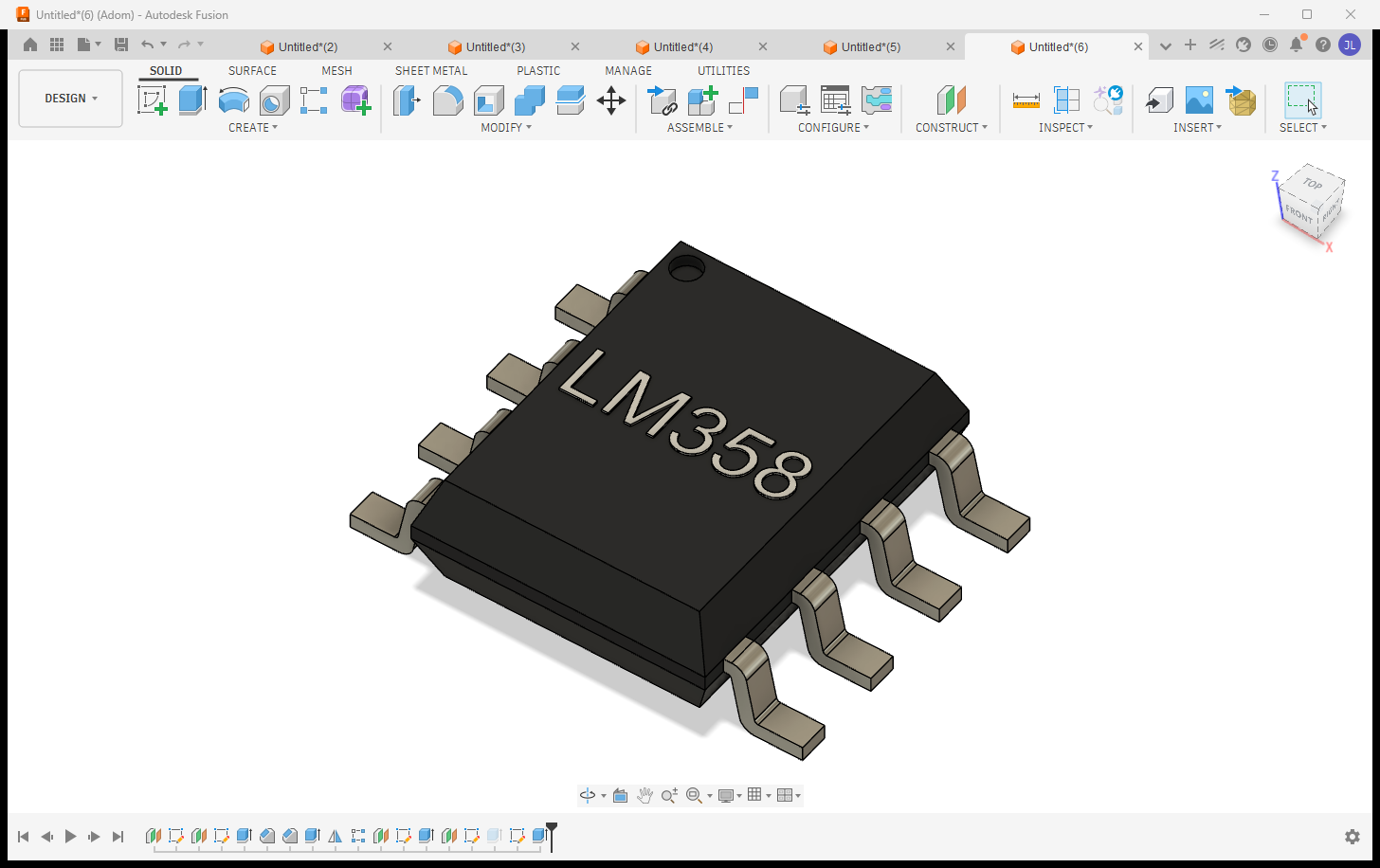
calculators). This bridge drives it **headlessly** via `fusion_generate_package`: parametric 3D
package + laser-etched marking + STEP export, in ONE call, a few seconds per part.
```bash
adom-desktop fusion_generate_package '{
"type": "soic",
"params": {"DPins": 8, "D": 4.9, "E": 6.0, "E1": 3.9, "e": 1.27, "A": 1.6, "A1": 0.1, "b": 0.41, "L": 0.84},
"etch": "LM358\nADOM-A",
"outputStep": "C:/tmp/ADOM-LM358-SOIC8.step"
}'
```
**Why this matters:** the output is OUR generated geometry from open IPC-7351B math - **no vendor
CAD licenses, no redistribution restrictions** - the royalty-free path to a complete component
library. Families: chip (0402/0603/0805...), soic, soj, sot23/143/223, son, qfn, qfp, plcc, bga,
dfn2/3/4, dip (+sockets), dpak, melf, molded, ecap, radial + axial passives, crystals (+HC49),
oscillators, headers (straight/right-angle, socket/SMD), standoffs, chip arrays, LEDs.
**Markings that read like real silkscreen:**
- **Raised WHITE text by default** (a thin positive extrude painted white - the contrast humans can
actually read; `etchStyle:"engraved"` for a sunken laser cut when a datasheet calls for it).
- The top surface is found from the **whole-chip bounding box**: only upward faces in the **top 5%
height band** count (terminals tie the body on height), then **largest area** wins.
- Text runs along the **longest axis** of the face (auto-rotated 90° when needed), with a **10%
margin ENFORCED by measuring** the placed text and shrink-to-fitting - never a font-metric guess.
- **Multi-line**: `"LM358\nADOM-A"` = MPN + variant, per-line auto-fit.
- A **sidecar manifest** (`.manifest.json`) records every setting picked + WHY + the
calculated bboxes, so a marking refresh (adding a variant line later) reproduces placement exactly.
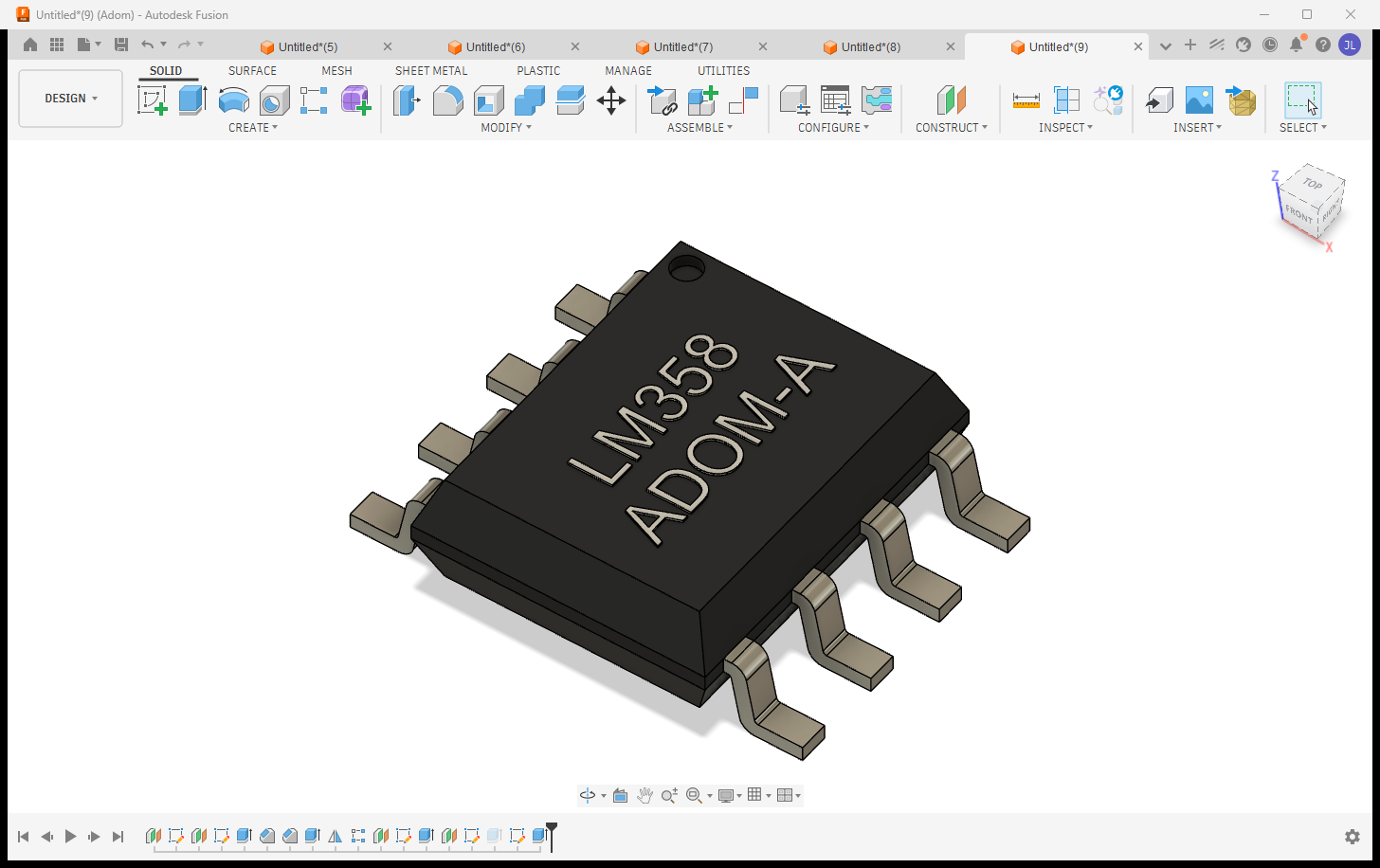
The exported STEP is **colored** (AP214): the white marking arrives white in KiCad's 3D viewer.
## Electronics boards: project -> schematic -> 2D board -> 3D board
A Fusion electronics design is a parent/child chain: the **PROJECT** file (open THIS) links the
schematic, the 2D board layout, and the generated 3D PCB. The bridge opens the project and switches
views on command - each `show_*` verb returns a screenshot array so the AI SEES what it switched to.
| View | Verb |
|---|---|
| Project (parent: schematic + 2D + 3D previews) | `fusion_open_cloud_file` / `fusion_aps_open` (the project file) |
| Schematic | `fusion_show_schematic` |
| 2D board layout | `fusion_show_2d_board` |
| 3D board | `fusion_show_3d_board` (orbitable via `fusion_run_modeling_script`) |
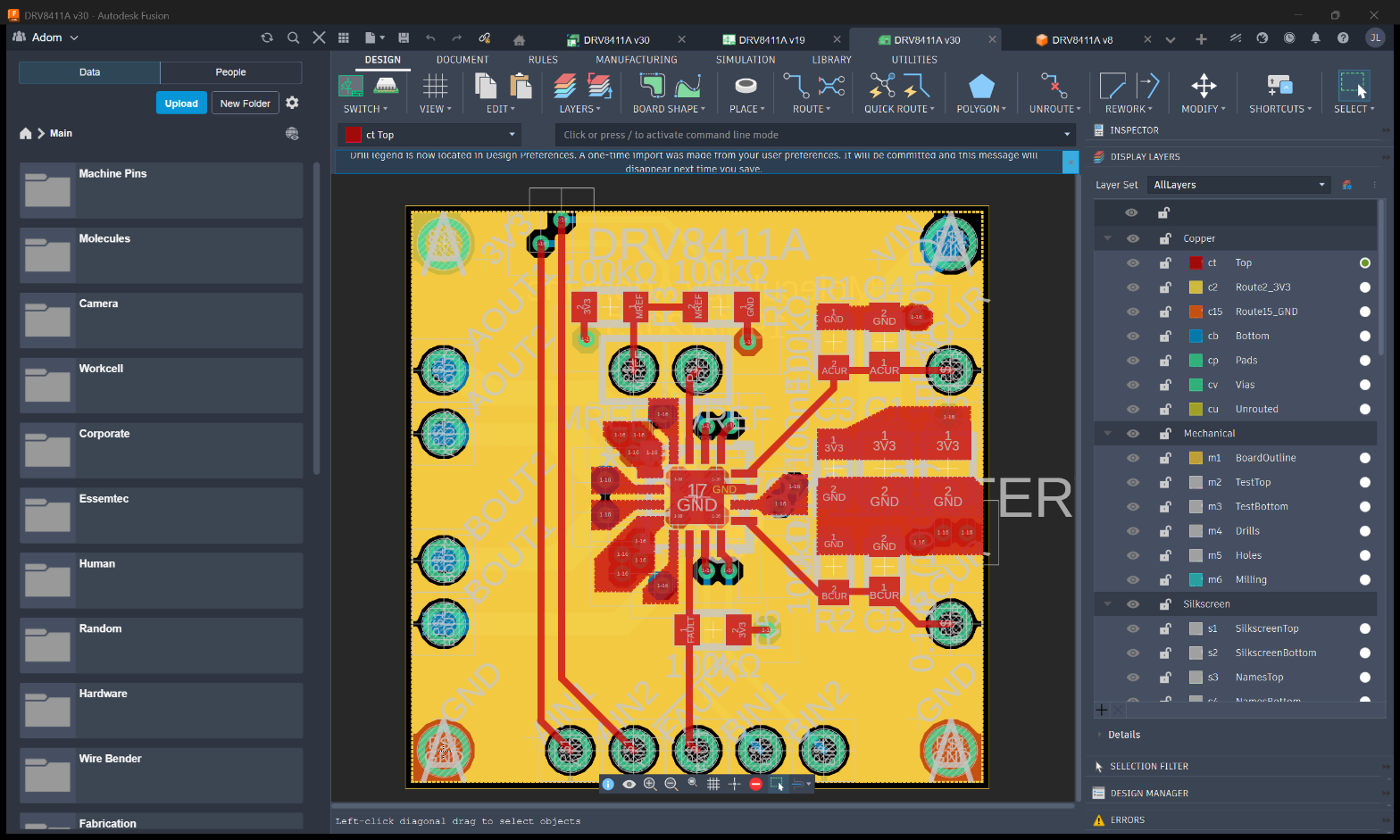
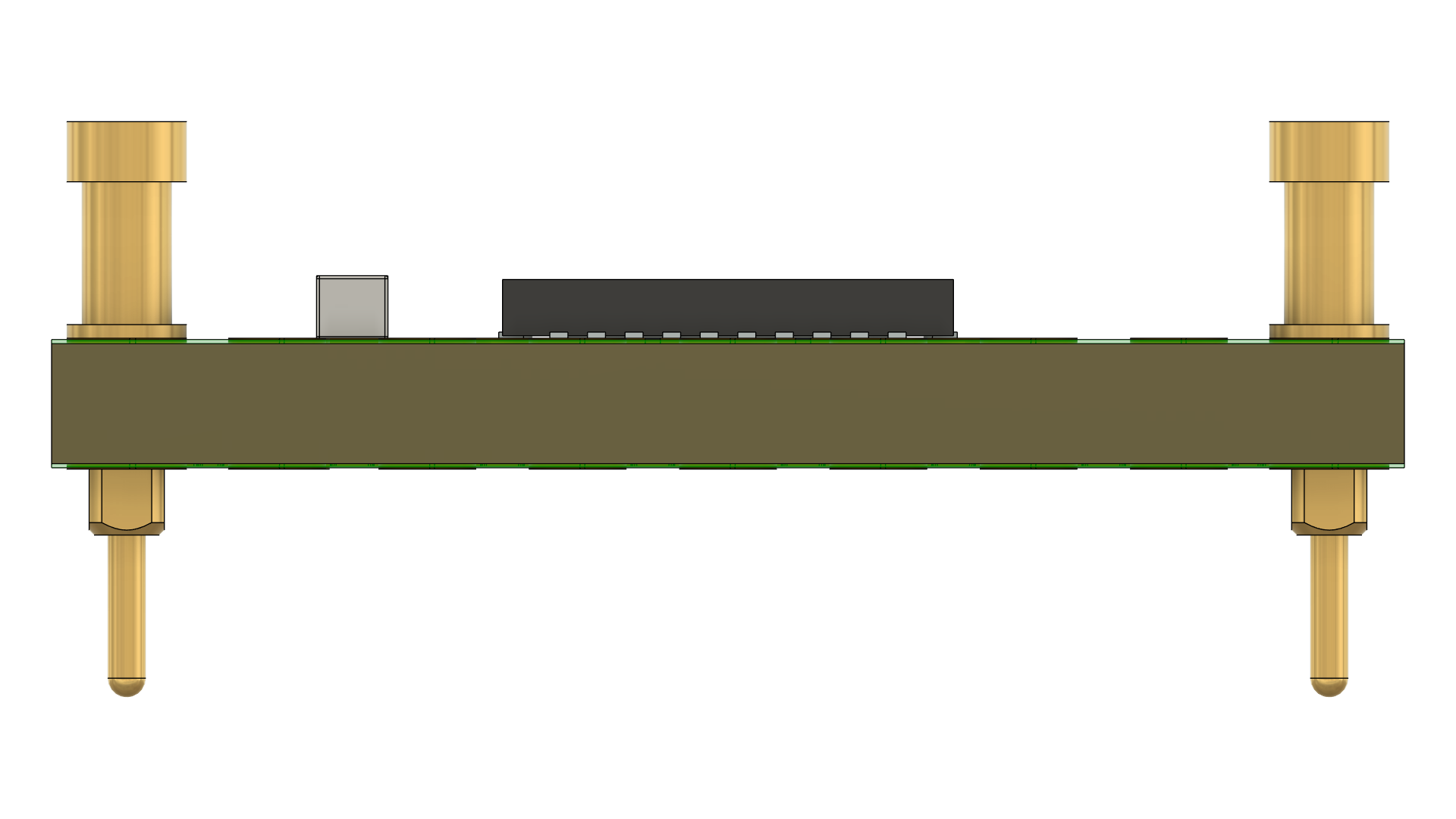
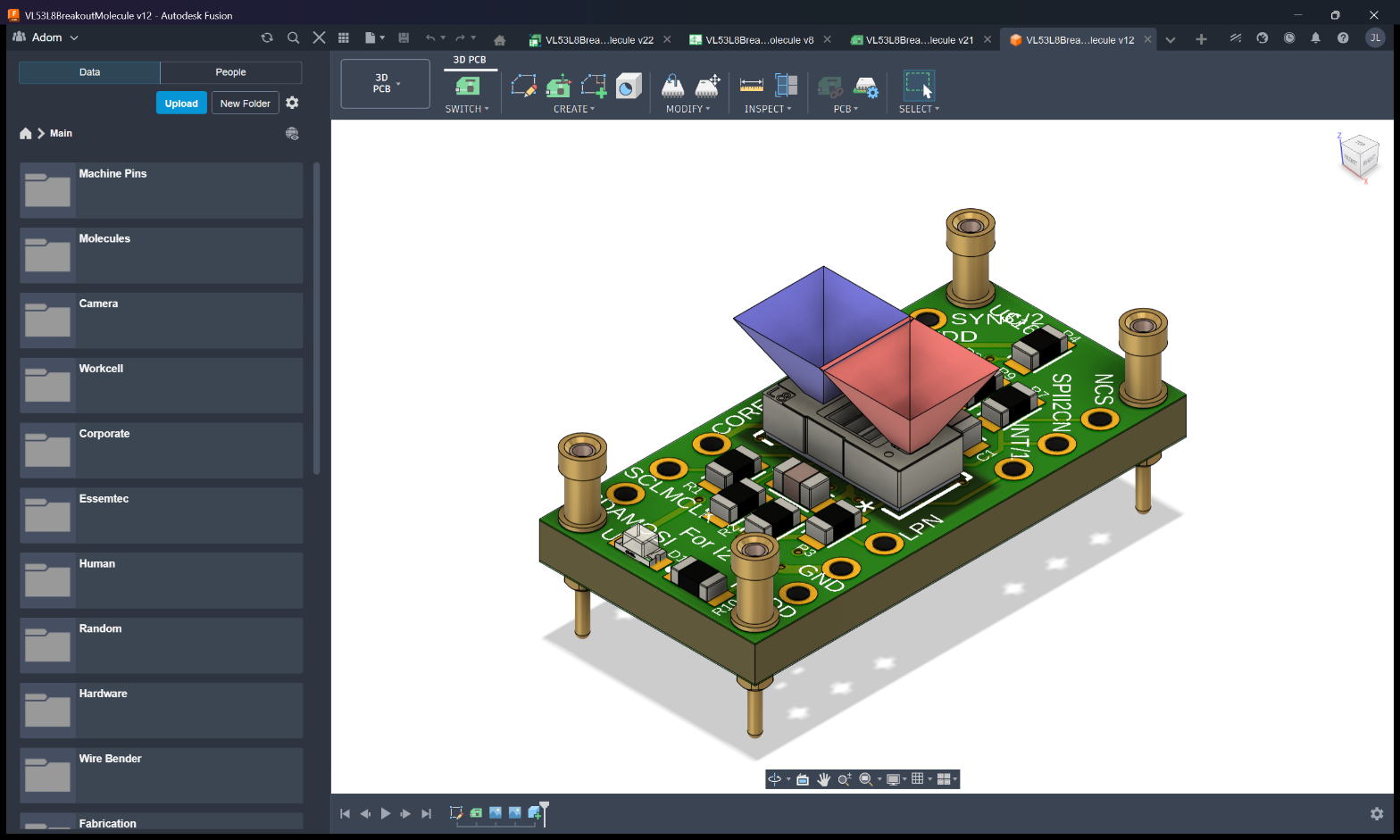
Real Adom boards driven through it - the DRV8411A copper layout in the 2D editor, and the TI
DRV8323SR + ST VL53L8 boards rendered as populated 3D PCBs:
Always open the PROJECT - opening a child (.brd / 3D) directly gives an isolated view. The open
verbs reprimand via `_hint` if you open a non-project file.
## Manufacturing exports: Gerbers, BOM, CPL
One verb each, straight from the open board:
```bash
adom-desktop fusion_export_gerbers '{"outputPath": "C:/tmp/gerbers"}' # JLCPCB-ready CAM job
adom-desktop fusion_export_bom '{"outputPath": "C:/tmp/bom.csv"}' # grouped by value+package
adom-desktop fusion_export_cpl '{"outputPath": "C:/tmp/cpl.csv"}' # pick-and-place centroids
```
Plus mechanical exports: STEP / IGES / STL / 3MF / USDZ / OBJ / DXF / DWG. Long exports return
promptly with `statusVerb: fusion_get_app_state` - the AI polls instead of blocking.
## Design rules per manufacturer (JLCPCB 2-layer, 4-layer, ...)
The bridge ships manufacturer rule files + CAM jobs in `resources/` and loads them into the open
board, so DRC matches what the fab actually checks:
```bash
adom-desktop fusion_load_design_rules '{"ruleFile": "JLCPCB-2layer.dru"}'
adom-desktop fusion_set_design_rules '{"rules": {"minClearance": 0.127}}' # ad-hoc tweaks
```
Included: JLCPCB 2-layer + 4-layer DRU rules, the matching Gerber CAM jobs (used by
`fusion_export_gerbers`), and Adom's house rules.
## How the bridge talks to Fusion (architecture)
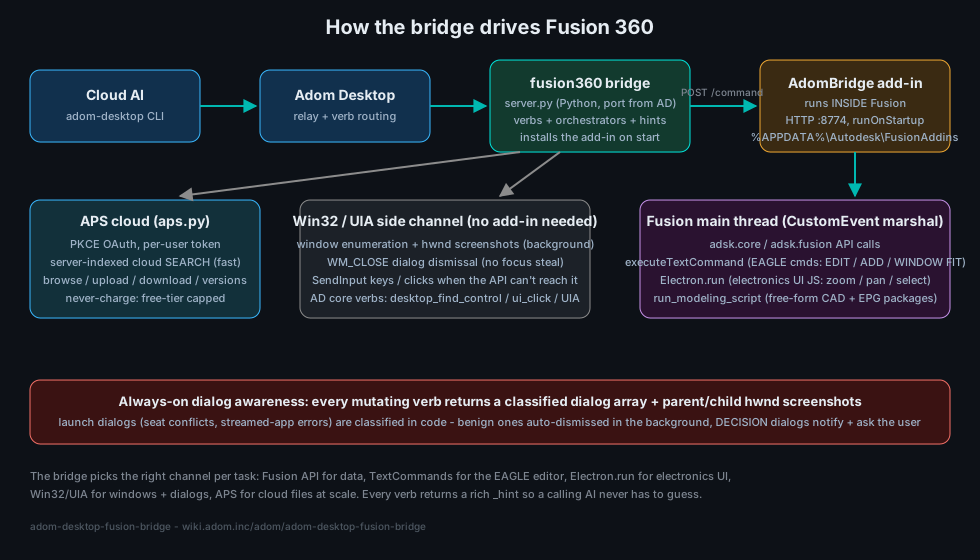
The bridge picks the right channel per task:
1. **Python bridge server** (`server.py`) - spawned by Adom Desktop, receives every `fusion_*` verb.
2. **AdomBridge add-in** - installed BY the bridge into every Fusion add-in location
(`%APPDATA%\Autodesk\FusionAddins` on 2025+ Fusion, plus the legacy `API\AddIns` dirs - Fusion
moved this across versions and silently ignores the others). It serves HTTP :8774 inside Fusion
and marshals work onto Fusion's single main thread via CustomEvent.
3. **In-Fusion channels**: the `adsk` Python API for data/geometry, `executeTextCommand` for EAGLE
editor commands (EDIT / ADD / WINDOW FIT), `Electron.run` for electronics-UI JS
(zoom/pan/select), and `run_modeling_script` for free-form CAD (this is how EPG packages and
laser markings are generated).
4. **Win32 / UIA side channel** - when the API can't reach it: background hwnd screenshots, WM_CLOSE
dialog dismissal (no focus steal), SendInput keys/clicks, and AD core verbs
(`desktop_find_control` / `desktop_ui_click`).
5. **APS cloud** (`aps.py`) - fast server-indexed search + file ops at scale (below).
## Dialog awareness: parent/child screenshots (the automation breakthrough)
Fusion's classic failure mode is a **modal dialog** (save prompt, recovery, licensing) silently
blocking the add-in's main thread while the caller sees only a fake "not responding". The
breakthrough: Adom Desktop's window capture returns a window's **owned child popups** - dialogs that
don't even enumerate in a normal window list - so every mutating verb returns a **classified dialog
array + screenshots** and the AI can never fly blind past one.
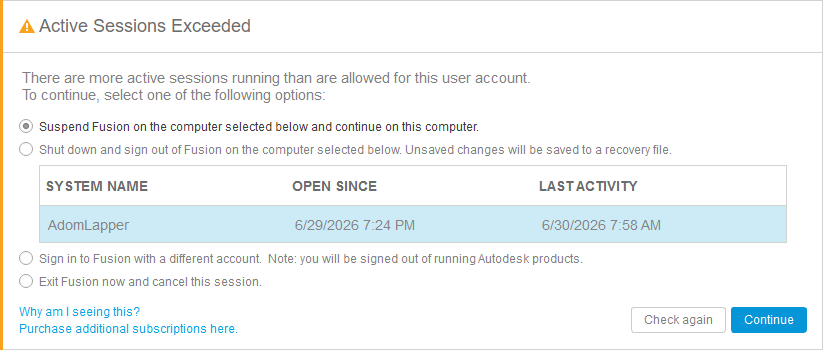
- Benign launch errors (an incomplete webdeploy folder) are **auto-dismissed in the background**
(WM_CLOSE - never a focus-stealing Escape).
- DECISION dialogs - like the seat conflict above, whose options suspend Fusion on the user's OTHER
machine - are **never auto-picked**: the bridge returns `needsUserDecision:true` and the AI
notifies + asks the user.
- `fusion_check_dialogs` polls the dialog array on demand; `fusion_dismiss_blocking_dialogs` clears
the known-safe ones.
## Fast cloud search + file management (APS) - the ONLY cloud-search path
`fusion_aps_search` finds any design in the team's Fusion cloud in **~2 seconds** (server-indexed),
plus browse / recent / file-info / versions / upload / download / folder creation, and
`fusion_aps_open` opens any design by name at any folder depth.
### Why APS (and why the old in-app search is now DISABLED)
Autodesk offers **no fast file-search API** for Fusion. The only in-app option walks the cloud
folder tree from the add-in, which takes **30+ minutes** and can **crash Fusion** (WinError 10054).
We searched far and wide; **APS (Autodesk Platform Services) Data Management is the only thing
Autodesk offers that actually works.** So as of **v1.6.76** the old verbs
(`fusion_search_cloud_files`, `fusion_walk_cloud_tree`) are hard-disabled in code - they return
an error that redirects to APS and can no longer reach (or crash) Fusion. There is no fallback;
APS is the path. It costs a one-time OAuth sign-in, and once set up it is fast and stays signed in.
### Authentication (one-time, then silent)
APS uses Autodesk's official OAuth (PKCE). Setup is **once per company** (an admin registers the
APS app, `fusion_aps_set_client_id`), then **each user signs in once** (`fusion_aps_signin`);
tokens refresh silently afterward. Per-org by design: each company uses its own APS app and quota.
**You are never charged** - the bridge caps all calls to Autodesk's free tier.
The bridge **checks APS state in code on every cloud call** (`_aps_guarded`) and returns a rich,
self-teaching `_hint` (is it configured? signed in? token live? the full verb list, and the exact
next step) so the AI is never stuck on an opaque auth error.
### Best sign-in: your NATIVE Chrome/Edge via ABE (adom-browser-extension)
Autodesk's email OTP / 2FA and "which profile is signed in" headaches vanish if the AI drives the
browser you're **already logged into Autodesk** with. That is what **ABE
([adom-browser-extension](https://wiki.adom.inc/adom/adom-browser-extension))** provides. If ABE
isn't installed, the AI will walk you through the one-time install, then open the Autodesk auth URL
in your real profile and capture the token - **no password typing**. Fallback:
`fusion_aps_signin {allowDefaultBrowser:true}` (OS default browser).
### APS verbs
| Verb | Does |
|---|---|
| `fusion_aps_status` | configured? signed in? token live? + never-charge meter |
| `fusion_aps_signin` | one-time OAuth sign-in (prefer ABE native browser) |
| `fusion_aps_search {query}` | server-indexed name search across the whole team hub |
| `fusion_aps_open {query}` | find + open a design in Fusion, any folder depth |
| `fusion_aps_browse` / `fusion_aps_recent` | walk hubs/projects/folders, newest-modified designs |
| `fusion_aps_file_info` / `fusion_aps_versions` | version history / who / when / size |
| `fusion_aps_download` / `fusion_aps_upload` | pull/push a cloud file (no Fusion needed) |
| `fusion_aps_create_folder` | make a subfolder (never dump loose files in a shared root) |
| `fusion_aps_set_browser` / `get_browser` / `forget_browser` | remember the native browser+profile |
| `fusion_aps_set_client_id` | set the org's PKCE client id (once per company) |
| ~~`fusion_search_cloud_files`~~ / ~~`fusion_walk_cloud_tree`~~ | DISABLED (crashed Fusion) - use `fusion_aps_search` |
**Cloud hygiene:** the bridge NEVER writes to a shared project root - uploads default to an
**Adom AI Workspace** folder with per-task subfolders, and `fusion_cleanup_cloud_files` deletes
precisely by lineage URN (never by name).
## Installing Fusion for the user (or finding theirs)
The AI does the whole setup - the user never gets handed a download link:
- **Detection first:** AD detects an existing Fusion via this bridge's `detect` paths - per-user
(`%LOCALAPPDATA%`) AND system-wide (`%ProgramFiles%`, from `--globalinstall`) webdeploy installs.
`fusion_readiness` / AD's `bridge_readiness` answer installed/running/ready without launching
anything.
- **AI-driven install:** if Fusion is absent, the AI OFFERS to install it and does it on a yes - the
fusion-onboarding skill silent-installs the **free trial / personal-use tier** (plenty for viewing
and real work), drives the Autodesk sign-in (the user types only their own credentials/2FA), and
deploys the add-in. A **view-only trial** install is a first-class option for users who just need
to open and inspect designs.
- **Never a manual step:** the bridge restarts Fusion itself (`fusion_stop`/`fusion_start`),
installs the add-in to every add-in directory Fusion has ever used, and fires an AD toast the
moment a step genuinely needs the user (sign-in, 2FA, license acceptance).
## Full verb catalog
All verbs return a rich `_hint`. `fusion_describe '{}'` is the machine-readable source of truth; this table is generated from it.
_55 verbs._
**Lifecycle**
- `fusion_start` - Launch Fusion 360 (if needed) and wait for the AdomBridge add-in to be ready.
- `fusion_stop` - Gracefully STOP Fusion 360: close docs cleanly + WM_CLOSE, then wait
- `fusion_kill` - Force-KILL Fusion 360 (taskkill /F) - the desperate path for when fusion_stop cannot close it (stuck modal / wedged proc
- `fusion_close_window` - Close the active Fusion document/window.
- `fusion_get_app_state` - Current app state: running, active document, workspace, isElectronics
- `fusion_readiness` - FAST readiness check (does NOT launch Fusion): is the Fusion host app installed + running + the bridge ready to drive? A
- `fusion_new_electronics_from_eagle` - Import a legacy EAGLE .sch (+ paired .brd) into a NEW Fusion electronics design so the parts INSTANTIATE (schematic + po
- `fusion_notify_owner` - LAST-RESORT human escalation: toast the user's MAIN computer (fans out cross-AD to every peer on the relay, so it reache
**Cloud search & files (APS)**
- `fusion_aps_status` - APS state: configured, signed in, token live, never-charge meter.
- `fusion_aps_set_client_id` - Set the org's APS (PKCE) client id used for cloud search.
- `fusion_aps_signin` - Open the Autodesk sign-in in the REMEMBERED browser+profile (not the OS default); a background listener captures the tok
- `fusion_aps_set_browser` - Remember the browser+profile that authed to Autodesk so every later sign-in reuses it (power users have many browsers/pr
- `fusion_aps_get_browser` - Show the remembered Autodesk sign-in browser (None until set).
- `fusion_aps_forget_browser` - Forget the remembered Autodesk sign-in browser (re-detect next time).
- `fusion_aps_search` - Server-indexed search across the whole team hub (seconds, not a 30-min folder walk).
- `fusion_aps_open` - Find a cloud design by name and open it in Fusion (any folder depth)
- `fusion_open_by_urn` - Open a cloud ELECTRONICS DESIGN by URN
- `fusion_aps_browse` - Browse hubs/projects/folders without launching Fusion.
- `fusion_aps_recent` - Most-recently-modified designs across the team hub, newest first.
- `fusion_aps_file_info` - Version history + who/when/size for a file (tip + recent versions).
- `fusion_aps_versions` - Full (uncapped) version history of a file.
- `fusion_aps_download` - Download a cloud file to the local machine (no Fusion needed).
- `fusion_aps_upload` - Upload a local file as a NEW cloud file (free Data Management; needs data:write scope)
- `fusion_aps_create_folder` - Create a subfolder in a project (free; needs data:create scope)
- `fusion_aps_get` - Raw authenticated GET against a free APS path (dev/verify helper).
- ~~`fusion_walk_cloud_tree`~~ - DISABLED (returns an error): the in-app add-in walk took 30+ min and CRASHED Fusion (WinError 10054)
- ~~`fusion_search_cloud_files`~~ - DISABLED (returns an error): the in-app add-in search took 30+ min and CRASHED Fusion (WinError 10054)
**Electronics**
- `fusion_show_schematic` - Switch the OPEN electronics design to its SCHEMATIC view (the symmetric partner of fusion_show_2d_board / fusion_show_3d
- `fusion_show_2d_board` - Switch the OPEN electronics design to its 2D PCB Editor (board layout) view
- `fusion_show_3d_board` - Switch the OPEN electronics design to its 3D PCB view (populated board)
- `fusion_board_info` - Raw board geometry XML (copper/arcs/lines) for the open board.
- `fusion_open_lbr` - Import an EAGLE .lbr library into Fusion's Electronics LIBRARY editor (Content Manager / Electronics Library workspace),
- `fusion_attach_3d_package` - Attach a real 3D chip model to a library package, end to end: opens the .lbr (library active), runs Electron.Create3DPac
- `fusion_install_fusion` - Install Fusion 360 FOR the user - downloads Autodesk's official Client Downloader and streams the free trial silently, w
- `fusion_generate_package` - Generate an IPC-7351-compliant parametric 3D package via Fusion's BUILT-IN ElectronicsPackageGenerator (EPG) - ~50 packa
- `fusion_make_3d_package` - Create a RENDERING component 3D package (FOOTPRINT + chip, aligned) for ONE part, fully programmatically with ZERO GUI d
- `fusion_build_library_3d` - Build a RENDERING multi-part 3D library in ONE call - the whole programmatic pipeline
- `fusion_capture_library_views` - Capture the LIBRARY-EDITOR views EEs trust: the schematic SYMBOL (full pinout), the FOOTPRINT (pads + layer stack), and
- `fusion_cleanup_cloud_files` - PRECISELY delete a list of cloud files by lineage urn - SAFE cleanup of AI-created clutter
- `fusion_run_modeling_script` - Run an adsk.fusion modeling script in the live session (sketches/extrudes/params)
- `fusion_set_preference` - Set Fusion appearance/navigation preferences in the LIVE session - applies immediately, NO restart
- `fusion_get_preferences` - Read current Fusion appearance/navigation preferences (theme, activeTheme, invertScrollZoom, orbitScheme, modelingOrient
**CAD & 3D export**
- `fusion_export_step` - Export the active design to STEP (needs the 3D view).
**Manufacturing**
- `fusion_export_gerbers` - Run the bundled JLCPCB CAM job (auto 2/4-layer) to produce the gerber + drill ZIP.
- `fusion_export_bom` - Export a Bill of Materials CSV (grouped by value+package) from the open board.
- `fusion_export_cpl` - Export the Component Placement List (pick-and-place) CSV.
- `fusion_set_design_rules` - Load manufacturing-grade DRC into the open board (JLCPCB 2/4-layer profiles).
- `fusion_load_design_rules` - Load a bundled .edru design-rule set into the board.
- `fusion_detect_layers` - Detect 2-layer vs 4-layer board (ULP + CAM comparison).
- `fusion_dismiss_blocking_dialogs` - Detect + classify (and optionally dismiss) blocking Fusion dialogs.
- `fusion_electron_run` - Run an EAGLE/Electron command in the open board (the generic extension point, e.g
- `fusion_electron_zoom` - Smoothly ZOOM the schematic/2D board for a recording (the whole motion is one call)
- `fusion_electron_pan` - Smoothly PAN + zoom the view to frame a board-coordinate box (mm; get part positions from fusion_board_info)
- `fusion_electron_select` - SELECT a part (by reference designator, or x/y board mm) and surface its properties - the way clicking a part reveals th
**Self**
- `fusion_describe` - Self-describe every verb the bridge exposes (this list) for AD's Verbs tab + runner.
## Two install layers (they are NOT the same thing)
This page ships **two separate artifacts**, and it matters which one you want:
| Layer | What it is | Who installs it | Contents | Size |
|---|---|---|---|---|
| **Wiki package** (`adom-wiki pkg install adom/adom-desktop-fusion-bridge`) | **SKILLS ONLY** for a container's AI | your cloud/HD container | `SKILL.md` + `skills/**` (the AI playbooks: APS, driving, onboarding, cloud hygiene, molecule export, PCB stackup) | tiny, text |
| **Release zip** (`adom-bridge-fusion-v.zip`, pointed at by `adom-bridge-fusion-manifest.json`) | the **bridge RUNTIME** | Adom Desktop, via `bridge_install` | `server.py`, `aps.py`, `describe.py`, `handlers/`, the `AdomBridge` Fusion add-in, `resources/` | ~456 KB |
The package teaches your AI **how** to drive Fusion; the release zip is the code Adom Desktop actually
runs on the machine where Fusion lives. Installing the package alone gives you skills with no bridge;
`bridge_install` alone gives you a working bridge whose calling AI has no skills. Most setups want both.
The release zip is deliberately **runtime-only**: demo videos and screenshots live on this page (Files
tab), never inside the artifact streamed to every user's machine.
## Install (via Adom Desktop)
```bash
adom-desktop bridge_install '{"manifestUrl": "https://wiki.adom.inc/api/v1/pages/adom-desktop-fusion-bridge/files/adom-bridge-fusion-manifest.json"}'
adom-wiki pkg install adom/adom-desktop-fusion-bridge # the skills pack for your AI
```
Auto-updates via `updateManifestUrl` (AD polls on launch + every 4h). 55 verbs -
`fusion_describe '{}'` returns the full machine-readable catalog. More demos:
## Source code
The full source lives on this page (Files tab): `server.py`, `aps.py`, the AdomBridge add-in,
`describe.py`, handlers, skills, and manufacturer resources. GitHub mirror:
`adom-inc/adom-desktop-fusion-bridge` (the wiki is canonical). MIT licensed.
## Platforms
Windows (primary, tested end to end). macOS install paths handled in `fusion_detect.py`. Linux: not
supported (Autodesk ships no Fusion host app for Linux).
## Contributing
Open a discussion on this page - bug reports with a repro (like
[#55](https://wiki.adom.inc/adom/adom-desktop-fusion-bridge/discussions/55) and
[#63](https://wiki.adom.inc/adom/adom-desktop-fusion-bridge/discussions/63), both root-caused and
fixed) directly shape releases.